


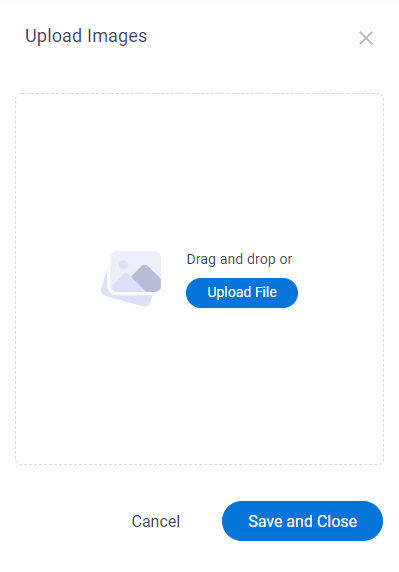
Upload Images screen
Uploads image files to customize your app.
Prerequisites
- AgilePoint NX OnDemand (public cloud), or AgilePoint NX PrivateCloud or AgilePoint NX OnPremises v8.0 or higher.
How to Start
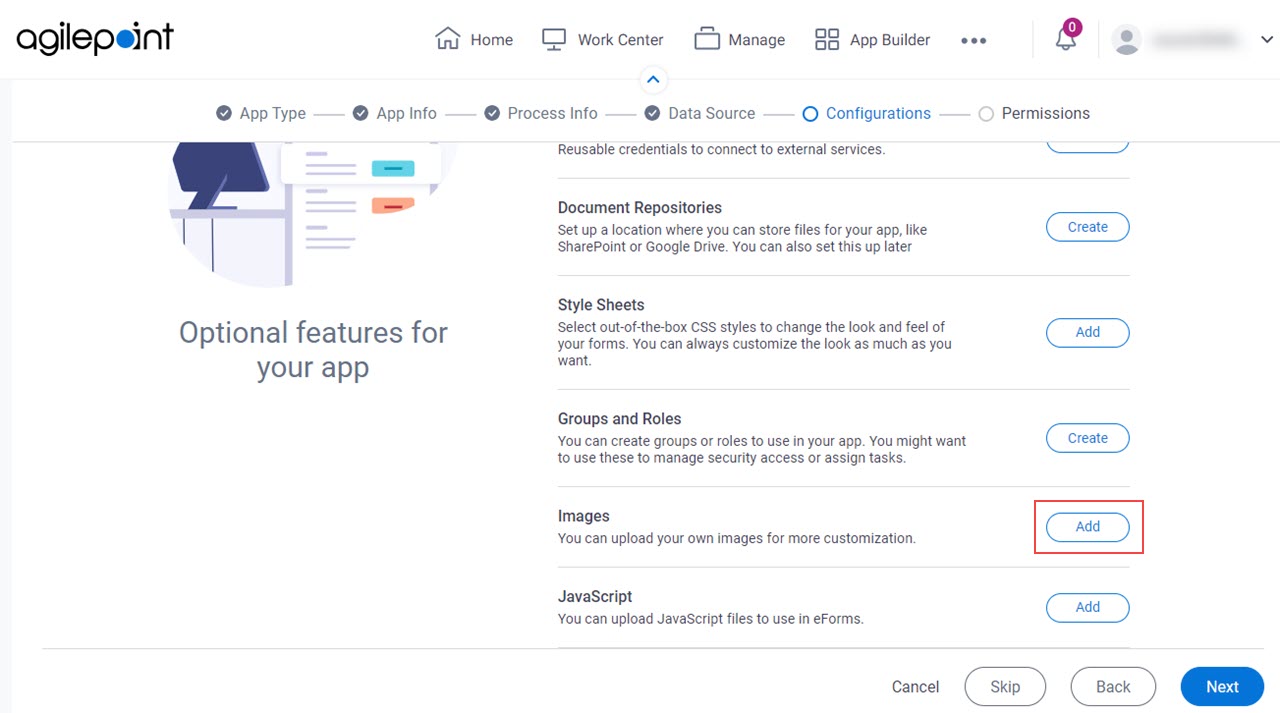
- In App Builder, in the Modern Add an App Experience, create a process-based app.
For more information, refer to Modern Add An App Experience (Process-Based App).
- On the Anything else right now? screen, in the Images field,
click Add.
Fields
| Field Name | Definition |
|---|---|
Upload File |
|
Cancel |
|
|
Save and Close |
|