
Take Assignment And Complete Task screen (Microsoft 365)

Assigns the task to you and completes it in SharePoint for Microsoft 365.
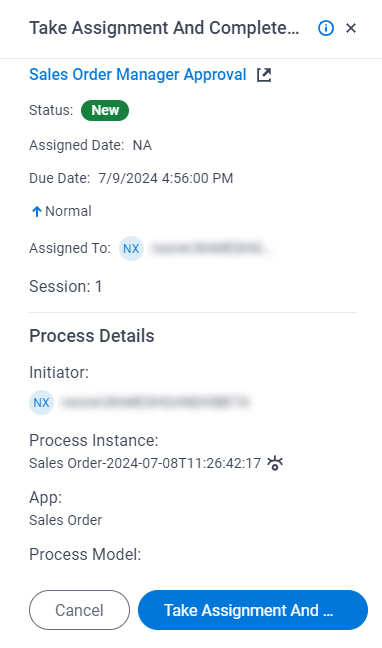
Figure 1. Take Assignment And Complete Task screen

Take Assignment And Complete Task screen

Prerequisites

Good to Know

  • On the Properties for Human Task Activities screen, in the Advanced tab, the value for the Wait Work Performed property must be set to False.

    For more information, refer to Properties - Human Tasks Activity screen.

  • Documentation for this screen is provided for completeness. The fields are mostly self-explanatory.

How to Start

  1. In SharePoint for Microsoft 365, open the AgilePoint Work Center web part.
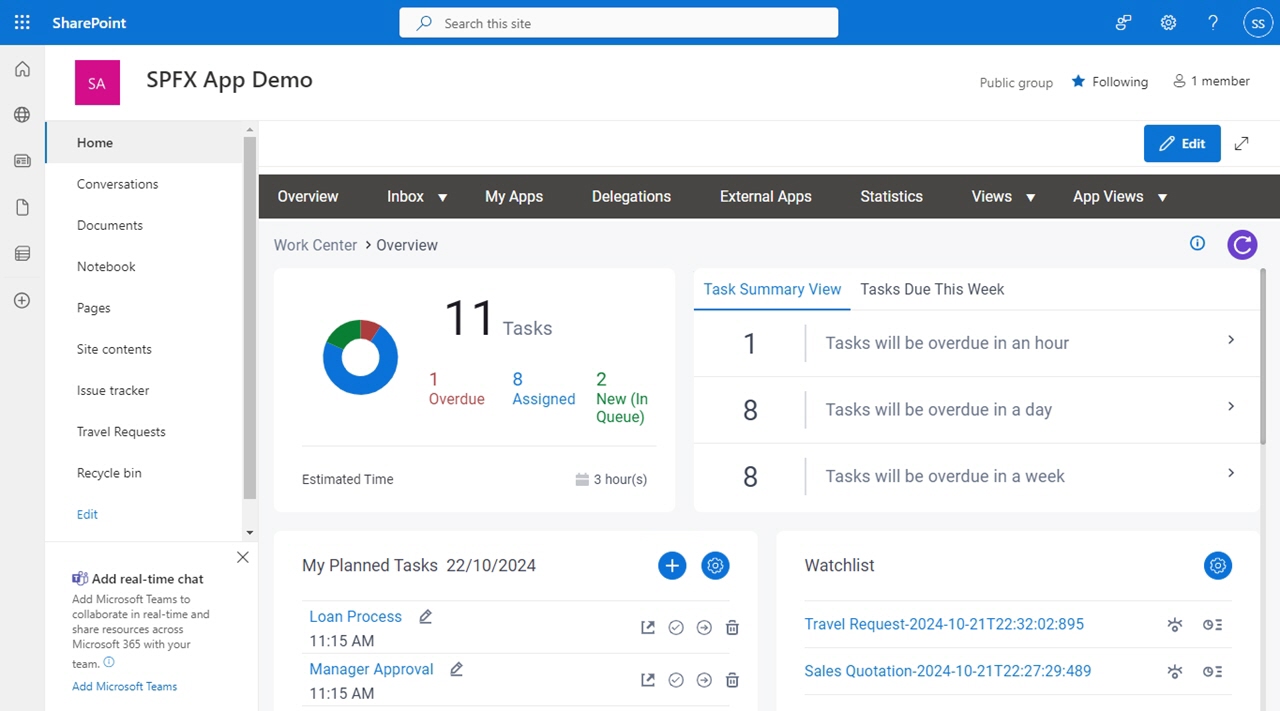
    Shows AgilePoint Nx Portal
  2. In the AgilePoint Work Center web part, click Inbox > Tasks.
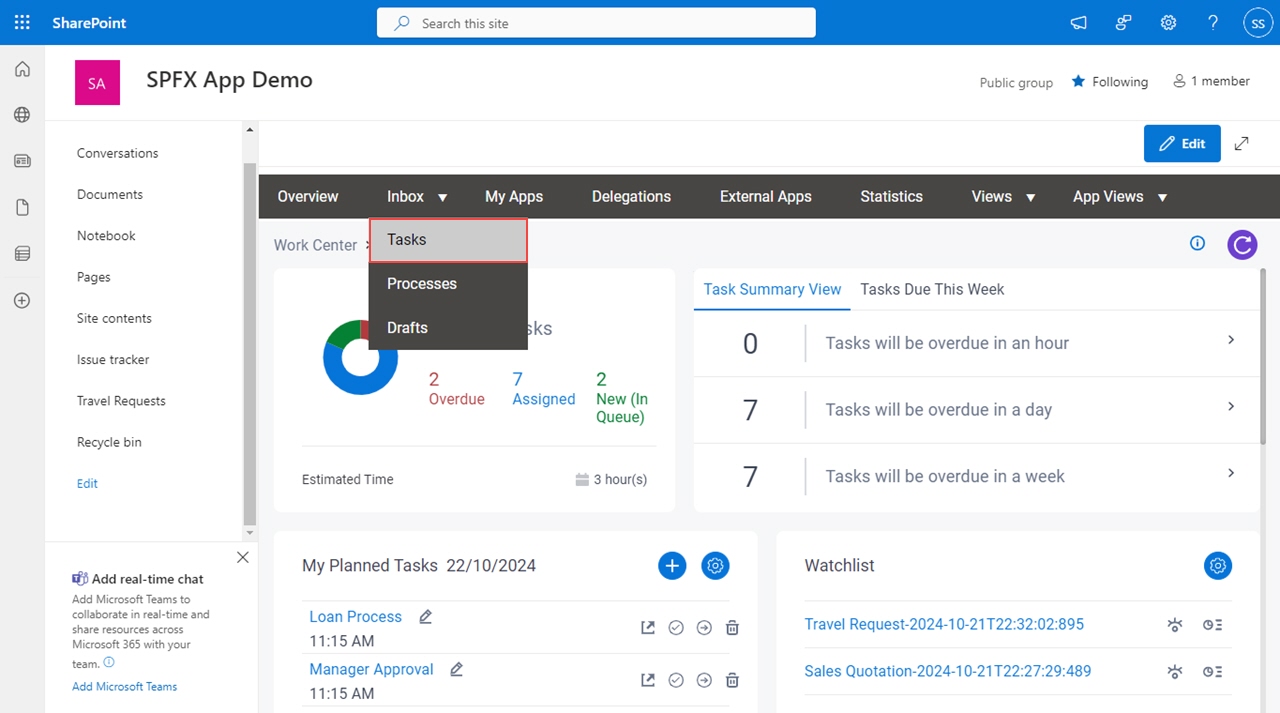
    Click Inbox Tasks
  3. On the task list, click Ellipses (...) > Take Assignment And Complete Task.
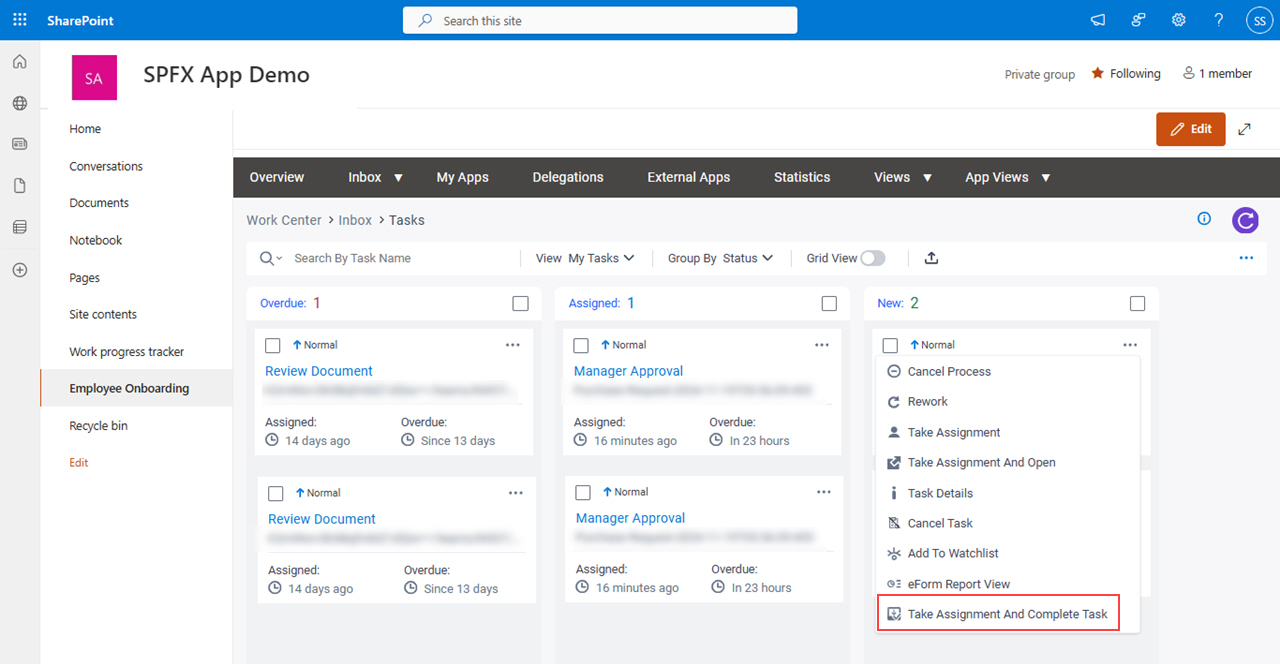
    Click Take Assignment And Complete Task

Fields

Field NameDefinition
Open Task Open Task icon
Description:
Opens the form for the specified task.

Status

Description:
Shows the status of the task.
Allowed Values:
Read only.

The status can be one of these:

  • New - Specifies a task that is New.
  • Assigned - Specifies a task that is Assigned.
  • Overdue - Specifies a task that is Overdue.

Assigned Date

Description:
Shows the date and time the task was assigned to the participant.
Allowed Values:
Read only.

Due Date

Description:
Shows the date and time the task is due to be completed.
Allowed Values:
Read only.

Priority

Description:
Specifies the importance of a task.
To Open this Field:
  1. Click Edit Edit icon.
Allowed Values:
  • Normal - Specifies a normal priority task.
  • Low - Specifies a low priority task.
  • High - Specifies a high priority task.
Default Value:
Different for different tasks.

Assigned To

Description:
Shows the participant assigned to the task.
Allowed Values:
Read only.

Session

Description:
Shows the number of sessions the activity has Completed.
Allowed Values:
Read only.

Initiator

Description:
Shows the name of the user who started the process.
Allowed Values:
Read only.

Process Instance

Description:
Shows the process instance name.
Allowed Values:
Read only.
View Process View Process icon
Description:
Opens the Process Viewer that shows the current status of the process.

For more information, refer to Process Viewer screen.

App

Description:
Shows the name of the app.
Allowed Values:
Read only.

Process Model

Description:
Shows the name of the process model.
Allowed Values:
Read only.

Description

Description:
Shows the description for the task.
Allowed Values:
Read only.
Take Assignment And Complete Task
Function:
Assigns the selected task to you and completes it.