
Configure Your Form (Create a Form Myself, SharePoint)

Configures a SharePoint as the data source for the app, and creates the form based on a SharePoint list.

Background and Setup

Good to Know

  • After you create a form-based app, you cannot change the app to use a different data source. For example, you can not change a form-based app to use a different entity or SharePoint list than the one specified when the app was created. This limitation also applies to cloned apps. That is, you cannot clone a form-based app, and then change the data source in the cloned app.
  • Once configured, the primary data source in a data source bound app cannot be deleted. Deleting the primary data source can lead to unexpected behavior or errors in your app because it is the main source of data for the app.
  • When you create a form-based app, these forms are created:
    • New form
    • Update form
    • 3 types of View form:
      • All Records - Shows all the records created for the form-based app.
      • Recently Created Records - Shows the records created for the form-based app in the last 7 days.
      • Recently Modified Records - Shows the records changed for the form-based app in the last 7 days.

      A lookup is created for each view form.

How to Start

  1. Create an app.

    For more information, refer to Create an app.

  2. On the Do you want AI to create your form? screen, click Create Form Myself.
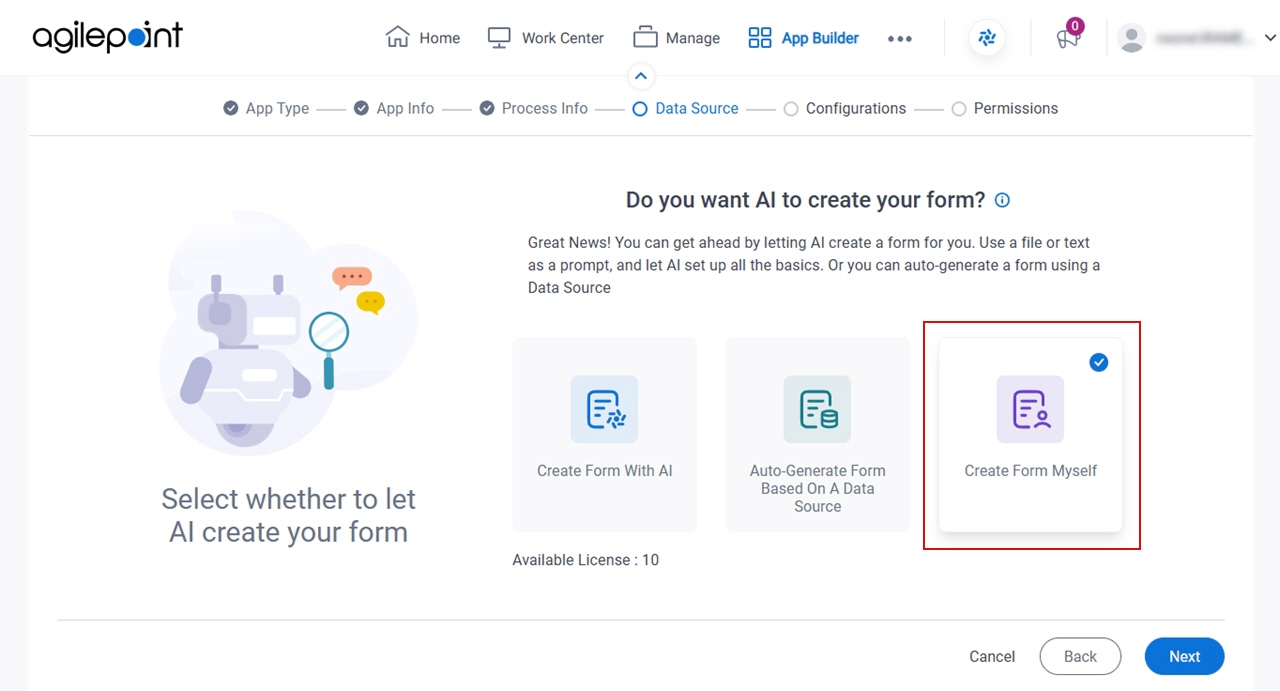
    Click Create Form Myself
  3. Click Next.
  4. On the Where do you want to store the data for your app? screen, click SharePoint.
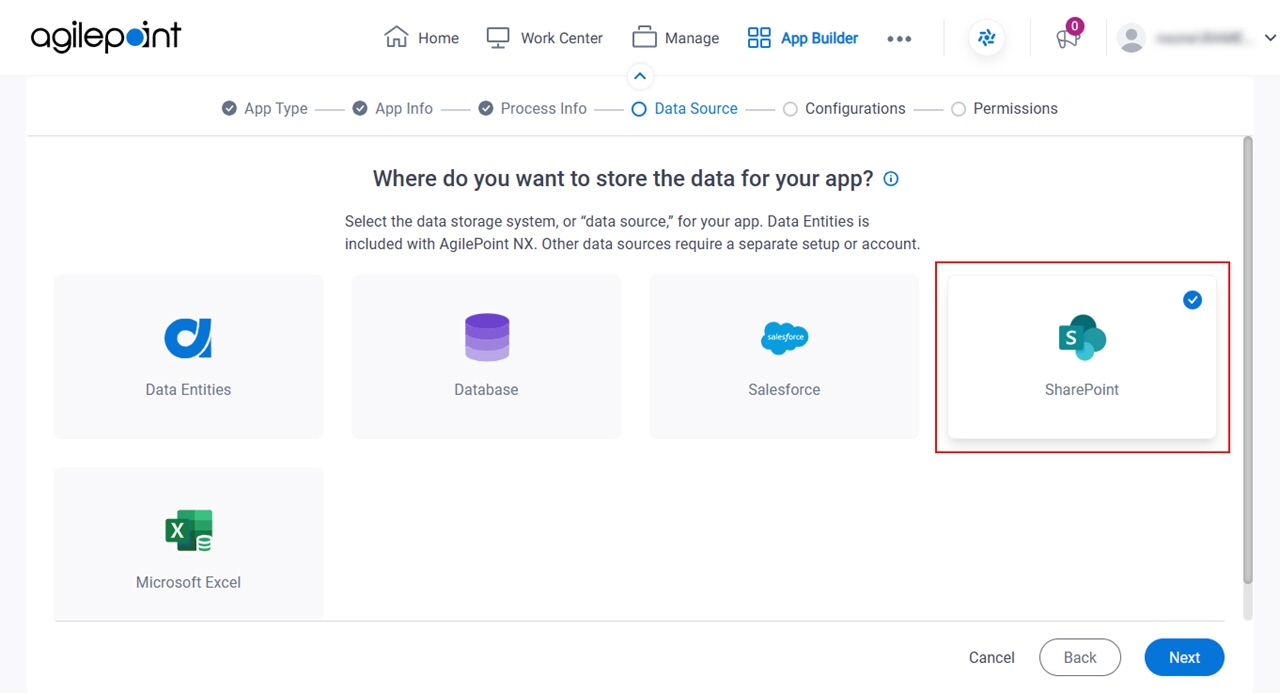
    Click SharePoint
  5. Click Next.

How do you want to set up your entity? > Configuration tab
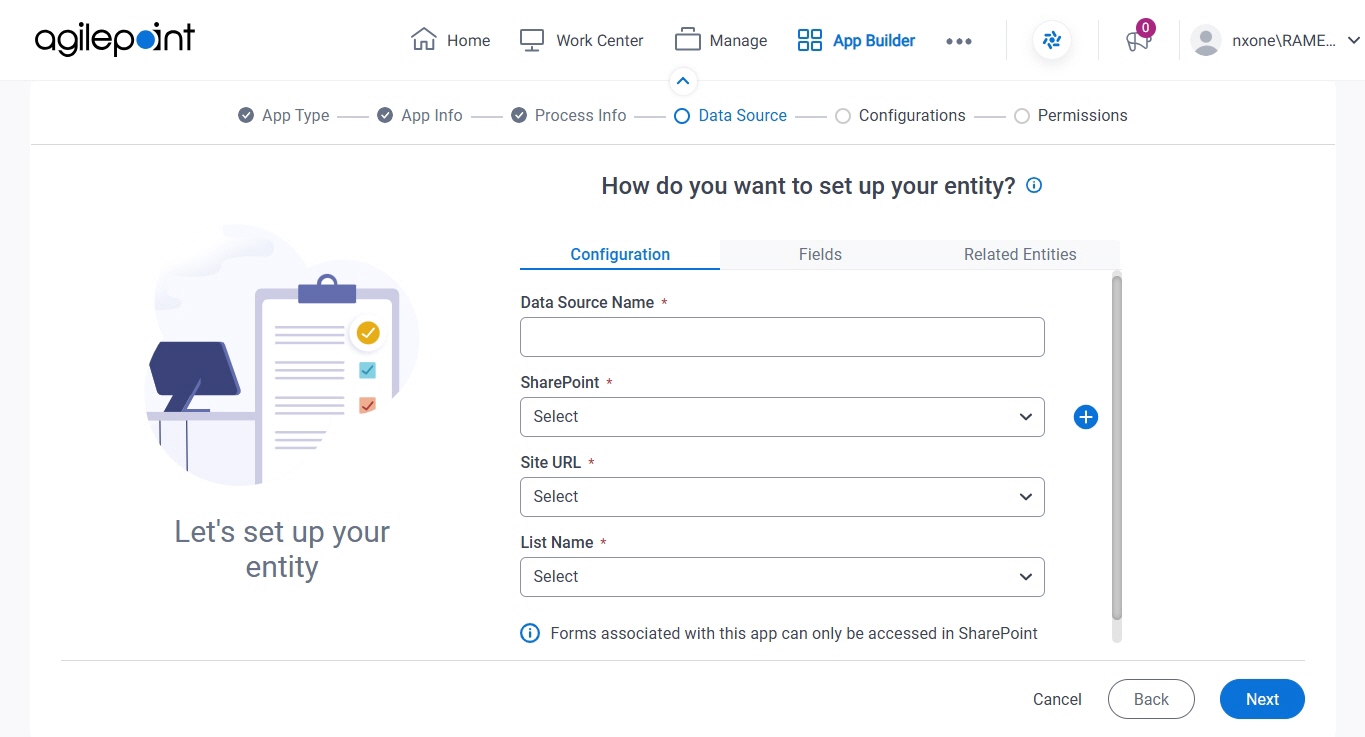
Configures how to retrieve data from SharePoint for your eForm..

Figure 1. How do you want to set up your entity? > Configuration tab

Configuration tab

Fields

Field NameDefinition

Data Source Name

Description:
Specifies a name for the data source.
Allowed Values:
One line of text (a string).

Not Accepted:

  • Spaces
Default Value:
None
Accepts Variables:
No

SharePoint

Description:
Specifies the access token that connects to your SharePoint site.
Allowed Values:
A list of access tokens configured for your environment.
Default Value:
None
Accepts Variables:
No
Example:
Refer to:

Site URL

Description:
Specifies the URL for your SharePoint site.
Allowed Values:
A valid SharePoint site URL.
Default Value:
None
Accepts Variables:
No
Example:
  • http://[machine name]:[port]/sites/[site name]

    Note:
    You must include the /sites in the Site URL for the site to be created successfully.

List Name

Description:
Specifies the name of the SharePoint list.
Allowed Values:
The name of your SharePoint list.
Default Value:
None
Accepts Variables:
No

How do you want to set up your entity? > Fields tab
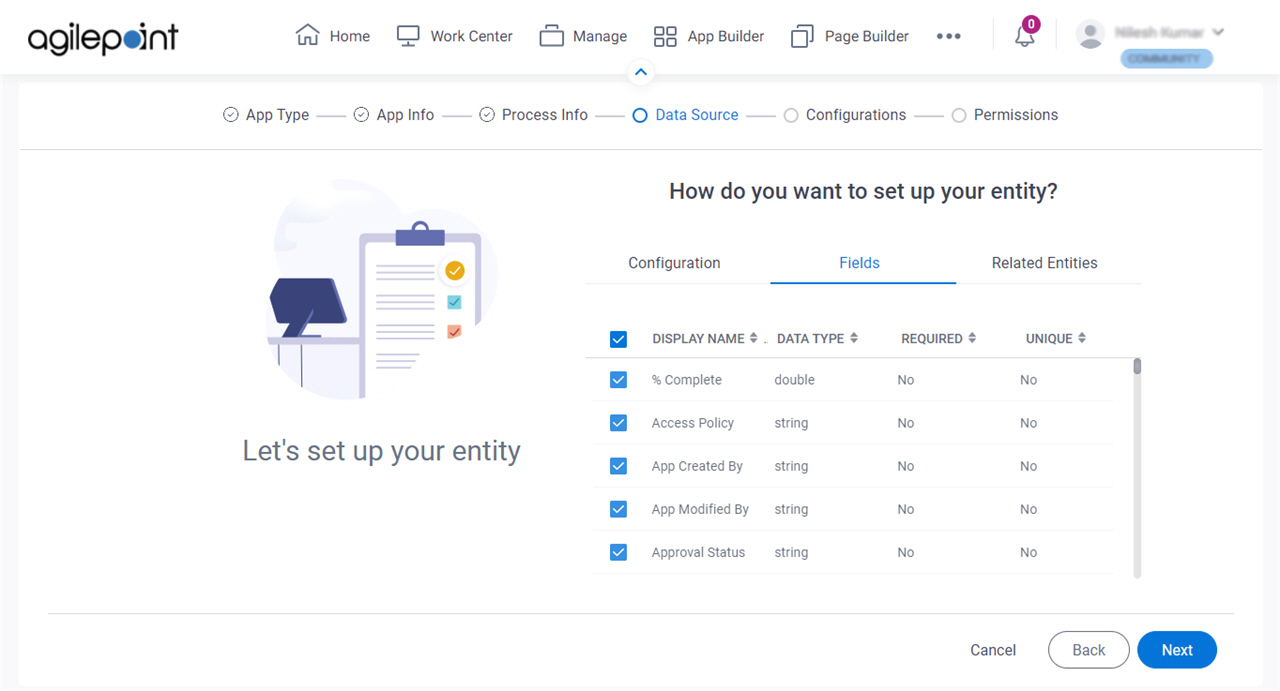
Specifies the fields from your SharePoint list to use in your eForm.

Figure 2. How do you want to set up your entity? > Fields tab

Fields tab

Fields

Field NameDefinition

Check box

Description:
Specifies whether to show a SharePoint field on your form.
Allowed Values:
  • Selected - Your form contains the SharePoint field.
  • Deselected - The SharePoint field does not show on your form.
Default Value:
Selected
Example:
Refer to:

Display Name

Description:
Shows the fields in your SharePoint list.
Allowed Values:
Read only.

Data Type

Description:
Shows the data type of a SharePoint field.
Allowed Values:
Read only.

Required

Description:
Specifies whether the value is required in the SharePoint field.
Allowed Values:
Read only.

Unique

Description:
Shows whether a duplicate value is permitted in the SharePoint field.
Allowed Values:
Read only.

How do you want to set up your entity? > Related Entities tab
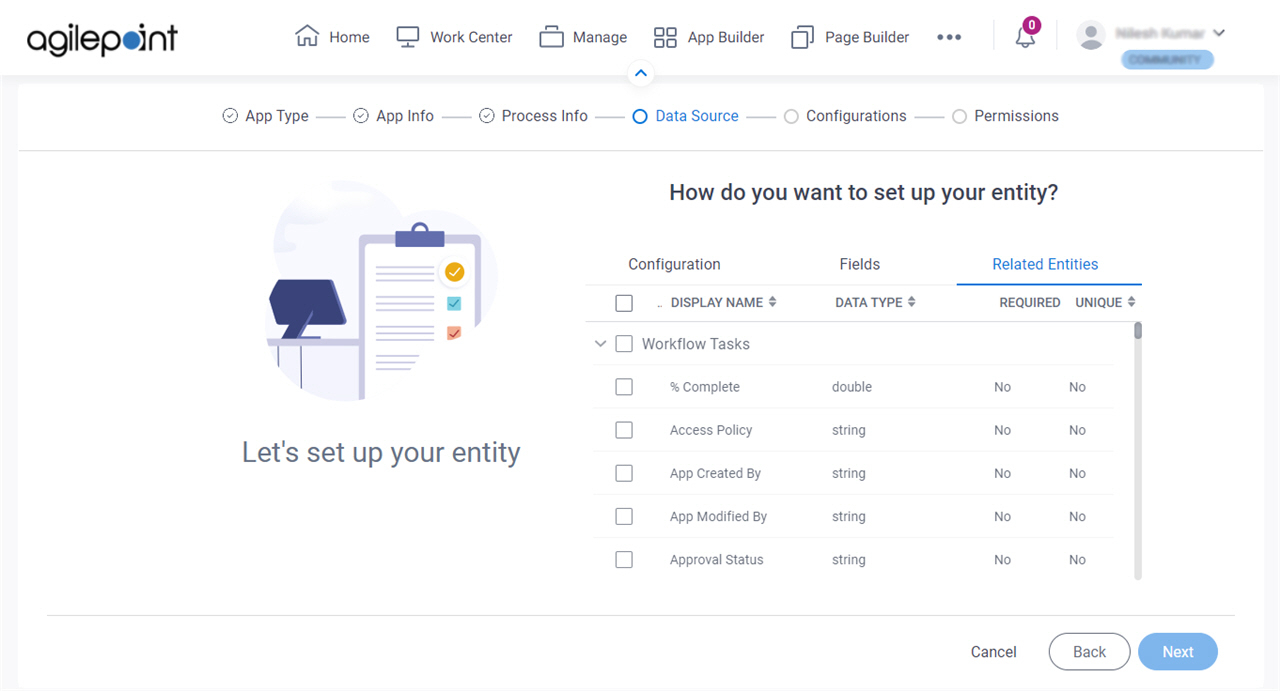
Specifies the SharePoint list relationships to use in a form-based app.

Figure 3. How do you want to set up your entity? > Related Entities tab

Related Entities tab

Prerequisites

Good to Know

Fields

Field NameDefinition

Check box

Description:
Specifies whether to use the SharePoint list relationship on your form.
Allowed Values:
  • Selected - Your form uses the relationship.
  • Deselected - Your form does not use the relationship.
Default Value:
Deselected
Example:
Refer to:

Display Name

Description:
Shows other SharePoint lists that have relationships with SharePoint parent list.
Note:
The word entity on this screen refers to a container within your data model. For Data Entities or Salesforce, this container is called an entity. For a database, entity refers to a database table. For SharePoint Integration, entity refers to a SharePoint list. For Microsoft Excel, entity refers to an Excel table.
Allowed Values:
Read only.

Data Type

Description:
Shows the data type of your SharePoint list.
Allowed Values:
Read only.

Required

Description:
Specifies whether the related entity is required.
Allowed Values:
Read only.

Unique

Description:
Shows whether a duplicate value is permitted in the related entity.
Allowed Values:
Read only.