

Configure the Data Source for Your Form (Auto-Generate Form Based On A Data Source)
This topic shows how to select the data source for an eForm that is generated from a data source with GenAI.
Background and Setup
Examples
- (External) Auto-Generate Application Interfaces Based on Database Tables
- (External) GenAI Builds Your Interface Based on an Excel Data Source
- (External) GenAI Auto-Generates Interfaces from Salesforce Objects
- (External) GenAI for External Data Source – SharePoint ListForm
- Examples - Step-by-step use case examples, information about what types of examples are provided in the AgilePoint NX Product Documentation, and other resources where you can find more examples.
Prerequisites
- To create an app with GenAI,
these prerequisites apply:
- An AgilePoint license that supports GenAI.
- These access rights:
- Enable App Builder Access
- Create, Delete, And Import Apps
- Create Process Models
- Allow Generative AI Access
For more information, refer to:
- You must be a member of the Entity Designers or Global Data Entities Permission Managers permission group.
- On the App Builder > Common > Settings tab, turn on these settings:
- Generative AI
- Excel
- Image
- Let AI Decide
How to Start
- Create an app.
For more information, refer to Create an app.
- On the Do you want AI to create your form? screen,
click Auto-Generate Form Based On A Data Source.
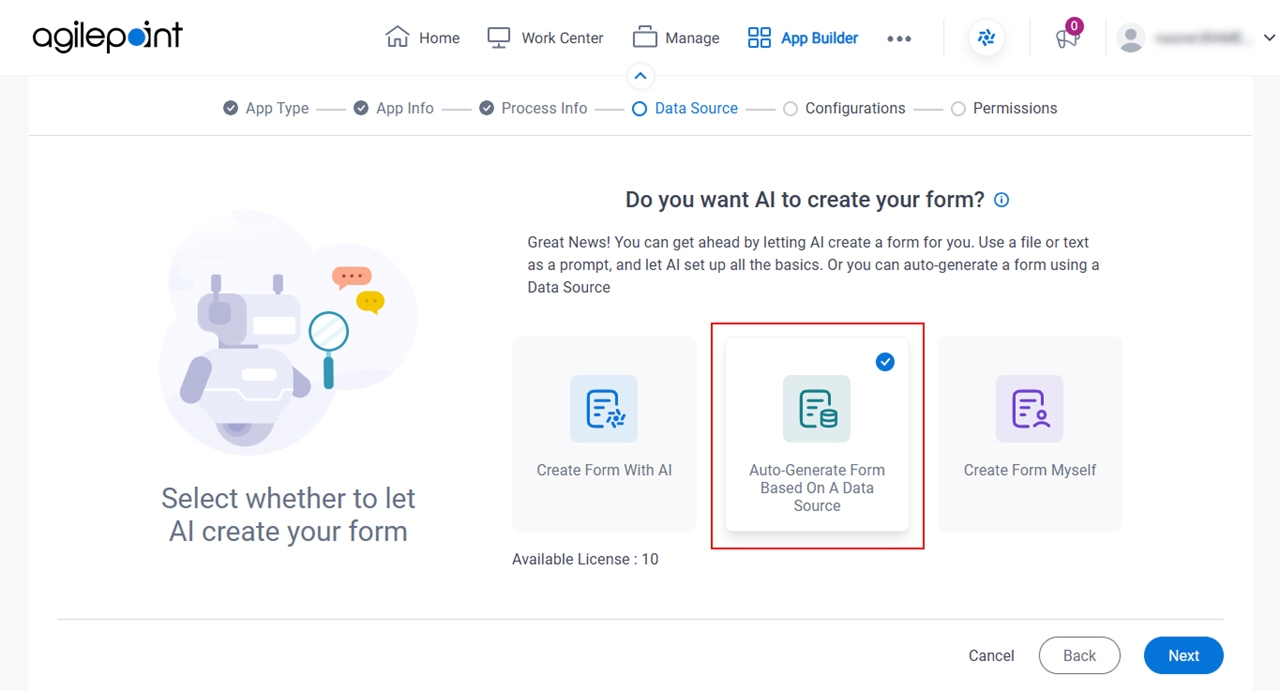
- Click Next.
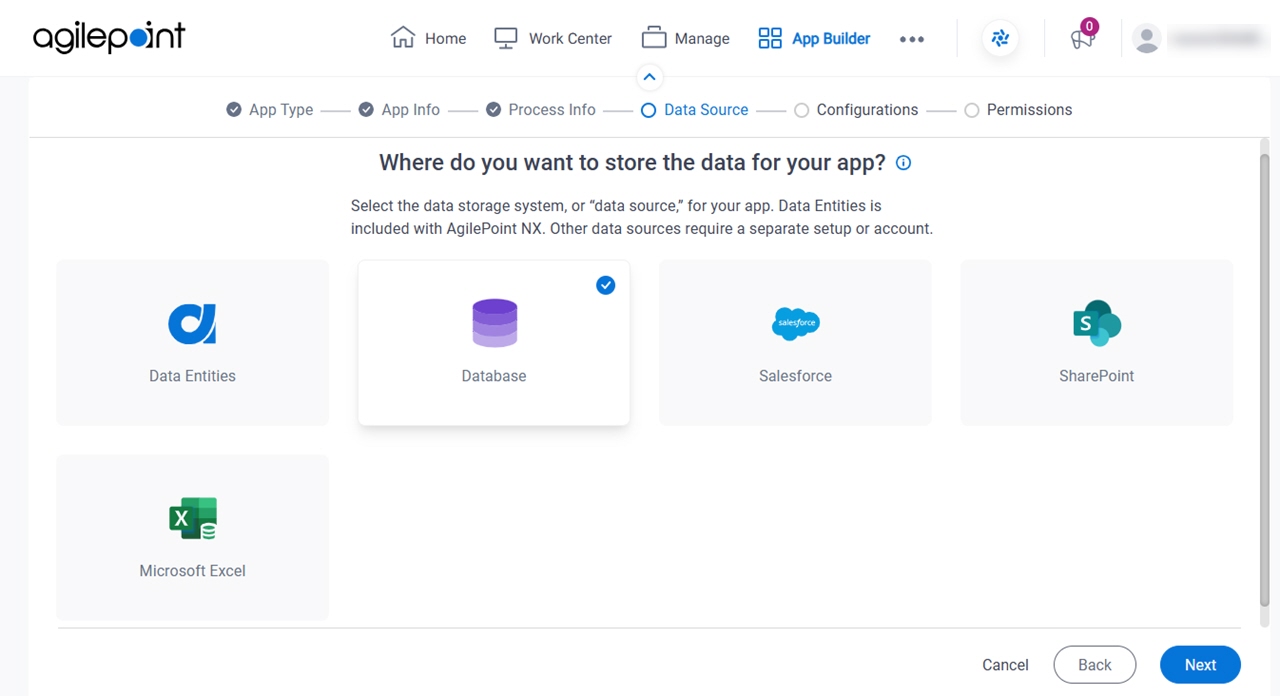
Where do you want to store the data for your app? screen
Specifies the data source for your app, which is the location where your eForm stores and retrieves the data.