


Configure Your Form (Auto-Generate Form Based On A Data Source, SharePoint)
Background and Setup
Examples
- (External) GenAI for External Data Source – SharePoint ListForm
- Examples - Step-by-step use case examples, information about what types of examples are provided in the AgilePoint NX Product Documentation, and other resources where you can find more examples.
Prerequisites
- To create an app with GenAI,
these prerequisites apply:
- An AgilePoint license that supports GenAI.
- These access rights:
- Enable App Builder Access
- Create, Delete, And Import Apps
- Create Process Models
- Allow Generative AI Access
For more information, refer to:
- You must be a member of the Entity Designers or Global Data Entities Permission Managers permission group.
- On the App Builder > Common > Settings tab, turn on these settings:
- Generative AI
- Excel
- Image
- Let AI Decide
Good to Know
- After you create a form-based app, you cannot change the app to use a different data source. For example, you can not change a form-based app to use a different entity or SharePoint list than the one specified when the app was created. This limitation also applies to cloned apps. That is, you cannot clone a form-based app, and then change the data source in the cloned app.
- Once configured, the primary data source in a data source bound app cannot be deleted. Deleting the primary data source can lead to unexpected behavior or errors in your app because it is the main source of data for the app.
- When you create a form-based app, these forms are created:
- New form
- Update form
- 3 types of View form:
- All Records - Shows all the records created for the form-based app.
- Recently Created Records - Shows the records created for the form-based app in the last 7 days.
- Recently Modified Records - Shows the records changed for the form-based app in the last 7 days.
A lookup is created for each view form.
How to Start
- Create an app.
For more information, refer to Create an app.
- On the Do you want AI to create your form? screen,
click Auto-Generate Form Based On A Data Source.
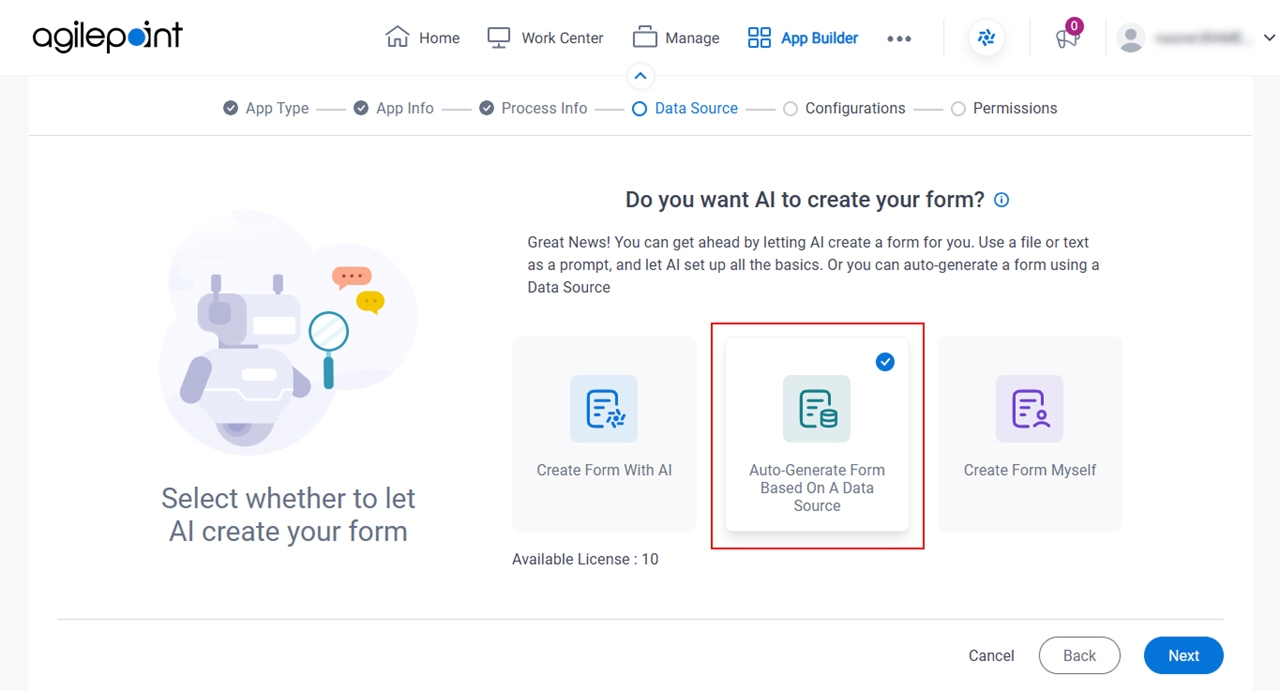
- Click Next.
- On the Where do you want to store the data for your app? screen,
click SharePoint.
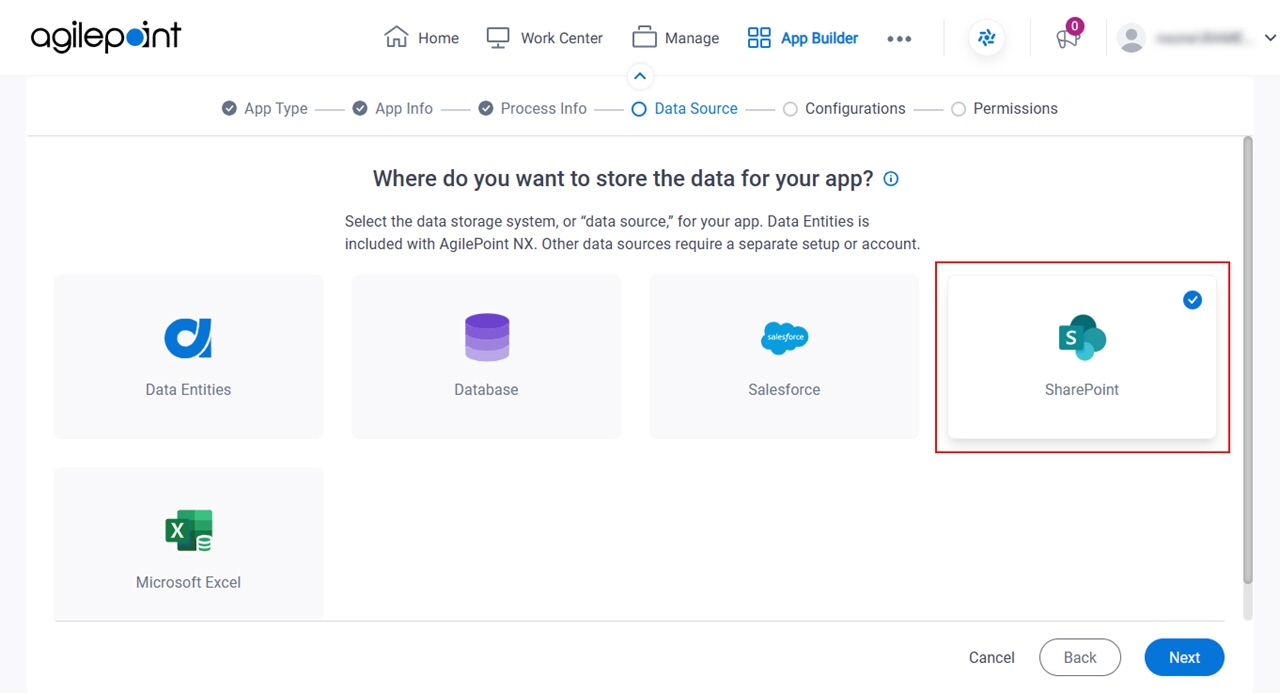
- Click Next.
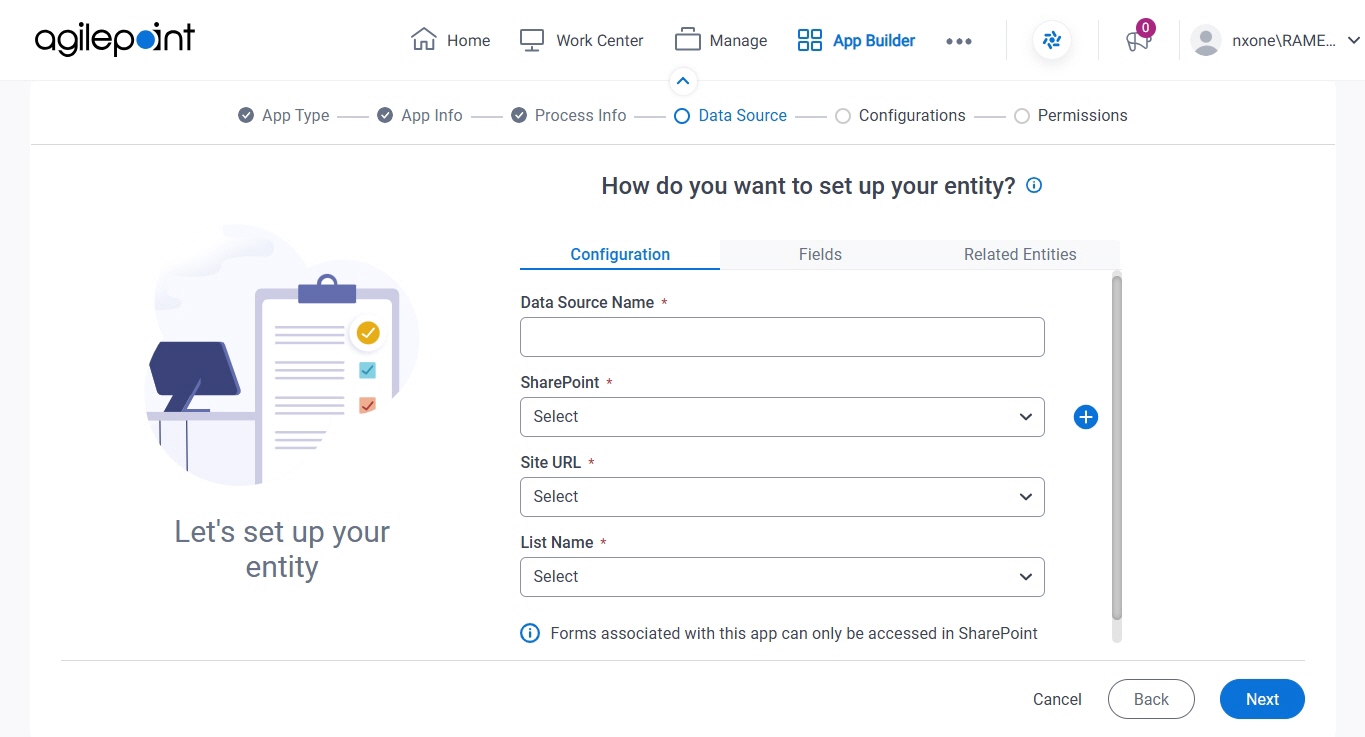
How do you want to set up your entity? > Configuration tab
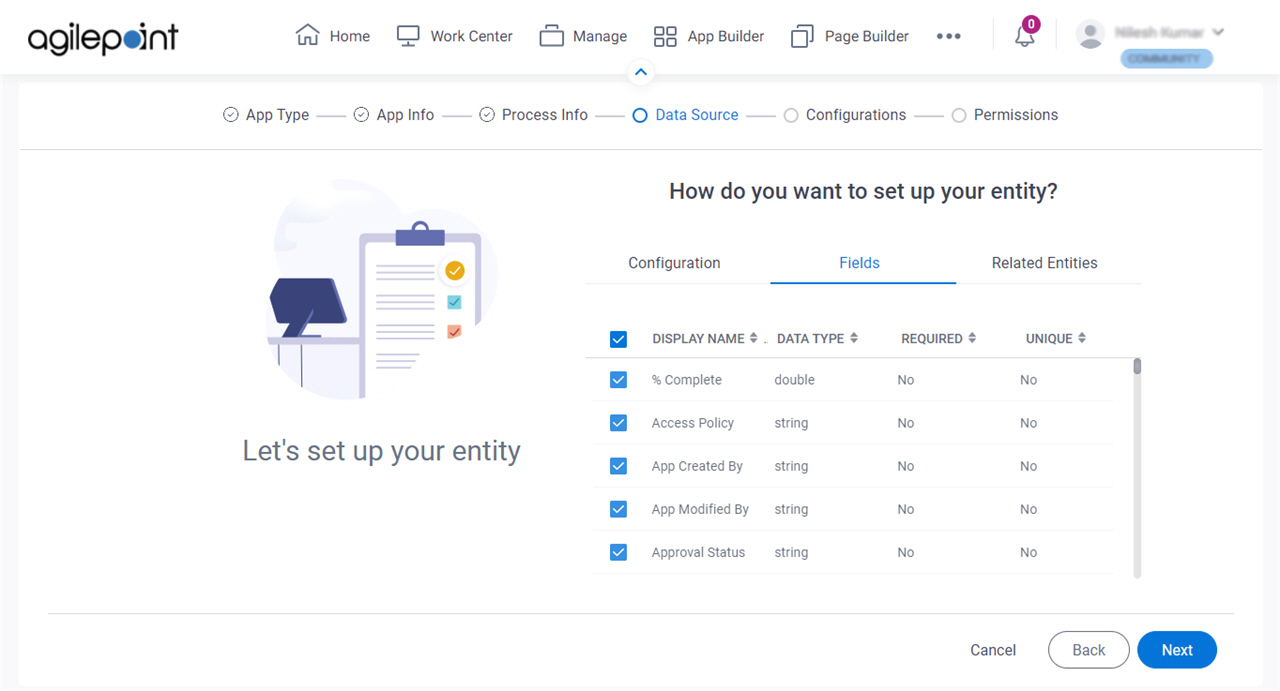
How do you want to set up your entity? > Fields tab
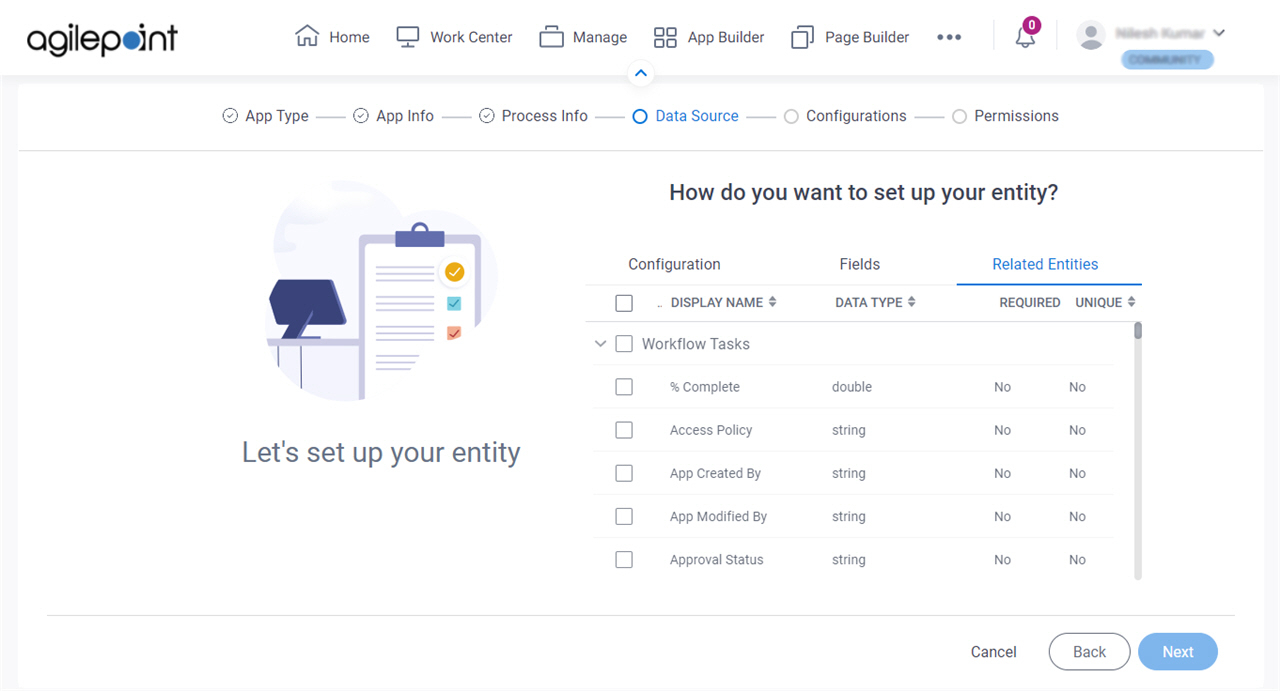
How do you want to set up your entity? > Related Entities tab
Review the data fields for your app screen
Configures the fields for your eForm.
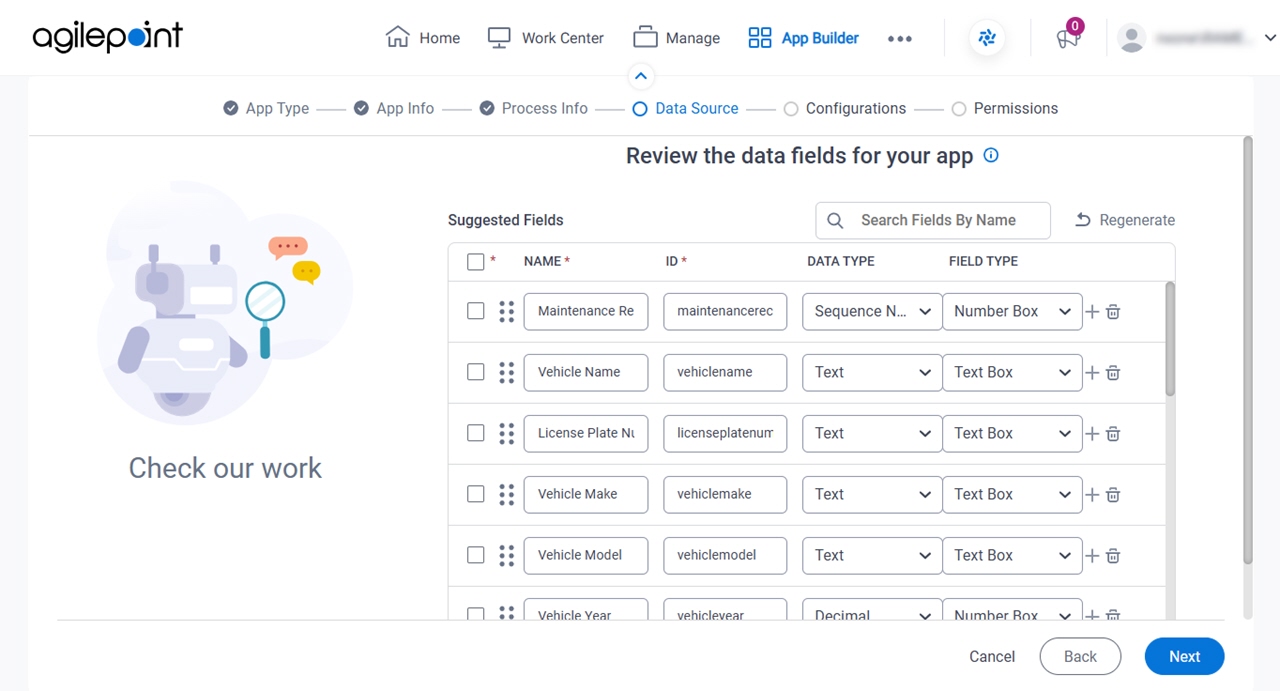
Fields
| Field Name | Definition |
|---|---|
|
Select All |
|
|
Name |
|
ID |
|
|
Data Type |
|
|
Field Type |
|
Regenerate |
|
|
Apply Layout |
|
Add Field |
|
Delete Field |
|
|
Configure Picklist | |
|
Configure Child Table |
|
|
Mark as Mandatory |
|
|
Number Of Columns |
|
|
Show Line Break Fields |
|


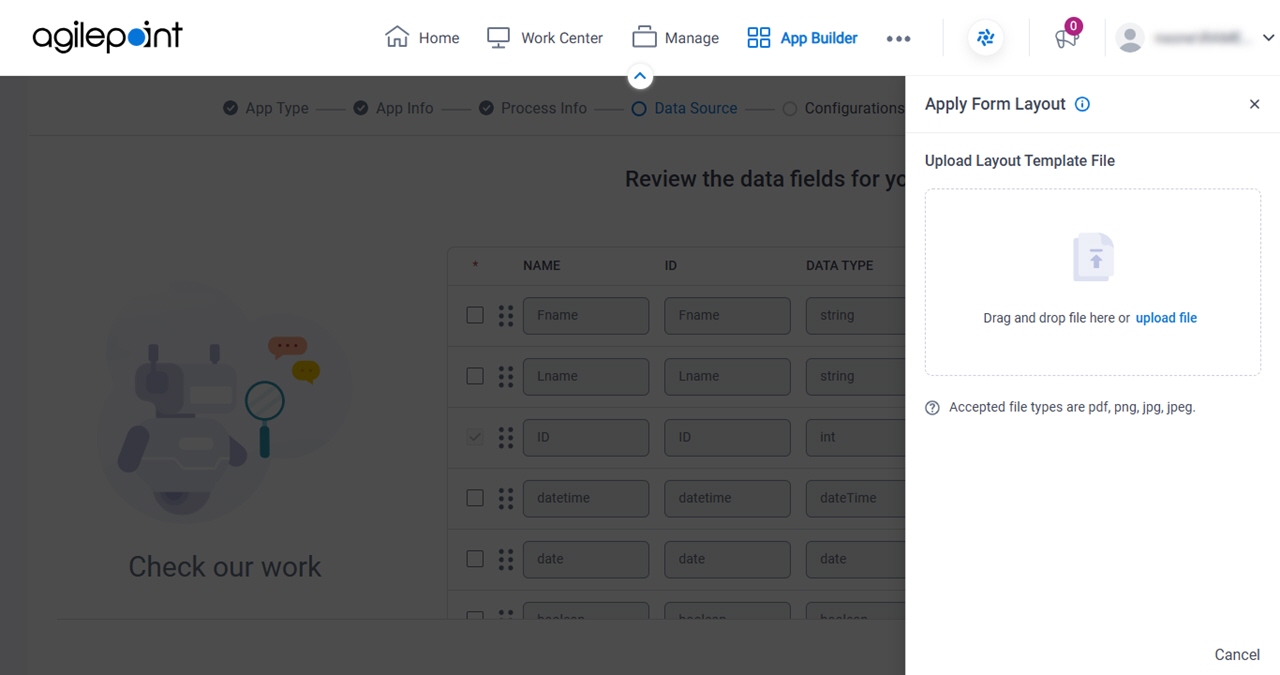
Apply Fields Layout screen
Specifies a file that depicts a form layout, and it applies the layout to the eForm.
Good to Know
- You can use a file that represents a form layout, and the system applies the layout to your form.
The supported file types are .pdf, .png, .jpg, and .jpeg.
Fields
| Field Name | Definition |
|---|---|
Upload Layout Template File |
|
Configure List Options > SharePoint screen
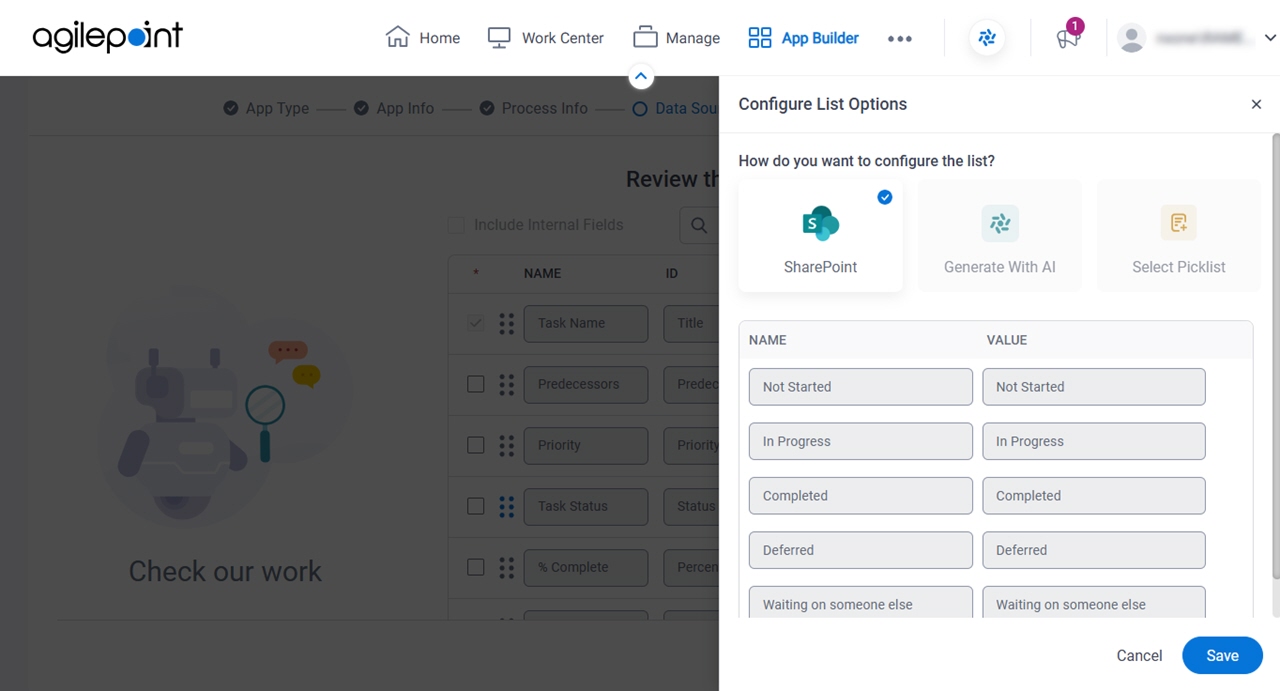
How to Start
- Click Configure
 .
.
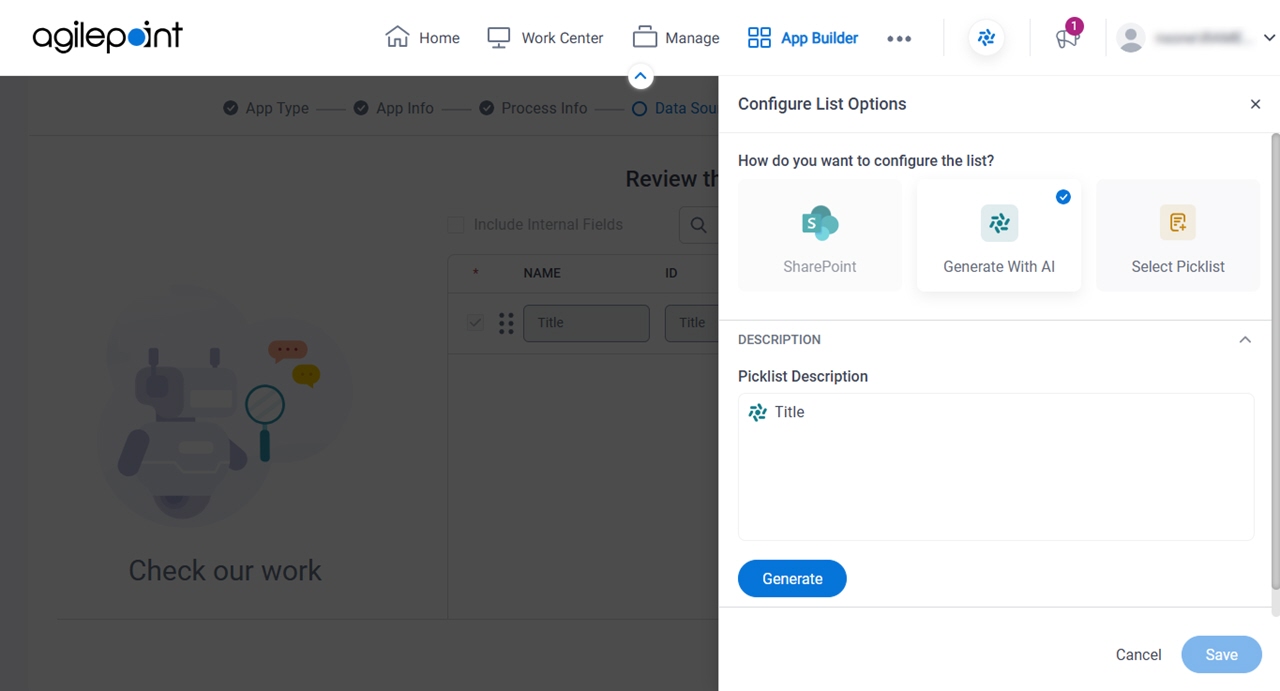
Configure List Options > Generate With AI screen
Full documentation coming soon.
Good to Know
- This screen applies to the Generate With AI option on the Configure List Options screen. For the other options, refer to:
How to Start
- On the Review the data fields for your app screen,
in the Field Type field, select one of these:
- Check Box
- Switch
- Radio Button
- Drop-Down List
- List Box
- Multi-Select List Box
- Click Configure .
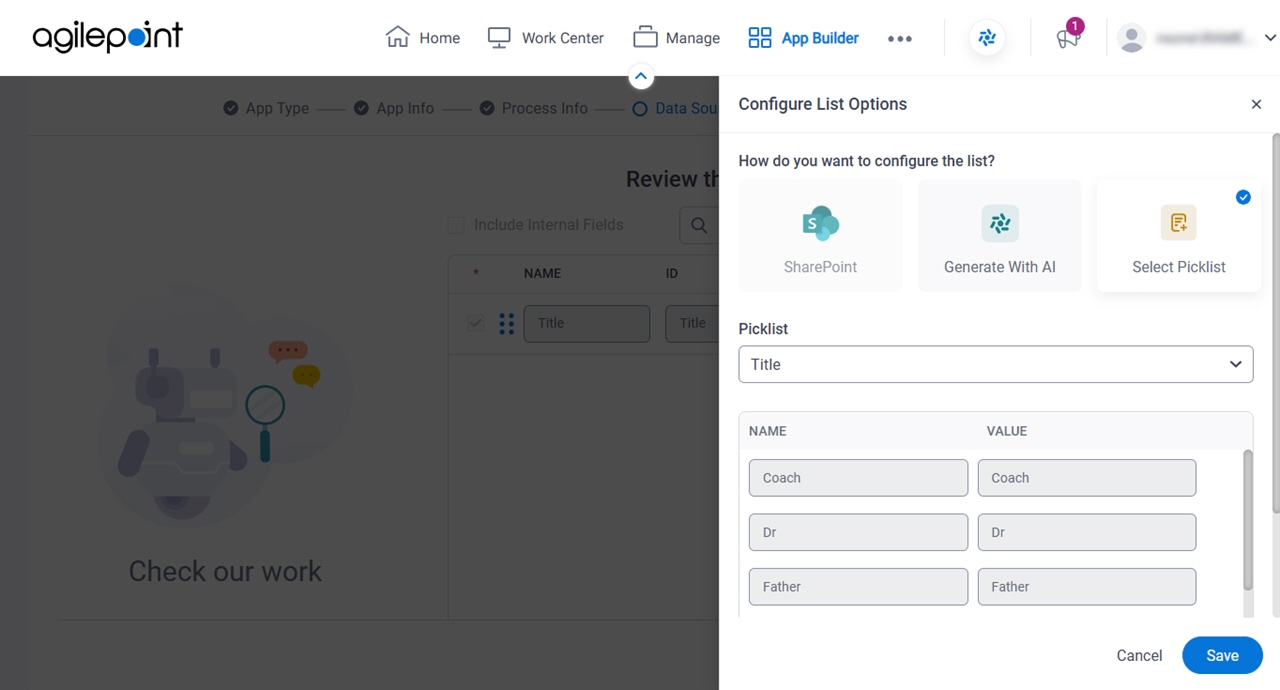
Configure List Options > Select Picklist screen
Full documentation coming soon.
Good to Know
- This screen applies to the Select Picklist option on the Configure List Options screen. For the other options, refer to:
How to Start
- On the Review the data fields for your app screen,
in the Field Type field, select one of these:
- Check Box
- Switch
- Radio Button
- Drop-Down List
- List Box
- Multi-Select List Box
- Click Configure .
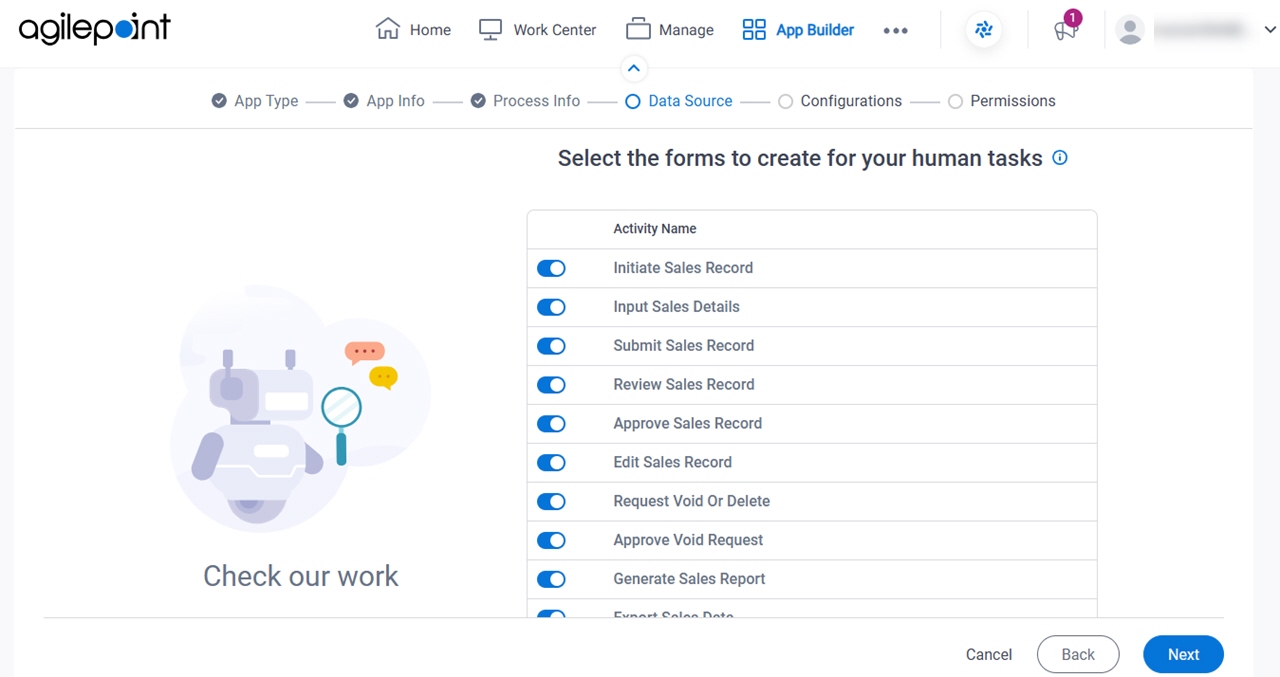
Select the forms to create for your human tasks screen
Specifies the human task activities for which you want to create eForms.
Fields
| Field Name | Definition |
|---|---|
|
Human Task Activities |
|
Create Task Form |
|