


Process Viewer screen
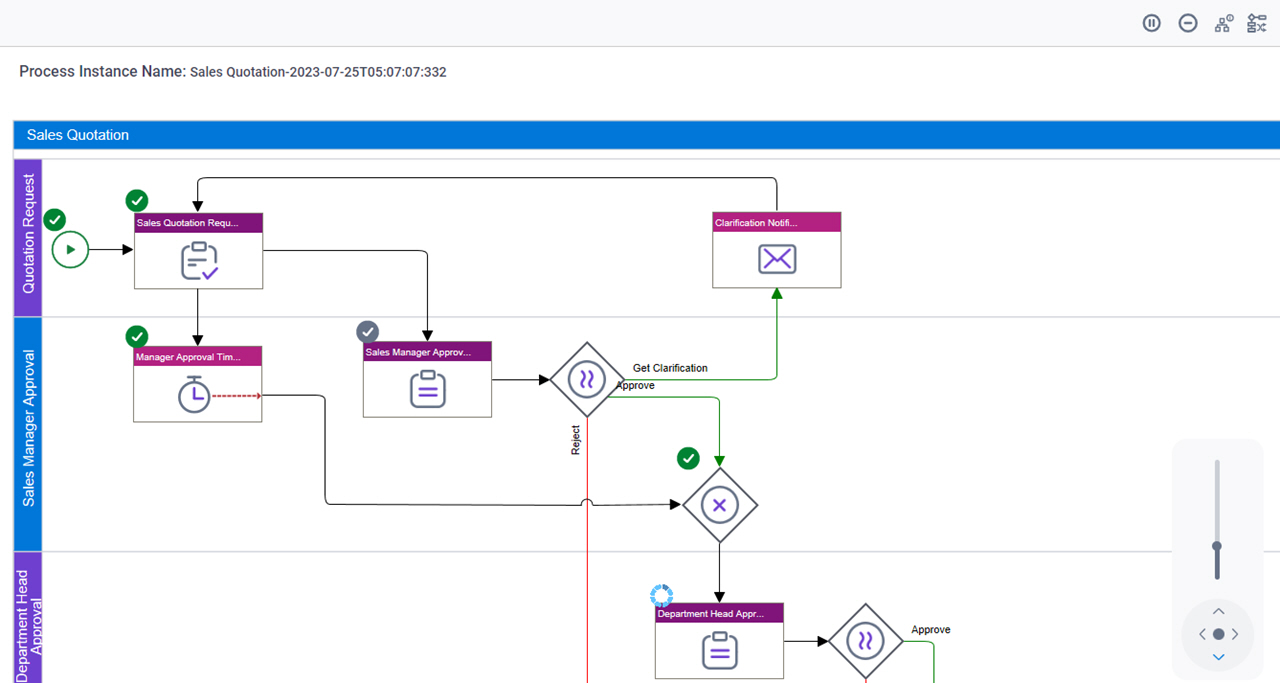
Shows a picture of your process with the task status updated in real time.
Background and Setup
Examples
- (External) Modern Work Center and Next Generation Process Viewer Enhancements
- Examples - Step-by-step use case examples, information about what types of examples are provided in the AgilePoint NX Product Documentation, and other resources where you can find more examples.
Good to Know
- In AgilePoint NX OnDemand (public cloud),
AgilePoint NX PrivateCloud,
or AgilePoint NX OnPremises
v9.0 or higher, you can change the flow for a running process instance in Process Viewer.
For more information, refer to change flow.
- To change the flow of a process:
- By default, you must have the Rollback A Process access right.
- The App Owners permission group or the Administrator role has the Rollback A Process access right.
- In the Work Center > Modern Work Center Settings tab, in the Allow Change Flow For field, you can configure the type of user to whom to show the Change Flow option on the Process Viewer screen in Modern Work Center.
- This screen may look different in different places. The UI varies for this screen depending upon how you open it. However, the fields for this screen are the same in all places.
- Documentation for this screen is provided for completeness. The fields are mostly self-explanatory.
How to Start
There are several ways to open the Process Viewer screen.
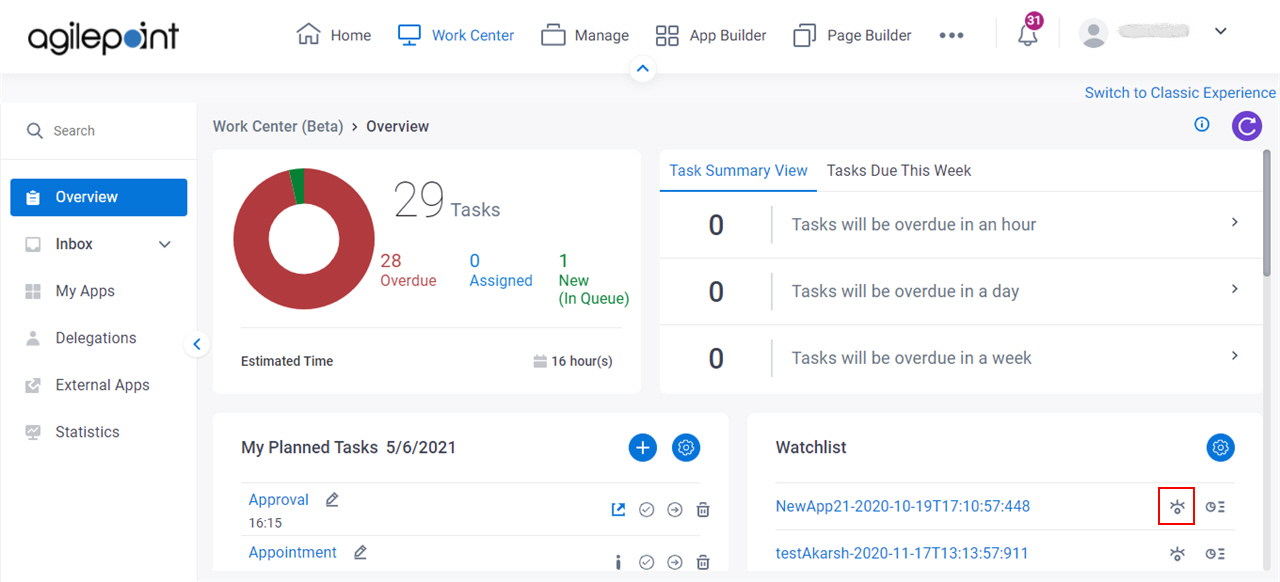
Modern Work Center (Watchlist)
- Click Work Center.

- On the Overview screen,
in the Watchlist, click View Process
 .
.
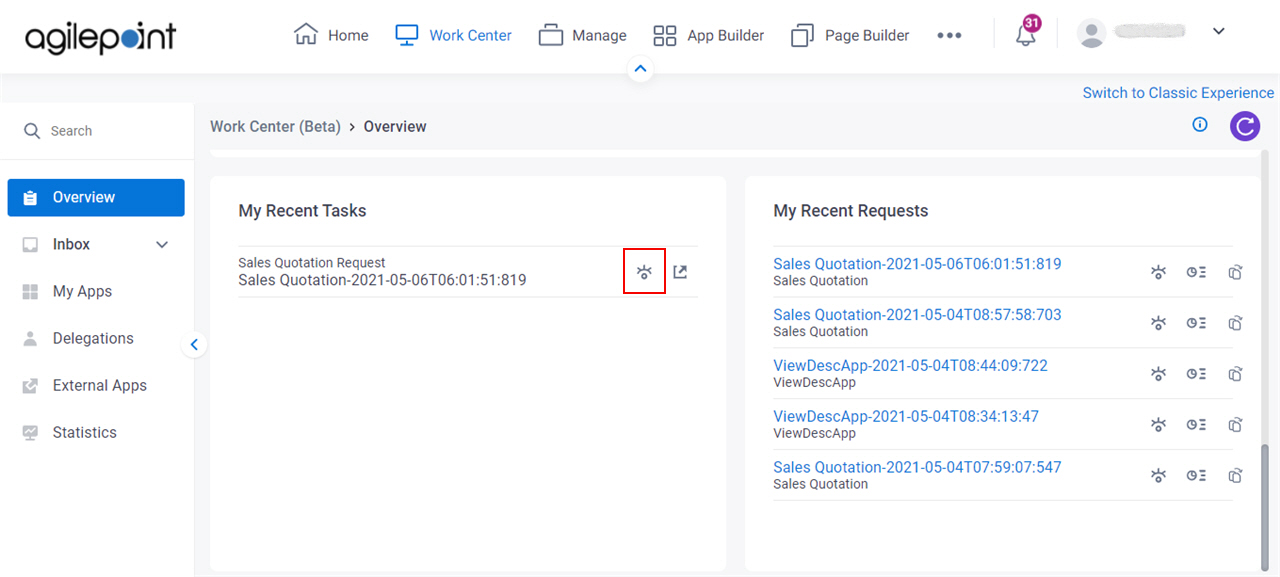
Modern Work Center (My Recent Tasks)
- Click Work Center.
- On the Overview screen,
in My Recent Tasks, click View Process .
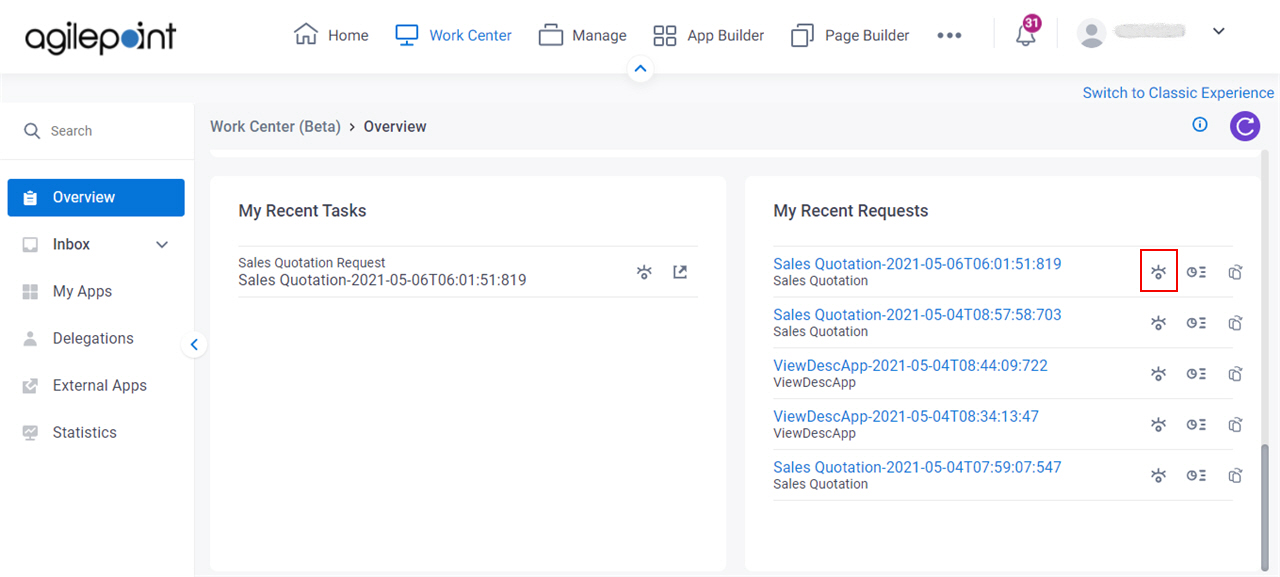
Modern Work Center (My Recent Requests)
- Click Work Center.
- On the Overview screen,
in My Recent Requests, click View Process .
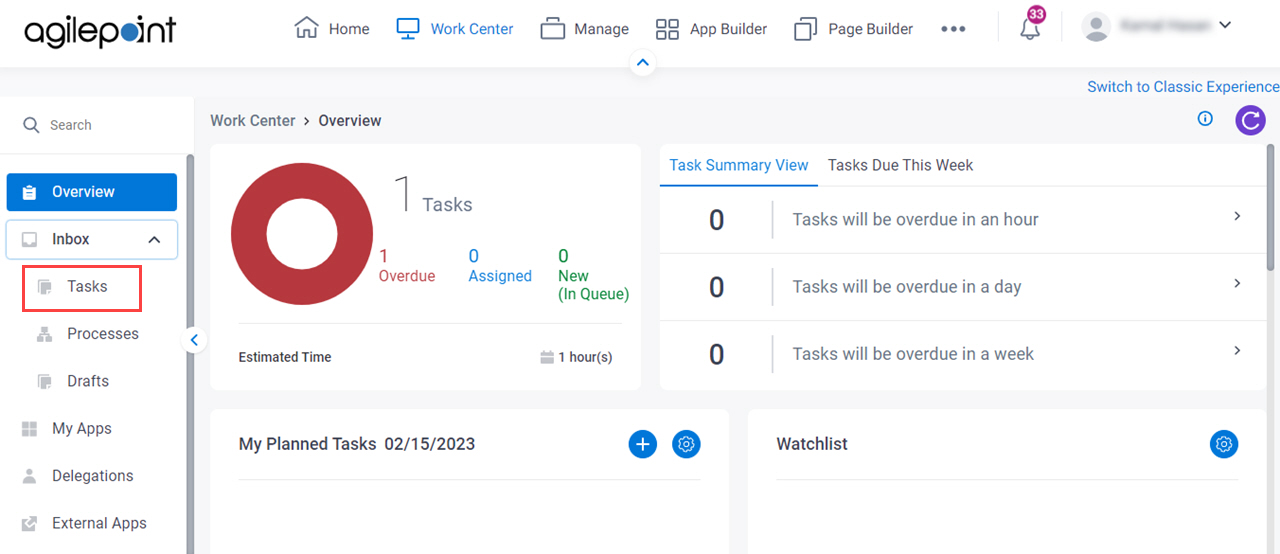
Modern Work Center (Tasks)
- Click Work Center.
- In the left pane, > Tasks.
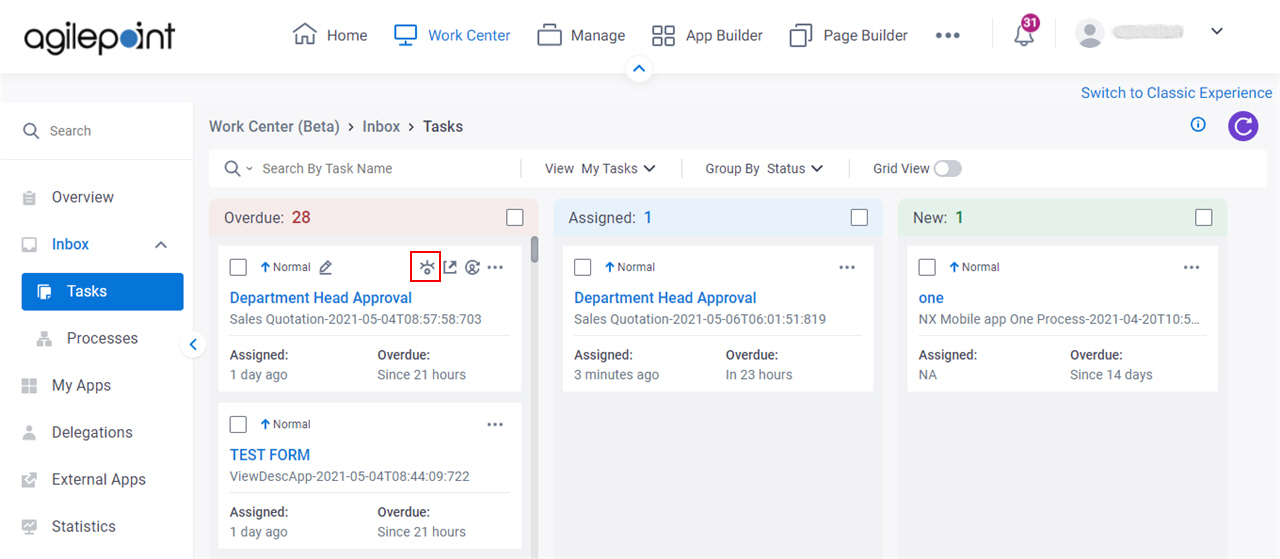
- On the task list,
click View Process .
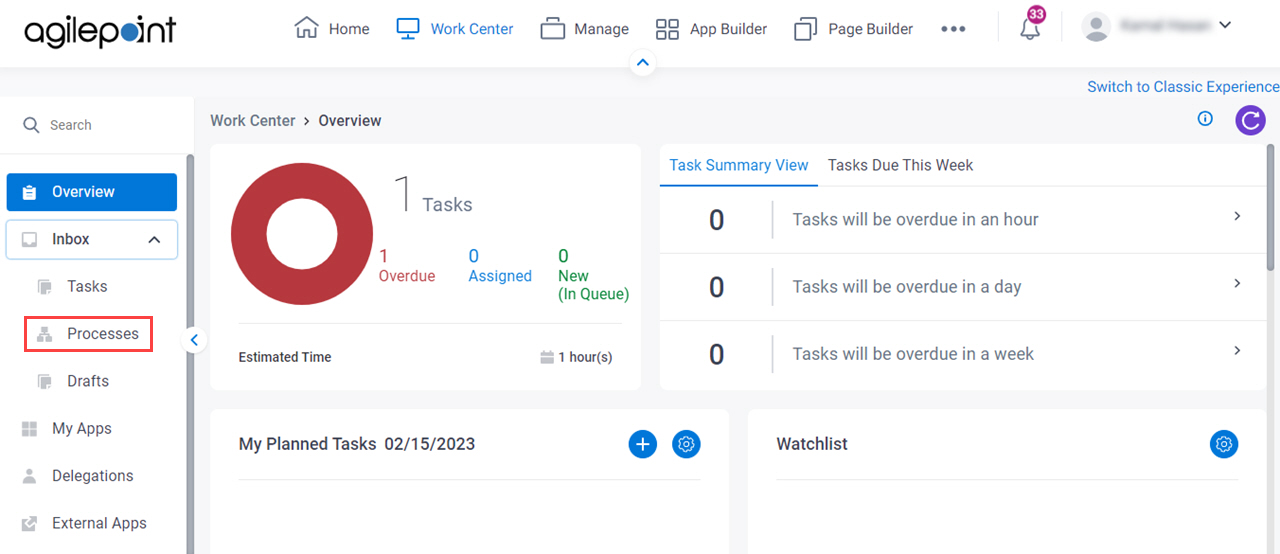
Modern Work Center (Processes)
- Click Work Center.
- In the left pane, click Inbox > Processes.
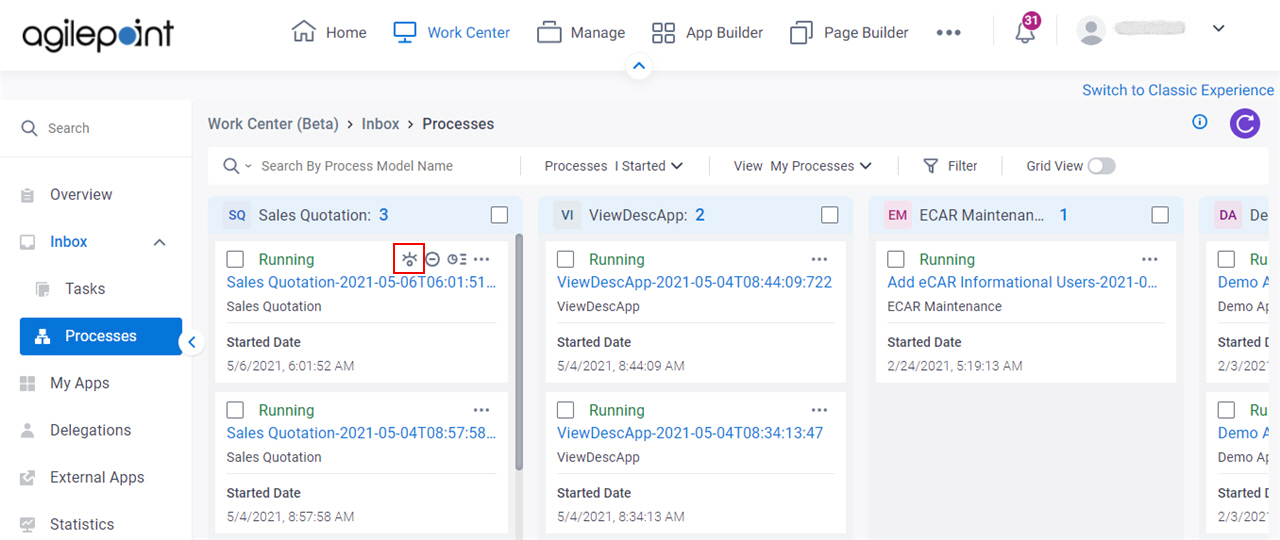
- On the process list,
click View Process .
Manage Center
- Click Manage.
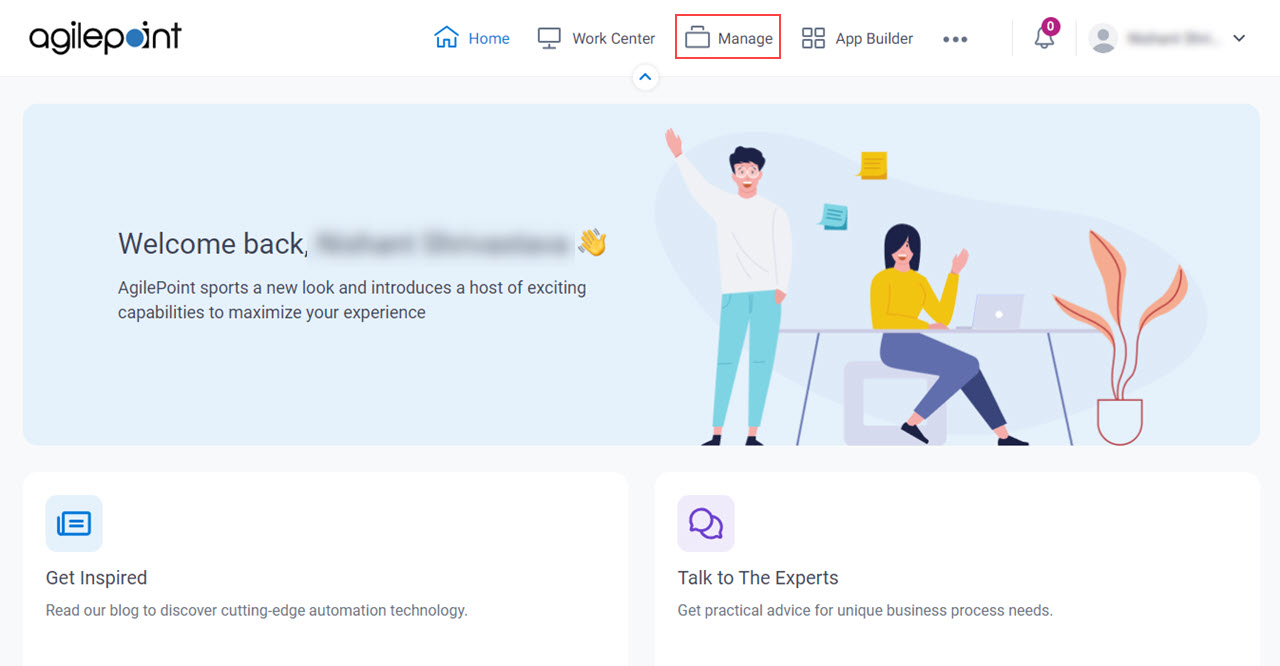
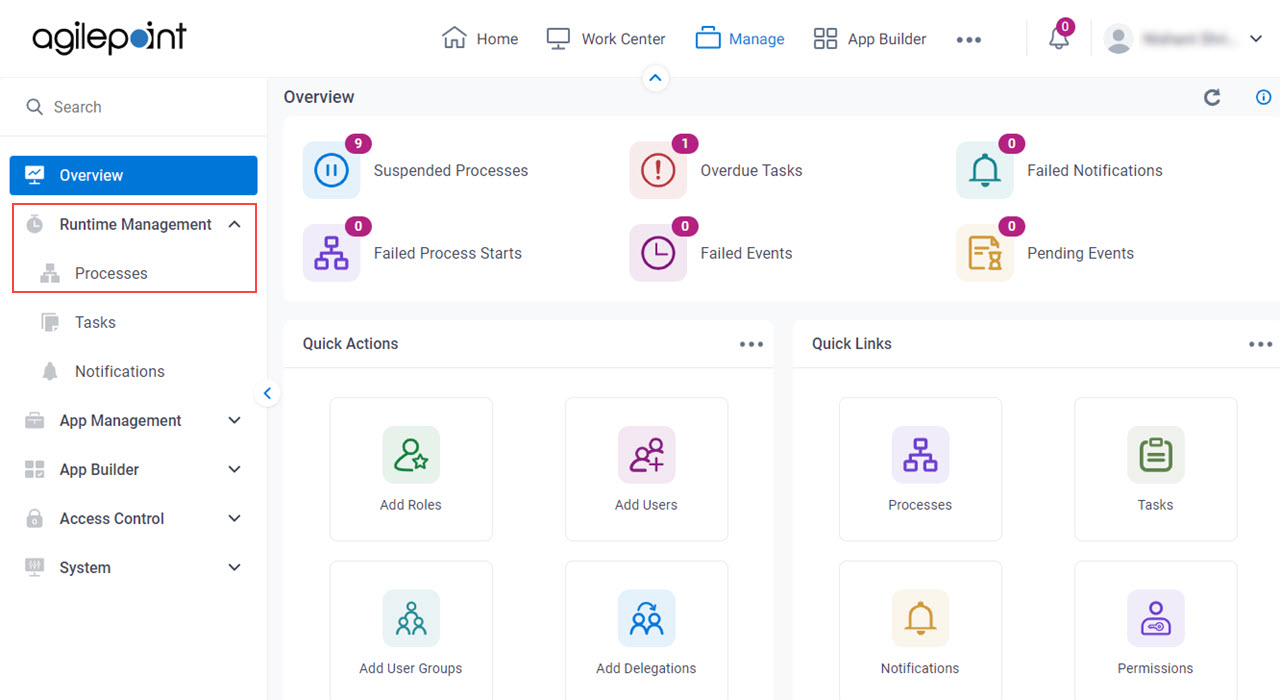
- In Manage Center,
click Runtime Management > Processes.
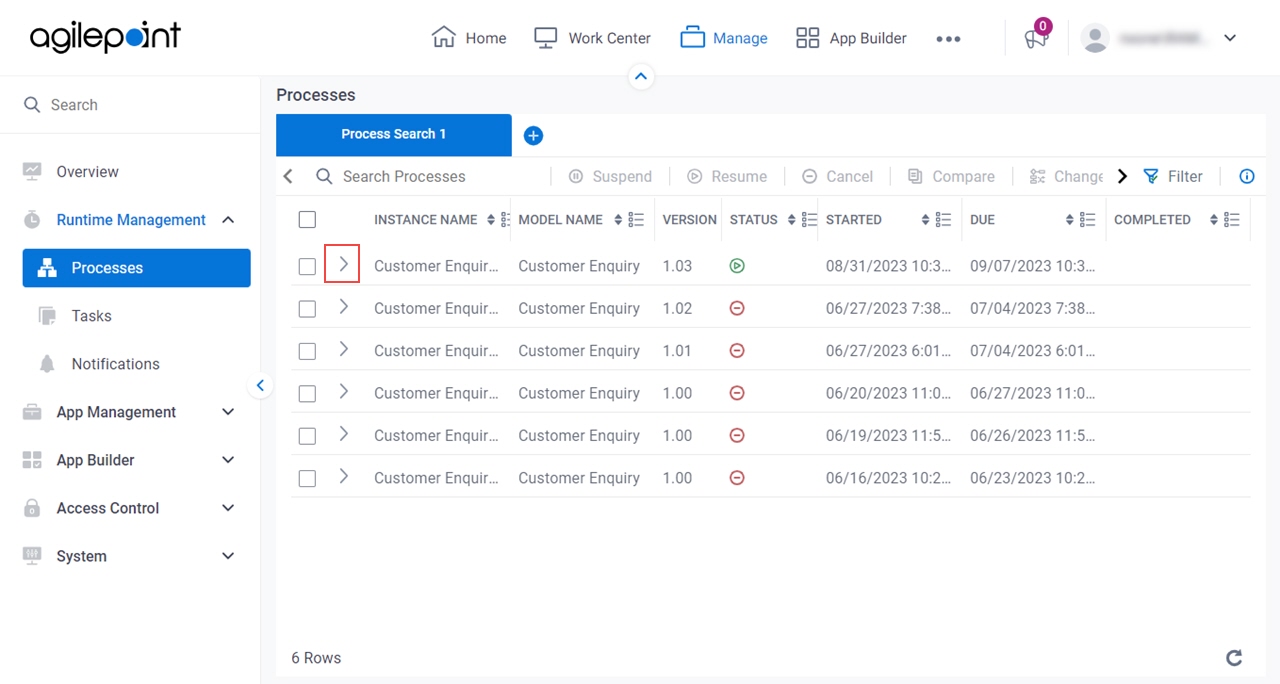
- On the Processes screen,
click Expand
 to expand a process.
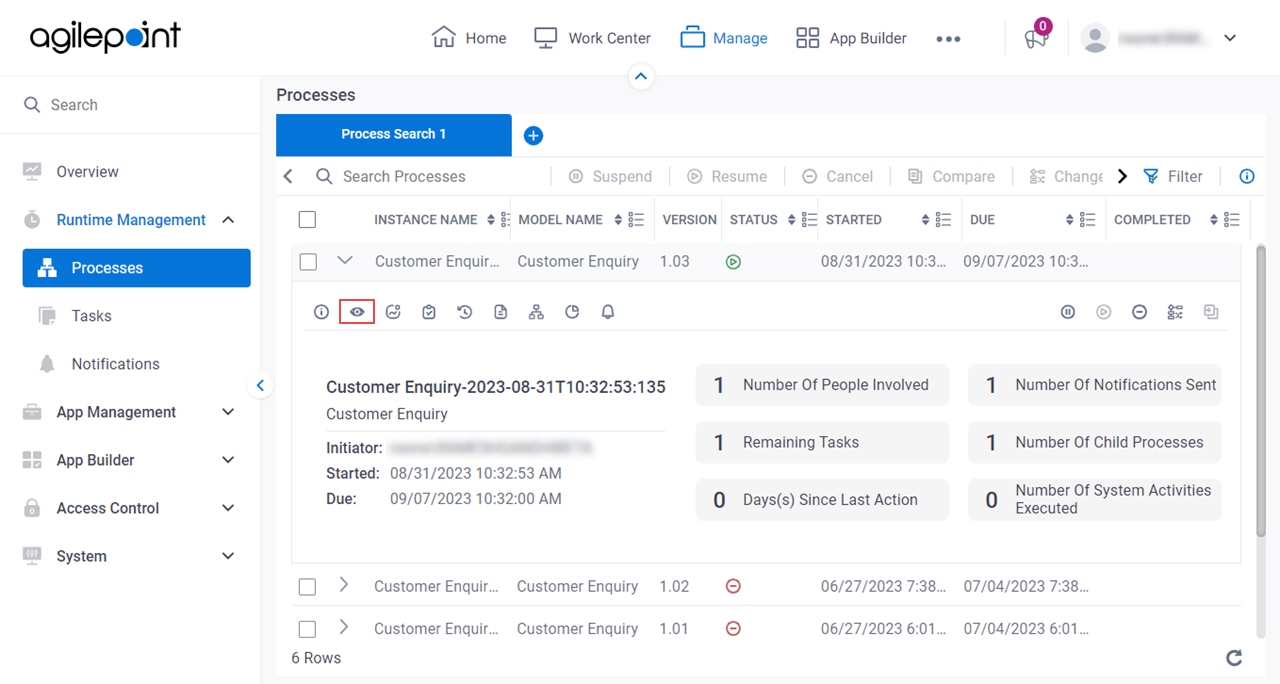
- Click Process Monitor
 .
.
SharePoint for Microsoft 365 (Watchlist)
- In SharePoint for Microsoft 365, open the AgilePoint Work Center web part.
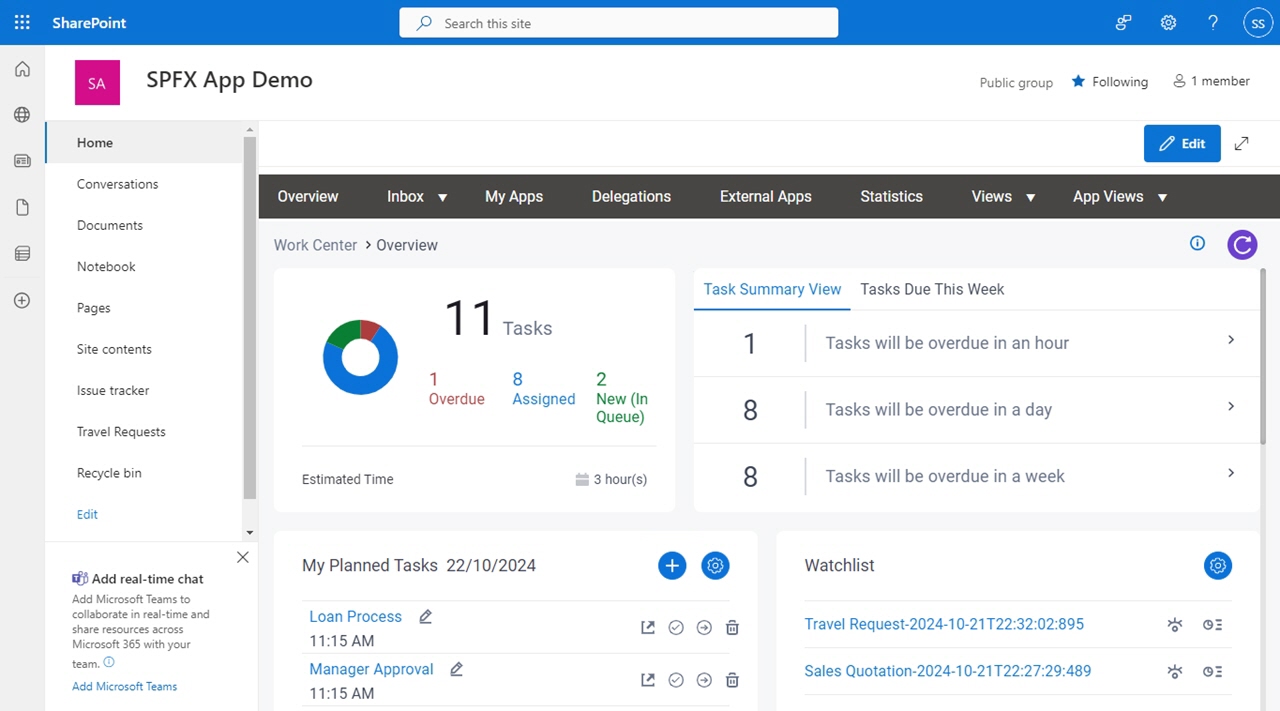
- On the Overview screen,
in the Watchlist, click View Process .
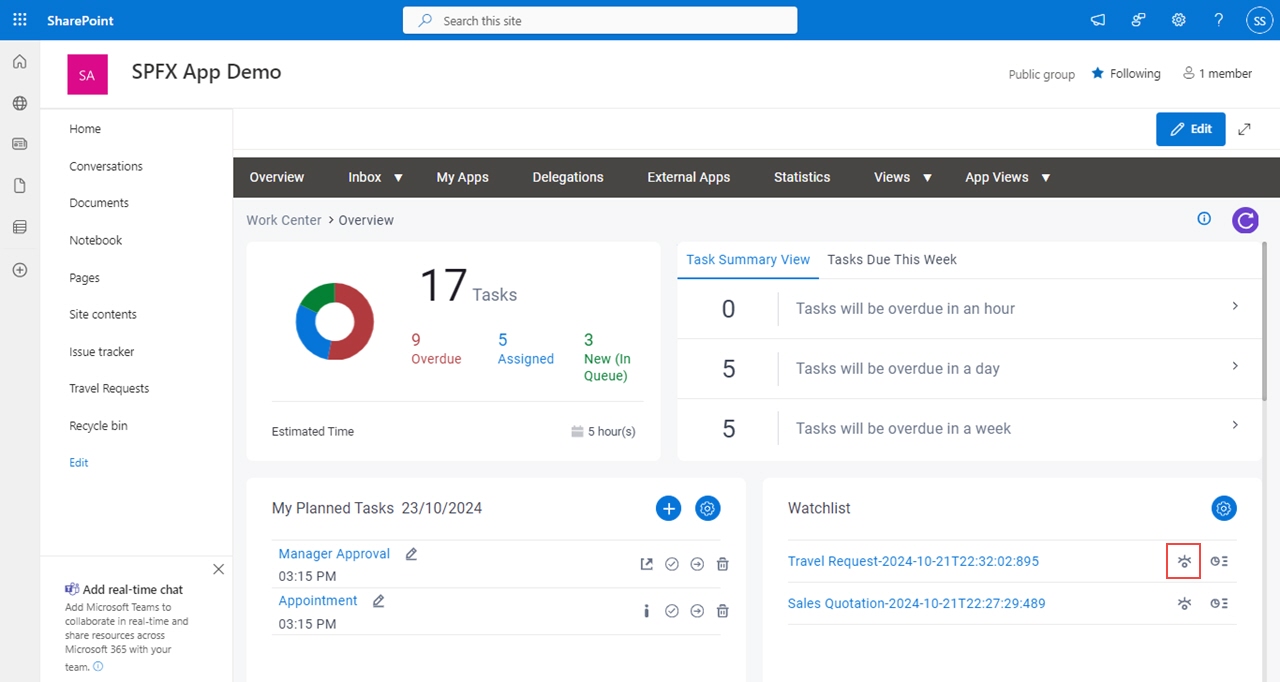
SharePoint for Microsoft 365 (My Recent Tasks)
- In SharePoint for Microsoft 365, open the AgilePoint Work Center web part.
- On the Overview screen,
in My Recent Tasks, click View Process .
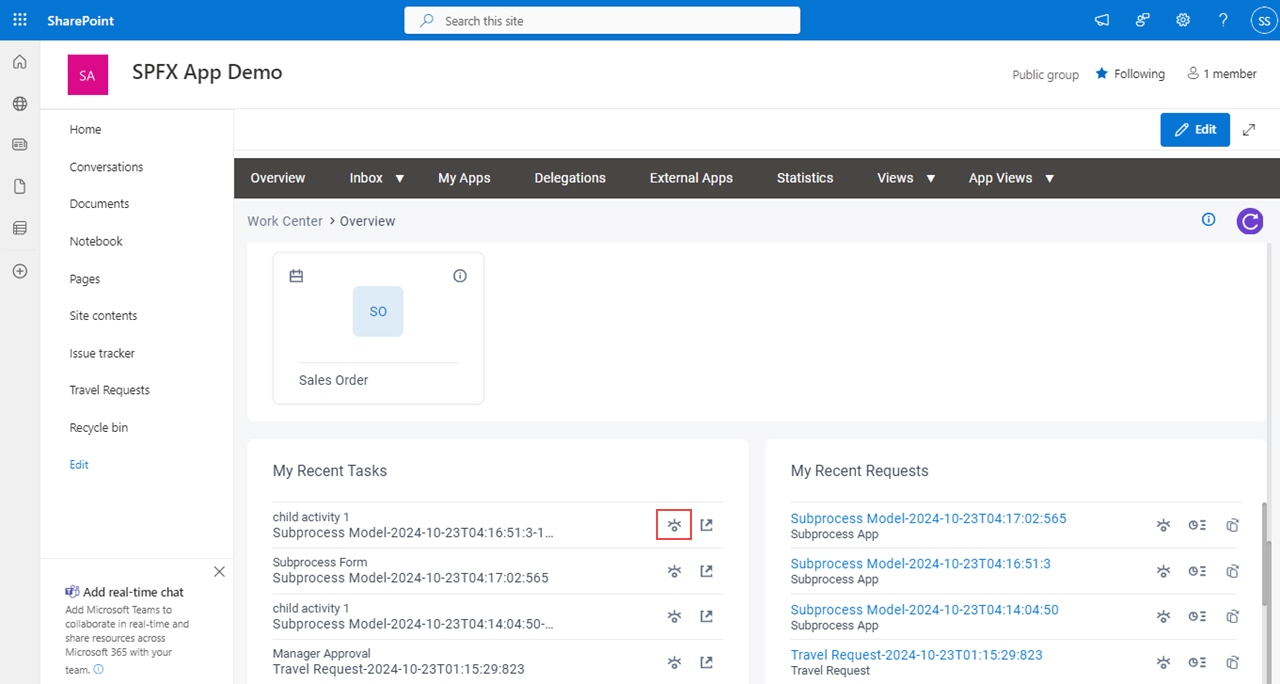
SharePoint for Microsoft 365 (My Recent Requests)
- In SharePoint for Microsoft 365, open the AgilePoint Work Center web part.
- On the Overview screen,
in My Recent Requests, click View Process .
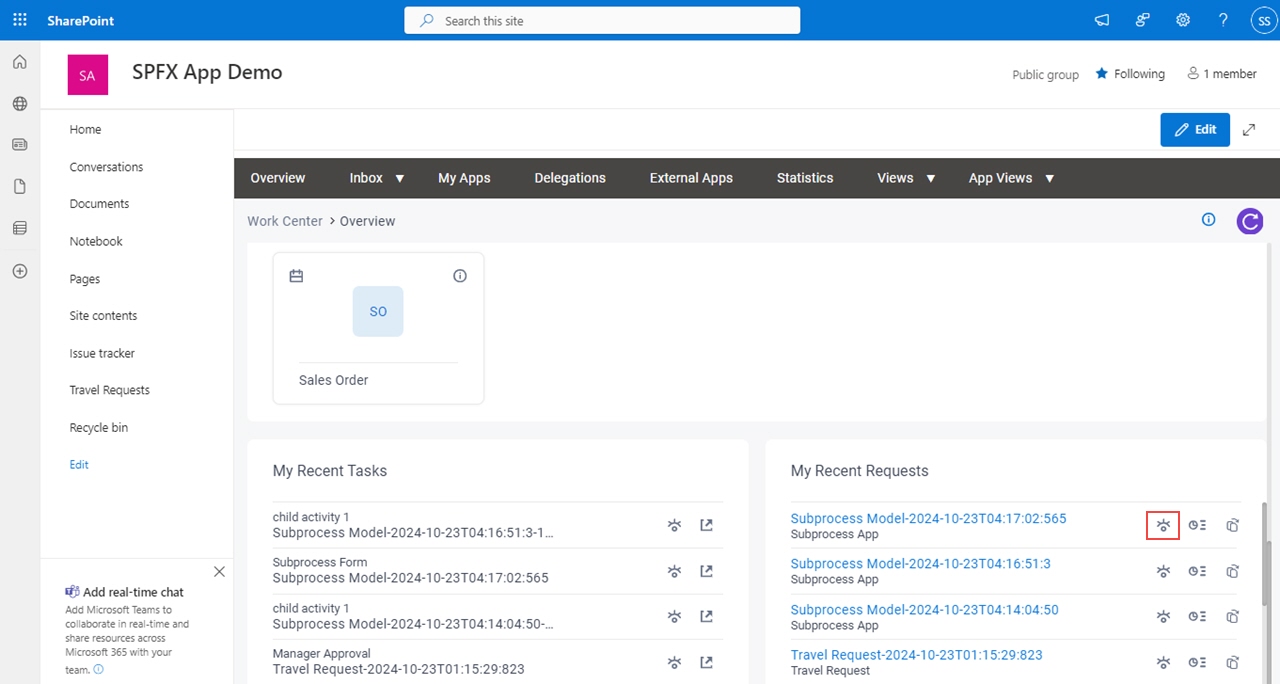
SharePoint for Microsoft 365 (Tasks)
- In SharePoint for Microsoft 365, open the AgilePoint Work Center web part.
- In the AgilePoint Work Center web part, click Inbox > Tasks.
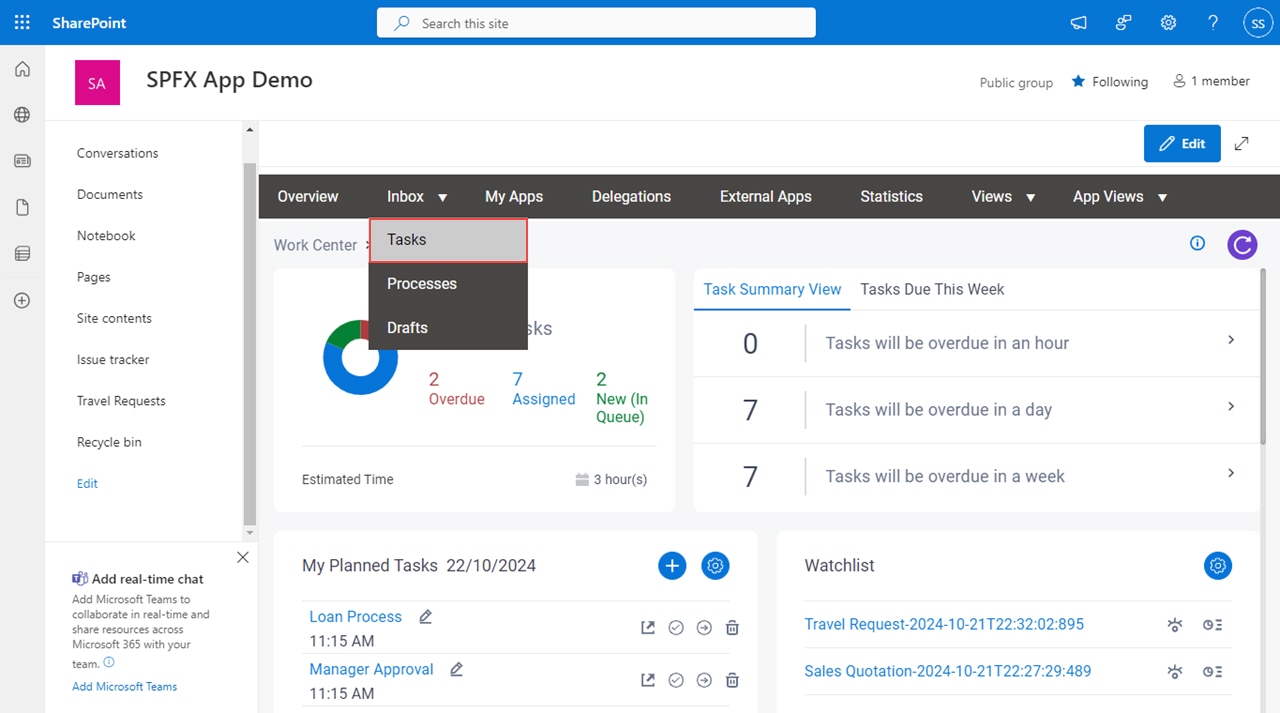
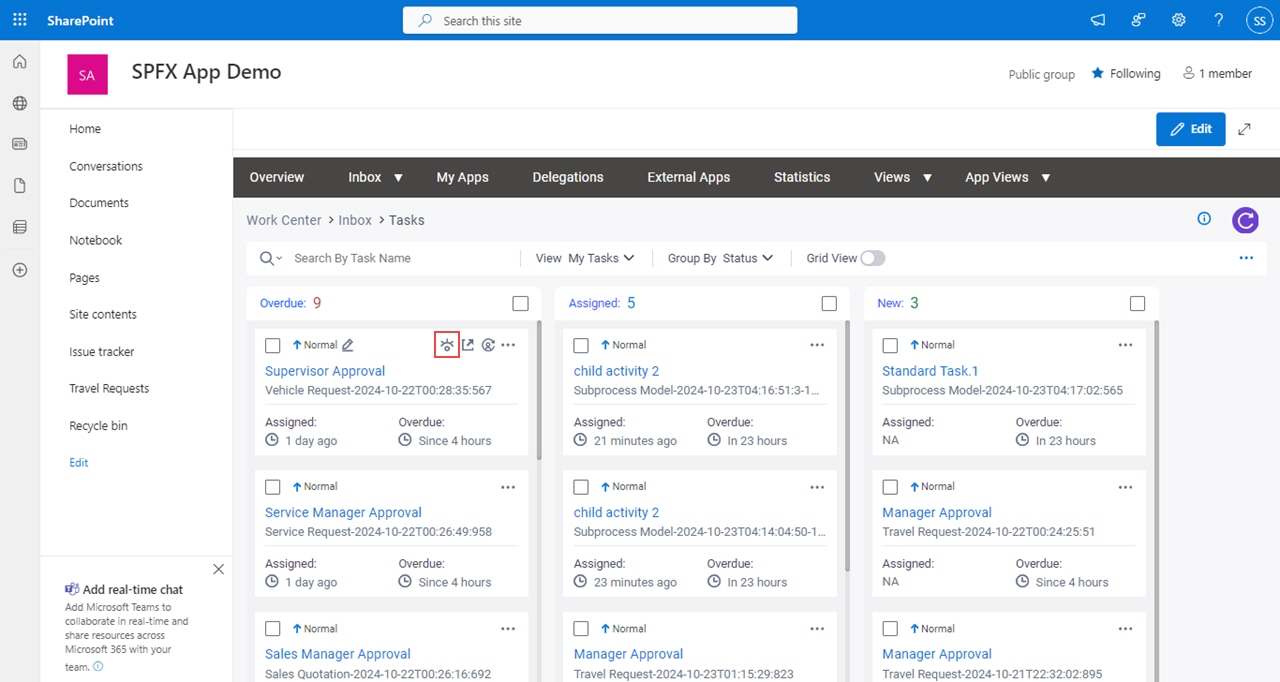
- On the task list,
click View Process .
SharePoint for Microsoft 365 (Processes)
- In SharePoint for Microsoft 365, open the AgilePoint Work Center web part.
- In the AgilePoint Work Center web part, click Inbox > Processes.
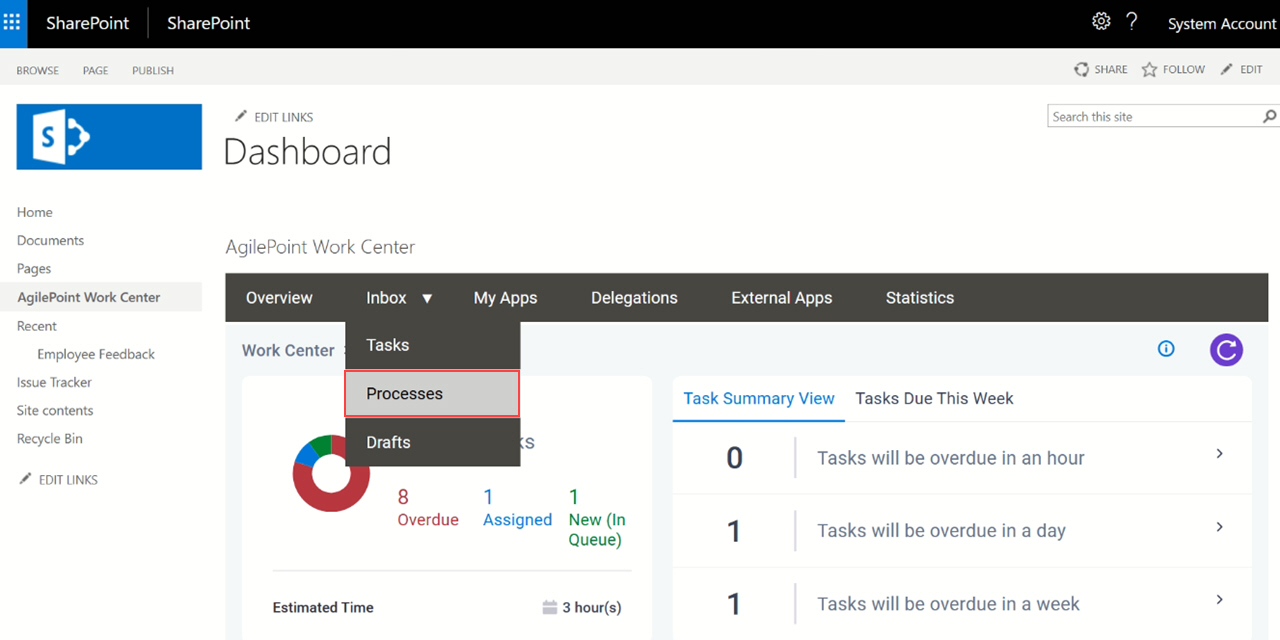
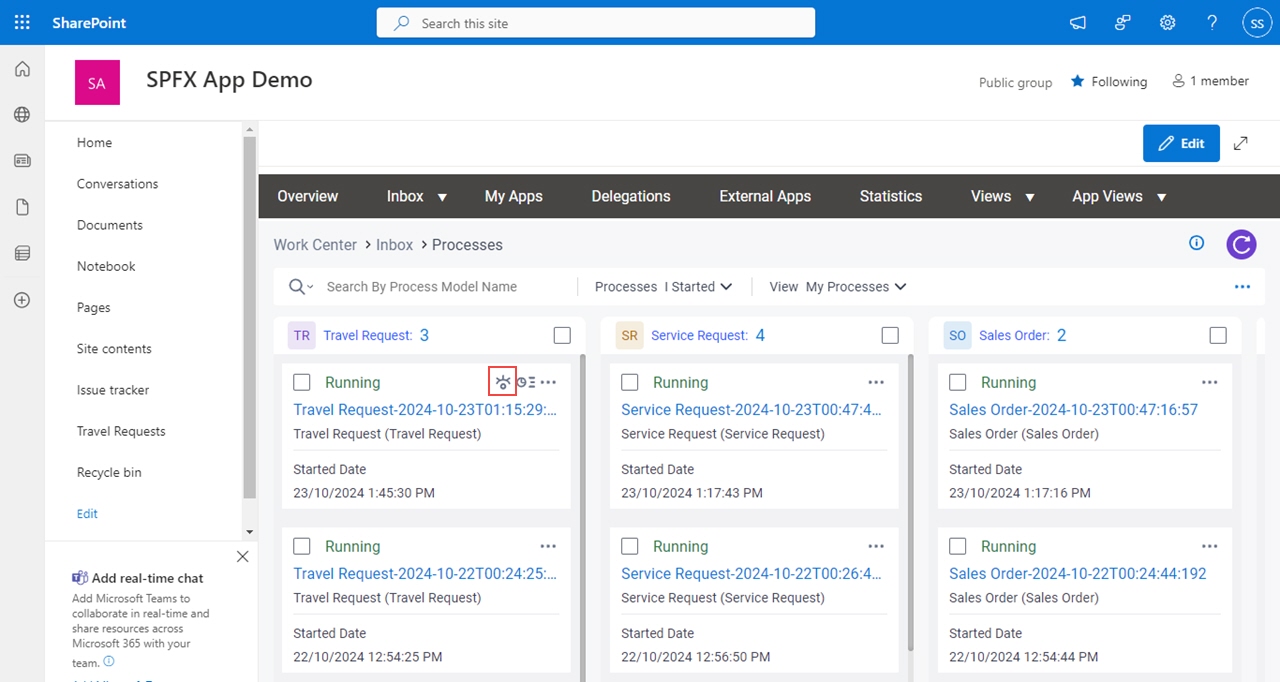
- On the process list,
click View Process .
SharePoint On-Premises (Watchlist)
- In on-premises SharePoint, on the SharePoint site, open the AgilePoint Work Center web part.
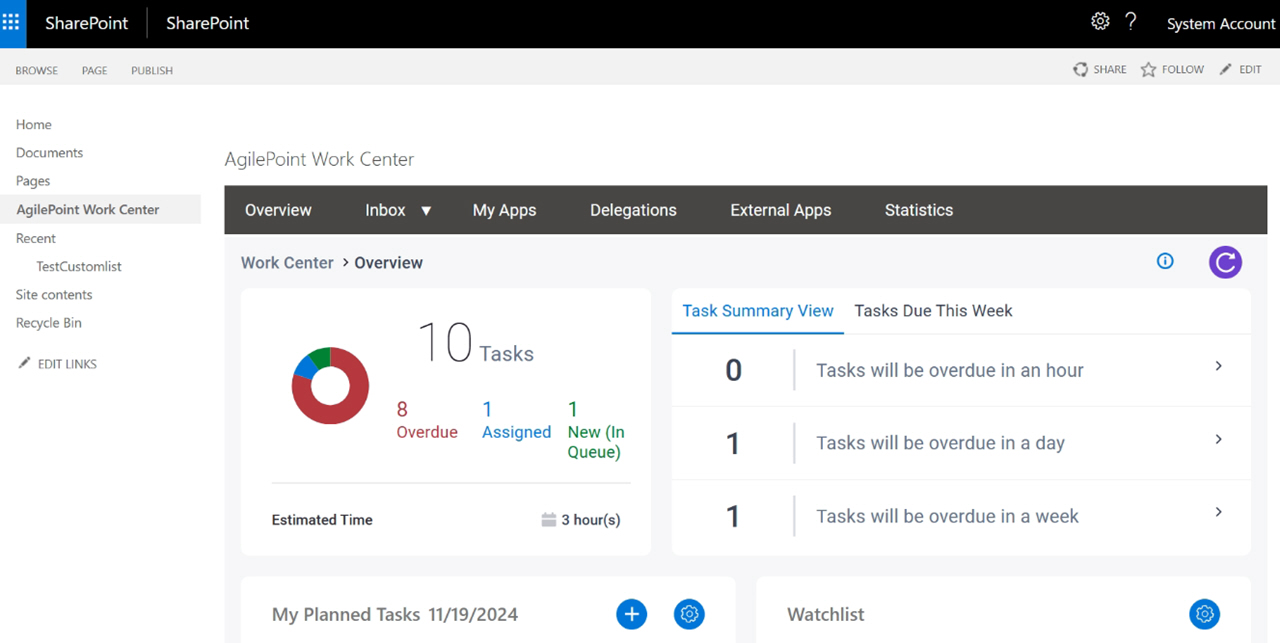
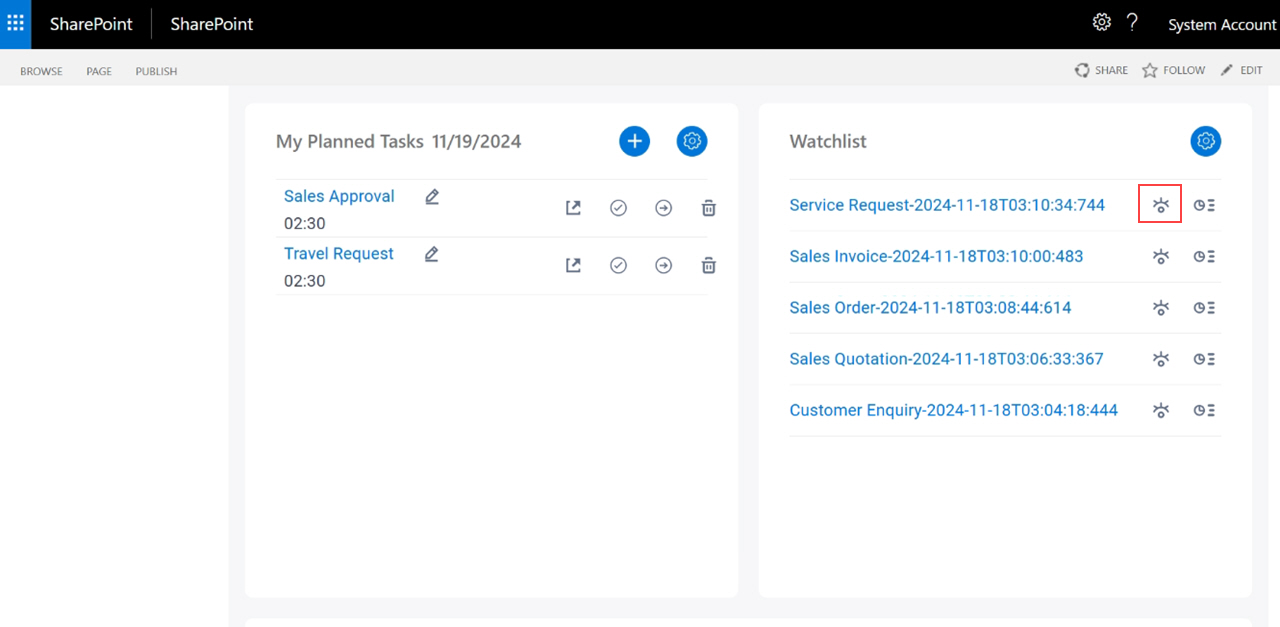
- On the Overview screen,
in the Watchlist, click View Process .
SharePoint On-Premises (My Recent Tasks)
- In on-premises SharePoint, on the SharePoint site, open the AgilePoint Work Center web part.
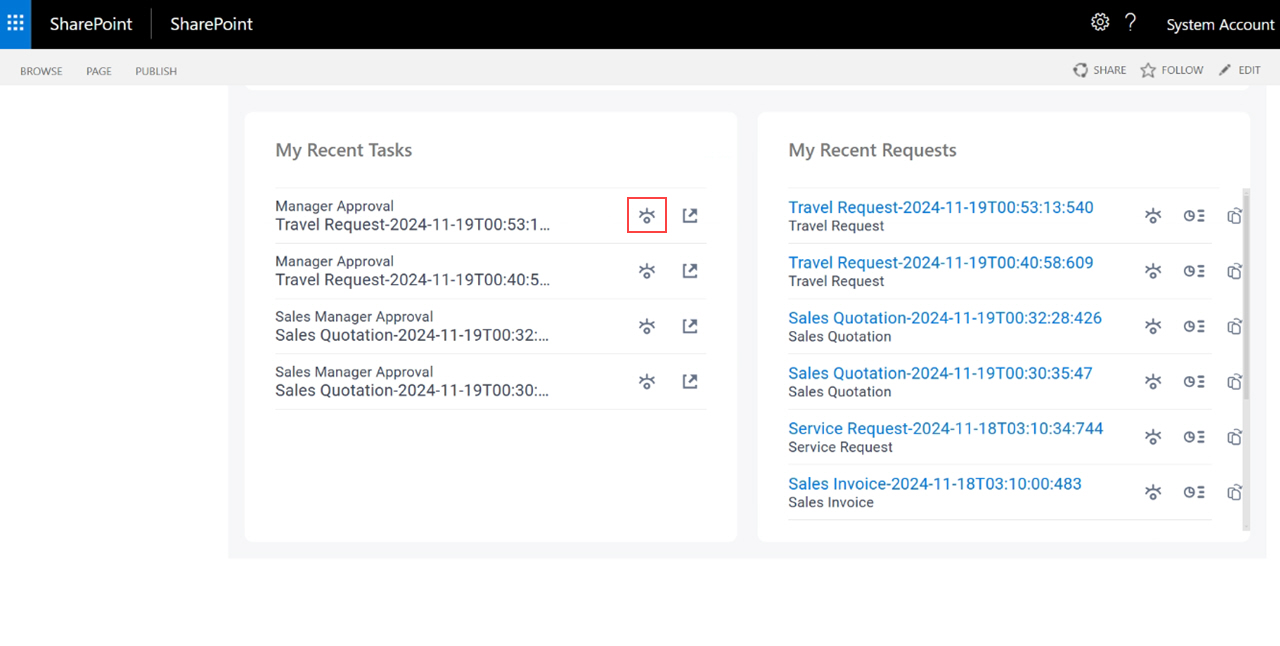
- On the Overview screen,
in My Recent Tasks, click View Process .
SharePoint On-Premises (My Recent Requests)
- In on-premises SharePoint, on the SharePoint site, open the AgilePoint Work Center web part.
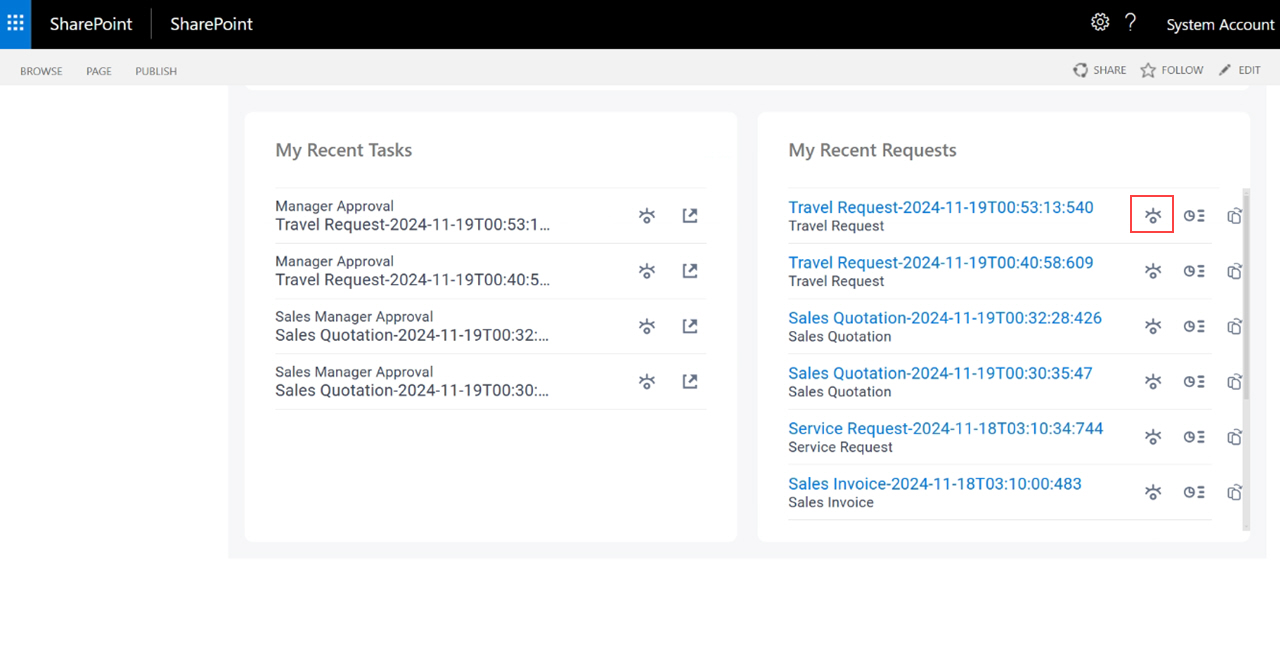
- On the Overview screen,
in My Recent Requests, click View Process .
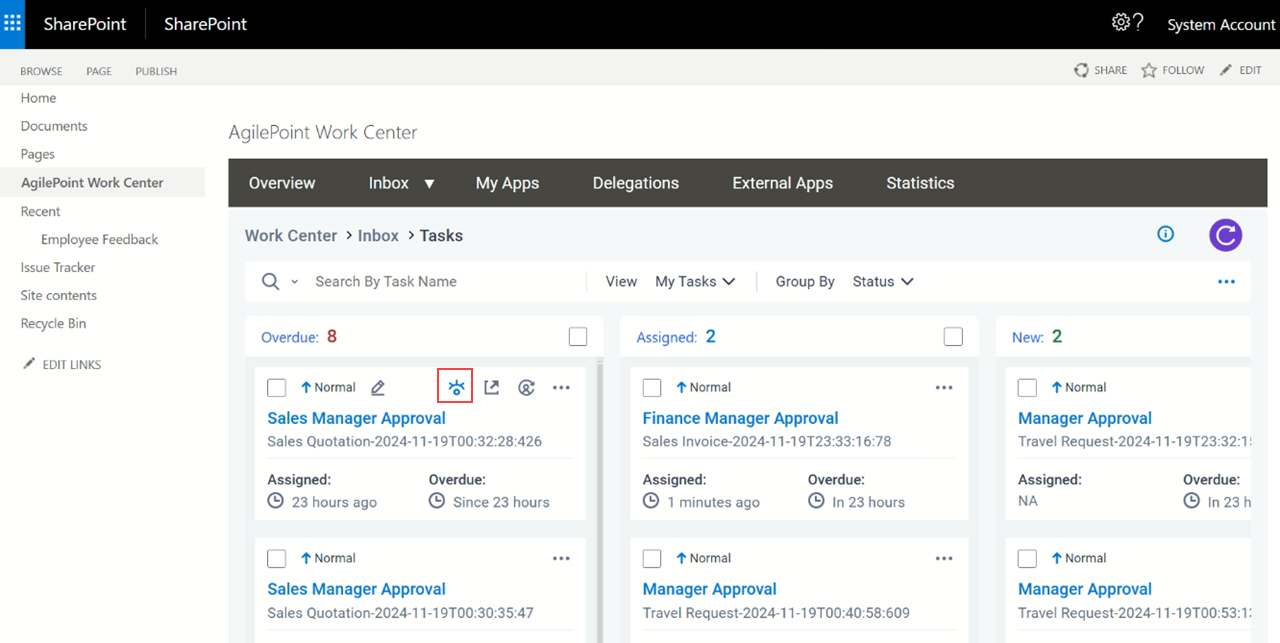
SharePoint On-Premises (Tasks)
- In on-premises SharePoint, on the SharePoint site, open the AgilePoint Work Center web part.
- Click Inbox > Tasks.
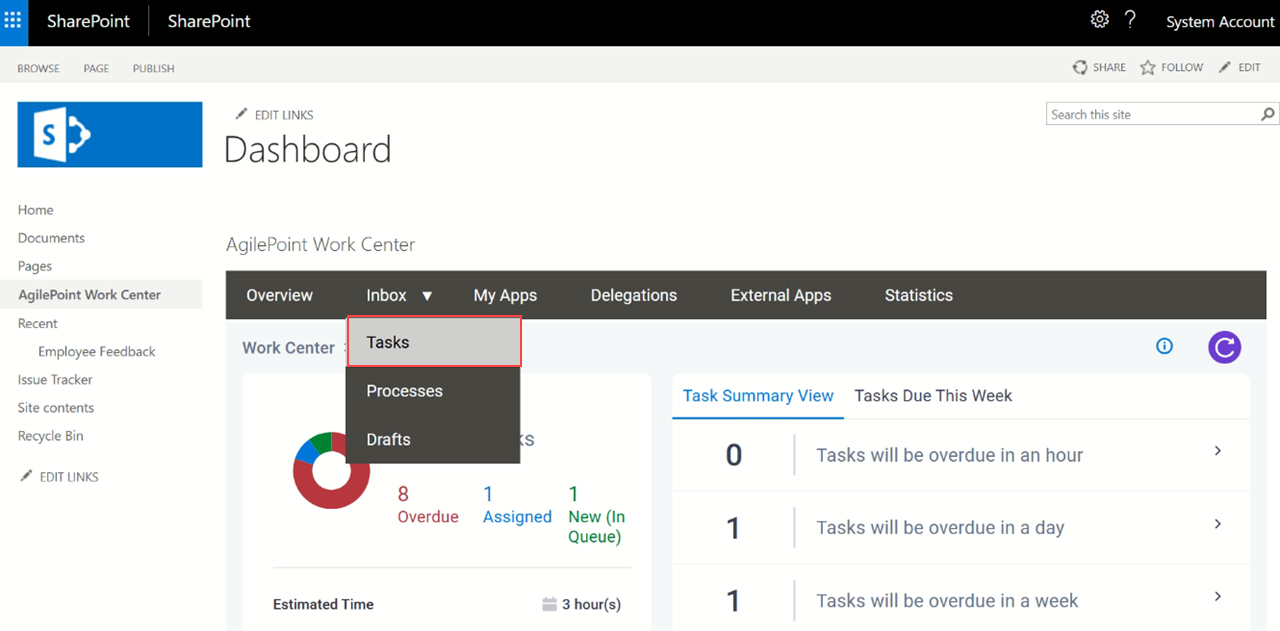
- On the task list,
click View Process .
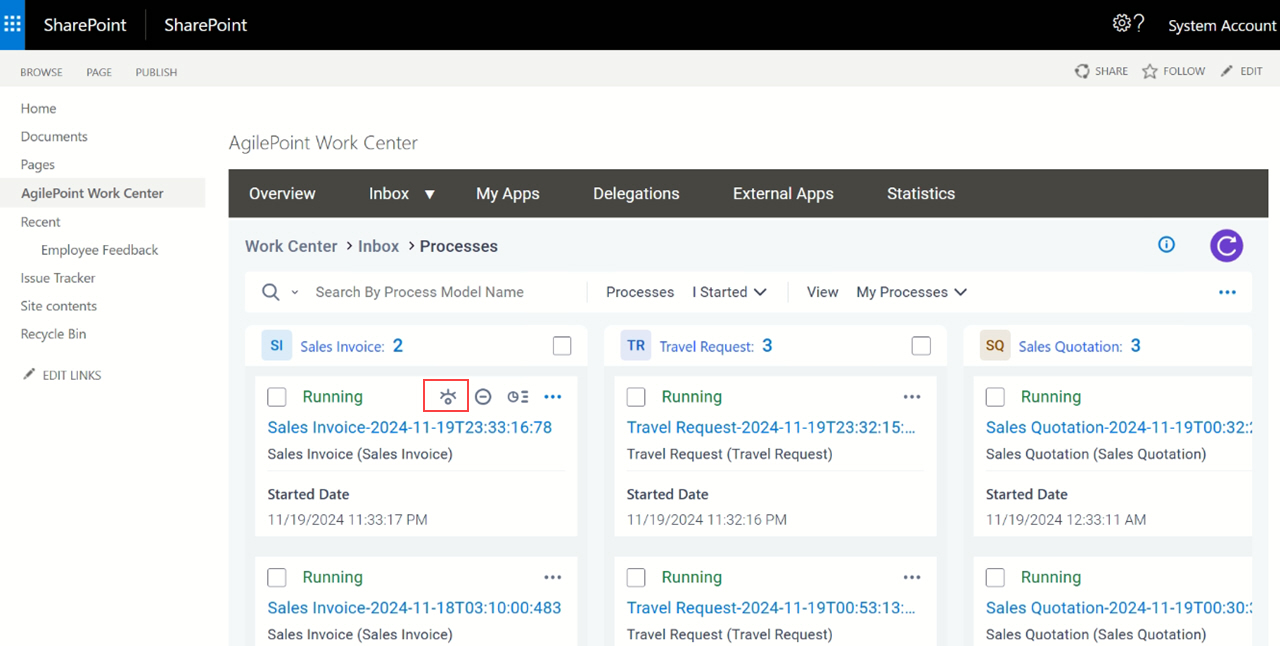
SharePoint On-Premises (Processes)
- In on-premises SharePoint, on the SharePoint site, open the AgilePoint Work Center web part.
- Click Inbox > Processes.
- On the process list,
click View Process .
SharePoint On-Premises (My Tasks)
- , click AgilePoint Dashboard.
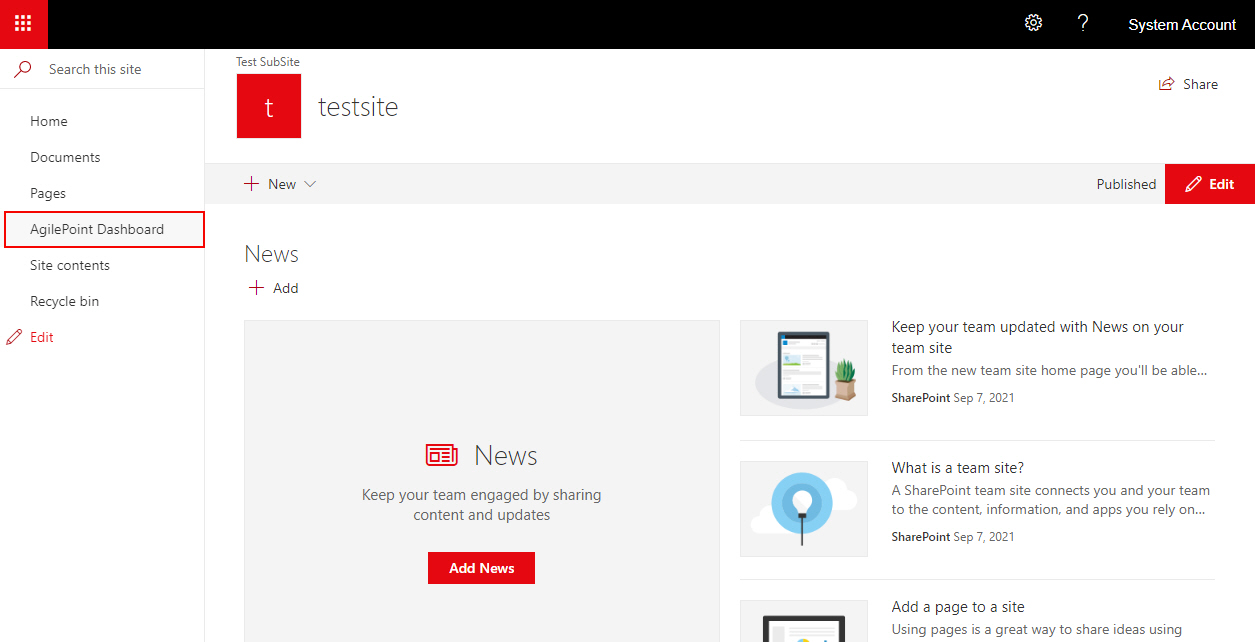
- On the AgilePoint Dashboard screen, click My Tasks.
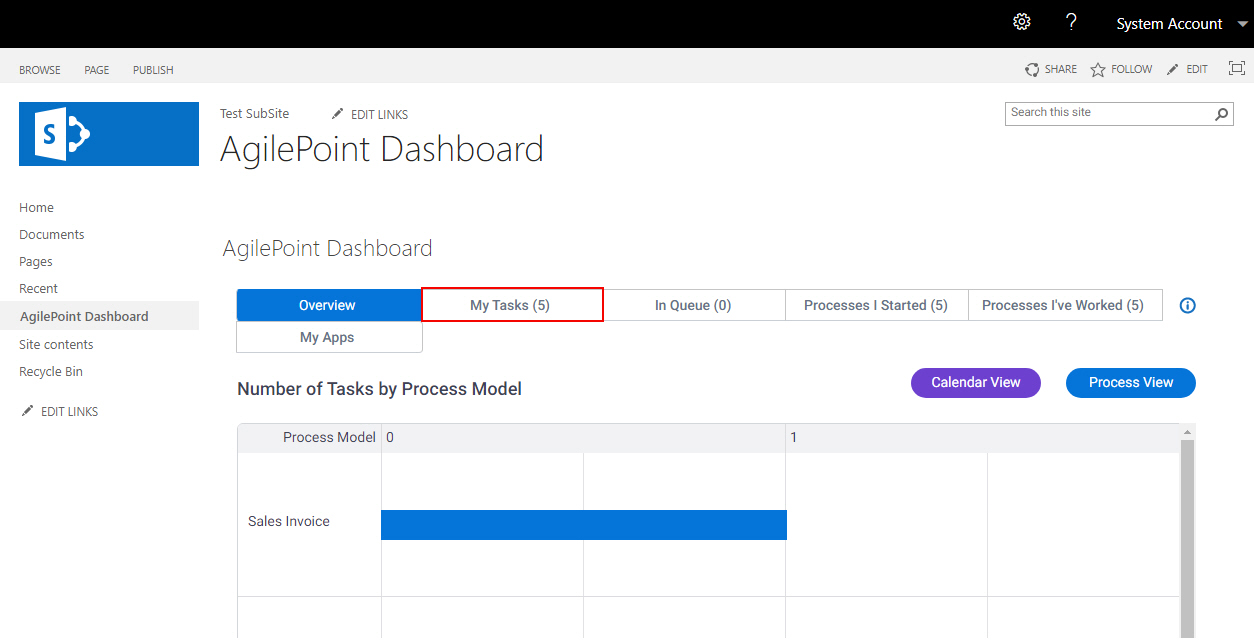
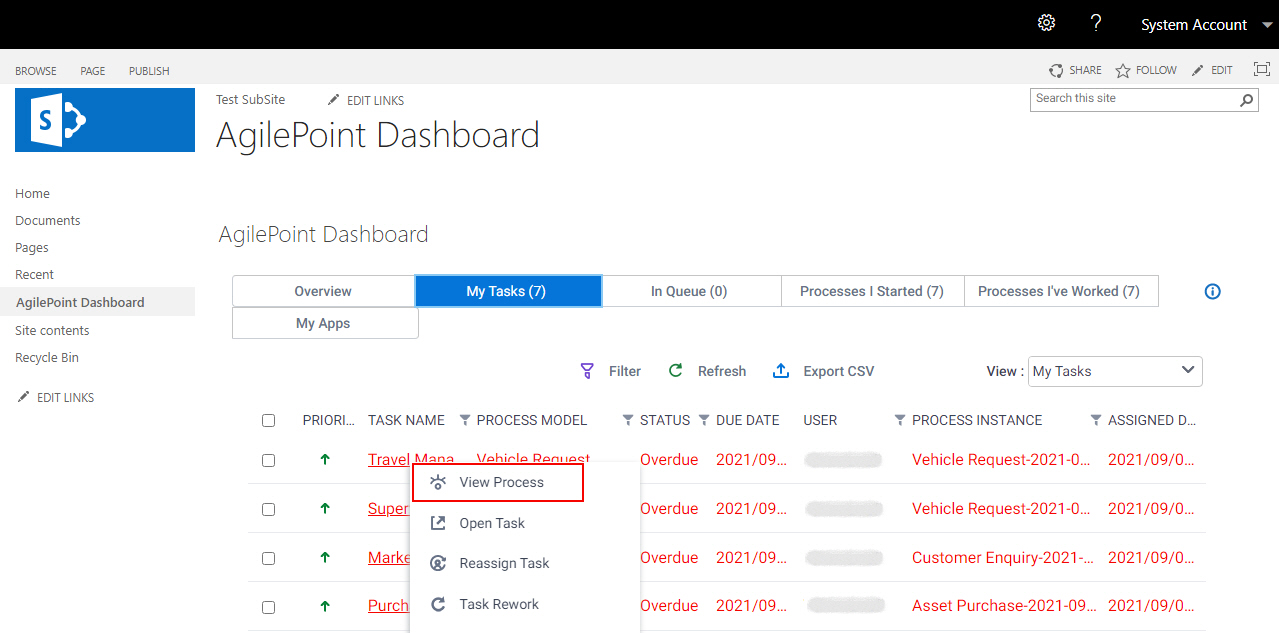
- On the My Tasks tab, click [Task Name] > View Process.
On-Premises SharePoint (In Queue)
- , click AgilePoint Dashboard.
- On the AgilePoint Dashboard screen, click In Queue.
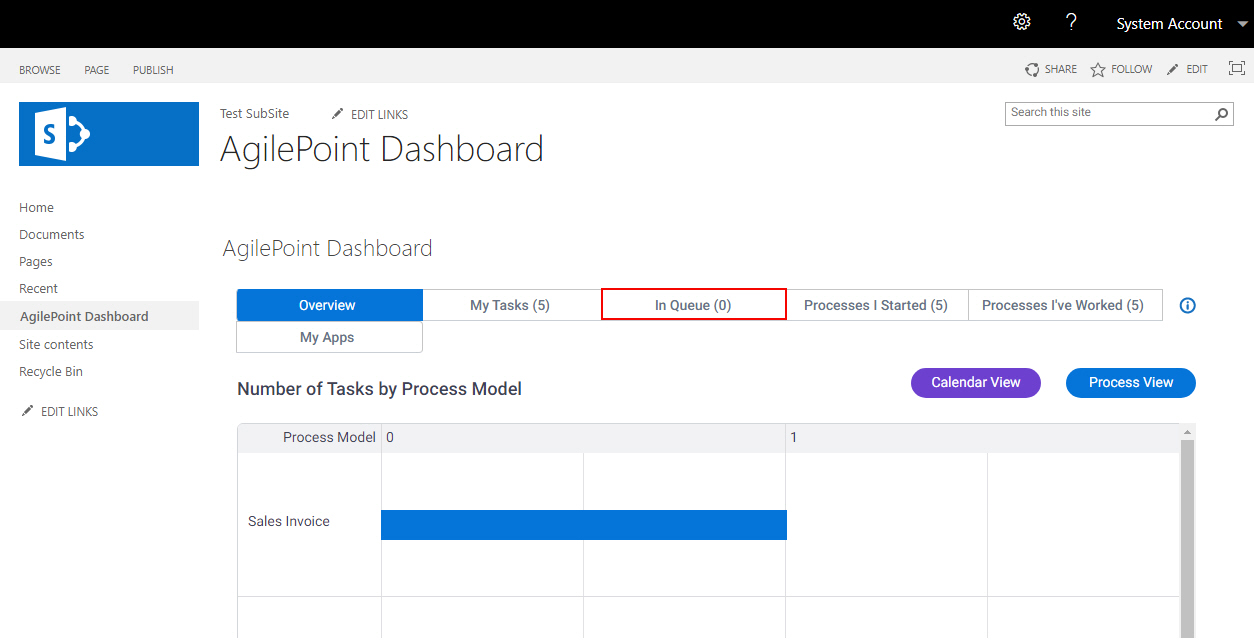
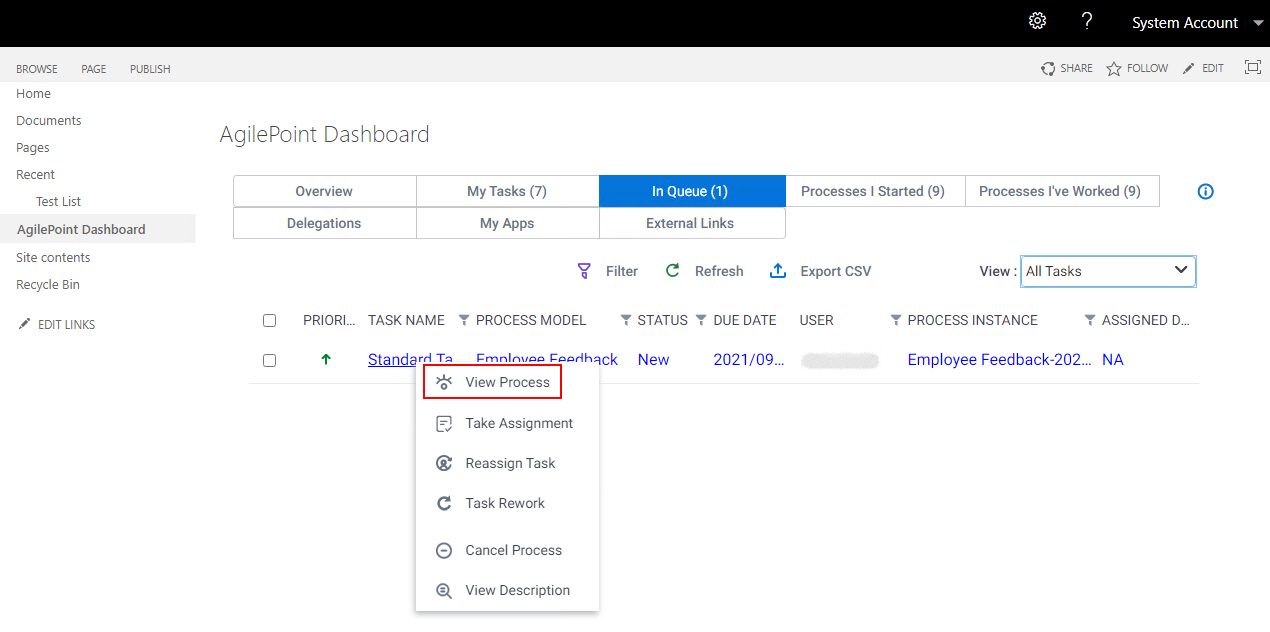
- On the In Queue tab, click [Task Name] > View Process.
On-Premises SharePoint (Process I Started)
- , click AgilePoint Dashboard.
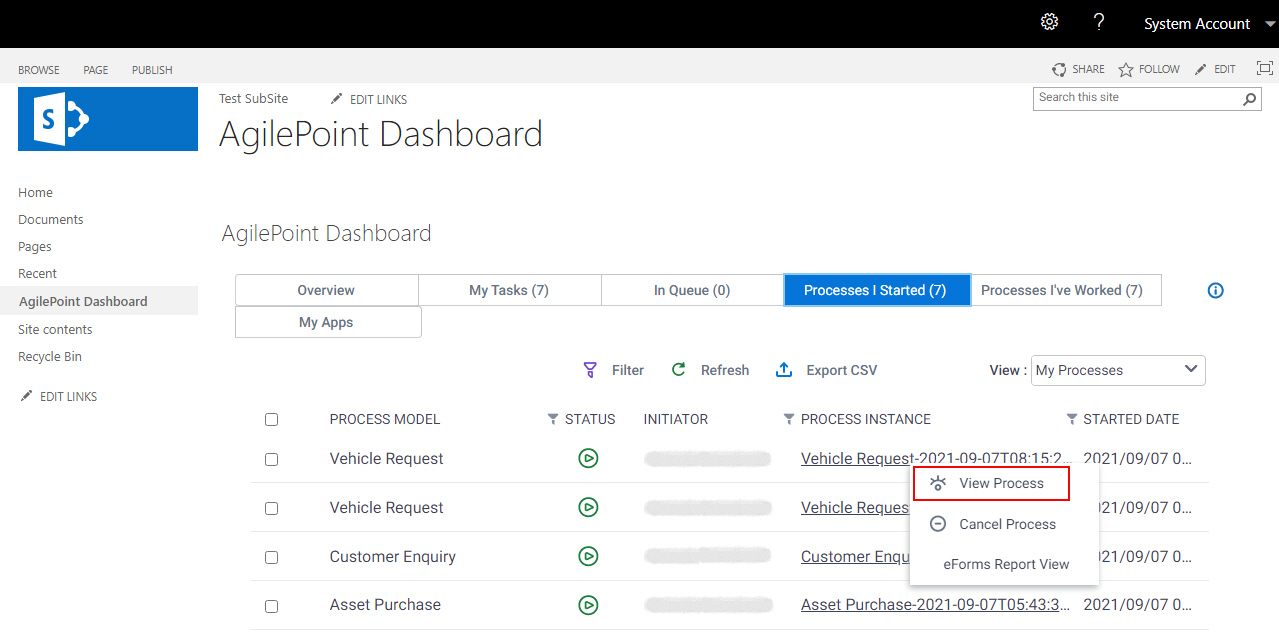
- On the AgilePoint Dashboard screen, click Processes I Started.
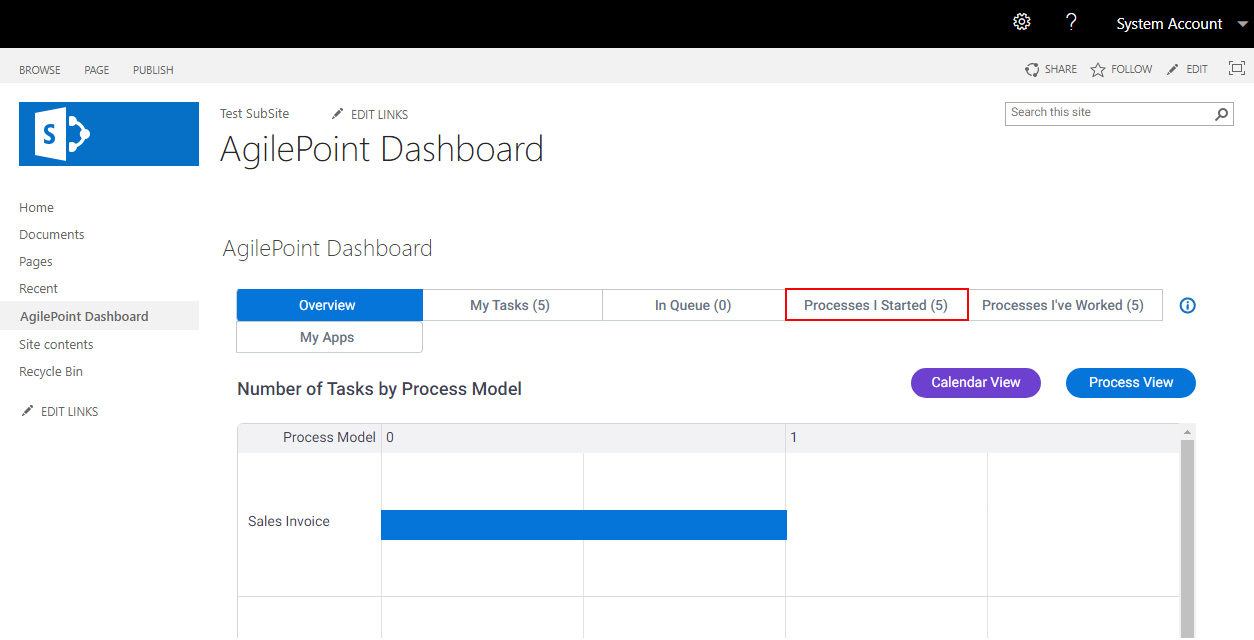
- On the Processes I Started tab,
click [Process Name] > View Process.
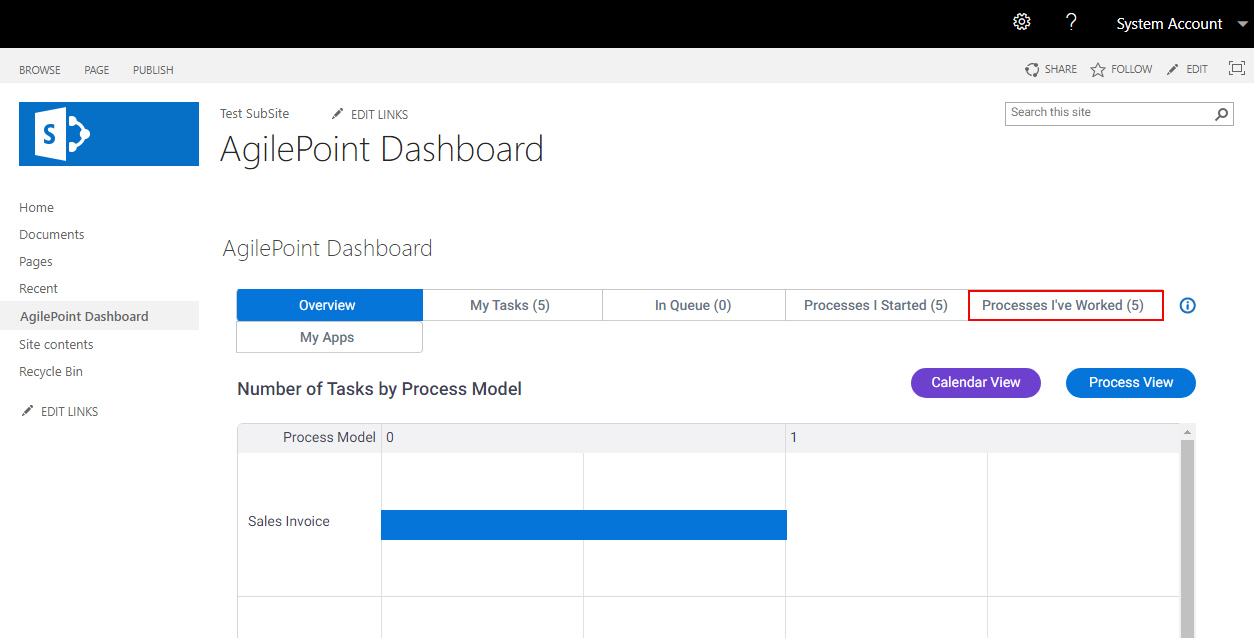
On-Premises SharePoint (Process I've Worked)
- , click AgilePoint Dashboard.
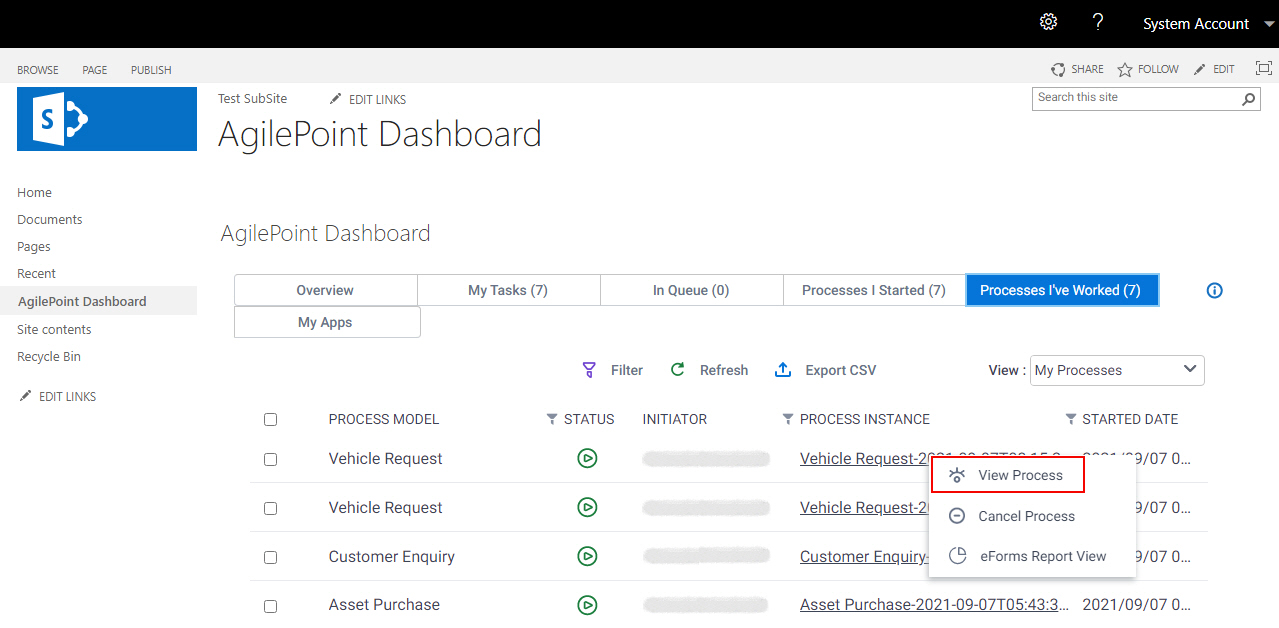
- On the AgilePoint Dashboard screen, click Processes I've Worked.
- On the Processes I've Worked tab,
click [Process Name] > View Process.
Salesforce (Watchlist)
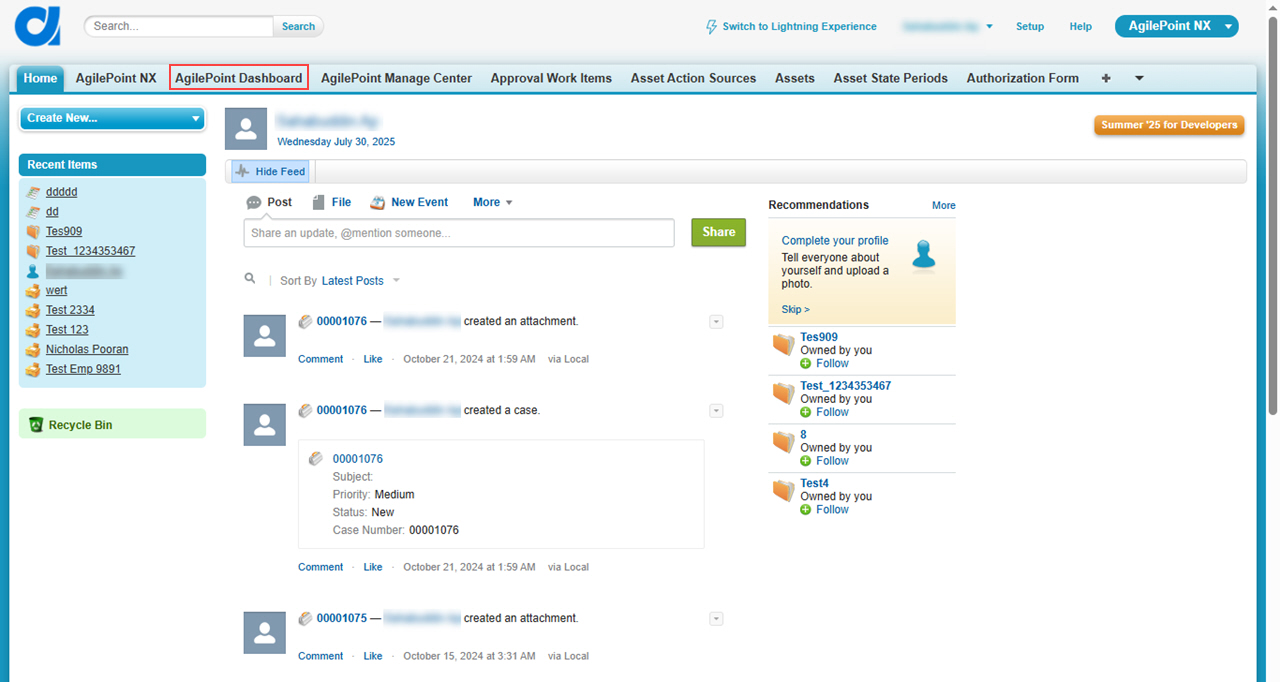
- In Salesforce, click AgilePoint Dashboard.
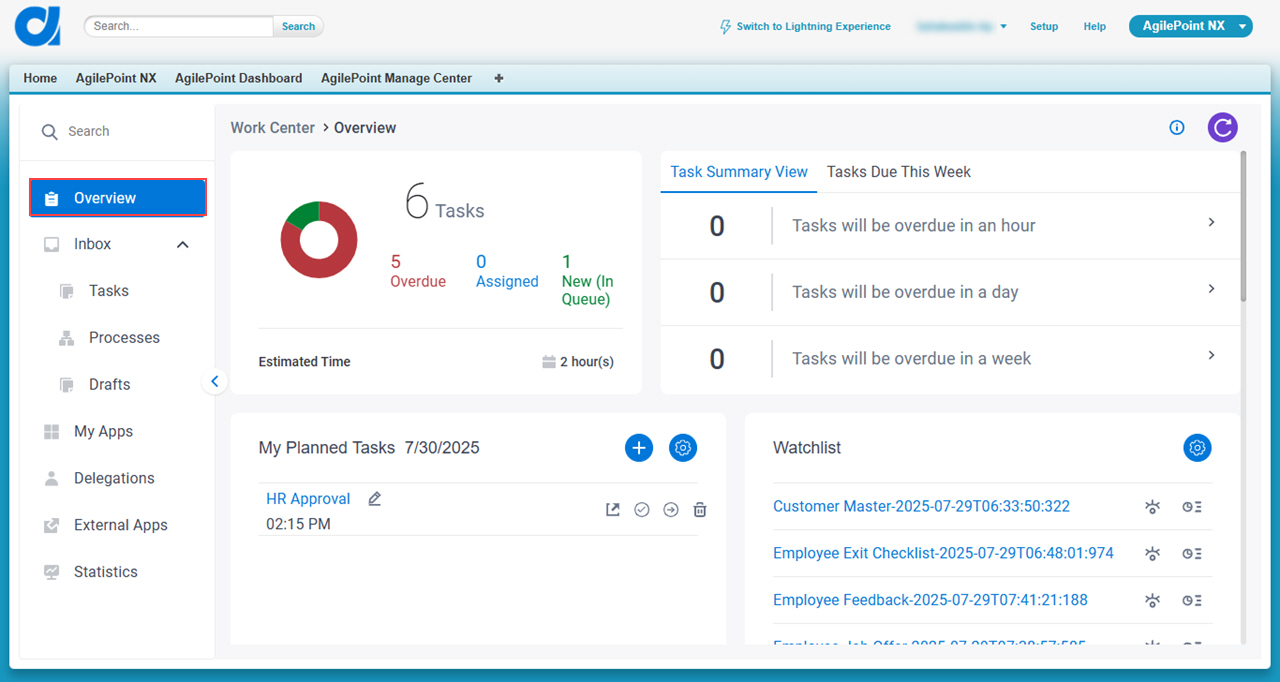
- Click Overview.
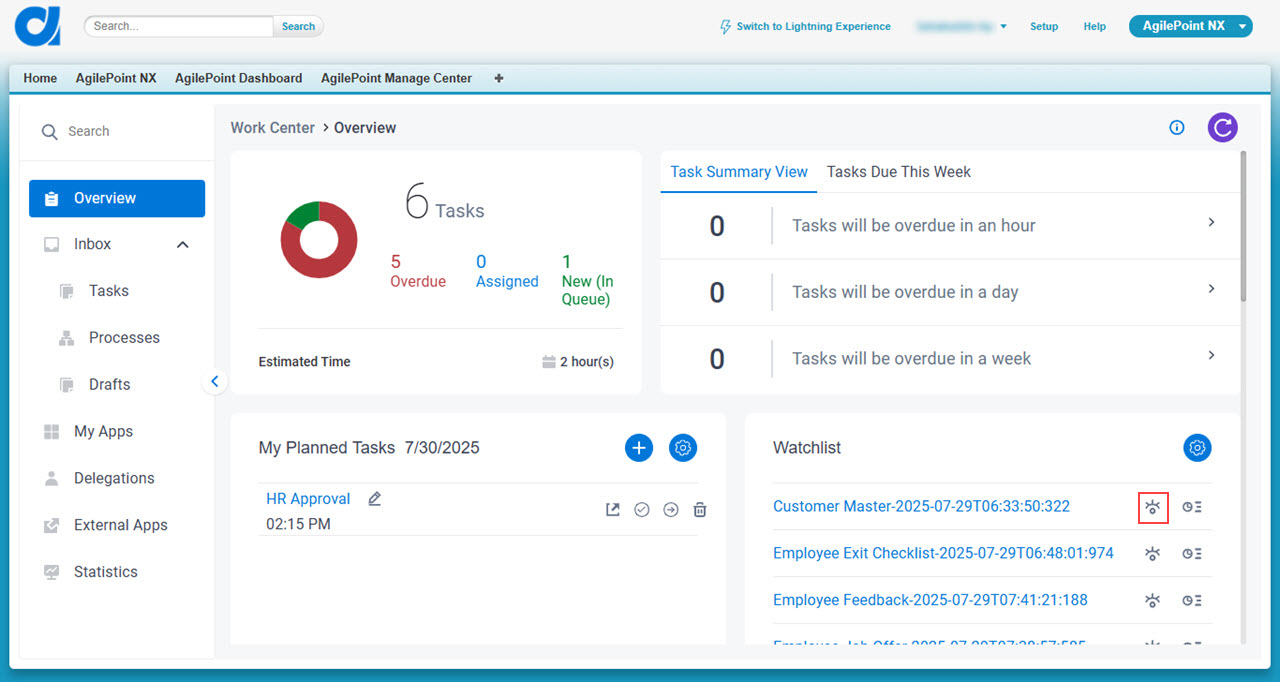
- On the Overview screen,
in the Watchlist section,
click View Process .
Salesforce (My Recent Tasks)
- In Salesforce, click AgilePoint Dashboard.
- Click Overview.
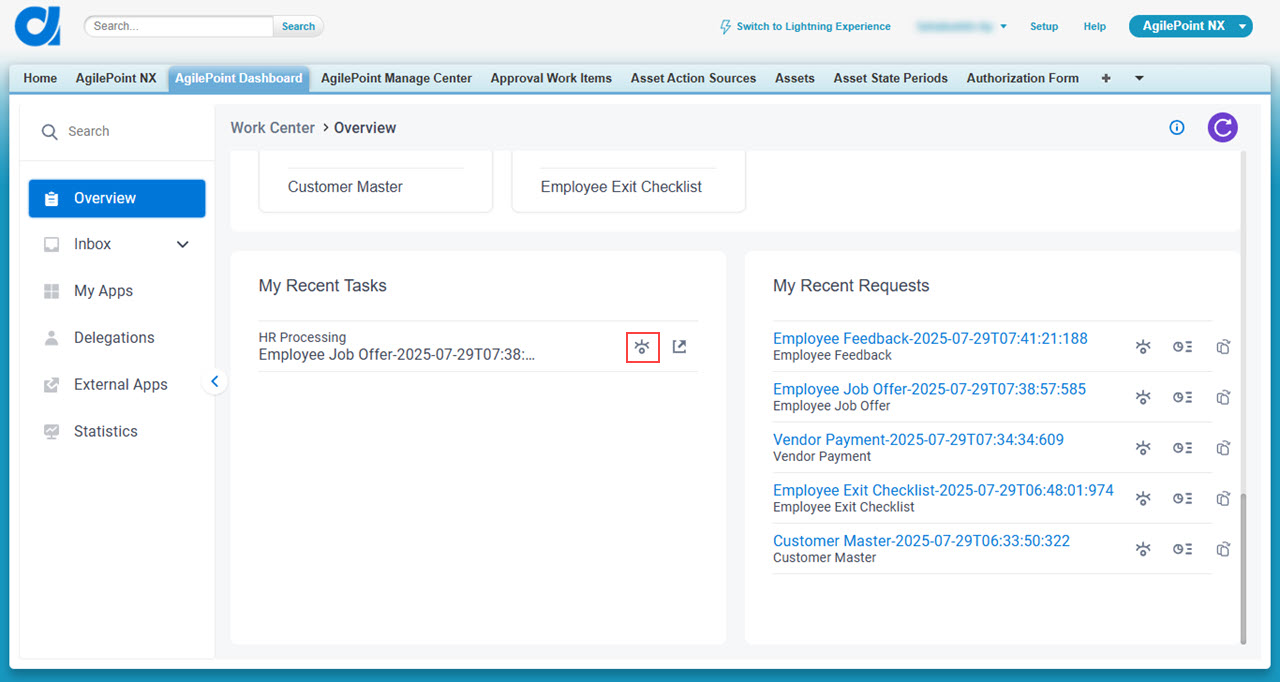
- On the Overview screen,
,
click View Process .
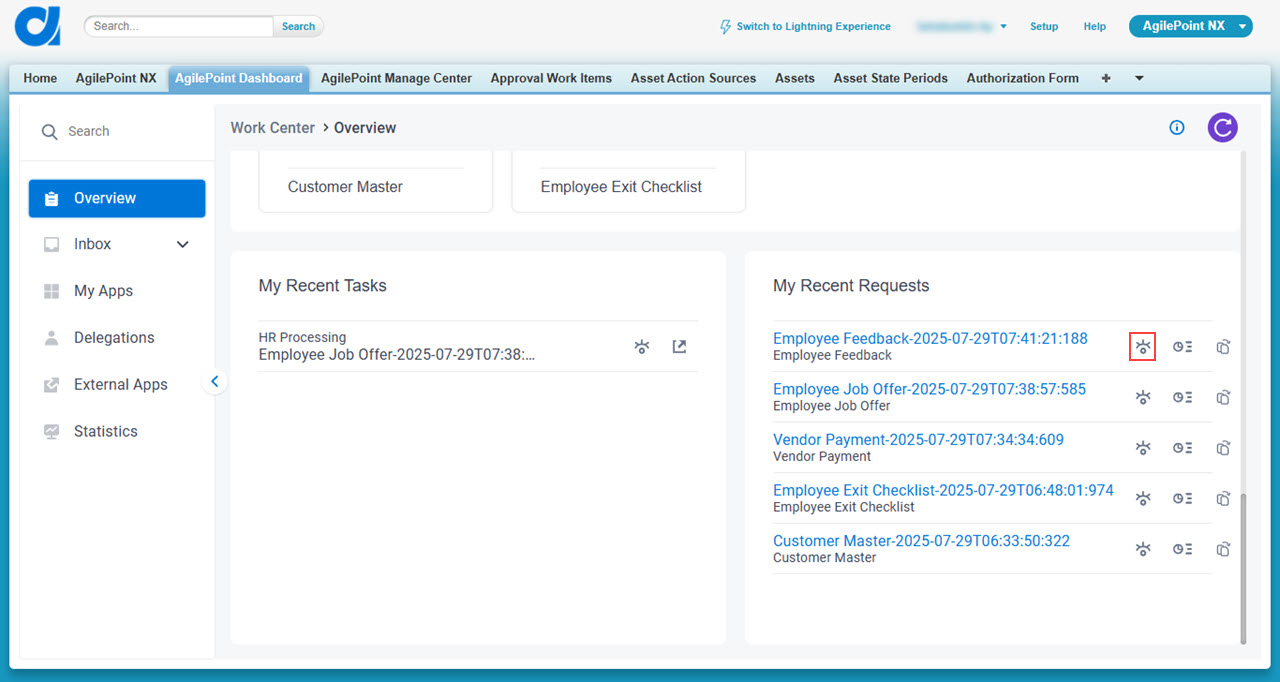
Salesforce (My Recent Requests)
- In Salesforce, click AgilePoint Dashboard.
- Click Overview.
- On the Overview screen,
,
click View Process .
Salesforce (Tasks)
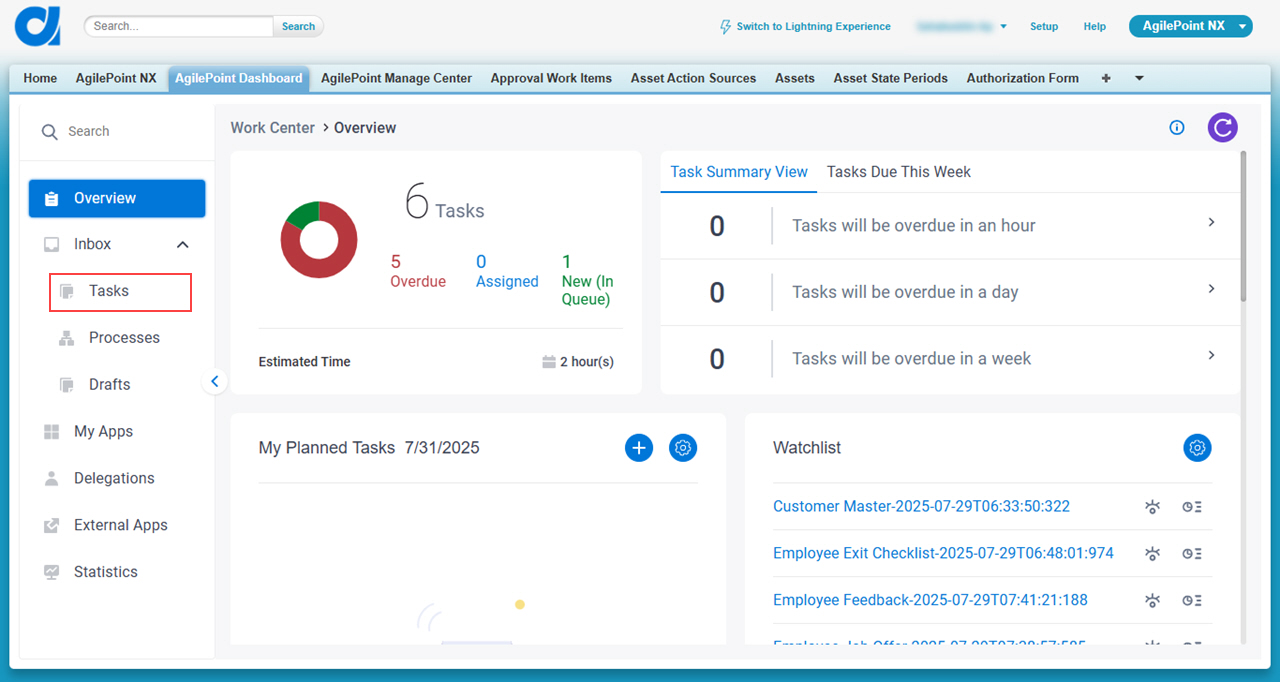
- In Salesforce, click AgilePoint Dashboard.
- ,
> Tasks.
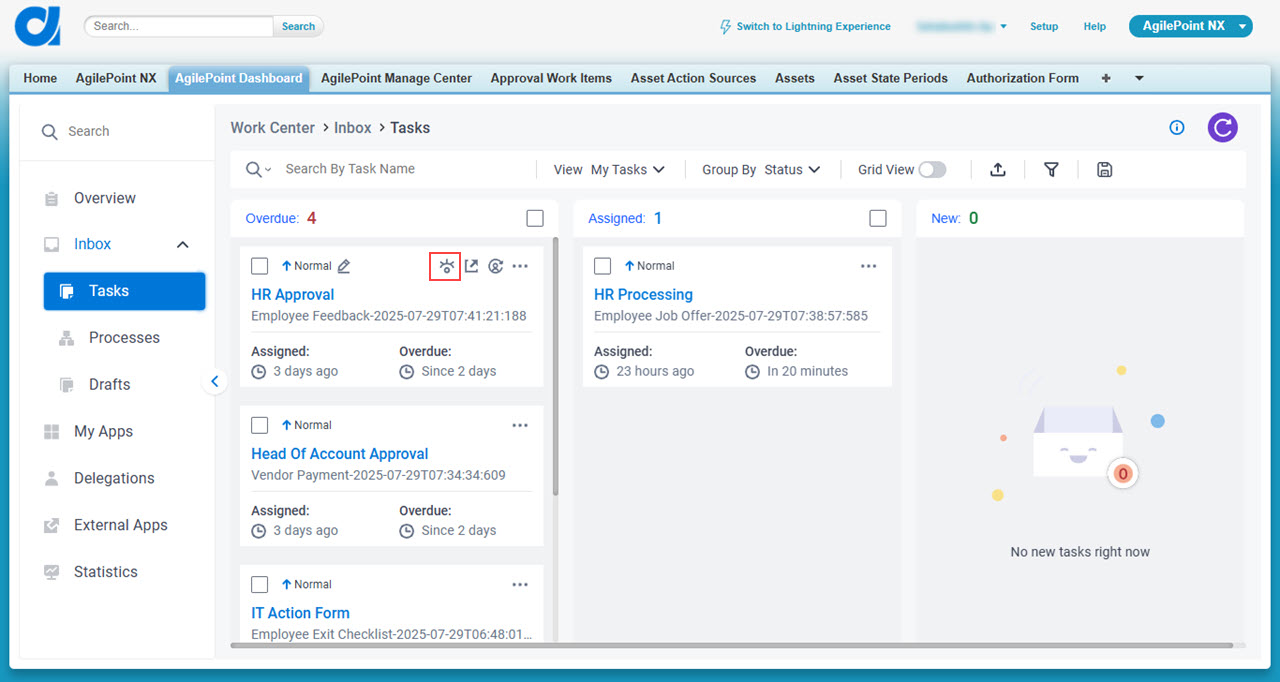
- On the task list,
click View Process .
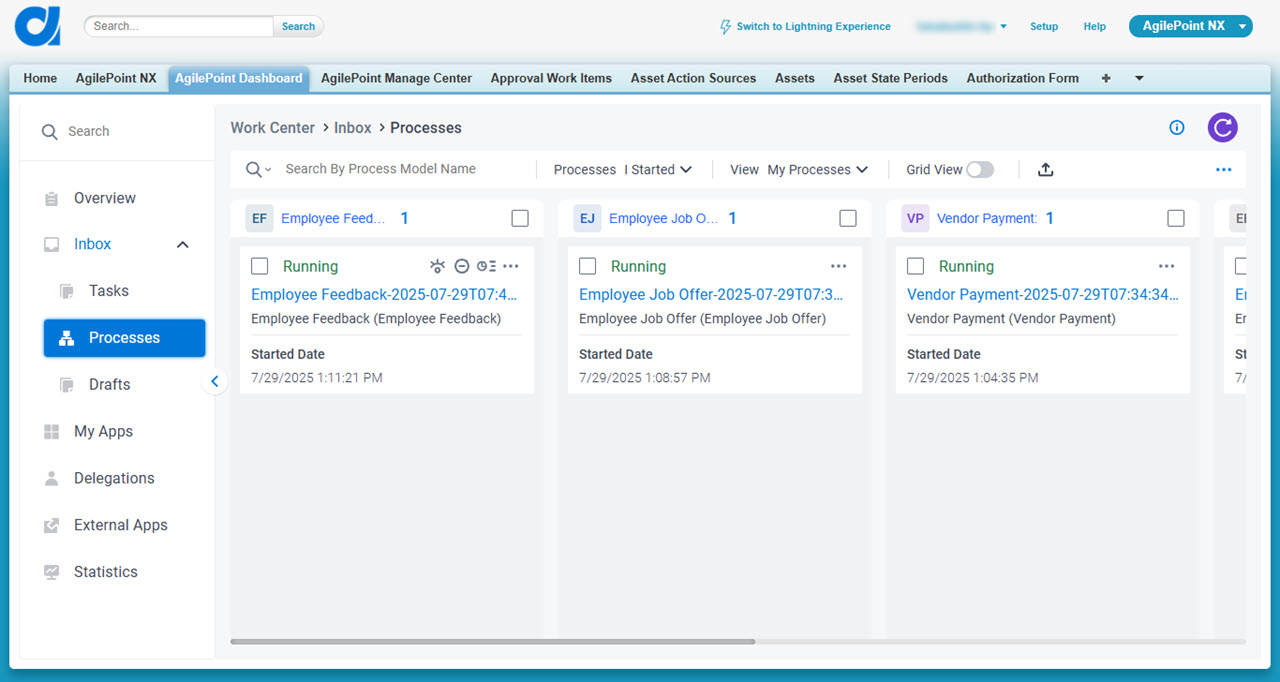
Salesforce (Processes)
- In Salesforce, click AgilePoint Dashboard.
- ,
> Tasks.
- On the task list,
click View Process .
Fields
| Field Name | Definition |
|---|---|
Zoom In / Zoom Out |
|
Open In New Tab |
|
Process KPI |
|
Suspend | |
Cancel Process |
|
Process Instance Information |
|
Change Flow |
|


