


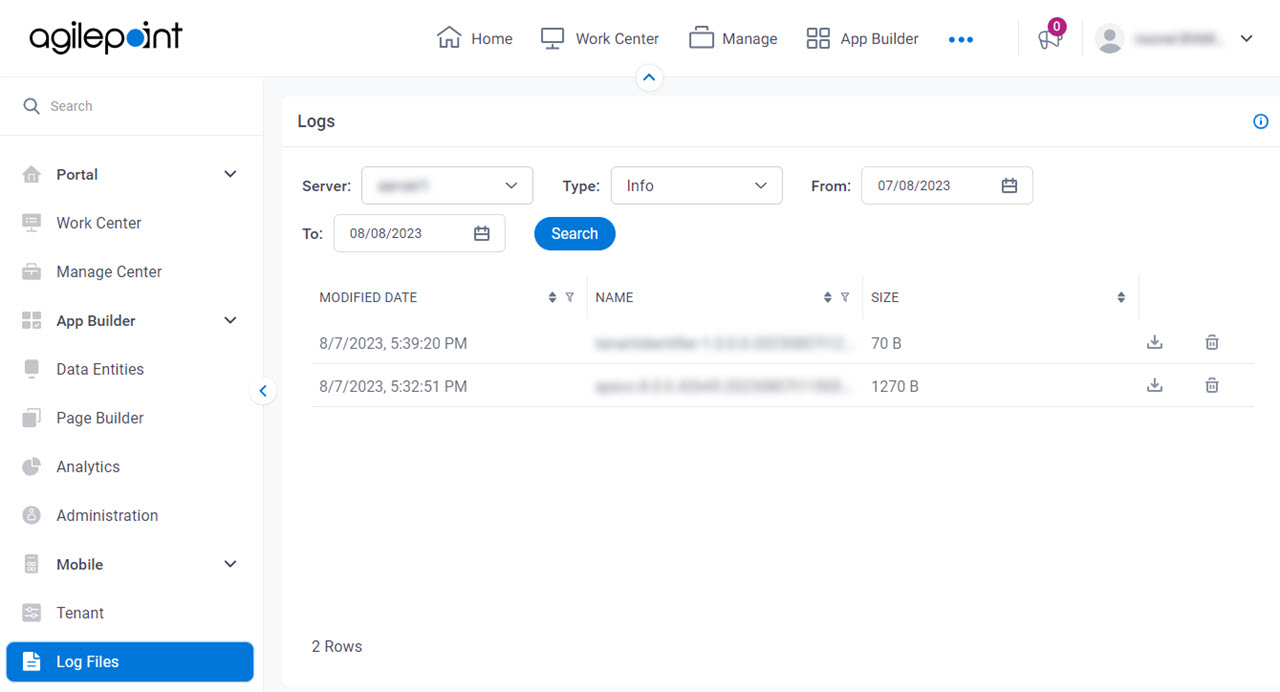
Log Files screen
Lets you access the log files in AgilePoint NX Portal.
Prerequisites
- This applies to AgilePoint NX OnDemand (public cloud).
- Sign In to AgilePoint NX as a Tenant Administrator.
Good to Know
- AgilePoint Server creates and maintains log files to store certain informational, warning, debug, and error messages about the server. These log files are created automatically, and named based on the date and time each file was created.
- This topic gives information about the log files for AgilePoint Server only. To see the log files for external system integrations, refer to the documentation for those systems.
For more information, refer to Where Are the AgilePoint NX OnPremises Logs?
- For information about logs on Android devices, refer to:
How to Start
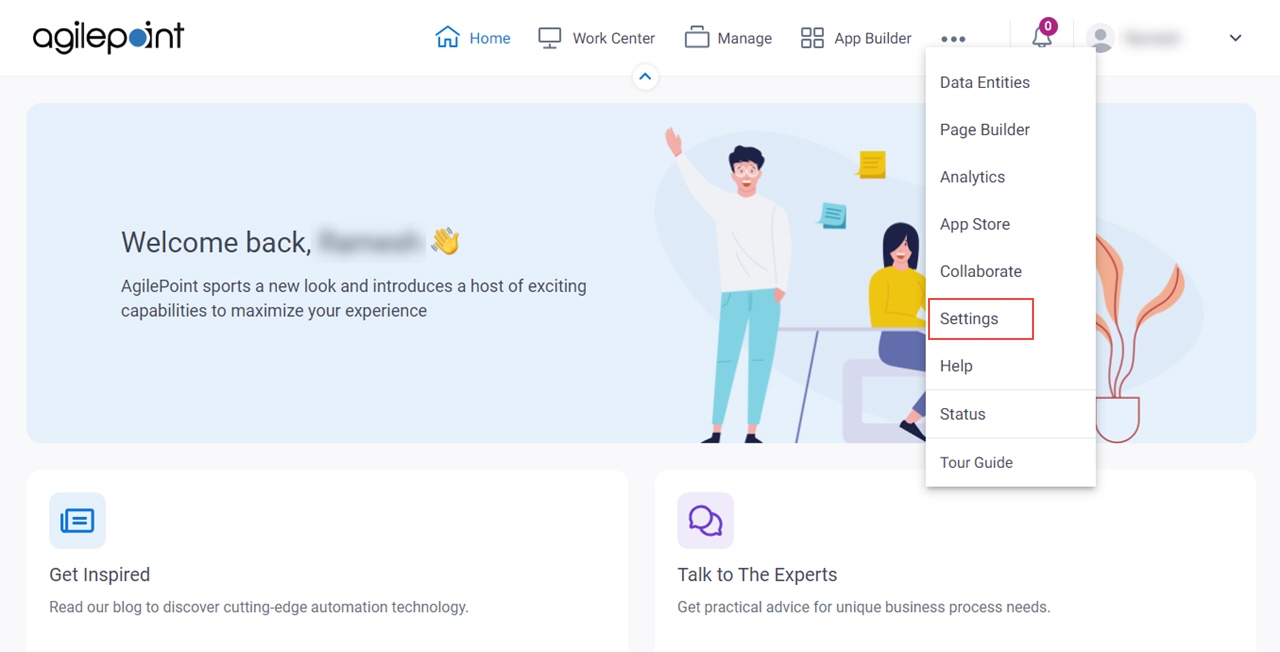
- Click Settings.
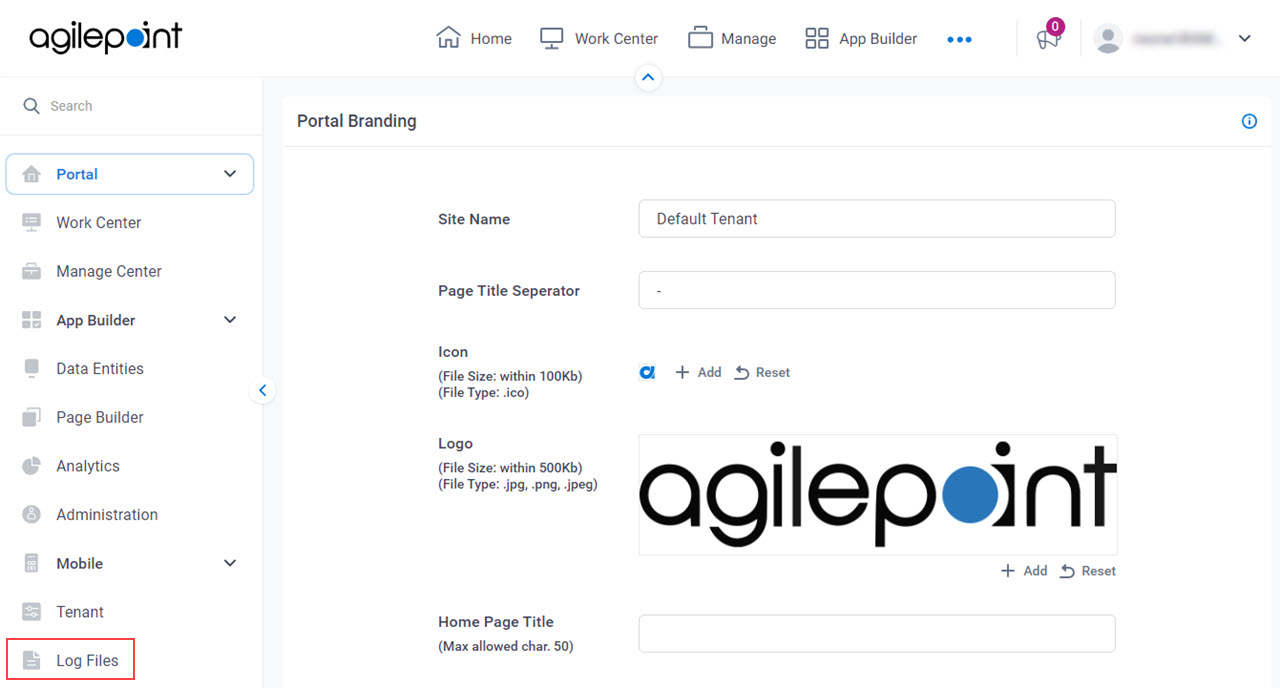
- Click Log Files.
Fields
| Field Name | Definition |
|---|---|
Server |
|
Type |
|
From |
|
To |
|
Search |
|
Modified Date |
|
Name |
|
Size |
|
Download |
|
Delete |
|

