


Configure the Process and Activities (Let AI Decide)
This topic shows how to create your process based on a prompt, and configure the activities for the process created with GenAI.
Background and Setup
Examples
Prerequisites
- To create an app with GenAI,
these prerequisites apply:
- An AgilePoint license that supports GenAI.
- These access rights:
- Enable App Builder Access
- Create, Delete, And Import Apps
- Create Process Models
- Allow Generative AI Access
For more information, refer to:
- You must be a member of the Entity Designers or Global Data Entities Permission Managers permission group.
- On the App Builder > Common > Settings tab, turn on these settings:
- Generative AI
- Excel
- Image
- Let AI Decide
Good to Know
- You can not delete the Start and Stop activities from the process.
How to Start
- Create an app.
For more information, refer to Create an app.
- Set up the process-based app.
For more information, refer to Set Up a Process-Based App.
- On the Do you want AI to create your process? screen,
click Create Process With AI.
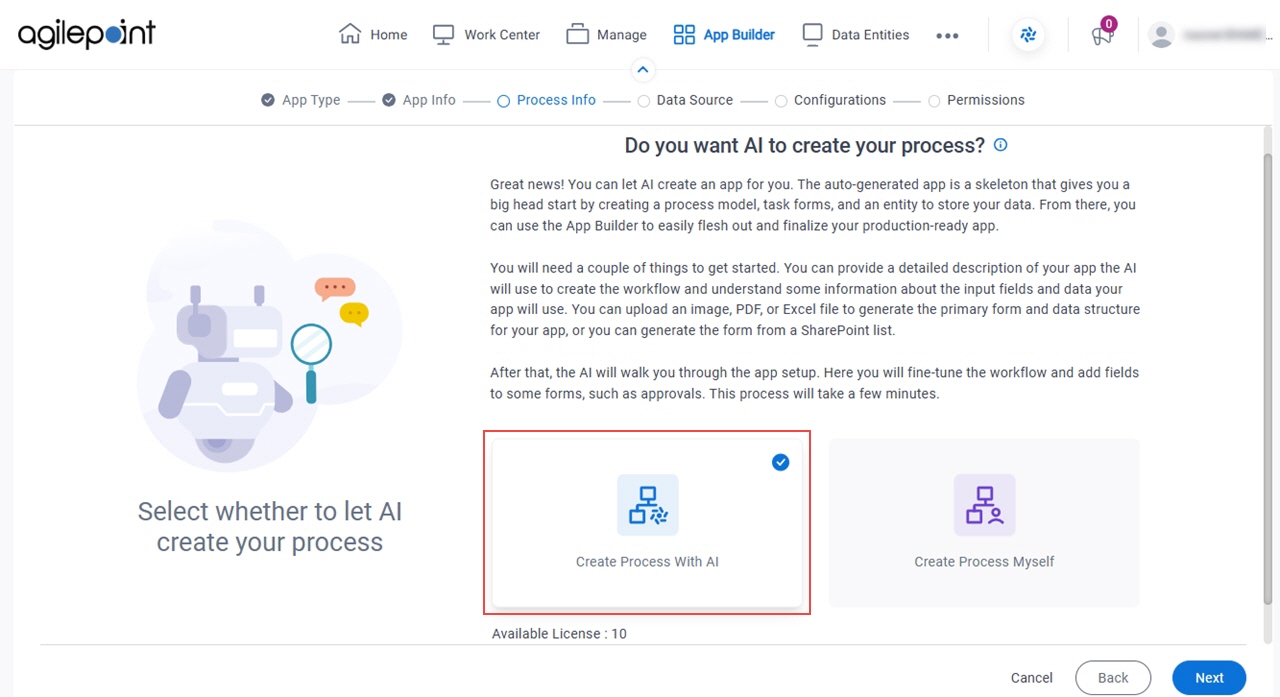
- Click Next.
- On the How do you want the AI to create your process? screen,
click Let AI Decide.
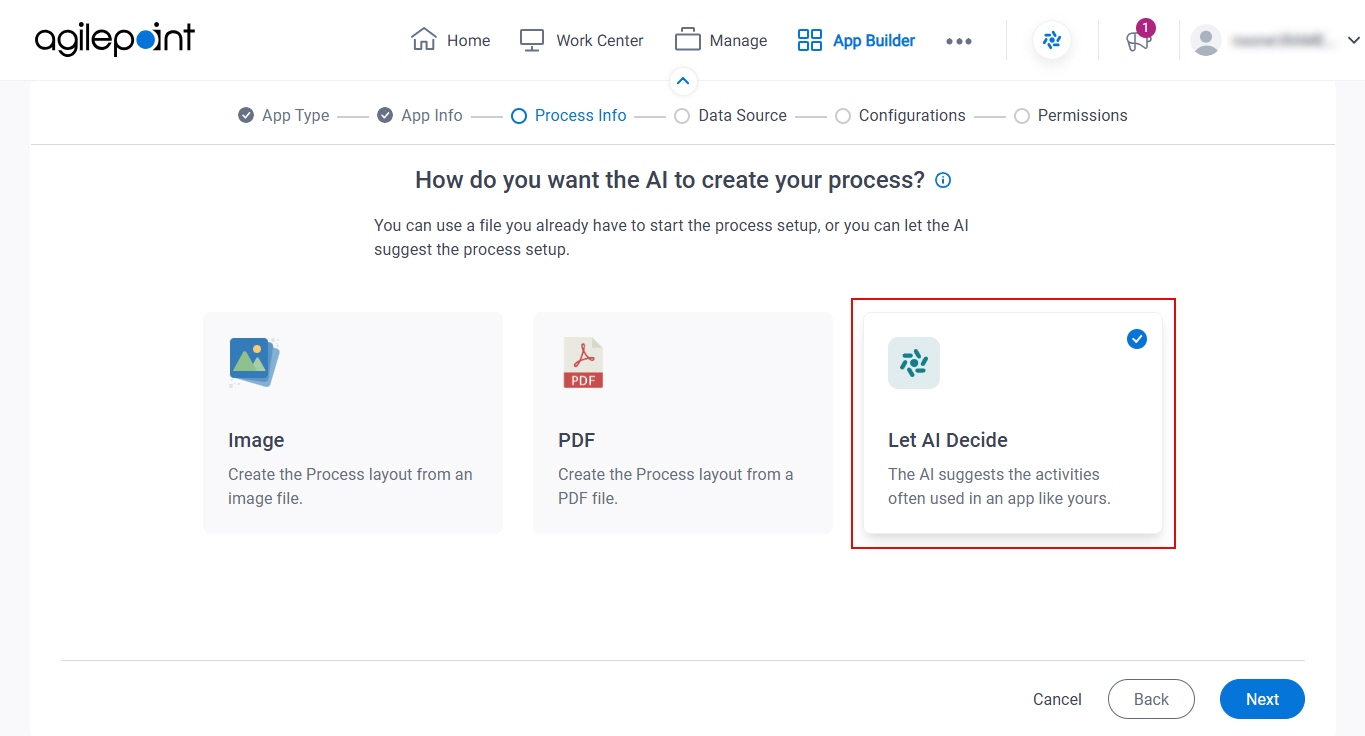
- Click Next.
What do you want your app to do? screen
Specifies a text prompt to create the app. Describe the purpose of the app with as much detail and as accurately as possible.
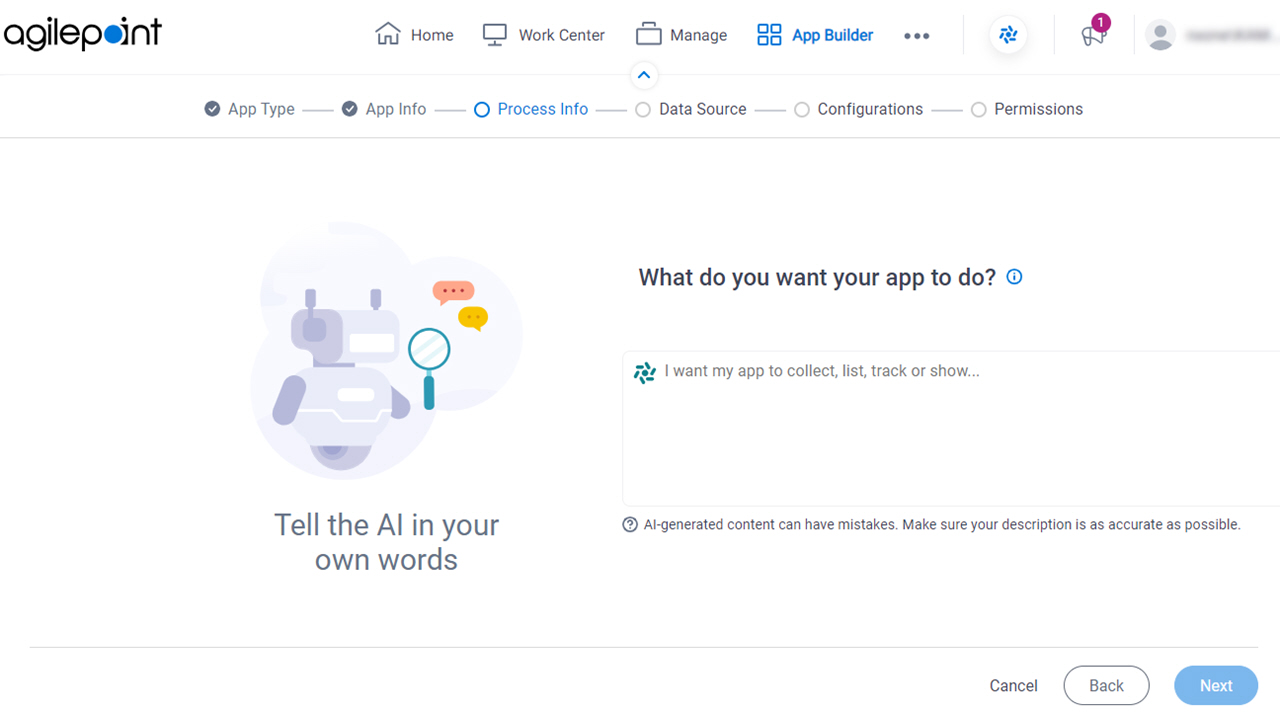
Fields
| Field Name | Definition |
|---|---|
|
Process Description |
|
Review the activities for your app screen
Configures the activities for the process.
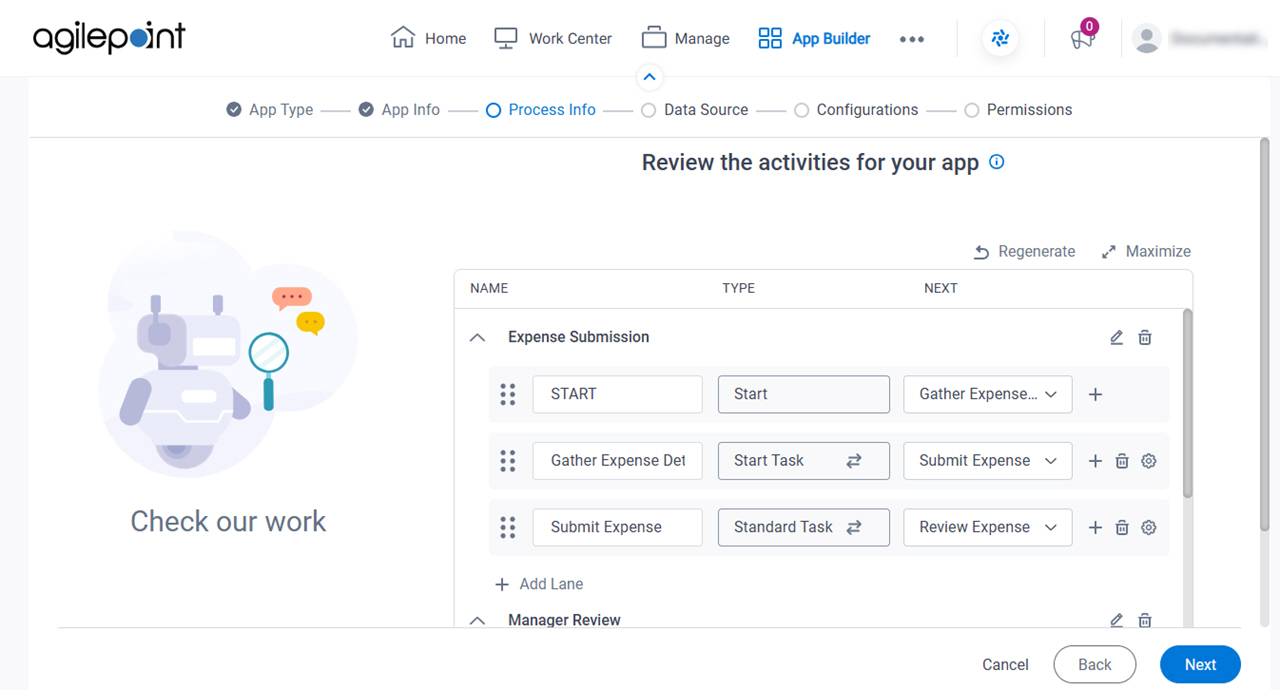
Fields
| Field Name | Definition |
|---|---|
|
Name | |
|
Type | |
|
Next | |
Regenerate |
|
Edit Lane Name |
|
Maximize |
|
Minimize |
|
Delete Lane |
|
Add Activity |
|
Delete Activity |
|
|
Configure Activity |
|
Add Lane |
|


