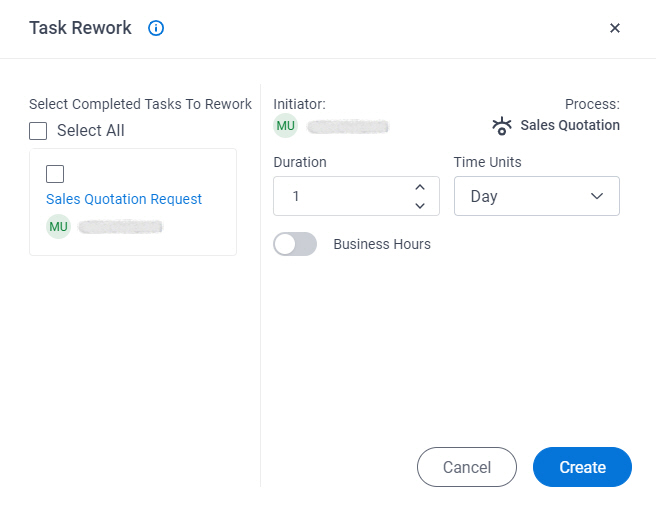
Specifies the number of time units to do the work in the set time.
Allowed Values:
An integer.
Default Value:
1
Example:
If you enter 2, the task expires in 2 seconds, days, hours, or
minutes, as you specified in the Time Unit.
Time Unit
Description:
Specifies the unit of time for the task to expire.
Allowed Values:
Second
Minute
Hour
Day
Month
Year
Default Value:
Day
Business Hours
Description:
Determines whether the time span represents actual time or business hours.
Allowed Values:
On - The time span represents business hours only. For
example, 5 days of business time might be equivalent to 7 days of actual time. 8
hours of business time might be equivalent to 24 hours of actual time.
Off - The time span represents actual time. There is no effect for any
business time configuration settings.
Default Value:
Off
Example:
If the Business Hours field is turned on, business hours are configured as 9 a.m. to 5 p.m. A manual
activity with a time span of 6 business hours is entered at 4 p.m. on
Tuesday, then the task must be completed by 2 p.m. on Wednesday.
Create
Description:
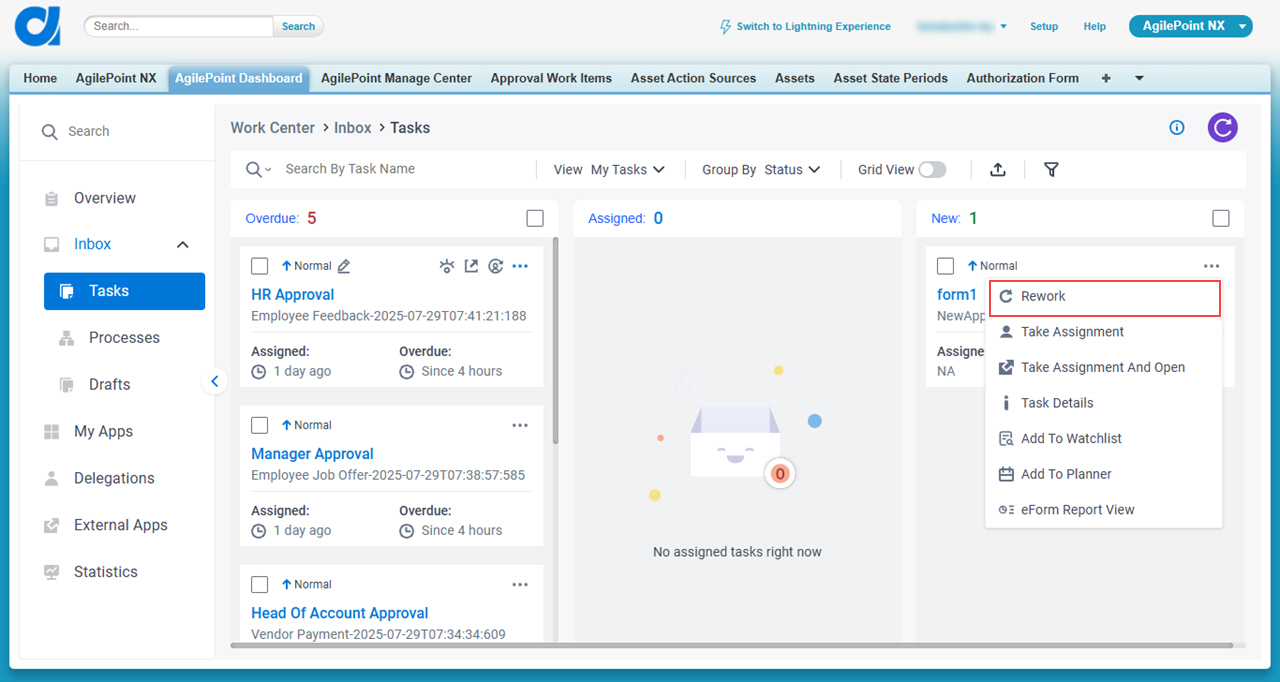
Starts a partial rework of a task that is Completed.