

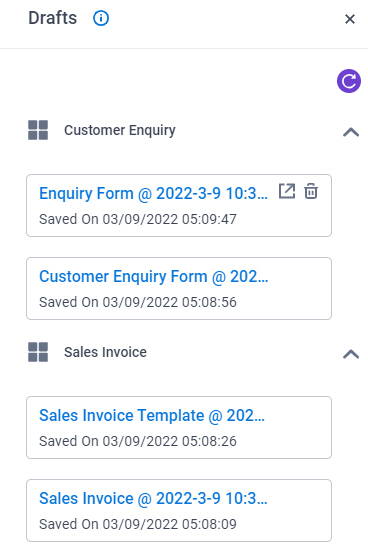
Drafts screen
Background and Setup
Prerequisites
- Save the start task form as a draft for one or more apps.
- AgilePoint NX OnDemand (public cloud), or AgilePoint NX PrivateCloud or AgilePoint NX OnPremises v8.0 Software Update 2 or higher.
How to Start
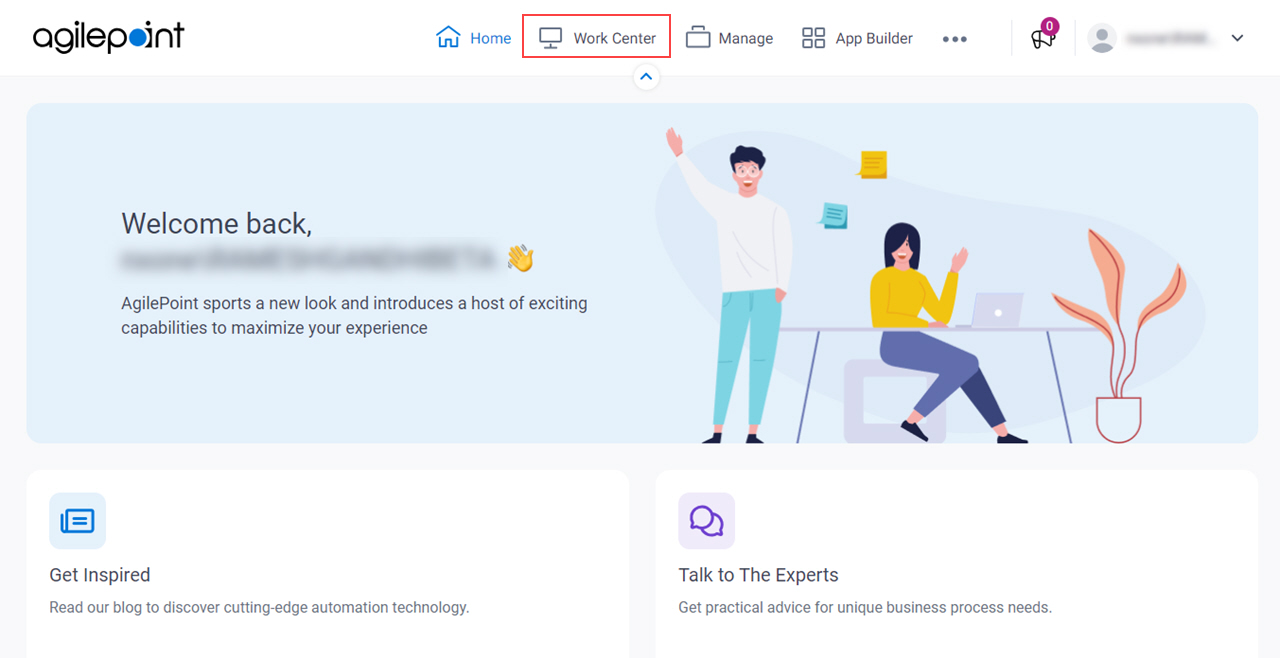
- Click Work Center.
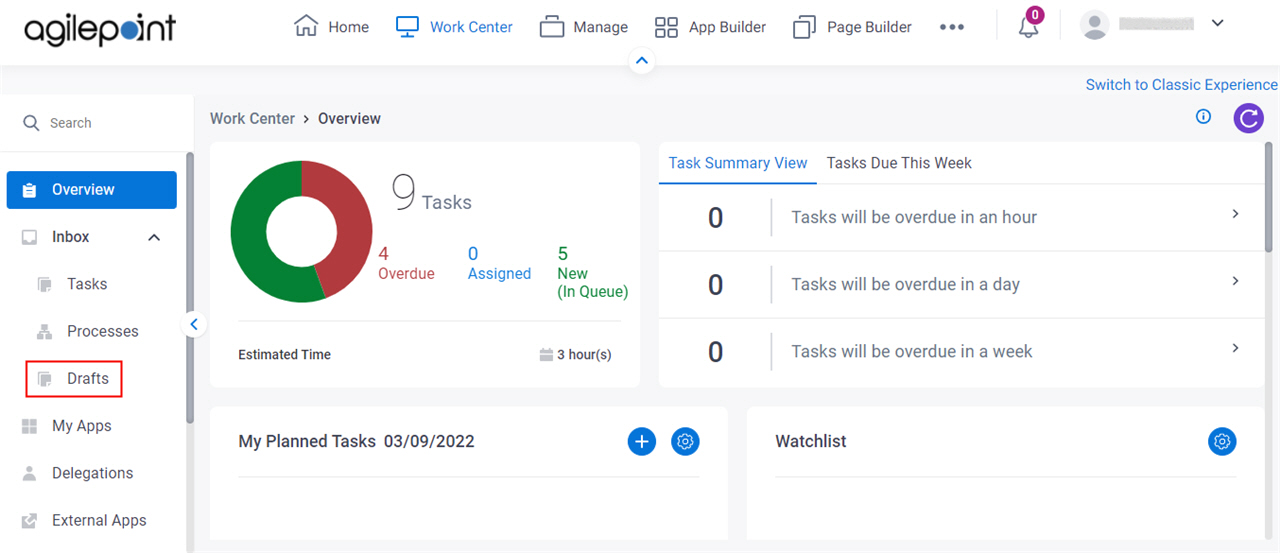
- In the left pane, click Inbox > Drafts.