


Outlook Task Manager App
The Outlook Task Manager for AgilePoint NX lets you use an AgilePoint NX app workflow seamlessly within an email in Outlook for Microsoft 365. This can increase your productivity when you use Outlook on any device.
With AgilePoint NX Task Manager for Outlook, users can do a number of actions directly from an Outlook email, depending upon their permissions and the context of the task:
- Display the details of a task in an Outlook email without configuring an email template for the task.
- Complete a task directly from Outlook.
- Complete an approval directly from Outlook.
- Reassign a task directly from Outlook.
- Cancel a task directly from Outlook.
- Cancel a process directly from Outlook.
- Launch AgilePoint NX Work Center to open a form and complete a task.
- Launch AgilePoint NX Work Center to see the Report View for a task.
- Launch AgilePoint NX Work Center to view the current runtime status of an app.
- Display configured summary fields for an app in Outlook.
- Connect the Outlook Task Manager to your AgilePoint NX environment with your AgilePoint Server REST URL.
AgilePoint NX Task Manager for Outlook opens when you receive a configured email from AgilePoint NX Workflow. Just select from the list of available actions in context of the task and user permissions.
Background and Setup
Prerequisites
How to Start
- In Microsoft 365, open an email for an AgilePoint NX task.
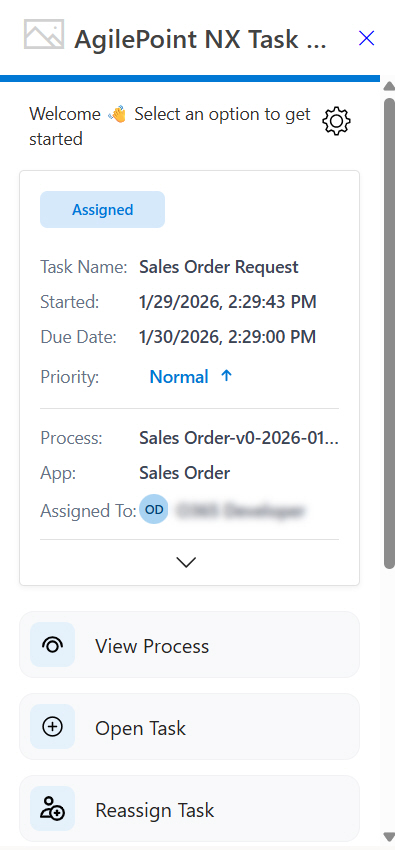
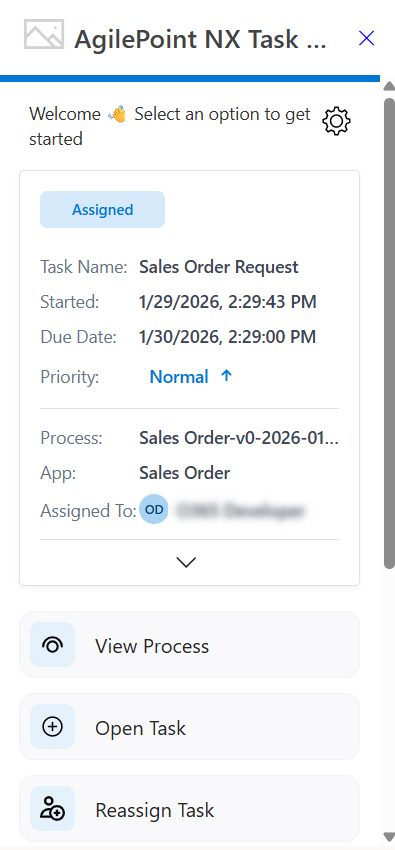
Outlook Task Manager screen
Lets you do a number of actions directly from an outlook email, depending upon their permissions and the context of the task.
Fields
| Field Name | Definition |
|---|---|
Settings  |
|
Summary Fields |
|
| View Process |
|
| Open Task |
|
| Reassign Task |
|
Complete Task | |
| Cancel Process | |
Cancel Task |
|
| eForm Report View |
|
| Approve Task |
|

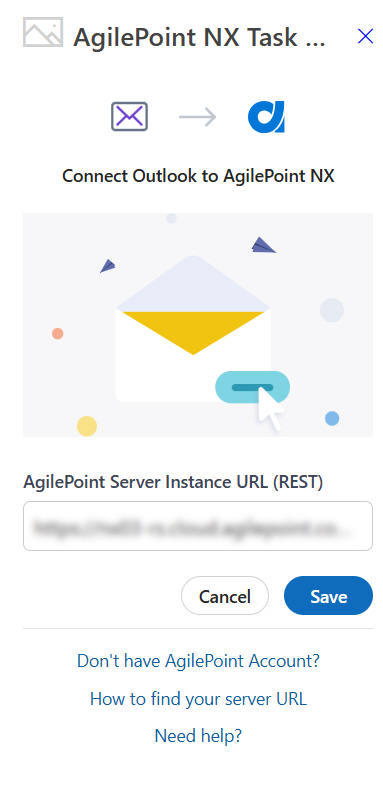
Settings screen
Specifies the AgilePoint Server URL for the AgilePoint Outlook app.
Fields
| Field Name | Definition |
|---|---|
AgilePoint Server Instance URL |
|
Cancel |
|
Save |
|
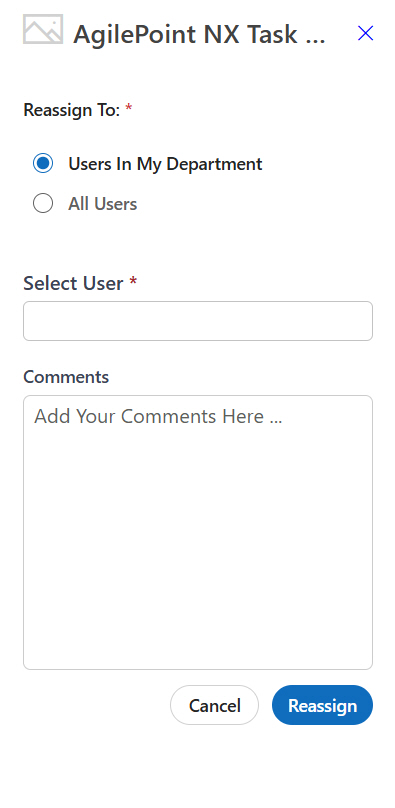
Reassign Task screen
Fields
| Field Name | Definition |
|---|---|
Users In My Department / All Users |
|
Select User |
|
|
Comments |
|
Reassign |
|