
Configure Additional Settings and Resources for Your App

This topic shows how to configure the optional features for your form-based app.

Background and Setup

How to Start

  1. Create an app.

    For more information, refer to Create an app.

    Any options you specify when creating an app lead to this screen.

Anything else right now? screen

Configures the optional features for your app.
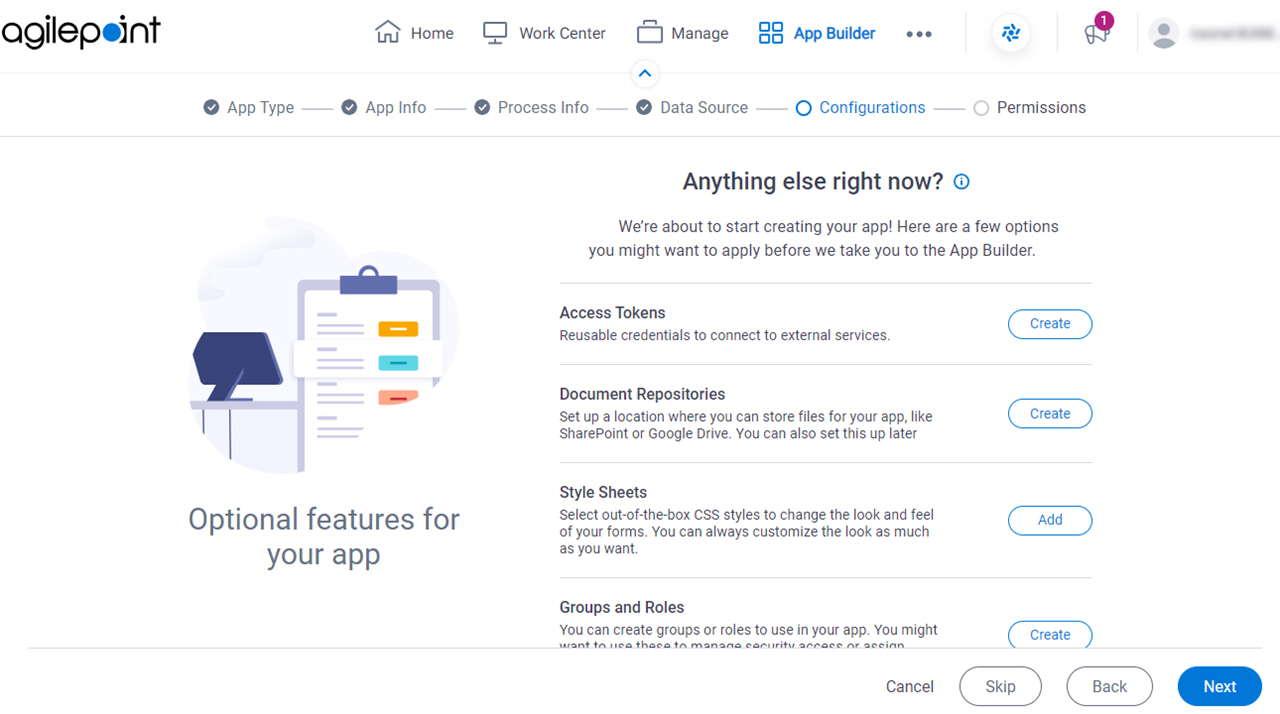
Figure 1. Anything else right now? screen

Anything else right now screen

Fields

Field NameDefinition

Access Tokens

Opens this Screen:
The configuration screen for your access token. The specific screen that shows depends on your access token type.

For more information, refer to Access Tokens.

Function of this Screen:
Configures an access token.

Document Repositories

Opens this Screen:
The configuration screen for your document repository. The specific screen that shows depends on your document repository type.

For more information, refer to Document Repositories.

Function of this Screen:
Configures your document repository.

Style Sheets

Opens this Screen:
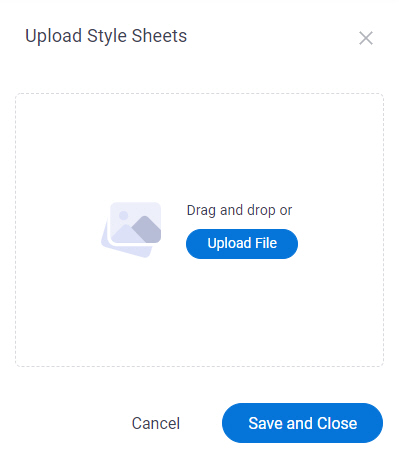
Upload Style Sheets screen
Description:
Uploads CSS files to change the look and feel of your eForms.
Groups and Roles

Opens this Screen:
Groups screen
Description:
Creates groups and roles for the access rights for an app.

Images

Opens this Screen:
Upload Images screen
Description:
Uploads image files to customize your app.

JavaScript

Opens this Screen:
Upload JavaScript Files screen
Description:
Uploads JavaScript files to use in eForms.

Notifications

Opens this Screen:
Turn On Notifications for Your App screen
Description:
Configures the email notifications for your form-based app.

Upload Style Sheets screen

Uploads CSS files to change the look and feel of your eForms.

Figure 2. Upload Style Sheets screen

Upload Style Sheets screen

How to Start

  1. On the Anything else right now? screen, in the Style Sheets field, click Add.

Fields

Field NameDefinition

Upload File

Description:
Specifies one or more CSS files to use in your app.

You can drag the CSS files from your local machine.

Cancel

Description:
Cancels the configuration for your app and closes the configuration screen.

Save and Close

Description:
Saves the configuration for your app and closes the configuration screen.

Roles screen

Creates one or more roles to associate with an app.

  • For more information, refer to Roles.

Background and Setup

Good to Know

  • For more information, refer to Roles.

How to Start

  1. On the Anything else right now? screen, in the Groups and Roles field, click Create.
  2. On the What do you want to call your role? screen, click the Roles tab.

Groups screen

Creates one or more groups to associate with an app.

  • For more information, refer to Groups.
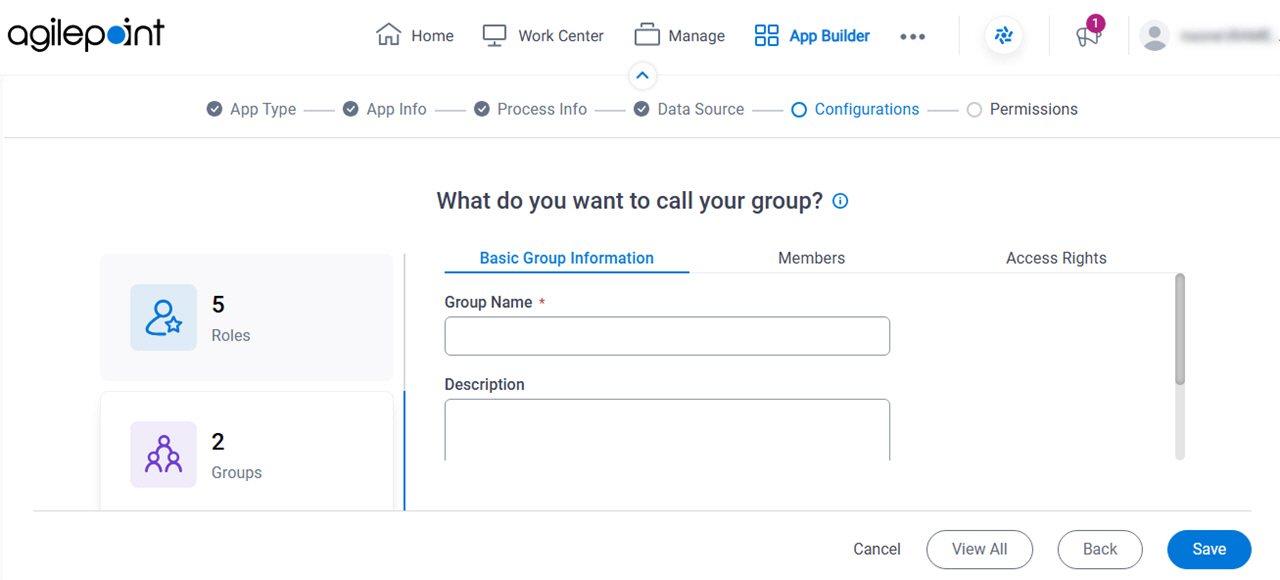
Figure 3. Groups screen

Groups screen

Background and Setup

Good to Know

  • For more information, refer to Groups.

How to Start

  1. On the Anything else right now? screen, in the Groups and Roles field, click Create.
  2. On the What do you want to call your role? screen, click the Groups tab.

Upload Images screen

Uploads image files to customize your app.
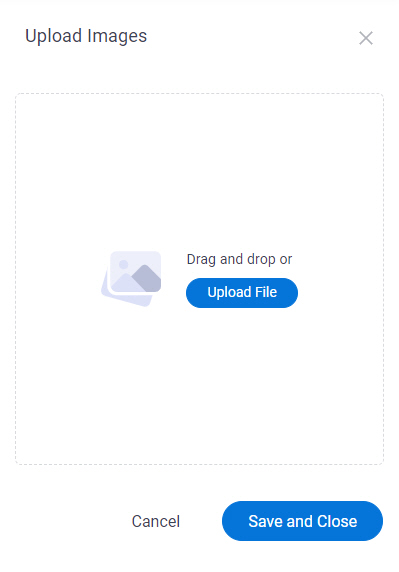
Figure 4. Upload Images screen

Upload Images screen

How to Start

  1. On the Anything else right now? screen, in the Images field, click Add.

Fields

Field NameDefinition

Upload File

Description:
Specifies one or more image files to upload in your app.

You can drag the image files from your local machine.

Cancel

Description:
Cancels the configuration for your app and closes the configuration screen.

Save and Close

Description:
Saves the configuration for your app and closes the configuration screen.

Upload JavaScript Files screen

Uploads JavaScript files to use in eForms.
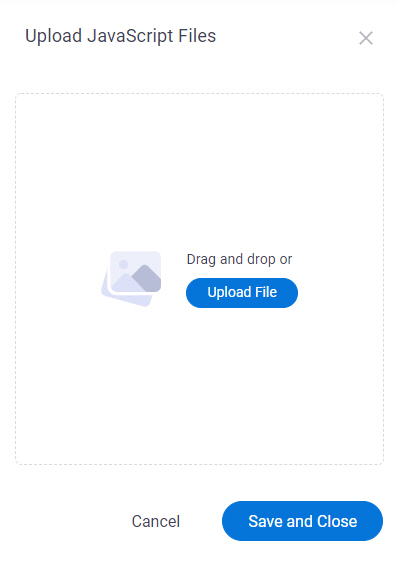
Figure 5. Upload JavaScript Files screen

Upload JavaScript Files screen

How to Start

  1. On the Anything else right now? screen, in the JavaScript field, click Add.

Fields

Field NameDefinition

Upload File

Description:
Specifies one or more JavaScript files to upload in your eForms.

You can drag the JavaScript file from your local machine.

Cancel

Description:
Cancels the configuration for your app and closes the configuration screen.

Save and Close

Description:
Saves the configuration for your app and closes the configuration screen.

Turn On Notifications for Your App screen

Configures the email notifications for your form-based app.
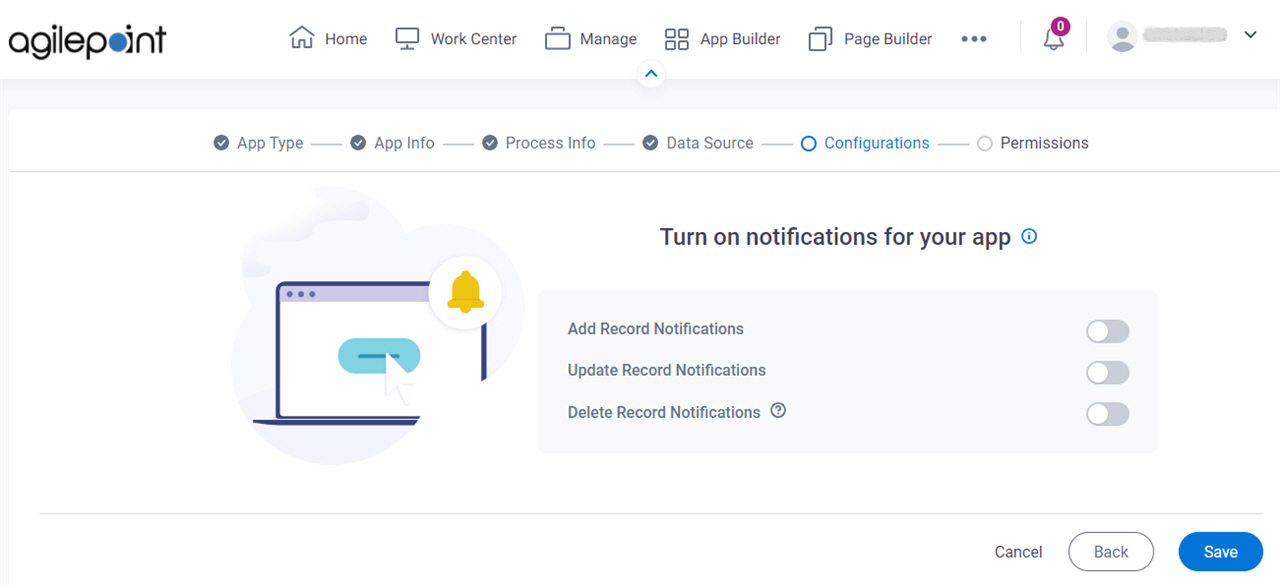
Figure 6. Turn on notifications for your app screen

Turn on notifications for your app screen

Prerequisites

How to Start

  1. On the Anything else right now? screen, in the Notifications field, click Select.

Fields

Field NameDefinition

Add Record Notifications

Description:
Specifies whether to send an email notification to the app designer or other specified recipients when a record is added to the form-based app.
Allowed Values:
  • On - Sends an email notification when a record is added to the app.
  • Off - Does not send an email notification when a record is added.
Default Value:
Off

Update Record Notifications

Description:
Specifies whether to send an email notification to the app designer or other specified recipients when a record is changed in the form-based app.
Allowed Values:
  • On - Sends an email notification when a record is changed in the app.
  • Off - Does not send an email notification when a record is changed.
Default Value:
Off

Delete Record Notifications

Description:
Specifies whether to send an email notification to the app designer or other specified recipients when a record is deleted from the form-based app.
Allowed Values:
  • On - Sends an email notification when a record is deleted from the app.
  • Off - Does not send an email notification when a record is deleted.
Default Value:
Off