


Analyze Image (OpenAI) Control Tower
An AI Control Tower that generates text output for an uploaded image. The generated text can be used in an AgilePoint NX app..

Background and Setup
Examples
- (External) AgilePoint Announces AI Control Tower Support for OpenAI
- Examples - Step-by-step use case examples, information about what types of examples are provided in the AgilePoint NX Product Documentation, and other resources where you can find more examples.
Prerequisites
- AgilePoint NX OnDemand (public cloud), AgilePoint NX Private Cloud, or AgilePoint NX OnPremises v10.0 or higher.
Good to Know
- To send an email notification, click
Advanced
 >
Email Notifications
>
Email Notifications  .
. For more information, refer to Email Notifications screen (Process Activities).
- In most text fields, you can use process data variables as an alternative to literal data values.
For more information, refer to Data screen.
- You can configure whether this activity waits for other activities before it runs.
For more information, refer to How Do I Configure an Activity to Wait for Other Incoming Activities?
- This section shows the configuration settings on the configuration screens for this activity. Other configuration settings apply to system activities. For more information, refer to:
How to Start
- Open Process Builder.
For information about how to open this screen, refer to Process Builder.
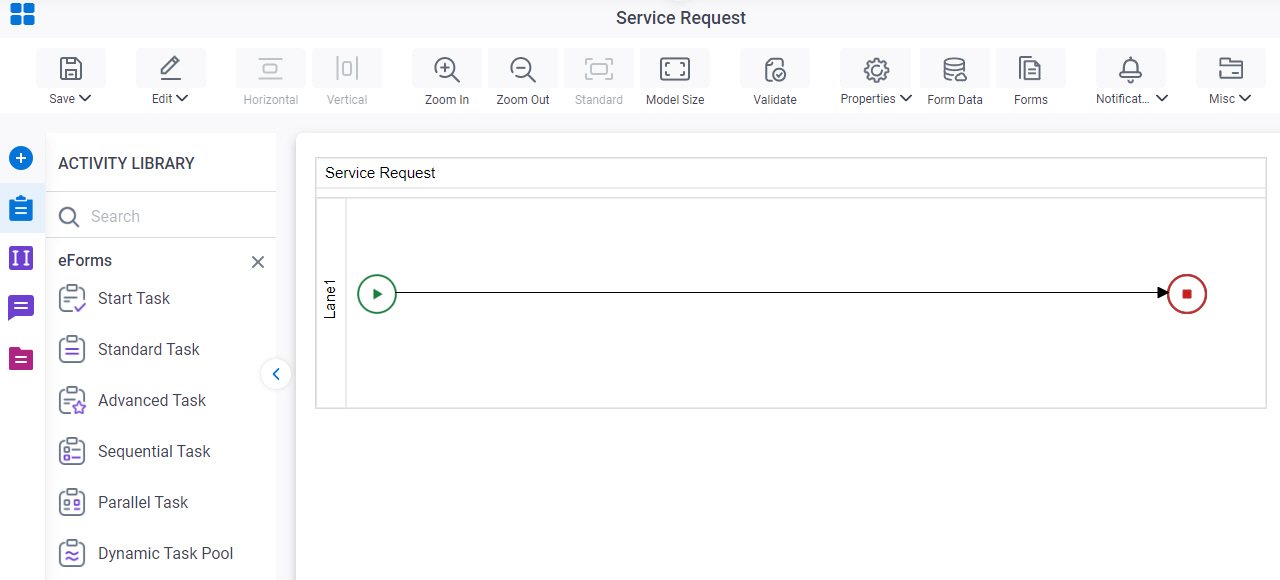
- In Process Builder, in the Activity Library,
open the OpenAI tab.
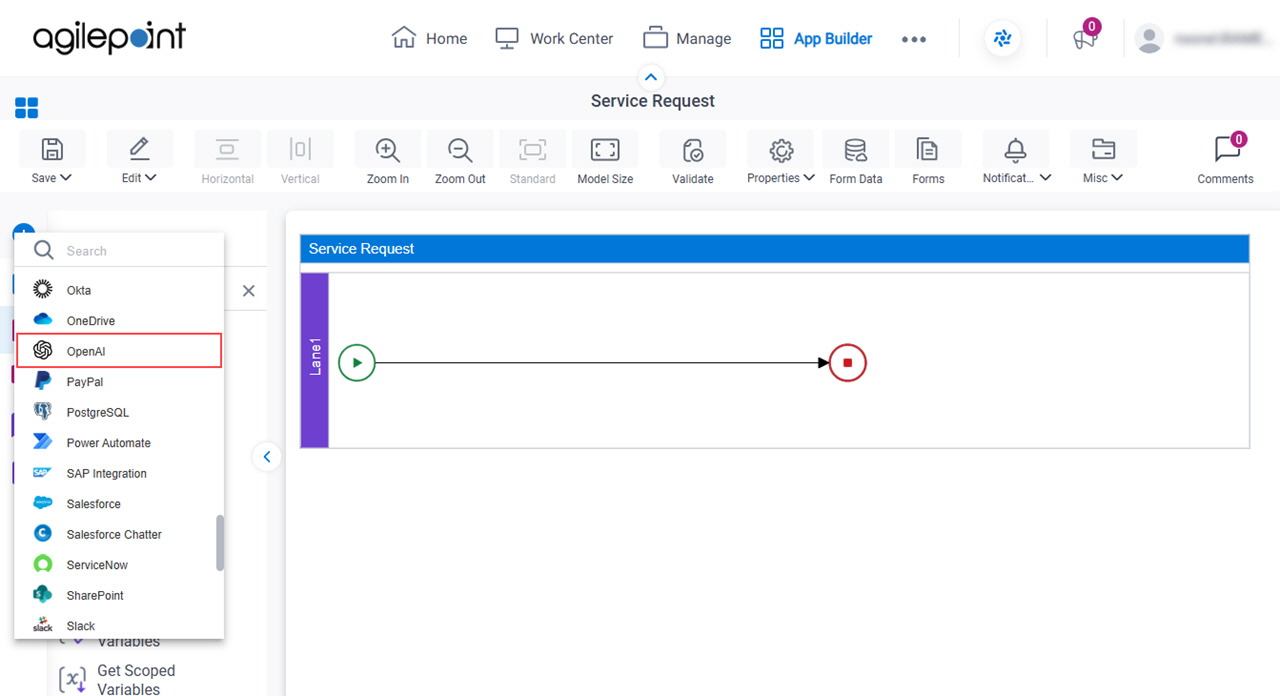
- On the OpenAI tab, click the Control Towers tab.
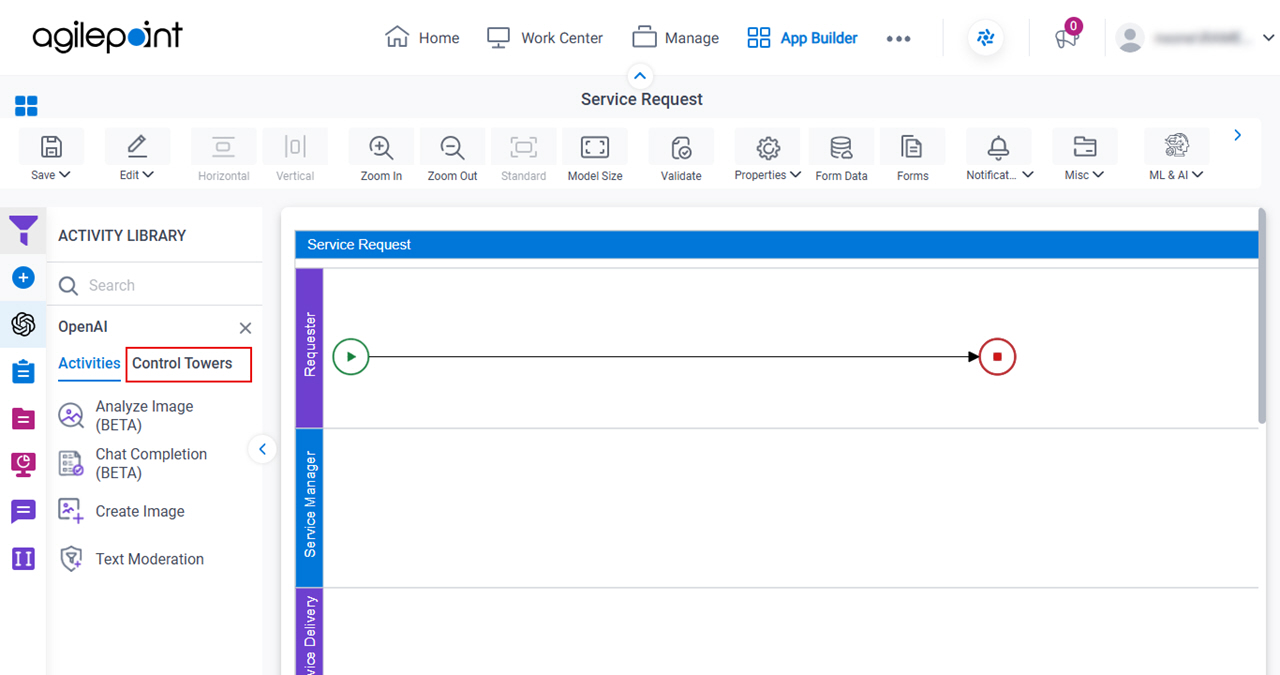
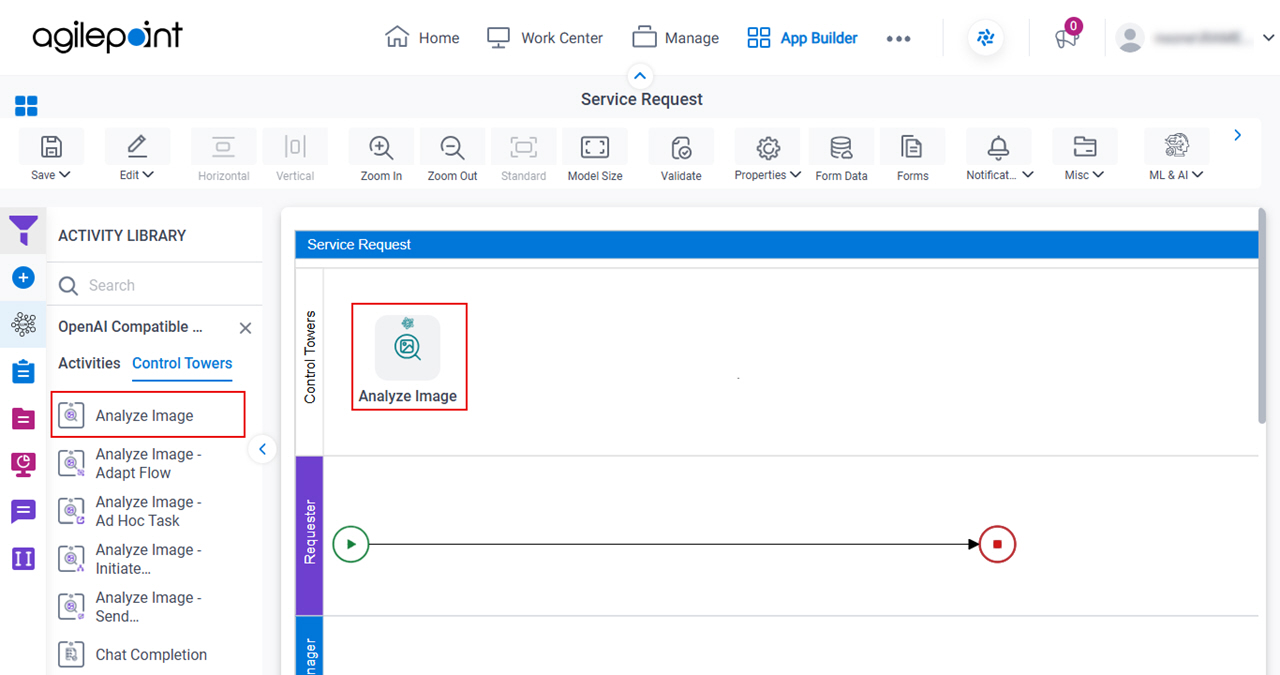
- On the OpenAI > Control Towers tab,
drag the Analyze Image
activity onto your process.
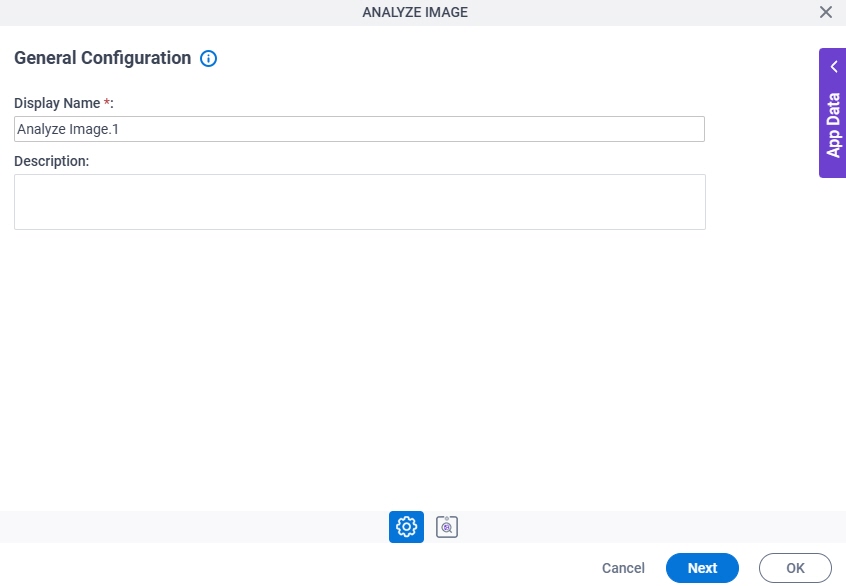
General Configuration
Specifies the basic settings for the Control Tower.
Good to Know
- Documentation for this screen is provided for completeness. The fields are mostly self-explanatory.
Fields
| Field Name | Definition |
|---|---|
|
Display Name |
|
|
Description |
|
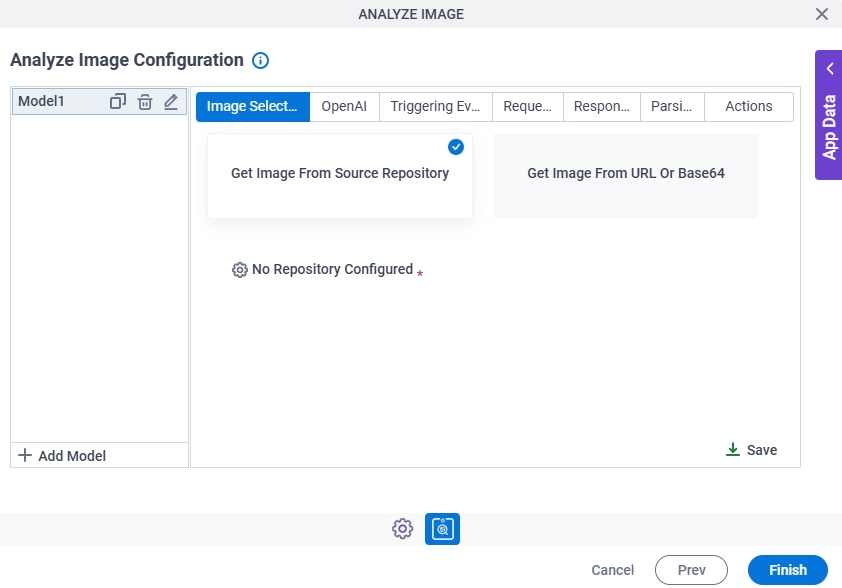
Analyze Image Configuration > Image Selection tab
Specifies the input source of an image to upload to the LLM to generate text output.
Fields
| Field Name | Definition |
|---|---|
|
Add Model |
|
Clone |
|
|
Edit |
|
|
Delete |
|
|
Get Image From Source Repository / Get Image From URL or Base64 |
|
URL Or Base64 For The Image |
|
Configure |
|


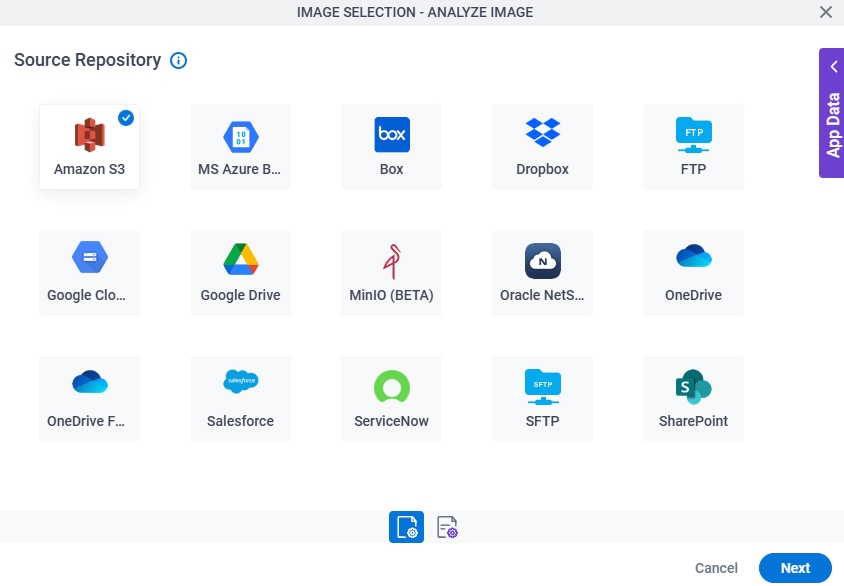
Analyze Image Configuration > Image Selection > Source Repository screen
Specifies the original, or source, location for your files.
Fields
| Field Name | Definition |
|---|---|
|
Source Repository |
|
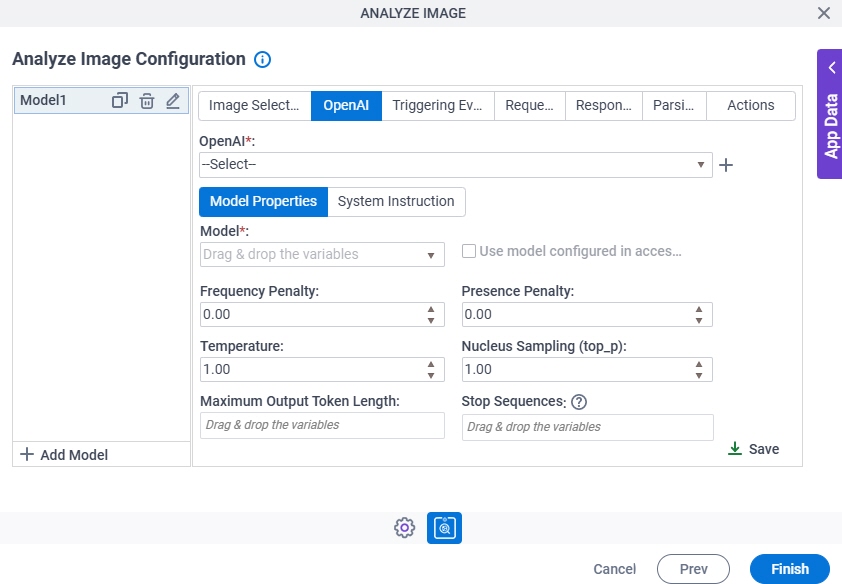
Analyze Image Configuration > OpenAI > Model Properties tab
Configures the LLM to generate text output.
Fields
| Field Name | Definition |
|---|---|
|
OpenAI |
|
|
Create |
|
|
Model |
|
Use Model Configured In Access Token |
|
|
Frequency Penalty |
|
|
Presence Penalty |
|
|
Maximum Token Length |
|
|
Stop Sequences |
|
|
Temperature |
|
|
Nucleus Sampling (top_p) |
|
Analyze Image Configuration > OpenAI > System Instruction tab
Configures the system instruction that is used to guide the LLM to generate text output.
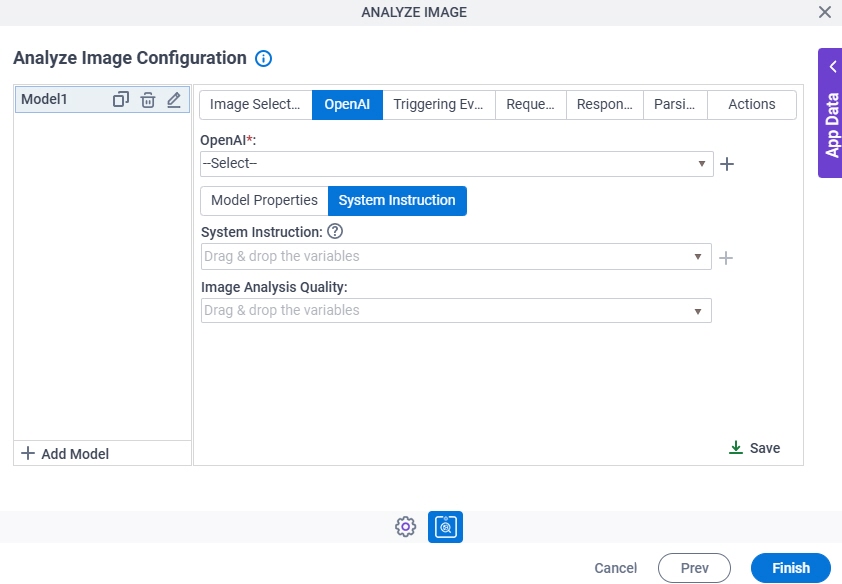
Fields
| Field Name | Definition |
|---|---|
|
OpenAI |
|
|
Create |
|
Analyze Image Configuration > System Instruction > Goals/Mission tab
Specifies the goals or rules for the LLM to generate text output.
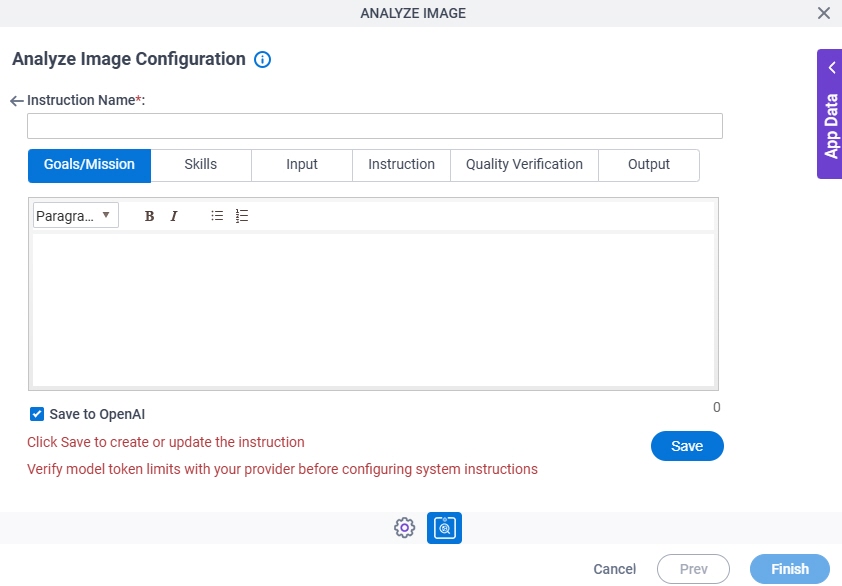
Fields
| Field Name | Definition |
|---|---|
|
Goals / Mission |
|
Analyze Image Configuration > System Instruction > Skills tab
Specifies the skills or roles for the LLM used to generate text output.
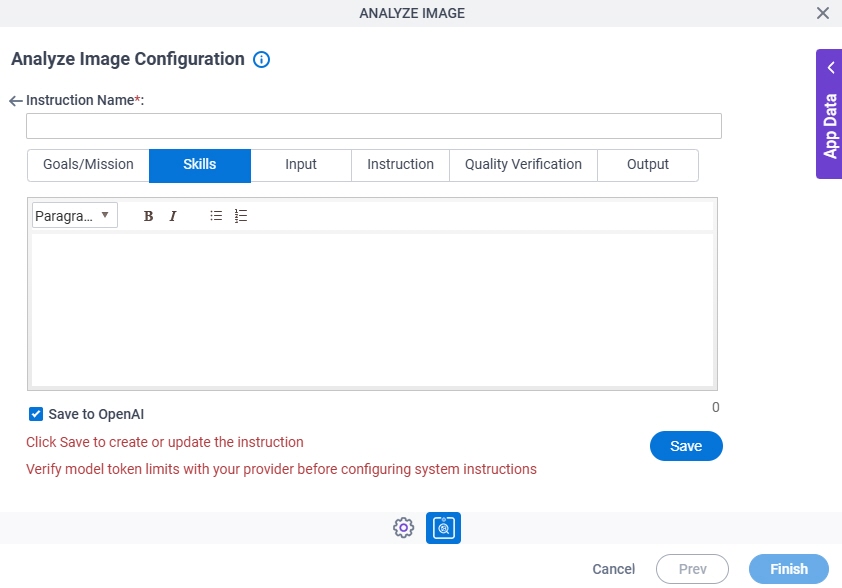
Fields
| Field Name | Definition |
|---|---|
|
Skills |
|
Analyze Image Configuration > System Instruction > Input tab
Specifies the input content the LLM used to generate text output.
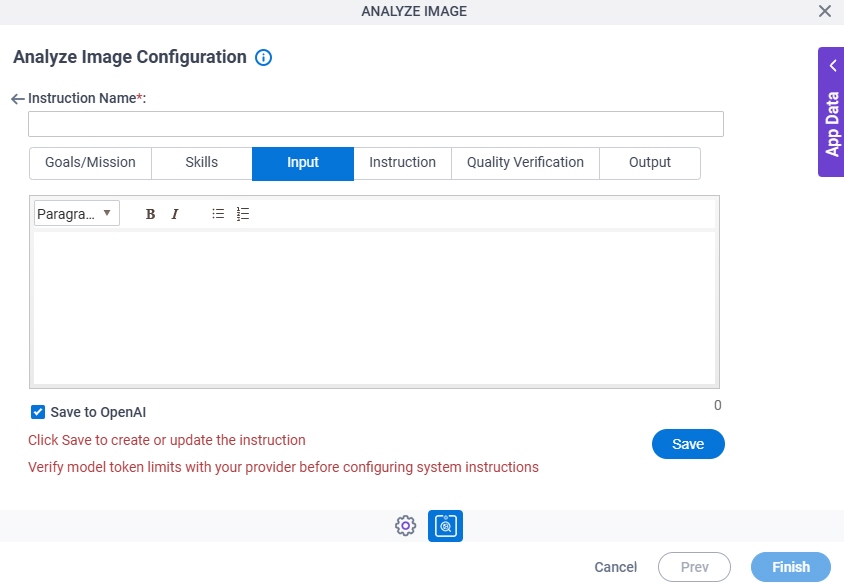
Fields
| Field Name | Definition |
|---|---|
|
Input |
|
Analyze Image Configuration > System Instruction > Instruction tab
Specifies any guidance or information to refine the response of the model to generate text output.
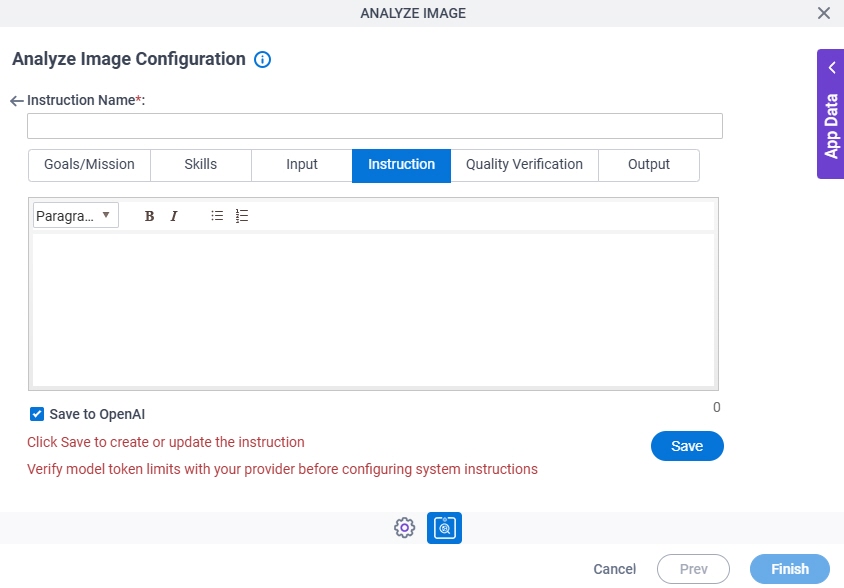
Fields
| Field Name | Definition |
|---|---|
|
Instruction |
|
Analyze Image Configuration > System Instruction > Quality Verification tab
Specifies any guidance or information to verify the accuracy of the generated text output.
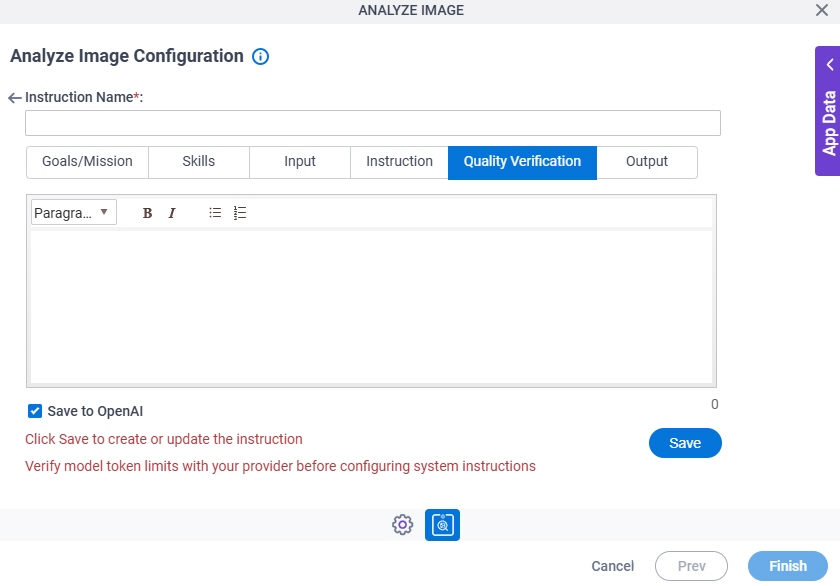
Fields
| Field Name | Definition |
|---|---|
|
Quality Verification |
|
Analyze Image Configuration > System Instruction > Output tab
Specifies the output format the LLM used to generate text output.
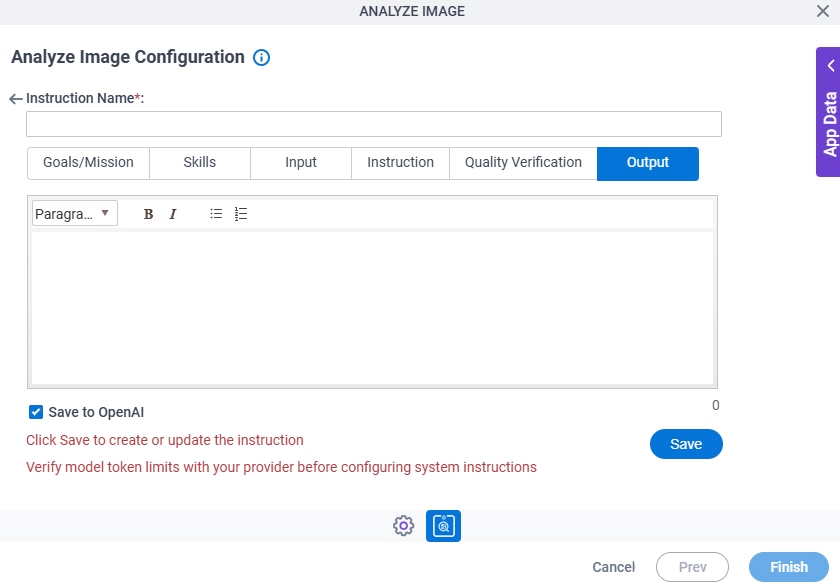
Fields
| Field Name | Definition |
|---|---|
|
Output |
|
Analyze Image Configuration > Triggering Event tab
Configures an activity on which to run the LLM to generate text output.
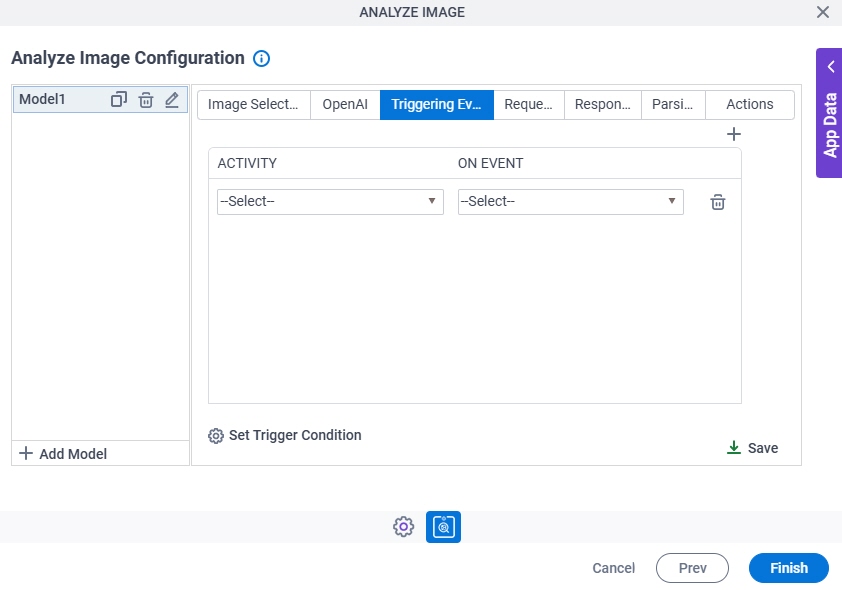
Fields
| Field Name | Definition |
|---|---|
|
Activity |
|
On Event |
|
Set Trigger Condition |
|
Analyze Image Configuration > Triggering Event > Set Trigger Condition screen
Specifies the conditions that cause the LLM to run.
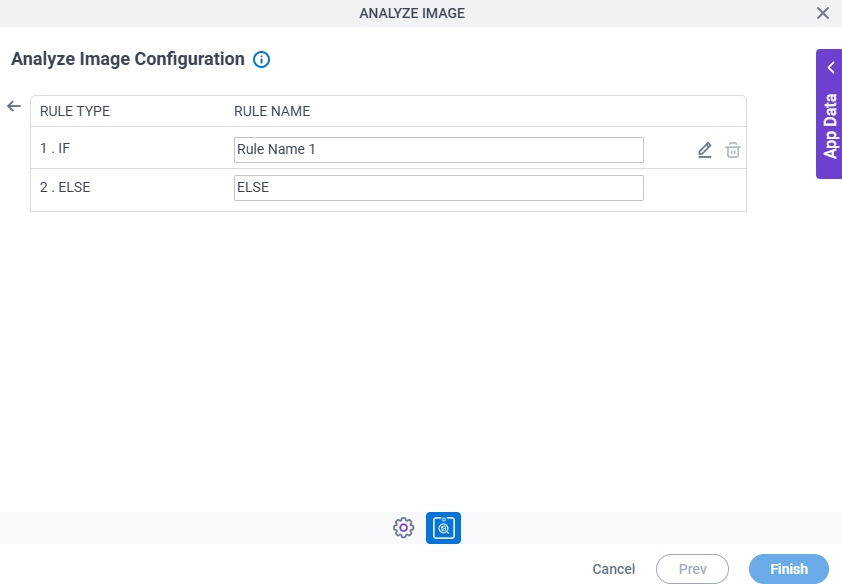
Fields
| Field Name | Definition |
|---|---|
|
Rule Type |
|
Rule Name | |
|
Edit |
|
|
Delete |
|
Analyze Image Configuration > Triggering Event > Condition Builder screen
Creates or changes logical rules. You can put one statement inside another statement to create complex logical expressions.
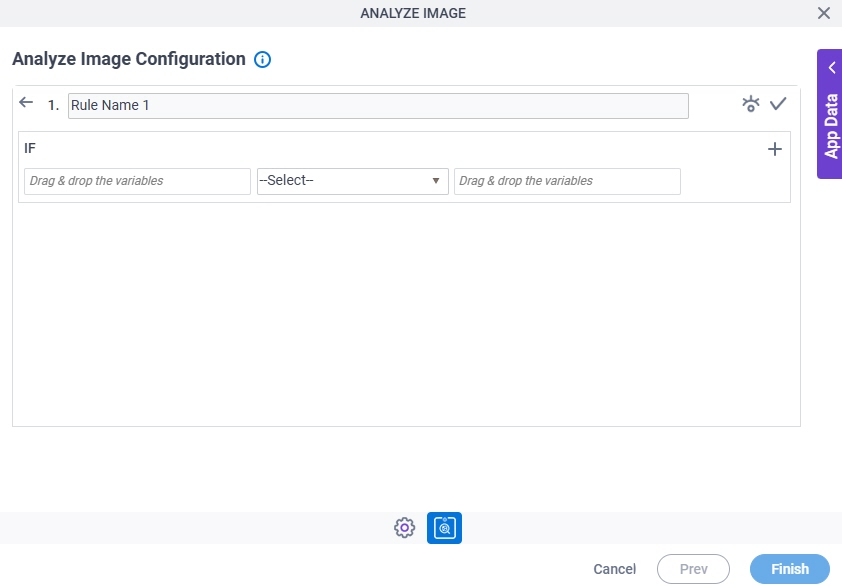
Fields
| Field Name | Definition | ||||||||||
|---|---|---|---|---|---|---|---|---|---|---|---|
|
Condition Name |
| ||||||||||
|
Preview |
| ||||||||||
|
Validate |
| ||||||||||
|
Rule Variable |
| ||||||||||
|
Operator |
| ||||||||||
|
Rule Value |
| ||||||||||
|
Add Row |
| ||||||||||
Select Nest Type |
| ||||||||||
|
Indent Right |
| ||||||||||
|
Delete |
| ||||||||||
|
Back |
|


Analyze Image Configuration > Request tab
Specifies how to connect the request data from the LLM to the AgilePoint process schema.
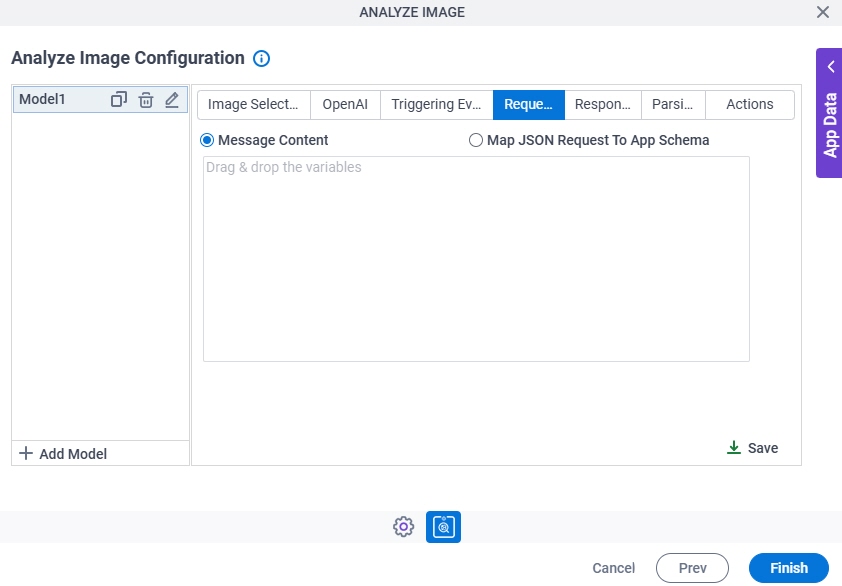
Fields
| Field Name | Definition |
|---|---|
|
Message Content / Map JSON Request To App Schema |
|
Analyze Image Configuration > Response tab
Specifies where to store the response from the LLM.
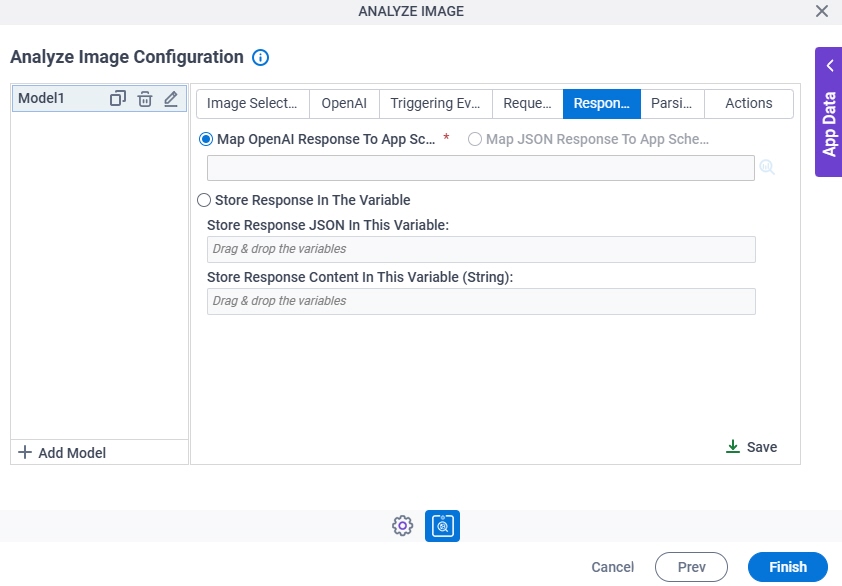
Fields
| Field Name | Definition |
|---|---|
|
Map OpenAI Response To App Schema / Map JSON Response To App Schema |
|
|
Store Response JSON In This Variable |
|
|
Store Response Content In This Variable (String) |

Analyze Image Configuration > Parsing tab
Configures the parsing actions to extract the information from the generated text output.
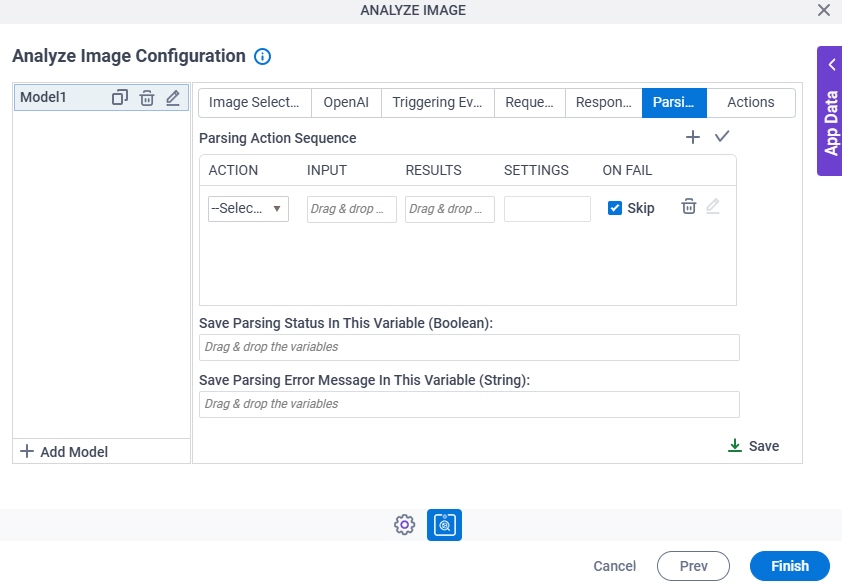
Fields
| Field Name | Definition |
|---|---|
|
Add Row |
|
|
Action |
|
|
Input |
|
|
Results | |
|
Settings |
|
|
On Fail |
|
|
Delete |
|
|
Edit |
|
|
Edit |
|
|
Edit |
|
|
Save Parsing Status In This Variable (Boolean) |
|
|
Save Parsing Error Message In This Variable (String) |
Analyze Image Configuration > Parsing > JSON Parsing screen
Configures the JSON code snippet for parsing the generated text output.
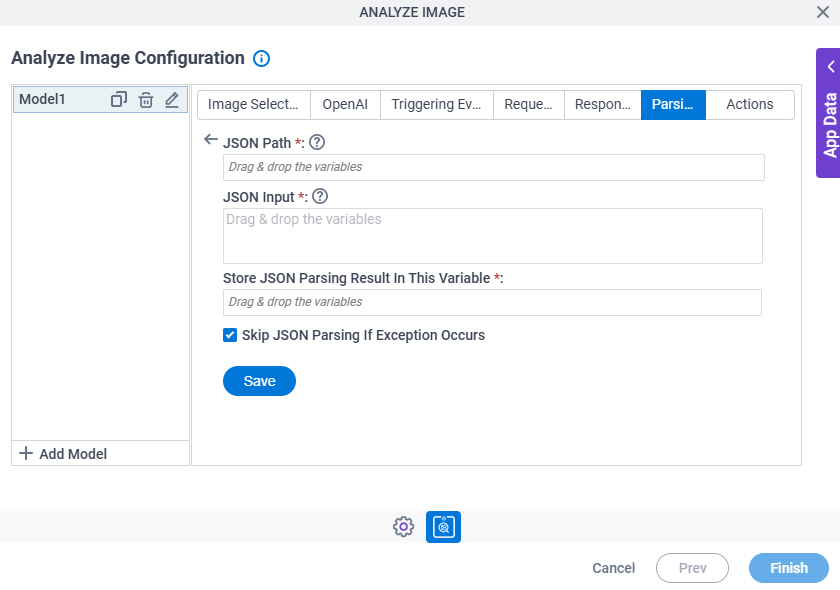
Fields
| Field Name | Definition |
|---|---|
|
JSON Path |
|
|
JSON Input |
|
|
Store JSON Parsing Result In This Variable | |
Skip JSON Parsing If Exception Occurs |
|
Analyze Image Configuration > Parsing > Inline Function screen
Configures one or more inline functions for parsing the generated text output.
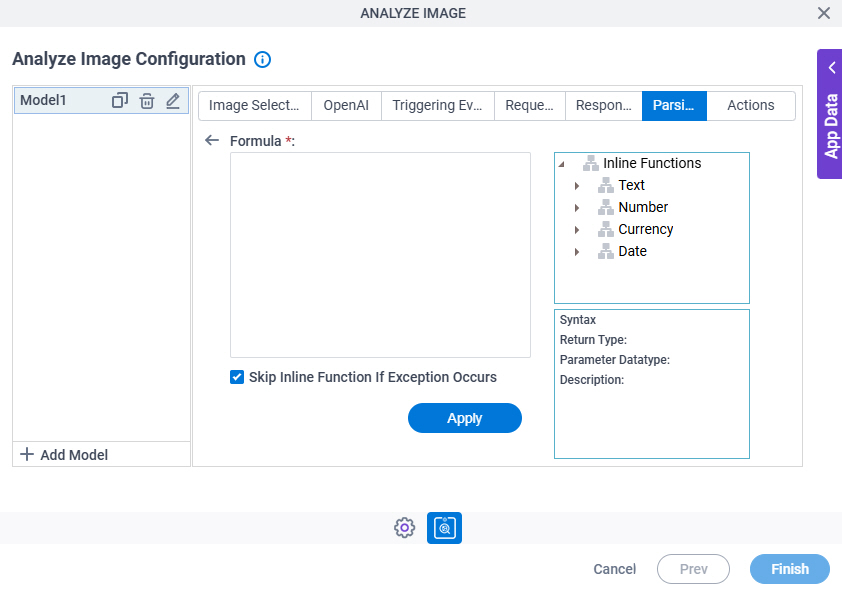
Fields
| Field Name | Definition |
|---|---|
Formula |
|
Inline Functions |
|
|
Description |
|
Skip Inline Function If Exception Occurs |
|
|
Apply |
|
Analyze Image Configuration > Parsing > Regex Parsing screen
Configures a regular expression for parsing the generated text output.
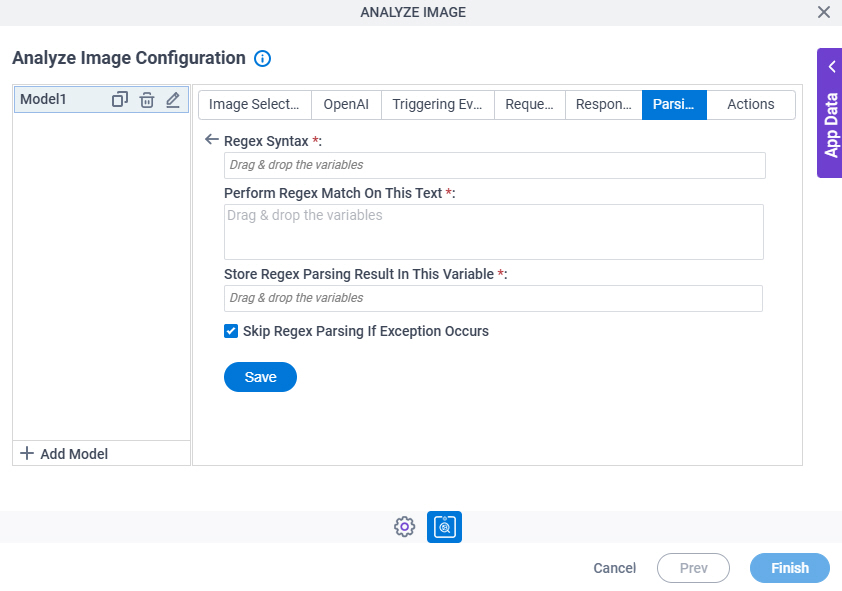
Fields
| Field Name | Definition |
|---|---|
|
Regex Syntax |
|
|
Perform Regex Match On This Text |
|
|
Store Regex Parsing Result In This Variable | |
Skip Regex Parsing If Exception Occurs |
|
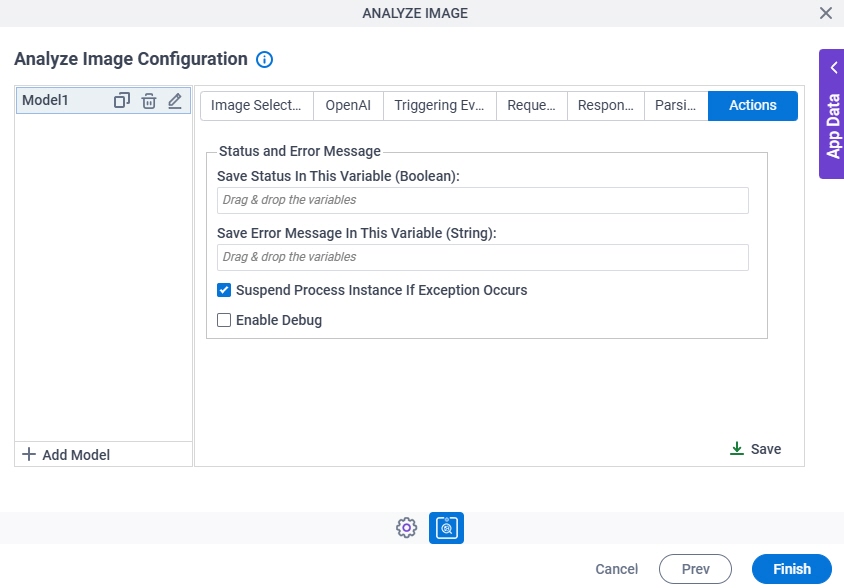
Analyze Image Configuration > Actions tab
Specifies variables to store the status of the LLM and to store the error message if an error occurs in the LLM. It also configures what to do when an error occurs in the AgilePoint NX app.
Fields
| Field Name | Definition |
|---|---|
|
Save Status In This Variable (Boolean) | |
|
Save Error Message In This Variable (String) | |
Suspend Process Instance If Exception Occurs |
|
Enable Debug |
|