

Auto-Lookup > ServiceNow > Multiple Columns
Full documentation coming soon.
Background and Setup
Examples
- (External) ServiceNow Lookup and File Attachment for eForms
- Examples - Step-by-step use case examples, information about what types of examples are provided in the AgilePoint NX Product Documentation, and other resources where you can find more examples.
Prerequisites
- AgilePoint NX OnDemand (public cloud), AgilePoint NX Private Cloud, or AgilePoint NX OnPremises v10.0 or higher.
Good to Know
- There is more than one path to configure a lookup. Make sure you use the document that shows the path for your lookup.
How to Start
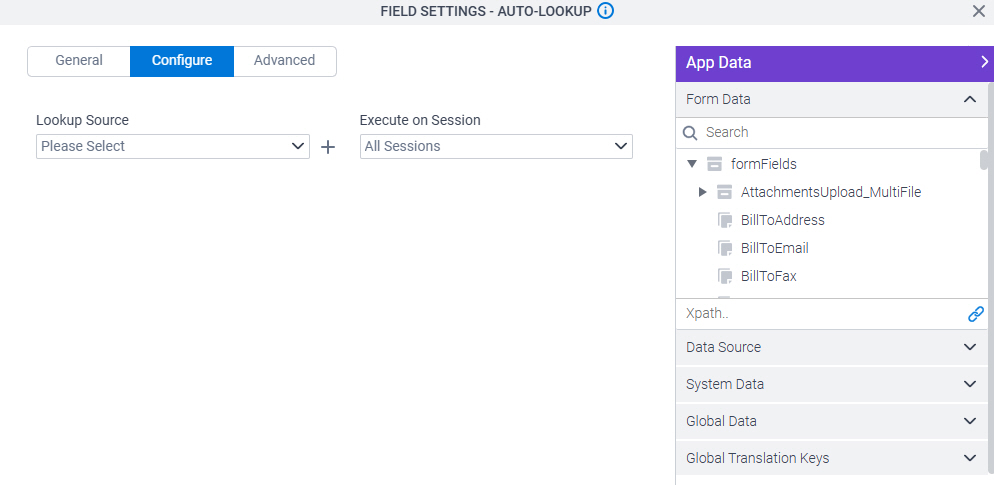
- On the Auto-Lookup form control configuration screen, on the Configure tab,
click Add Lookup.
For information about how to open this screen, refer to Auto-Lookup form control.
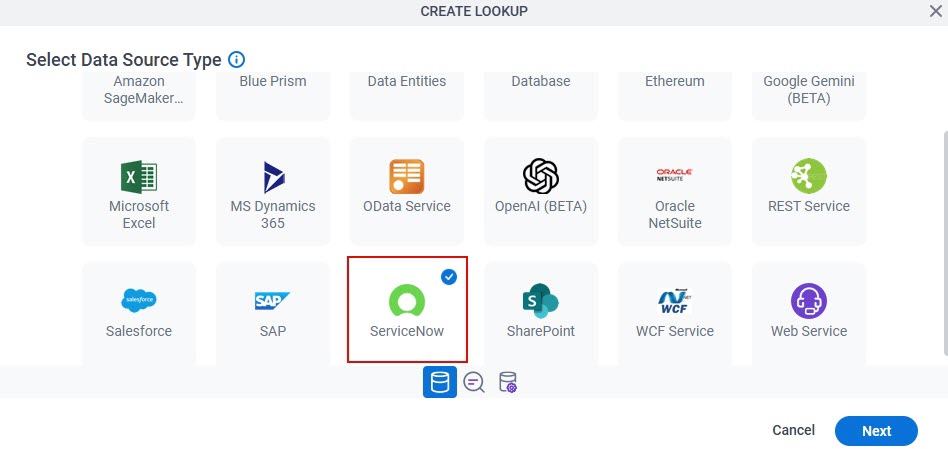
- On the Select Data Source Type screen,
select
ServiceNow.
- Click Next.
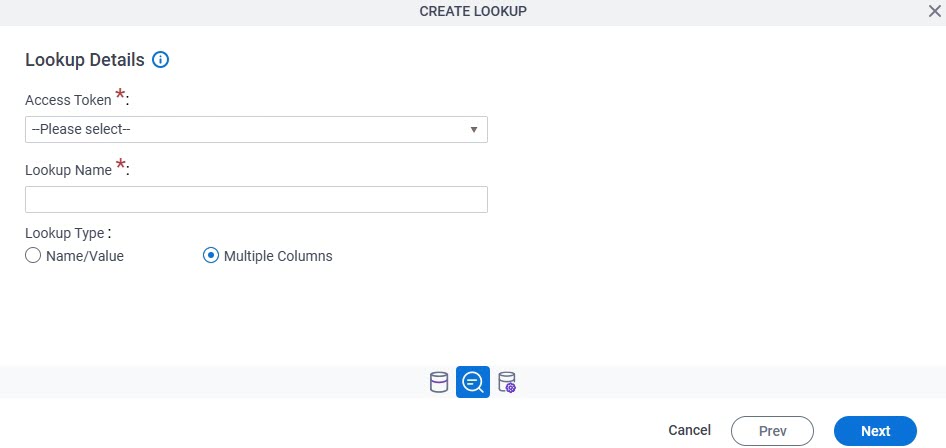
Lookup Details
Full documentation coming soon.
Good to Know
- There is more than one path to configure a lookup. Make sure you use the document that shows the path for your lookup.
Configure Lookup > Request tab
Full documentation coming soon.
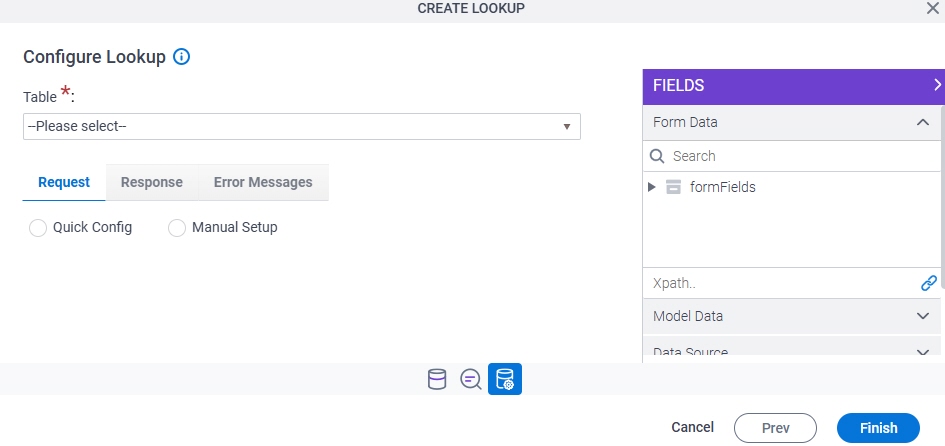
Configure Lookup > Quick Config tab
Full documentation coming soon.
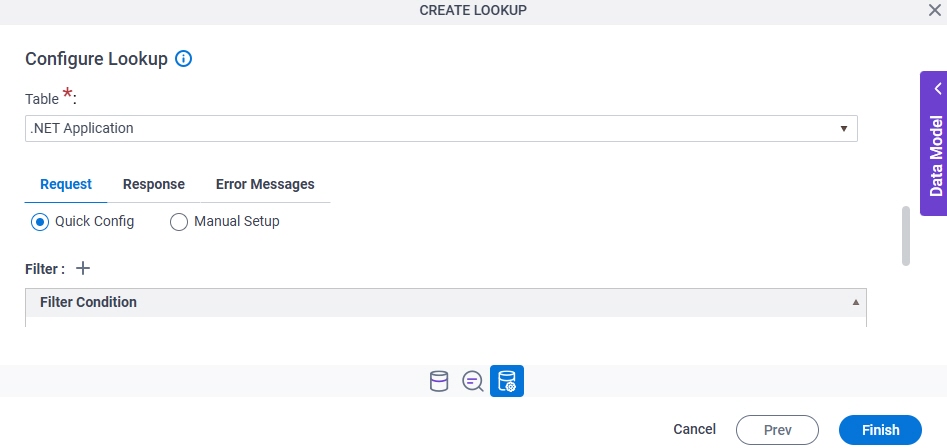
Configure Lookup > Manual Setup
Full documentation coming soon.
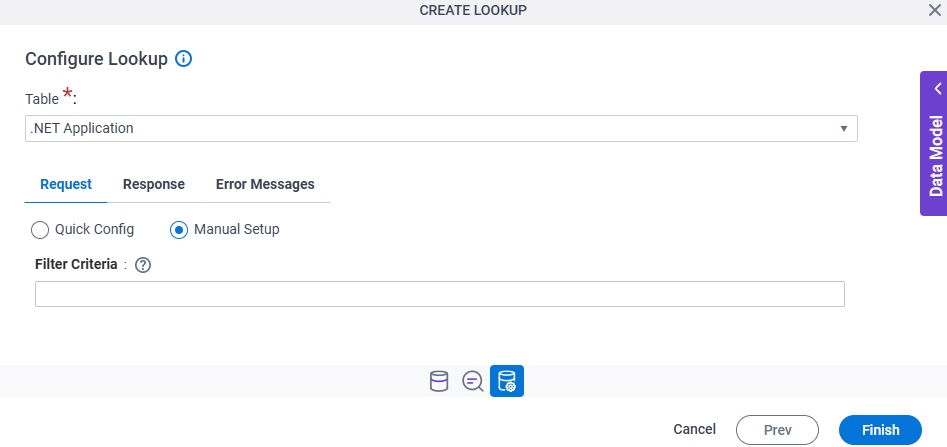
Configure Lookup > Response tab
Full documentation coming soon.
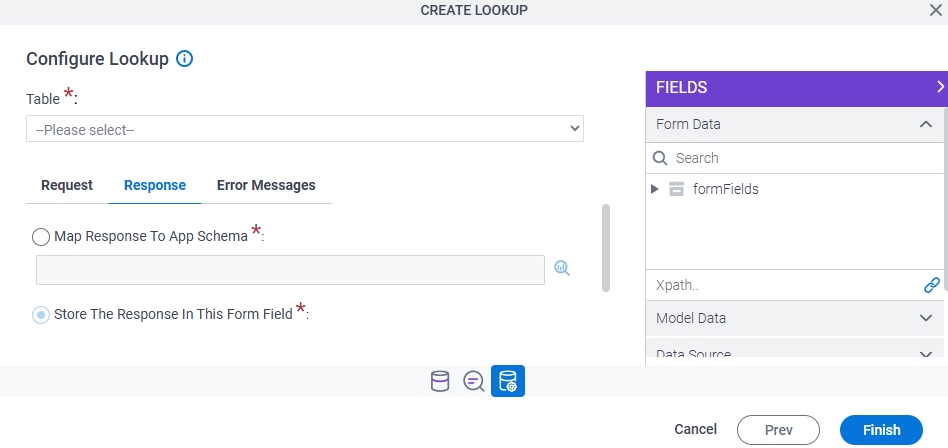
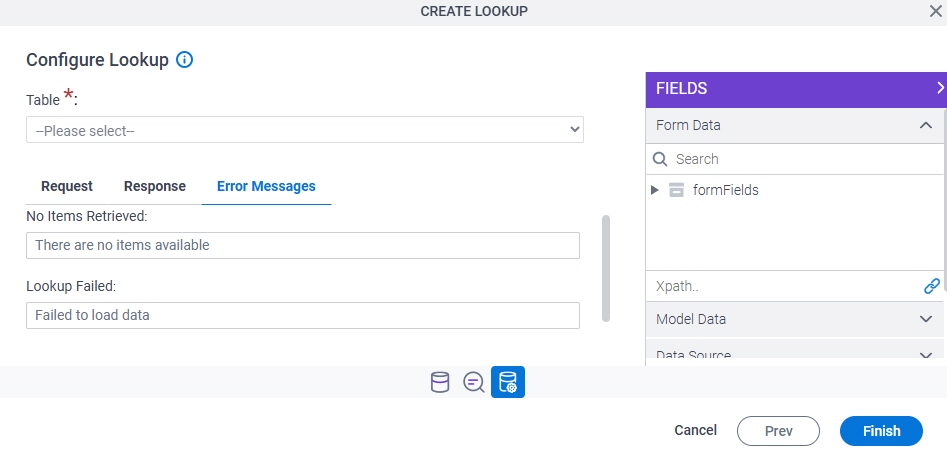
Configure Lookup > Error Messages tab
Full documentation coming soon.