

Auto-Lookup > OpenAI
Full documentation coming soon.
Background and Setup
Examples
- (External) AgilePoint v10 Now Supports eForm Lookups for OpenAI
- Examples - Step-by-step use case examples, information about what types of examples are provided in the AgilePoint NX Product Documentation, and other resources where you can find more examples.
Prerequisites
- AgilePoint NX OnDemand (public cloud), AgilePoint NX Private Cloud, or AgilePoint NX OnPremises v10.0 or higher.
Good to Know
How to Start
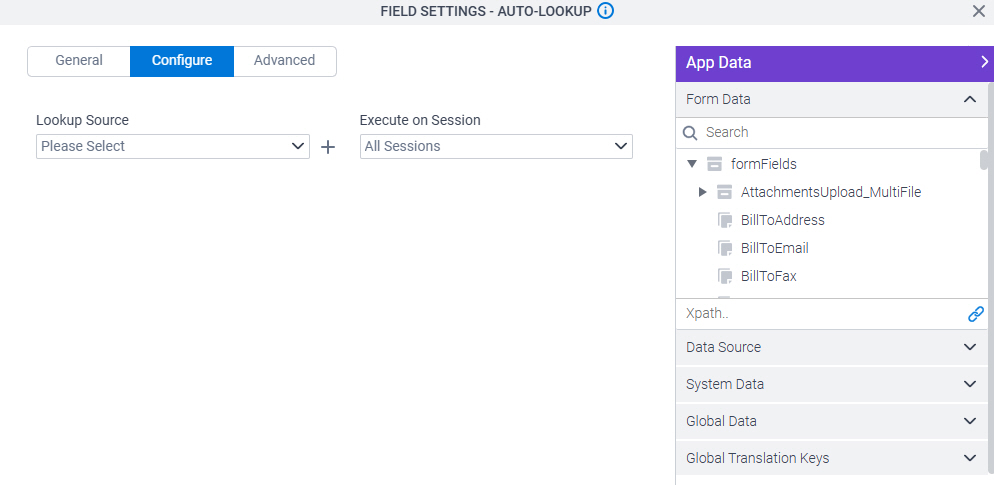
- On the Auto-Lookup form control configuration screen, on the Configure tab,
click Add Lookup.
For information about how to open this screen, refer to Auto-Lookup form control.
- On the Select Data Source Type screen,
select
OpenAI.
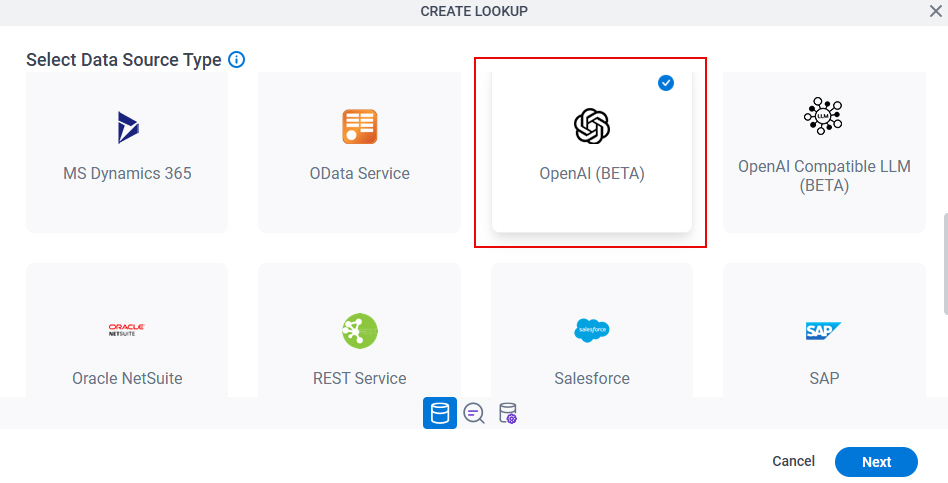
- Click Next.
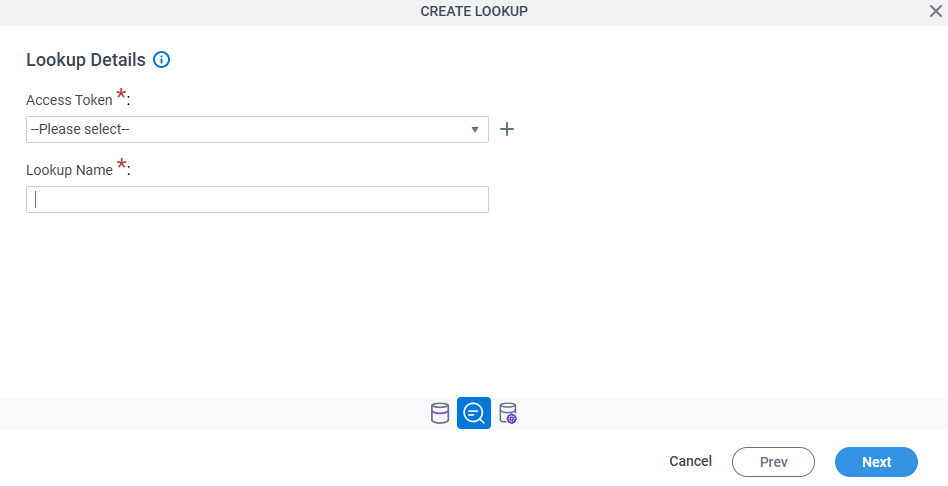
Lookup Details
Full documentation coming soon.
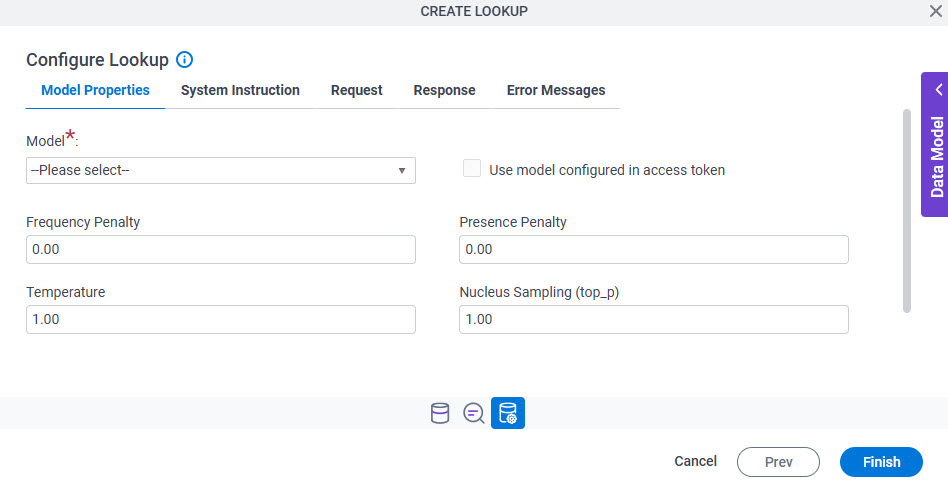
Configure Lookup > Model Properties tab
Full documentation coming soon.
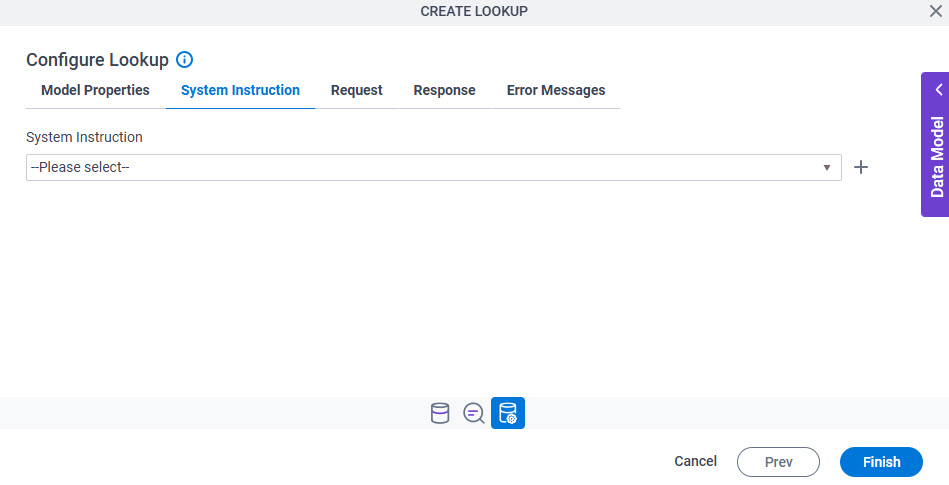
Configure Lookup > System Instruction tab
Full documentation coming soon.
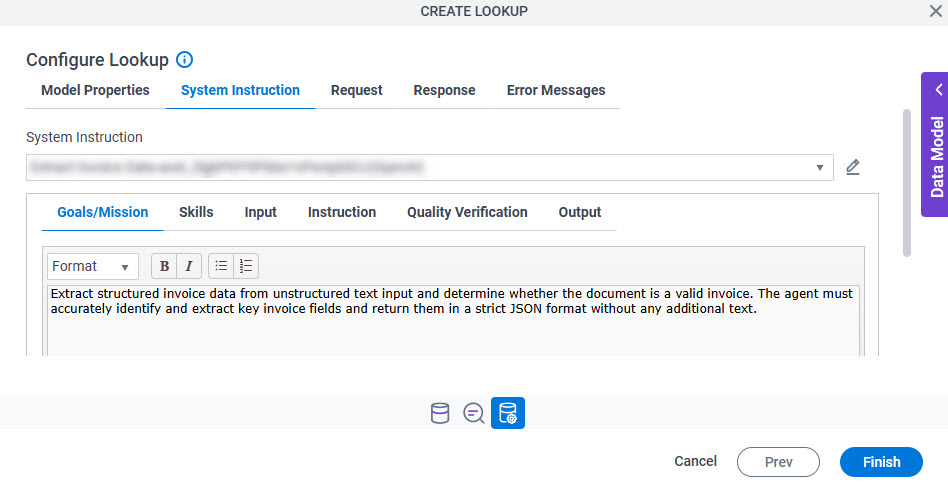
Configure Lookup > System Instruction > Goals/Mission tab
Full documentation coming soon.
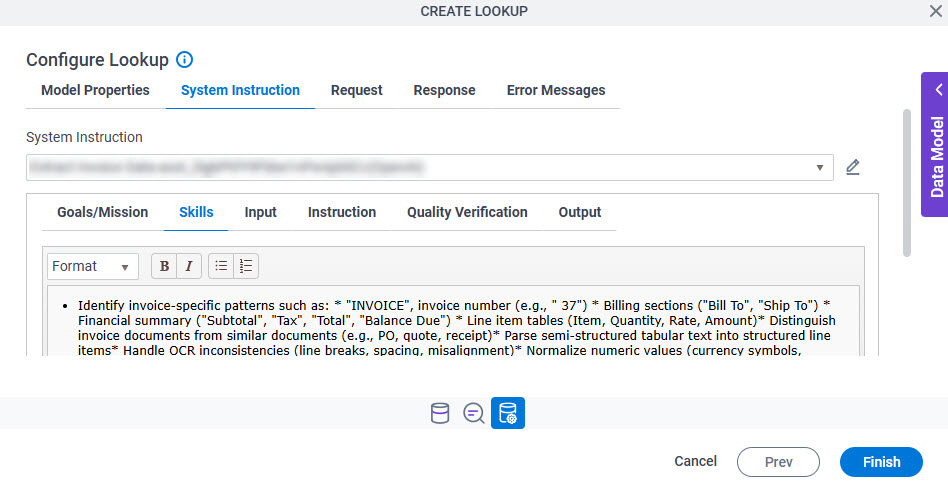
Configure Lookup > System Instruction > Skills tab
Full documentation coming soon.
Configure Lookup > System Instruction > Input tab
Full documentation coming soon.
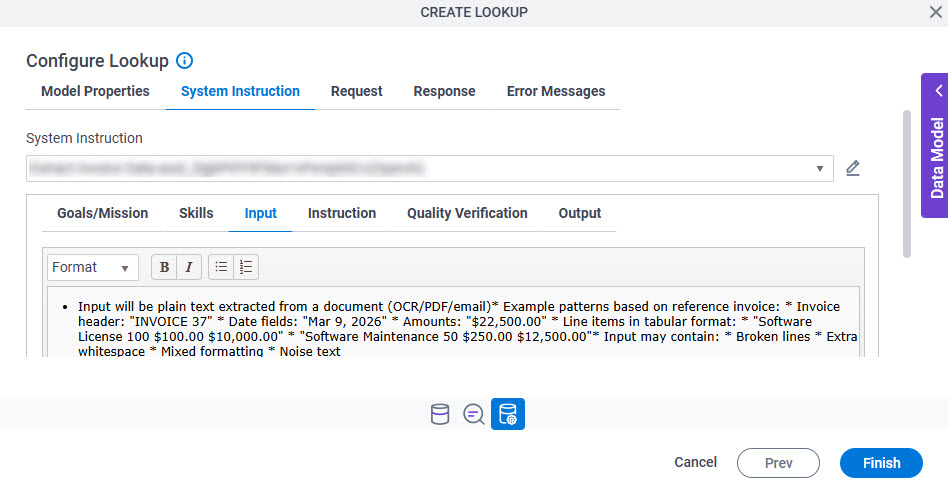
Configure Lookup > System Instruction > Instruction tab
Full documentation coming soon.
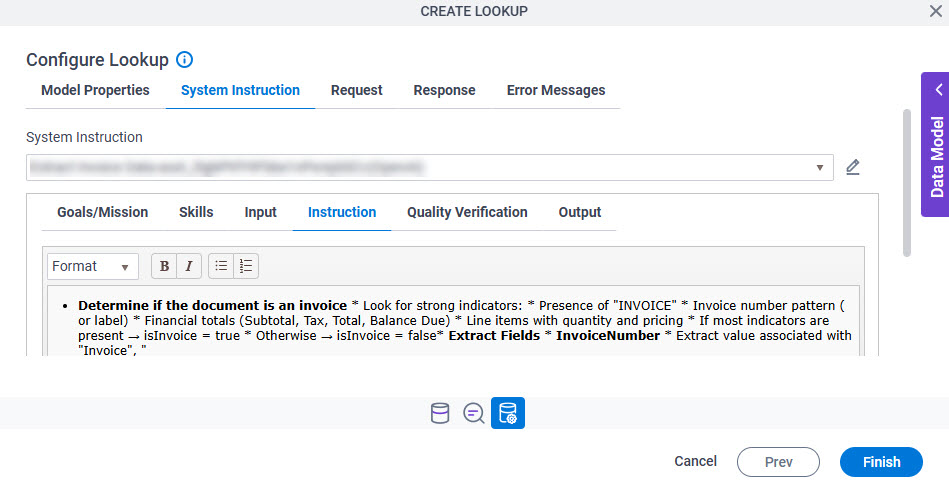
Configure Lookup > System Instruction > Quality Verification tab
Full documentation coming soon.
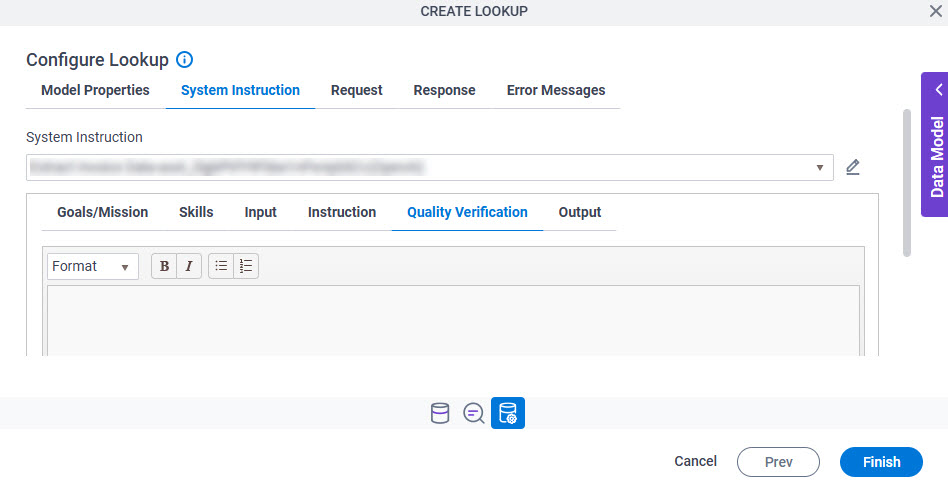
Configure Lookup > System Instruction > Output tab
Full documentation coming soon.
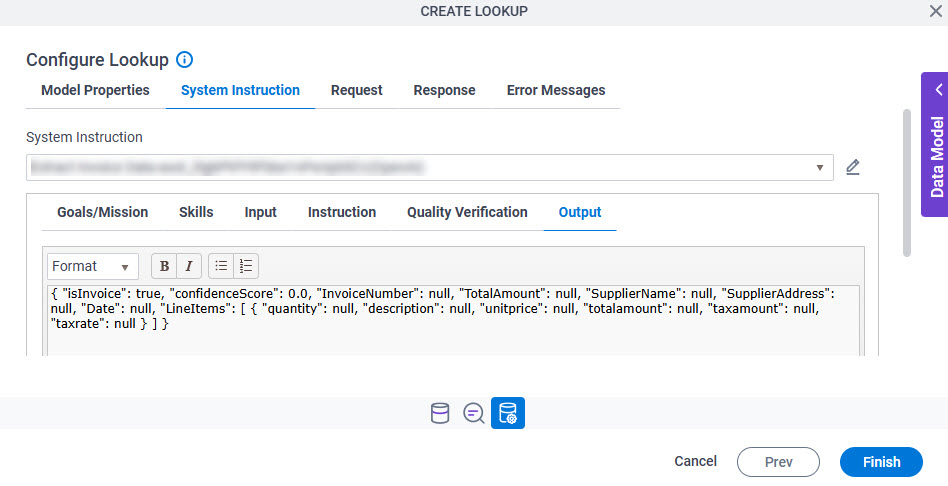
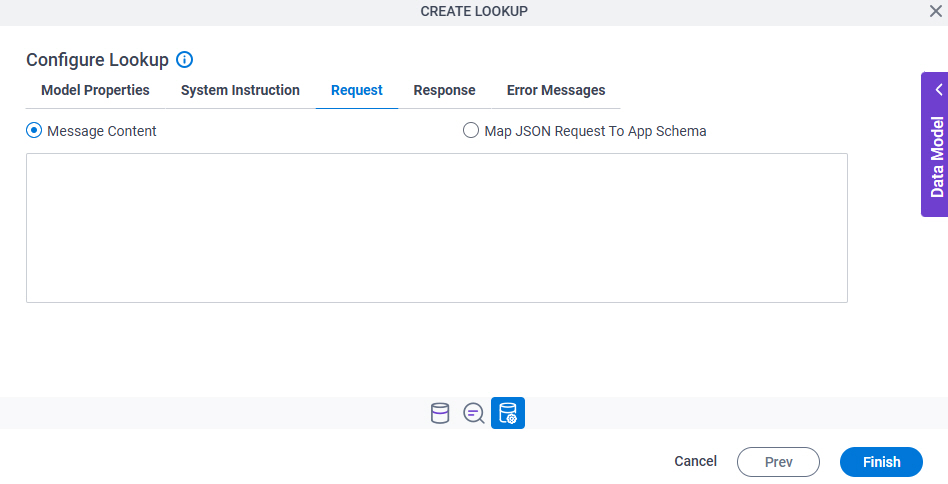
Configure Lookup > Request tab
Full documentation coming soon.
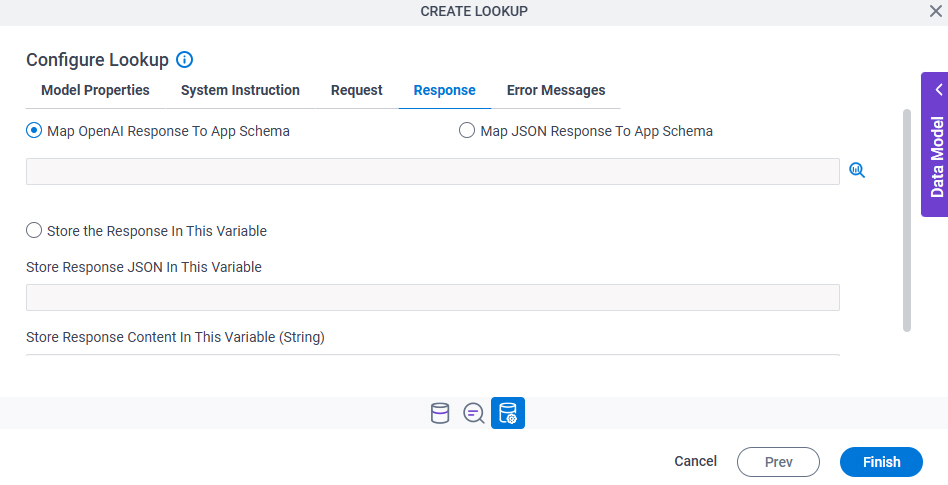
Configure Lookup > Response tab
Full documentation coming soon.
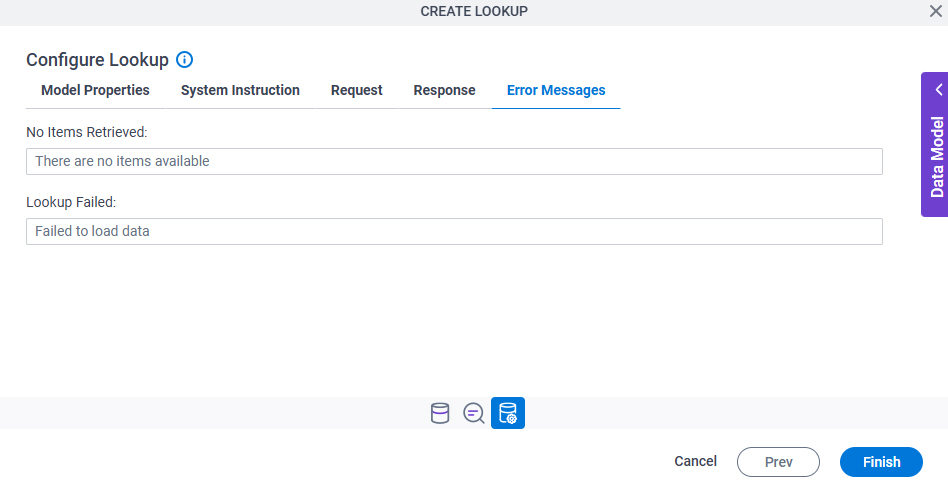
Configure Lookup > Error Messages tab
Full documentation coming soon.