


Parallel Tasks (eForms) activity
An activity that specifies a set of forms made with eForms that must be completed before the process can go forward. This activity is usually used to request approval for a task from a group of approvers that can change.
Configure the Parallel Tasks (eForms) activity
To configure the Parallel Tasks (eForms) activity, do the procedure in this topic.
Video: Create Your First eForm
Good to Know
- The functionality for the Parallel Tasks and Sequential Tasks activities are included in the Advanced Task activity. The Parallel and Sequential Tasks activities exist to support apps created in older versions of AgilePoint NX and AgilePoint BPMS. If you are creating a new app, or changing an existing app, use the Advanced Task activity.
For more information, refer to Advanced Task (eForms) activity.
- In most text fields, you can use process data variables as an alternative to literal data values.
For more information, refer to Data screen.
- Use a Standard Task activity only if you do not want the form to start the process. If you want your form to start the process, use the Start Task (eForms) activity or Start Task (External Forms) activity.
- This section shows the configuration settings on the configuration screens for this activity. Other configuration settings apply to human task activities. For more information, refer to:
- If you assign a task to a new participant, and then that participant releases the task back to the pool, and the participant to whom the task was originally assigned is removed from the pool.
This applies only to the current process instance.
How to Start
- Open Process Builder.
For information about how to open this screen, refer to Process Builder.
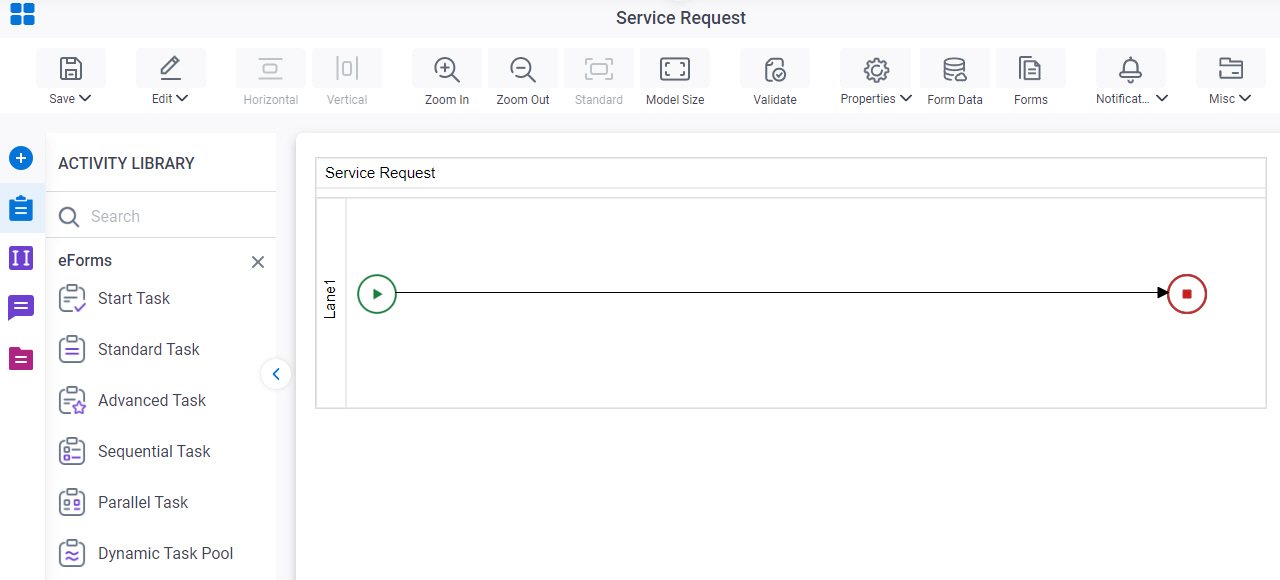
- In Process Builder, in the Activity Library,
open the eForms tab.
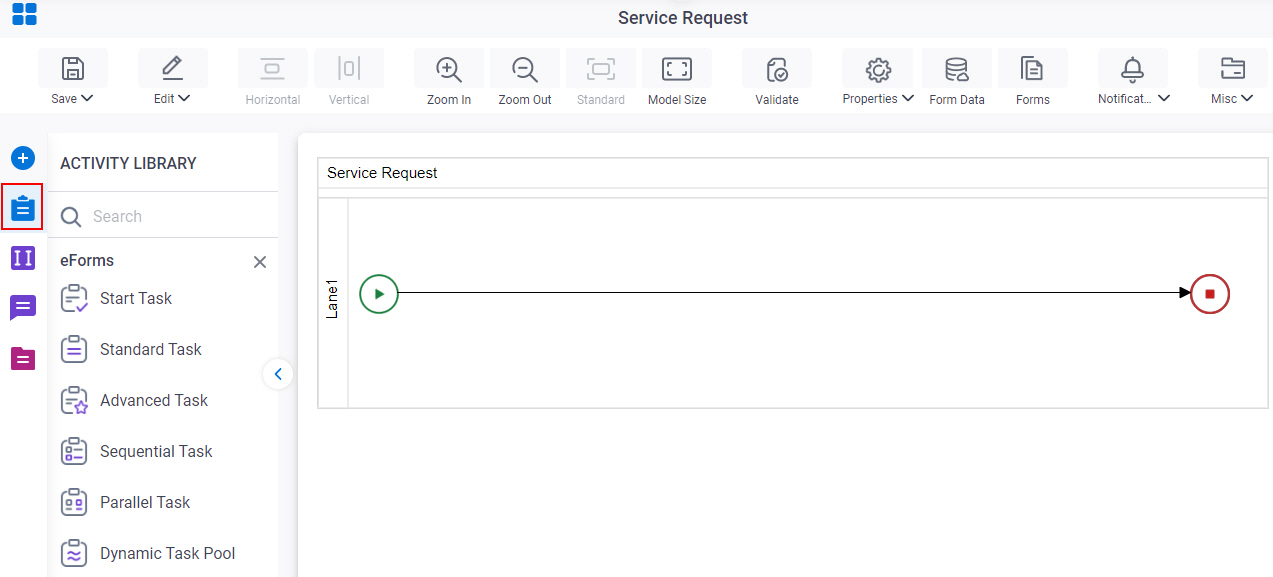
- On the eForms
tab,
drag the Parallel Tasks
activity onto your process.
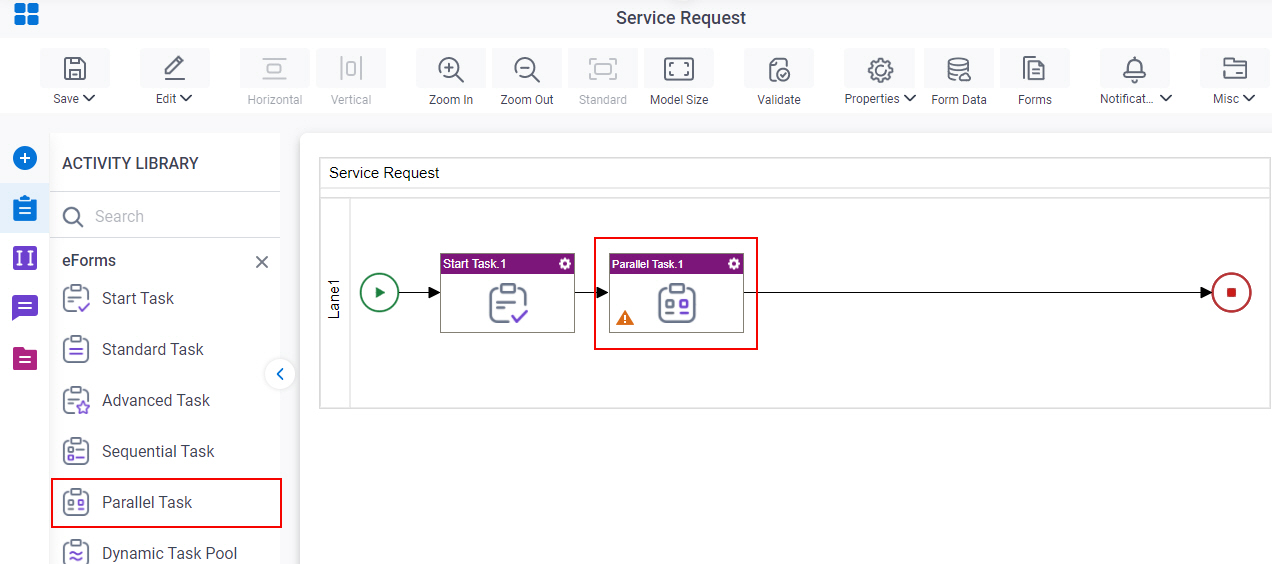
Procedure
- On the Parallel Tasks Configuration screen, do one of these
- Select the form that exists.
- Create a new task form.
- Click Add New Form.
- Complete the fields on the
Form Details screen.
For more information, refer to Form Details screen.
- Click General Configuration
 .
. - Complete the fields on the General Configuration screen.
- Click Participants

- Complete the fields on the Parallel Tasks screen.
- (Optional) If you want to let a runtime app user submit the form with anonymous authentication, click Advanced
 > Anonymous Access
  .
. For more information, refer to (Example) Use Anonymous Authentication in a Process-Based App.
- (Optional) When the task changes status, you can send notifications using e-mail, Viva Engage, Salesforce Chatter, or
SMS:
- To send an email notification, click
Advanced >
Email Notifications
 .
. For more information, refer to Email Notifications screen (Process Activities).
- To send a notification with Yammer, click Advanced > Yammer Notifications
 .
. For more information, refer to Viva Engage Notifications screen.
- To send a notification with Salesforce Chatter, click Advanced > Chatter Notifications
 .
. For more information, refer to Chatter Notifications screen.
- To send a notification with SMS, click Advanced >
SMS Notifications
 .
.
For more information, refer to SMS Notifications screen.
- To send an email notification, click
Advanced
Form Details screen
How to Start
App Builder
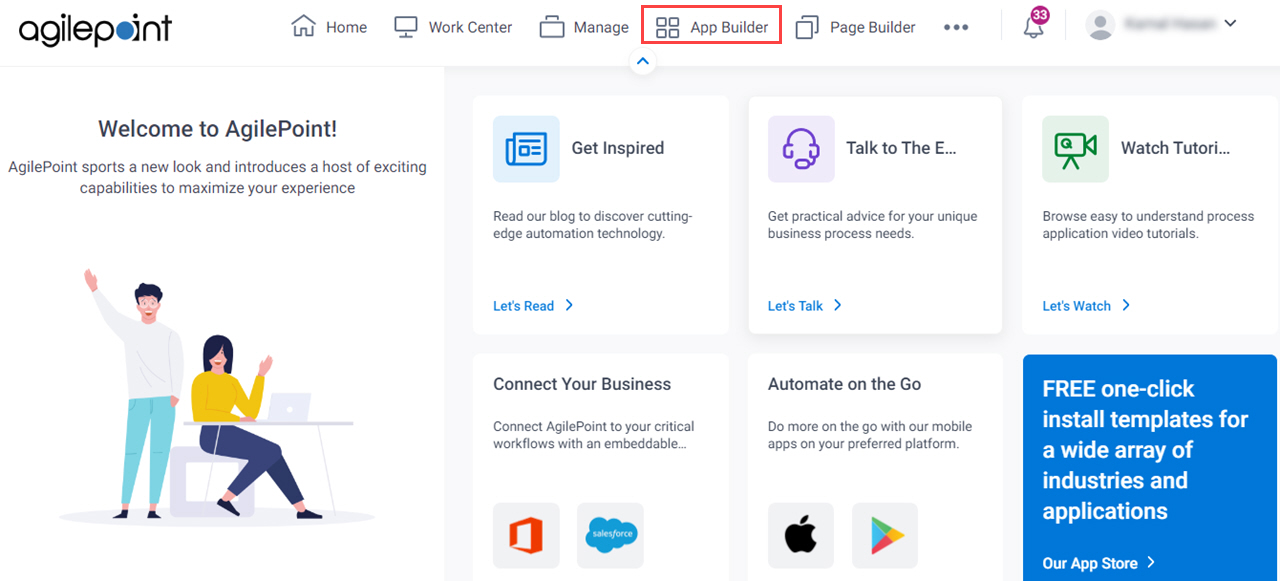
- Click App Builder.
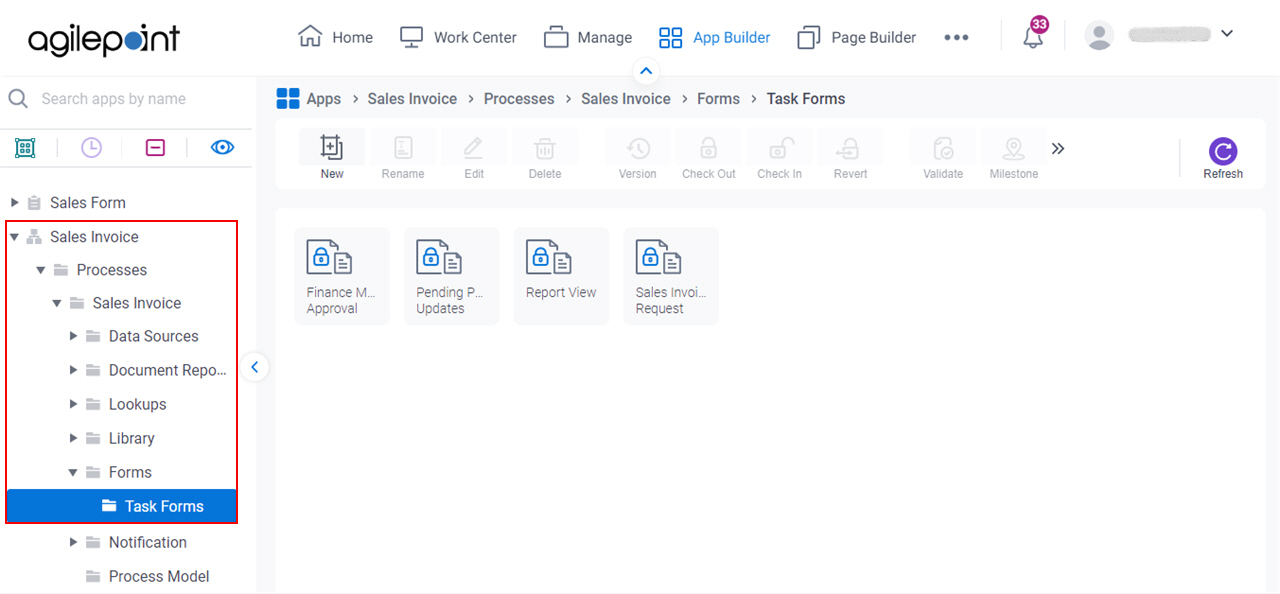
- On the App Explorer screen,
click [App Name] > Processes > [Process Name] > Forms > Task Forms.
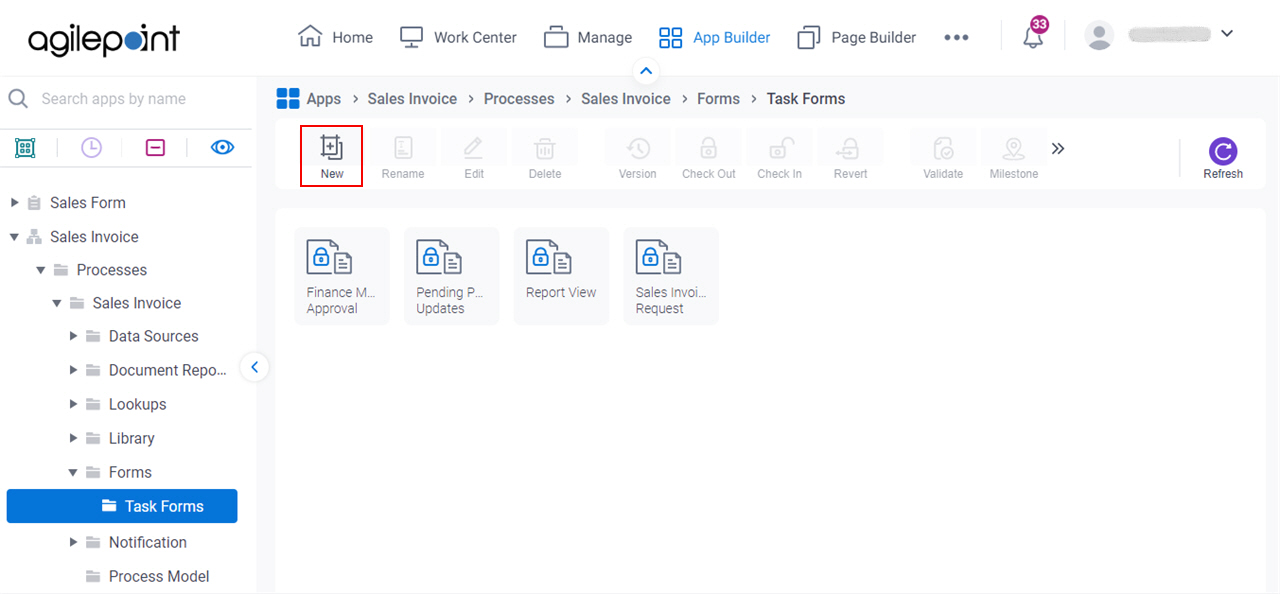
- Click New.
Process Builder
- Open Process Builder.
For information about how to open this screen, refer to Process Builder.
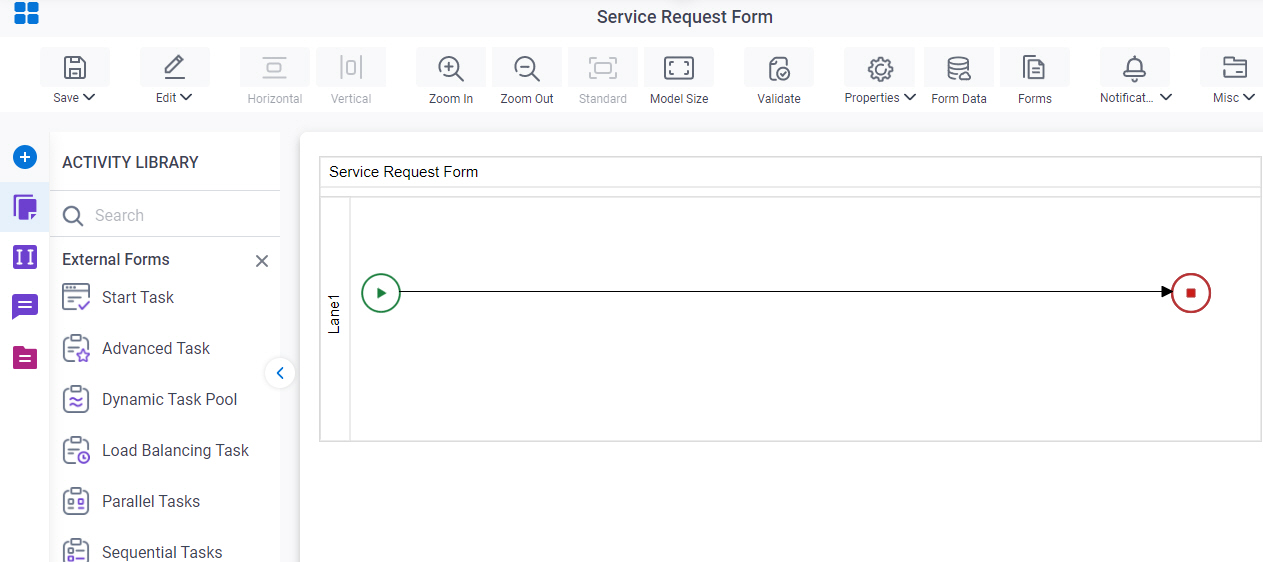
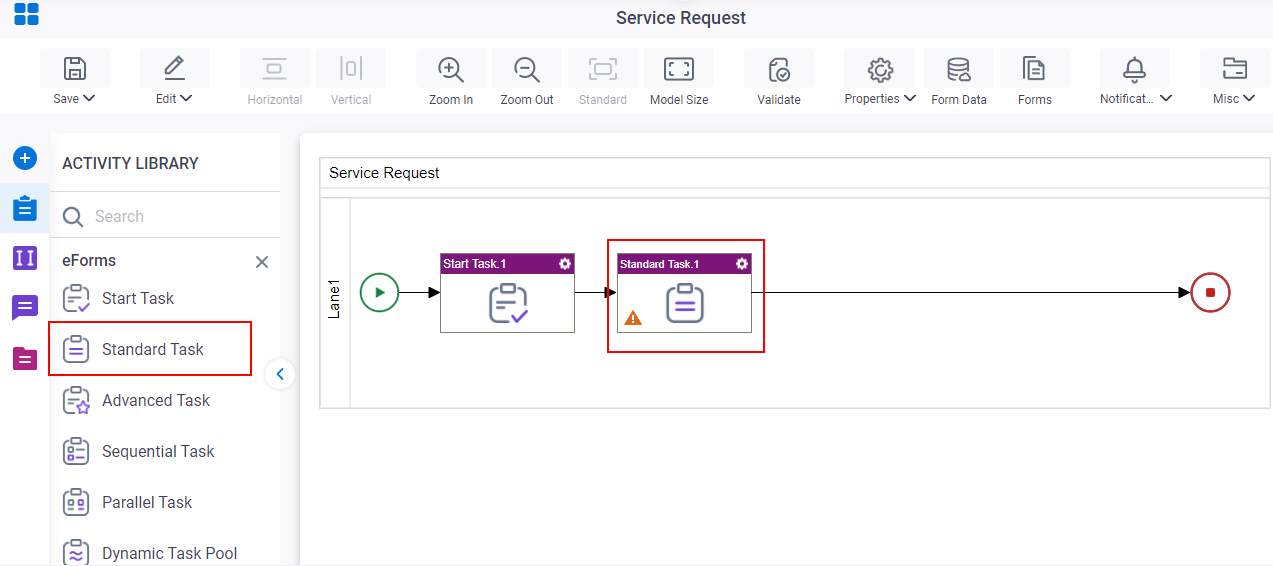
- , in the Activity Library, drag any human task activity onto your process.
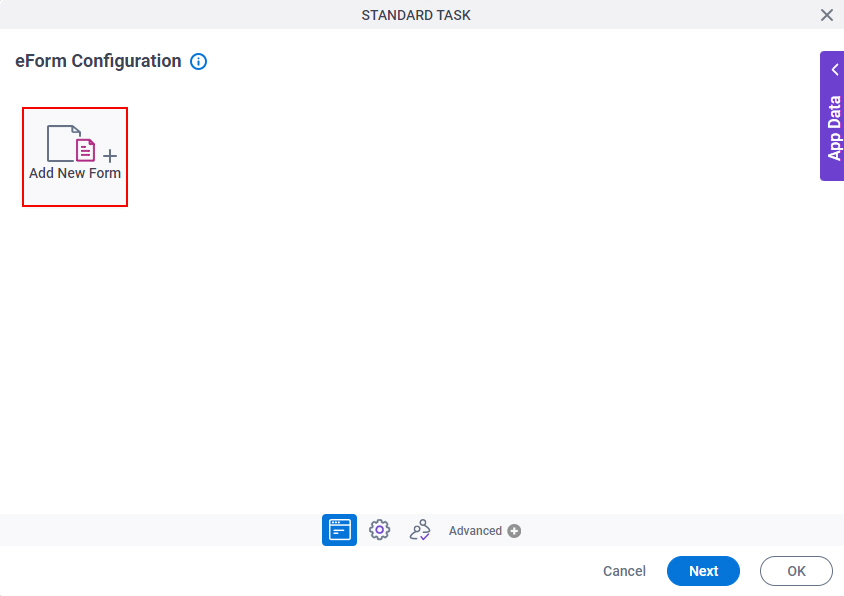
- On the eForm Configuration screen, click Add New Form.
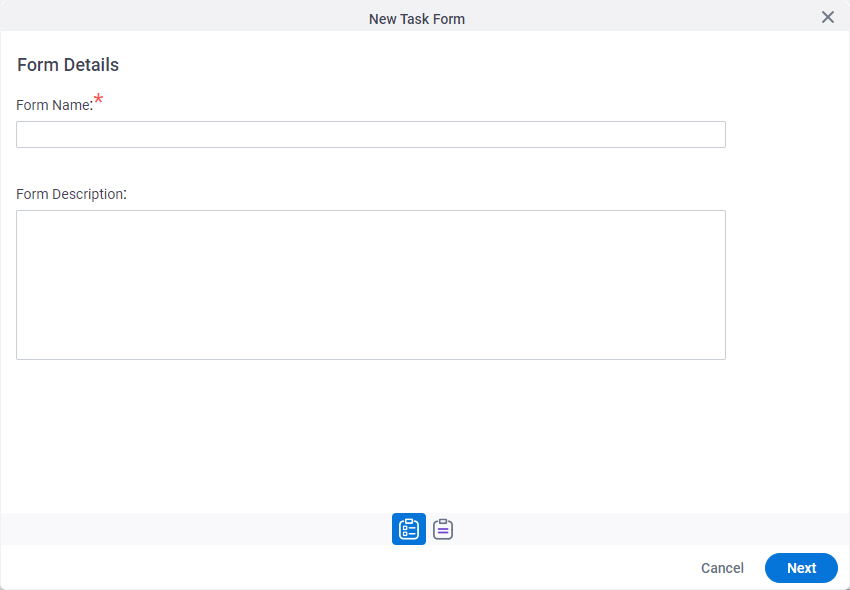
Form Details screen
Configures a human task form.
Fields
| Field Name | Definition |
|---|---|
|
Form Name |
|
|
Form Description |
|
|
Next |
|
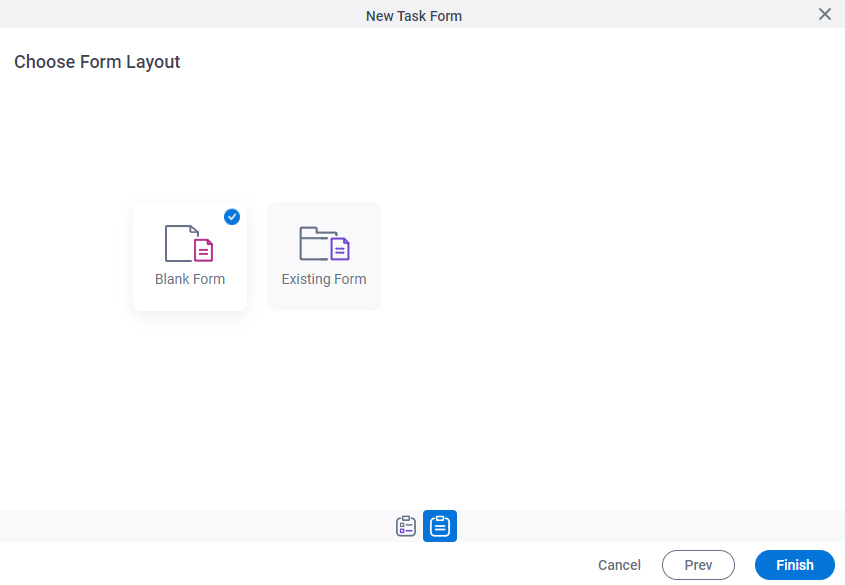
Choose Form Layout screen
Lets you choose the layout for the form.
Fields
| Field Name | Definition |
|---|---|
|
Form Layouts |
|
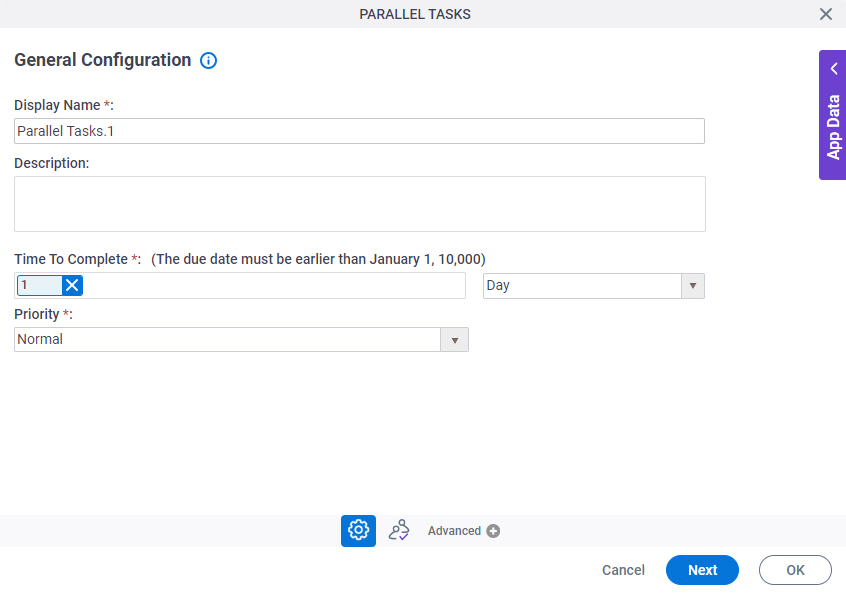
General Configuration
Specifies the general information for the Parallel Tasks activity.
Fields
| Field Name | Definition |
|---|---|
|
Display Name |
|
|
Description |
|
|
Time To Complete |
|
|
Priority |
|


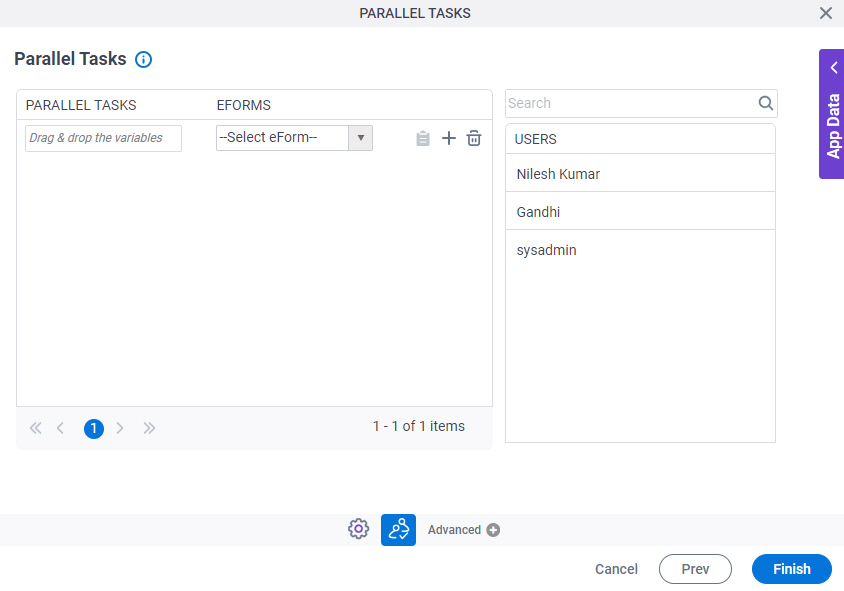
Parallel Tasks
Connects a list of parallel tasks with their participants.
Fields
| Field Name | Definition |
|---|---|
|
Add Roles, Groups and Users |
|
|
Search |
|
|
Parallel Tasks |
|
|
eForms | |
|
Create eForm |
|
|
Add Row |
|
|
Delete |
|


