
Update Post activity

An activity that changes a post on a WordPress site.


Update Post activity
Configure the Update Post activity

To configure the Update Post activity, do the procedure in this topic.

Prerequisites

Good to Know

  • This activity supports rich text posts. Raw HTML content is not currently supported, nor are other post types, such as image or video. You can use embedded images or video in your post, but configuration for these post types is not currently supported.
  • ​​To send an email notification, click Advanced Advanced icon > Email Notifications E-mail Notifications icon.

    For more information, refer to Email Notifications screen (Process Activities).

  • In most text fields, you can use process data variables as an alternative to literal data values.

    For more information, refer to Data screen.

  • You can configure whether this activity waits for other activities before it runs.

    For more information, refer to How Do I Configure an Activity to Wait for Other Incoming Activities?

  • This section shows the configuration settings on the configuration screens for this activity. Other configuration settings apply to system activities. For more information, refer to:
  • Some information about third-party integrations is outside the scope of the AgilePoint NX Product Documentation. It is the responsibility of the vendors who create and maintain these technologies to provide this information. This includes specific business use cases and examples; explanations for third-party concepts; details about the data models and input and output data formats for third-party technologies; and various types of IDs, URL patterns, connection string formats, or other technical information that is specific to the third-party technologies. For more information, refer to Where Can I Find Information and Examples for Third-Party Integrations?

How to Start

  1. Open Process Builder.

    For information about how to open this screen, refer to Process Builder.
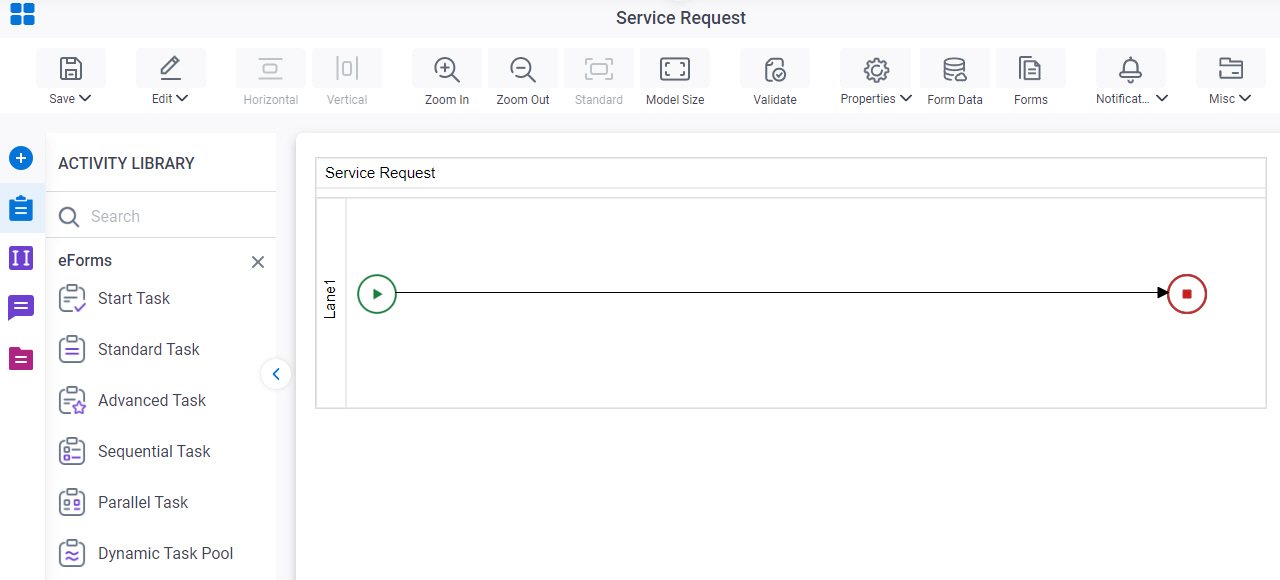

    Open Process Builder
  2. In Process Builder, in the Activity Library, open the WordPress tab.
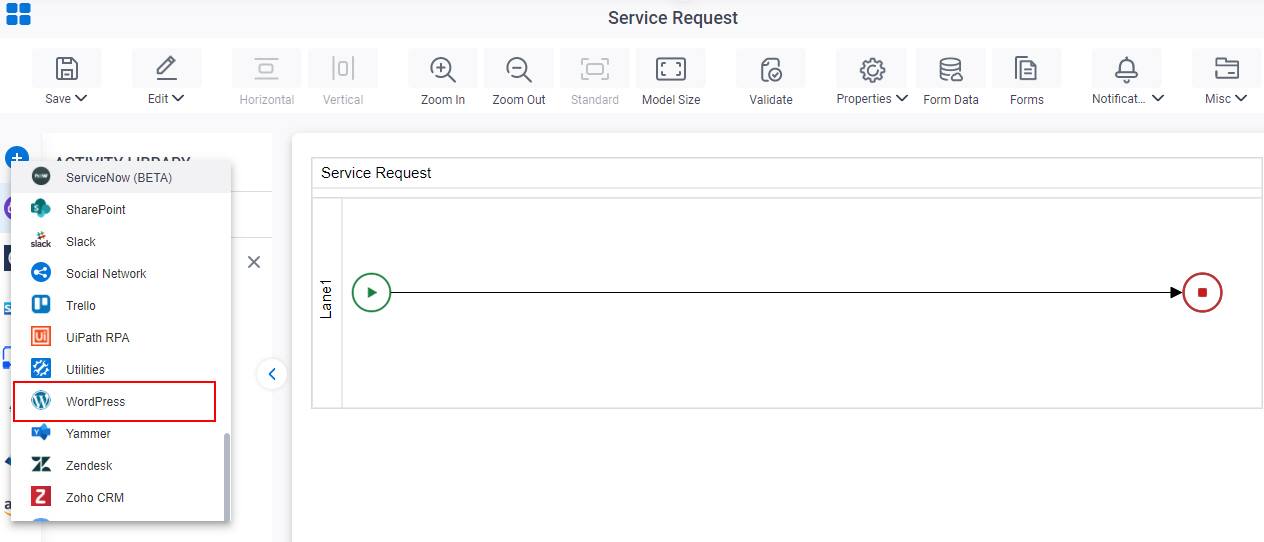
    Open WordPress tab
  3. On the WordPress tab, drag the Update Post activity onto your process.
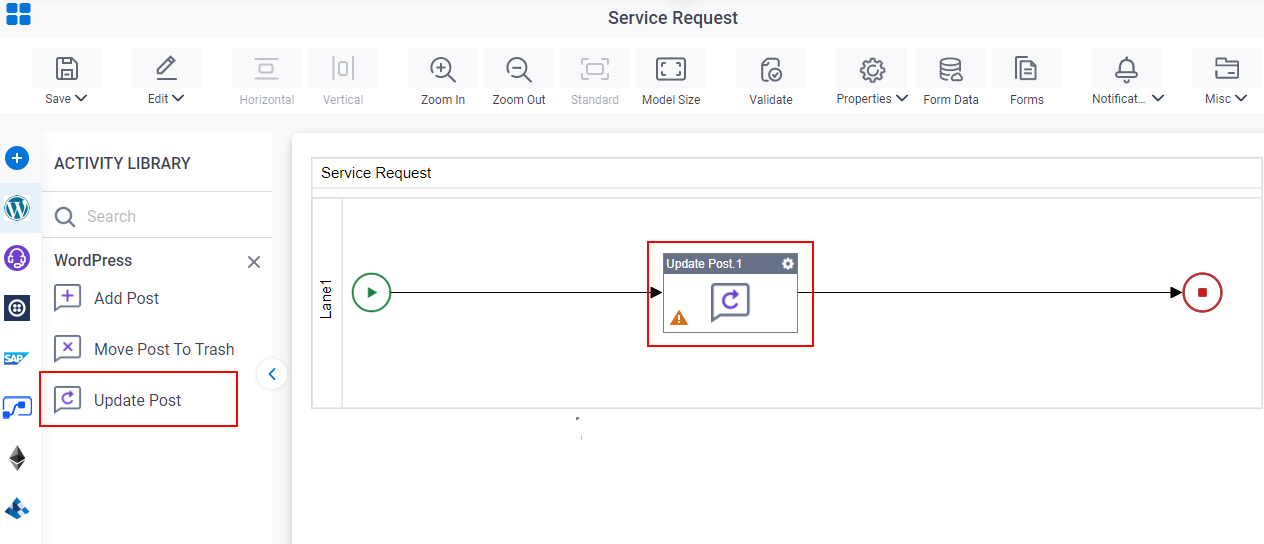
    Drag Update Postt activity

General Configuration

Specifies the basic settings for the Update Post activity.
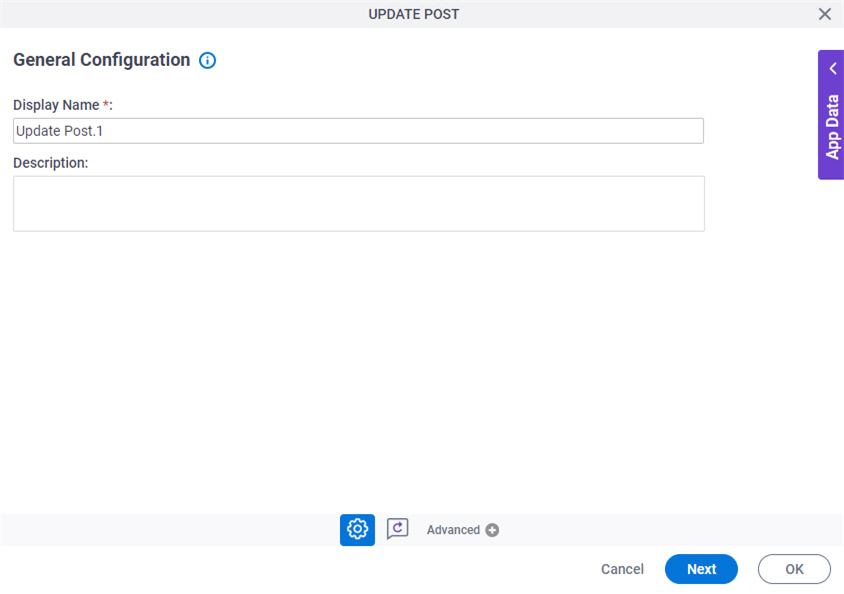
Figure 1. General Configuration screen

General Configuration screen

Good to Know

  • Documentation for this screen is provided for completeness. The fields are mostly self-explanatory.

Fields

Field NameDefinition

Display Name

Description:
Specifies the activity name that shows in your process.
Allowed Values:
One line of text (a string).

Accepted:

  • Letters
  • Numbers
  • Spaces
Default Value:
None
Accepts Variables:
No
Example:
This is a common configuration field that is used in many examples. Refer to:
  • Examples - Step-by-step use case examples, information about what types of examples are provided in the AgilePoint NX Product Documentation, and other resources where you can find more examples.

Description

Description:
Specifies an optional text description for your activity.
Allowed Values:
More than one line of text.
Default Value:
None
Accepts Variables:
No

Update Post Configuration > Configuration tab

Specifies the configuration to change a post in WordPress site.
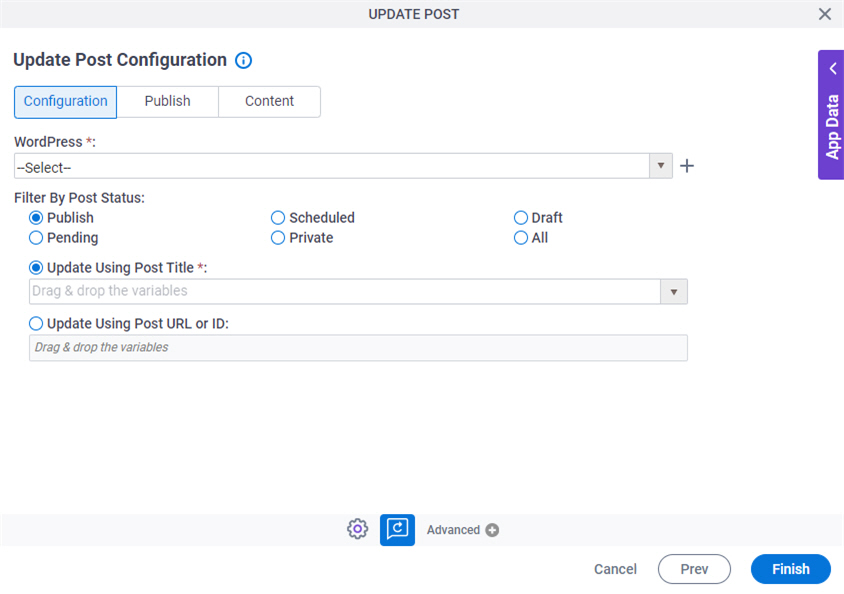
Figure 2. Update Post Configuration > Configuration tab

Update Post Configuration Configuration tab

Fields

Field NameDefinition

WordPress

Description:
Specifies the access token that connects to your WordPress.
Allowed Values:
A list of access tokens configured for your environment.
Default Value:
None
Accepts Variables:
No

Create Add Token icon

Opens this Screen:
Access Token for WordPress
Function of this Screen:
Configure an access token to connect to WordPress.

Filter By Post Status

Description:
Specifies the post statuses to filter on the WordPress site.
Allowed Values:
  • Publish - Filters the posts whose status is Published.
  • Scheduled - Filters the posts whose status is Scheduled.
  • Draft - Filters the posts whose status is Draft.
  • Pending - Filters the posts whose status is Pending.
  • Private - Filters the posts whose status is Private.
  • All - Filters the post with all status.
Default Value:
Publish
Accepts Variables:
Yes

Update Using Post Title

Description:
Specifies whether to change a post based on post title in WordPress site.
Allowed Values:
A post title from the list.
Default Value:
None
Accepts Variables:
Yes

Update Using Post URL or ID

Description:
Specifies the ID or URL of the post to be changed in WordPress site.
Allowed Values:
The ID or URL of the WordPress post.
Default Value:
None
Accepts Variables:
Yes

Update Post Configuration screen > Publish tab

Specifies the status of the post you changed in WordPress site.
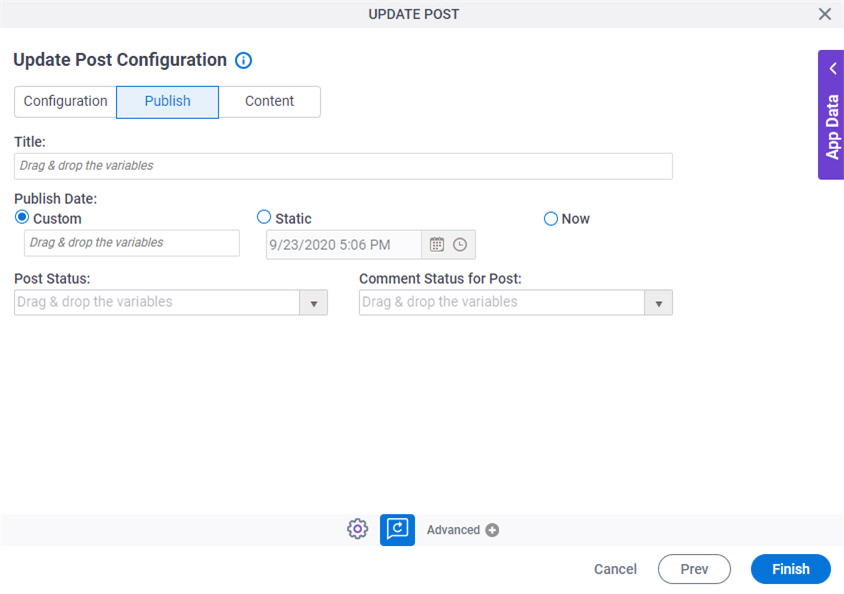
Figure 3. Update Post Configuration > Publish tab

Update Post Configuration Publish tab

Fields

Field NameDefinition

Title

Description:
Specifies the subject for your post.
Allowed Values:
One line of text (a string).

Accepted:

  • Letters
  • Numbers
  • Spaces
Default Value:
None
Accepts Variables:
Yes

Publish Date

Description:
Specifies the date and time to publish the post on WordPress.
Allowed Values:
  • Custom - Uses a process data variable to specify a dynamic date and time.
  • Static - Uses date and time fields to select a specific date and time.
  • Now - Specifies that the post publishes at the time the process activity executes at runtime.
Default Value:
None

Post Status

Description:
Specifies the status of your post.
Allowed Values:
  • Draft - A post is in draft status, not ready for review or publish.
  • Pending - Marks the post as pending editorial approval.
  • Private - Only the WordPress users can see the post.
  • Publish - A post is published and any WordPress site visitor can see the post.
  • Scheduled - Scheduled the post to be published in a future date. You must set a future date.
Default Value:
None
Accepts Variables:
Yes

Comment Status for Post

Description:
Specifies whether your post is open for comments.
Allowed Values:
  • Closed - Site users can not comment on a post.
  • Open - Site users can comment on a post.
Default Value:
None
Accepts Variables:
Yes

Update Post Configuration screen > Content tab

Specifies the content for your post in WordPress.
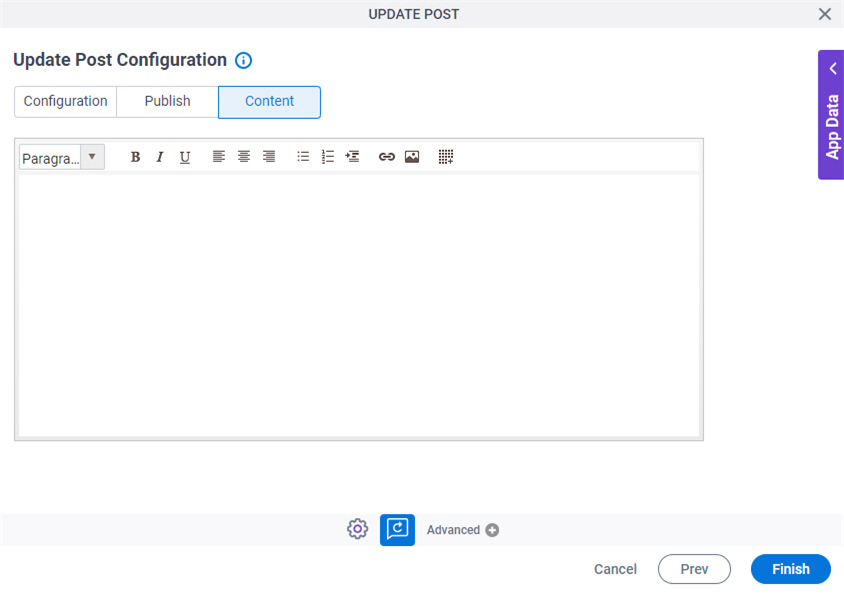
Figure 4. Update Post Configuration > Content tab

Update Post Configuration Content tab

Fields

Field NameDefinition

Content

Description:
Specifies the content of your post.
Allowed Values:
More than one line of text.

Format:

  • Plain text
Default Value:
None
Accepts Variables:
Yes