

Send Notification (REST Service) Control Tower
Full documentation coming soon.
Background and Setup
Examples
- (External) AgilePoint NX Connector For REST Service
- Examples - Step-by-step use case examples, information about what types of examples are provided in the AgilePoint NX Product Documentation, and other resources where you can find more examples.
Prerequisites
- AgilePoint NX OnDemand (public cloud), AgilePoint NX Private Cloud, or AgilePoint NX OnPremises v10.0 or higher.
Good to Know
- To send an email notification, click
Advanced
 >
Email Notifications
>
Email Notifications  .
. For more information, refer to Email Notifications screen (Process Activities).
- In most text fields, you can use process data variables as an alternative to literal data values.
For more information, refer to Data screen.
- You can configure whether this activity waits for other activities before it runs.
For more information, refer to How Do I Configure an Activity to Wait for Other Incoming Activities?
- This section shows the configuration settings on the configuration screens for this activity. Other configuration settings apply to system activities. For more information, refer to:
How to Start
- Open Process Builder.
For information about how to open this screen, refer to Process Builder.
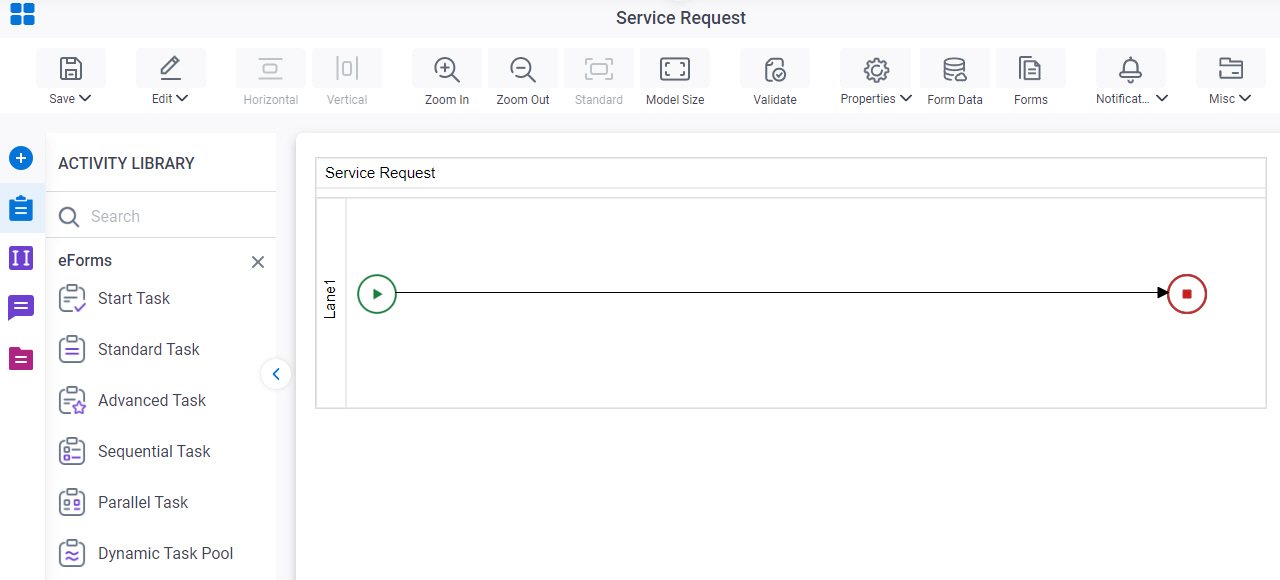
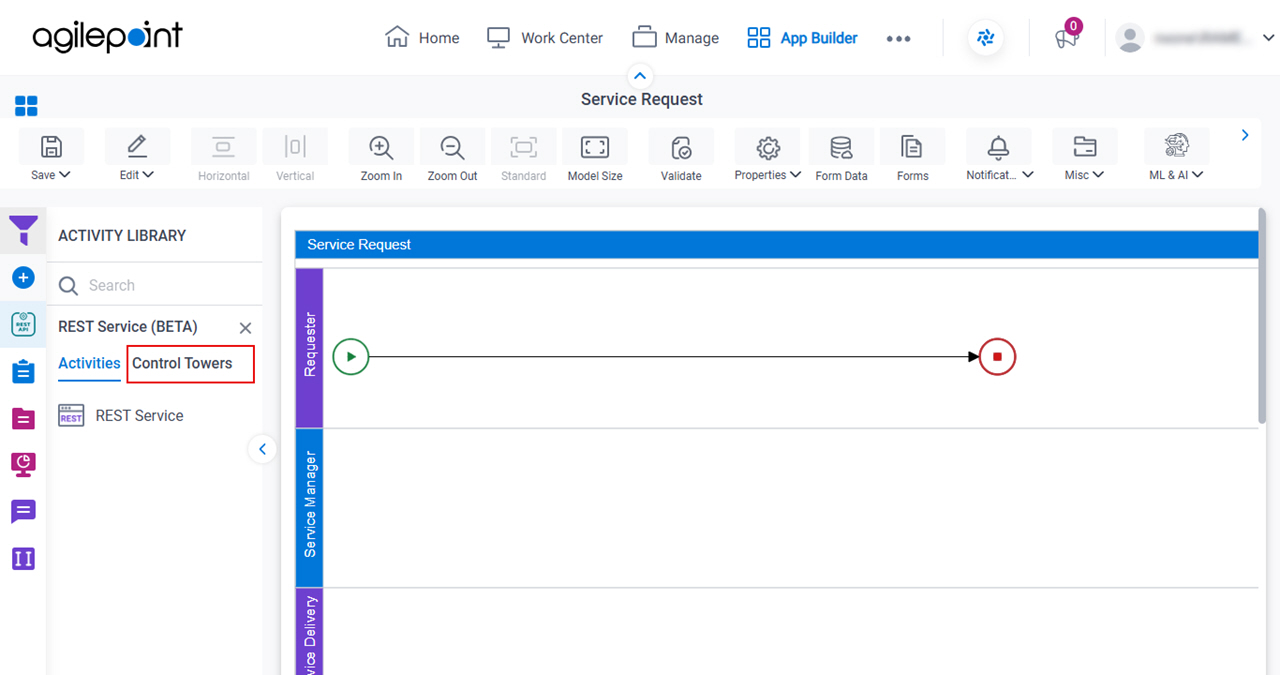
- In Process Builder, in the Activity Library,
open the REST Service tab.
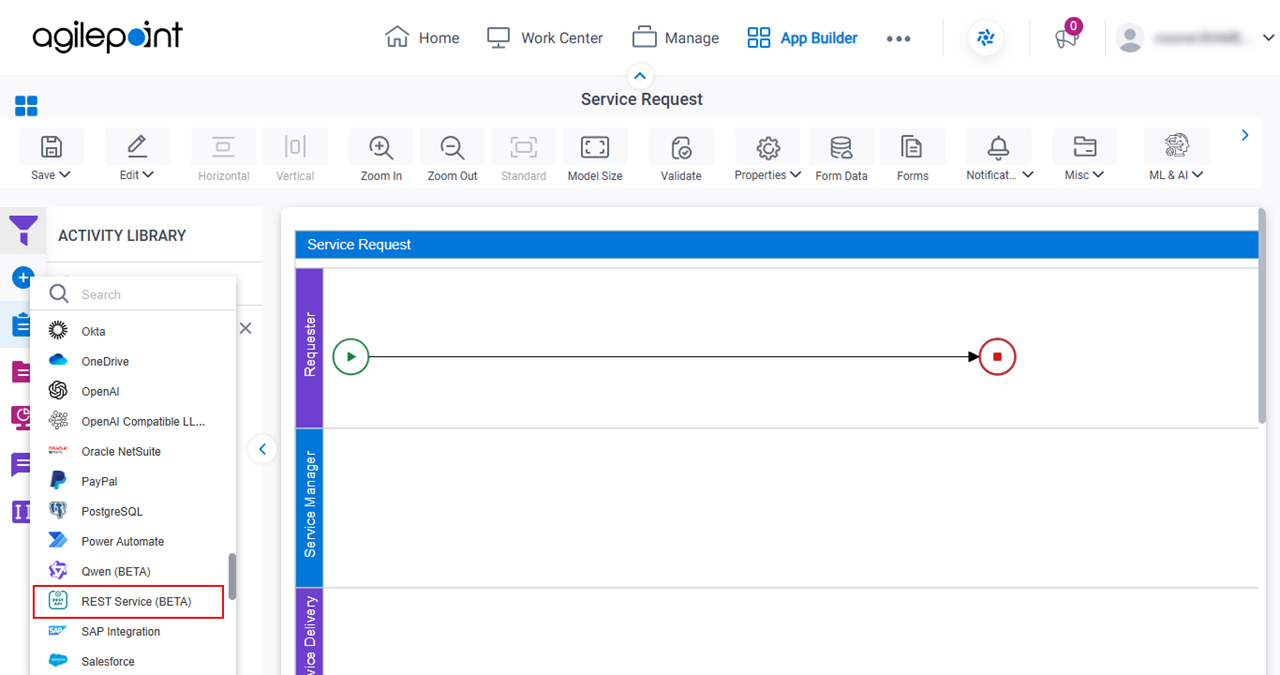
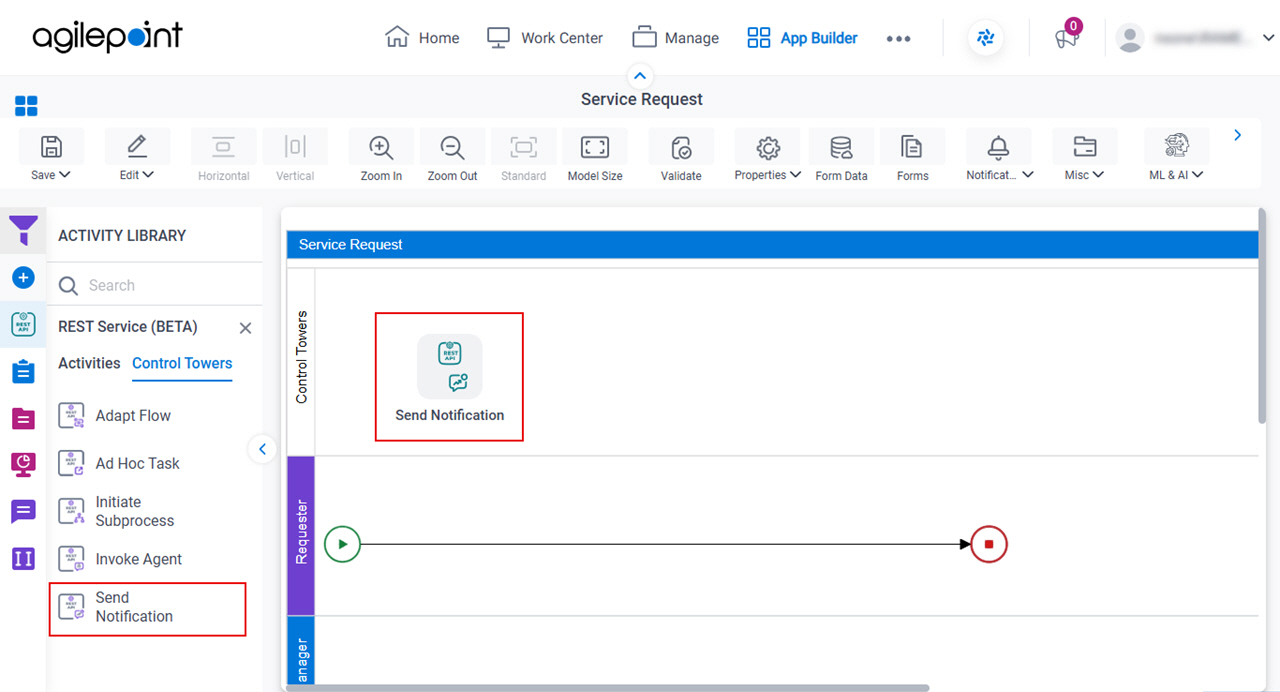
- On the REST Service tab, click the Control Towers tab.
- On the REST Service > Control Towers tab,
drag the Send Notification
activity onto your process.
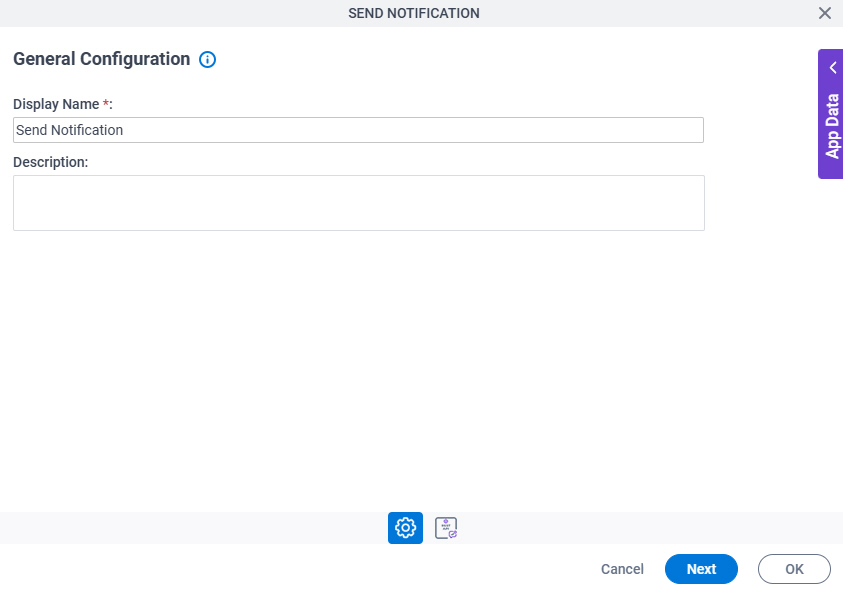
General Configuration
Full documentation coming soon.
Good to Know
- Documentation for this screen is provided for completeness. The fields are mostly self-explanatory.
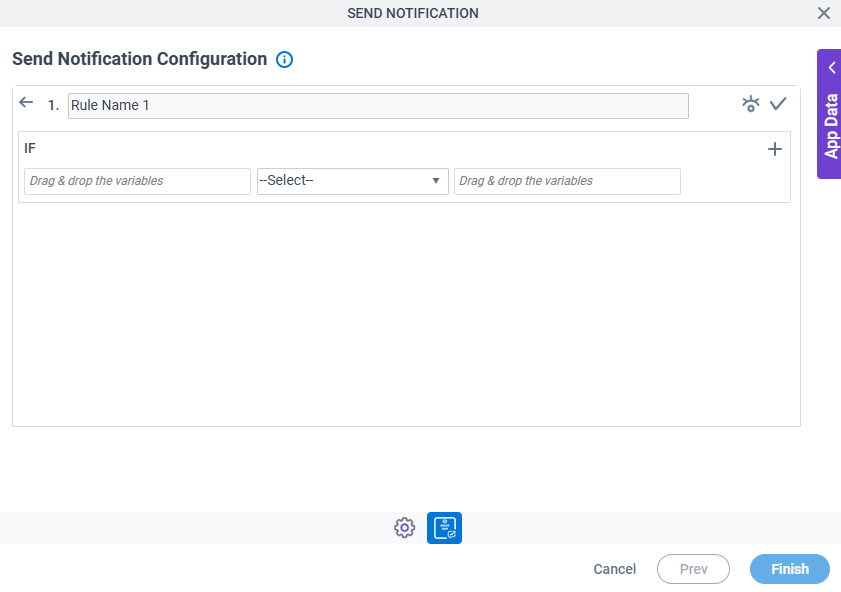
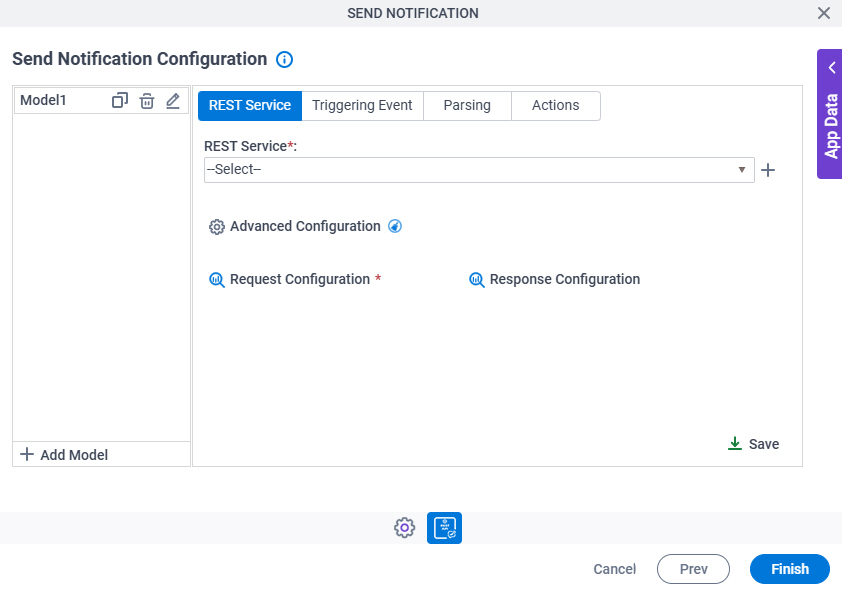
Send Notification Configuration > REST Service tab
Full documentation coming soon.
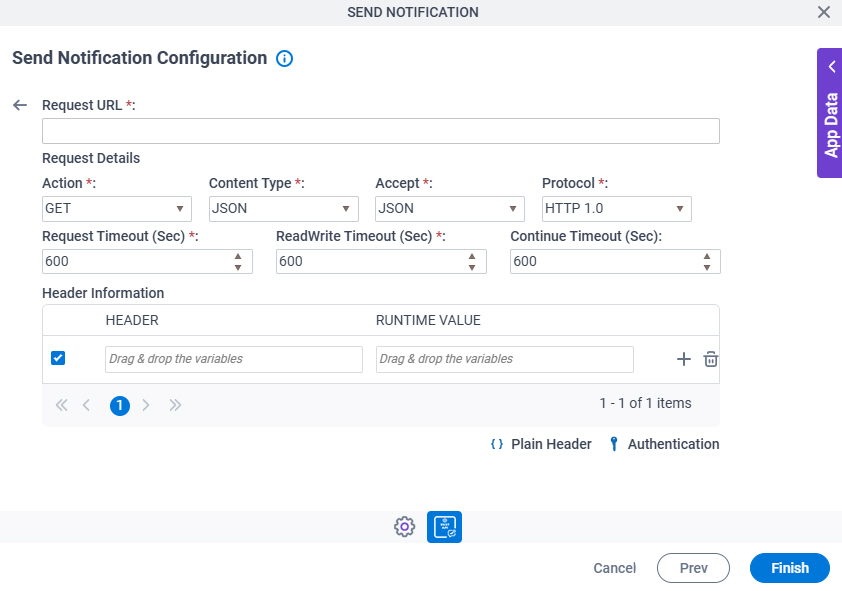
Send Notification Configuration > REST Service > Advanced REST Configuration screen
Full documentation coming soon.
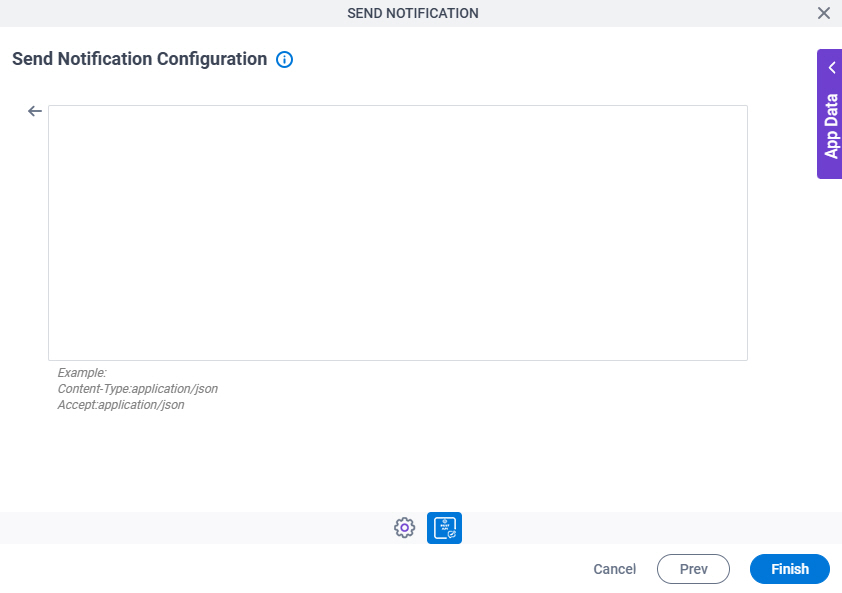
Send Notification Configuration > REST Service > Plain Header screen
Full documentation coming soon.
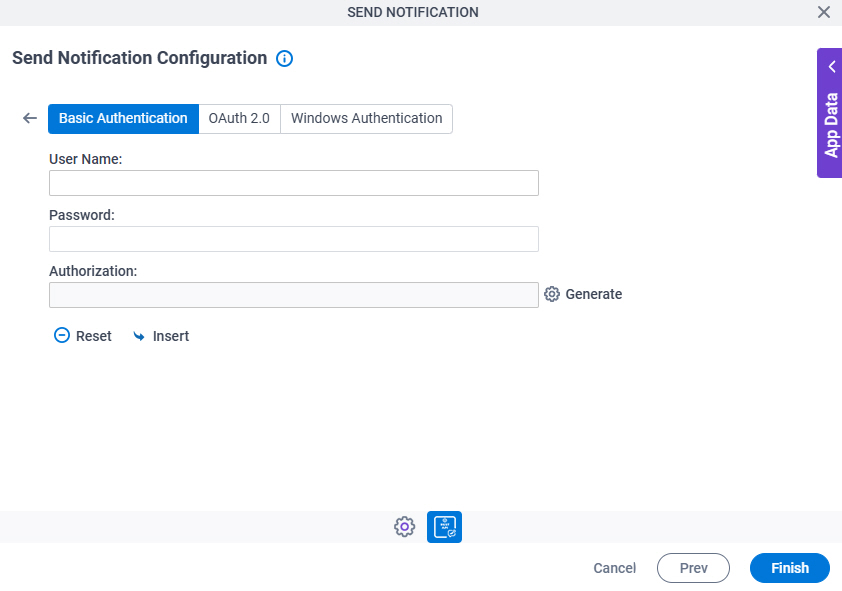
Send Notification Configuration > REST Service > Authentication > Basic Authentication tab
Full documentation coming soon.
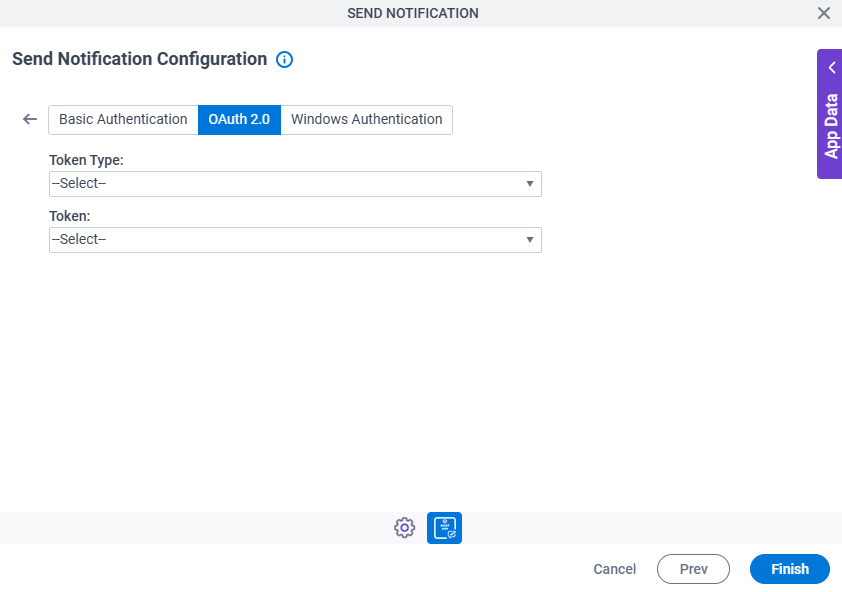
Send Notification Configuration > Authentication > OAuth 2.0 tab
Full documentation coming soon.
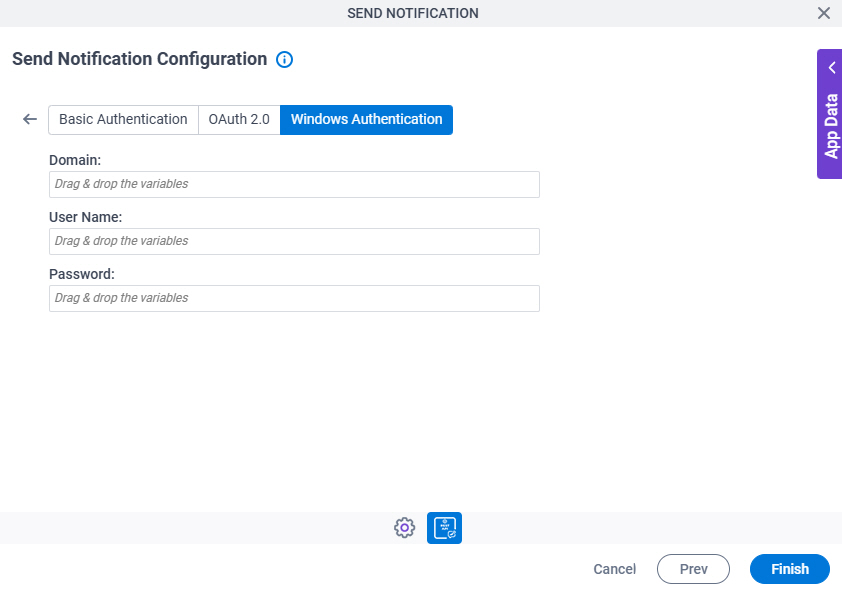
Send Notification Configuration > REST Service > Authentication > Windows Authentication tab
Full documentation coming soon.
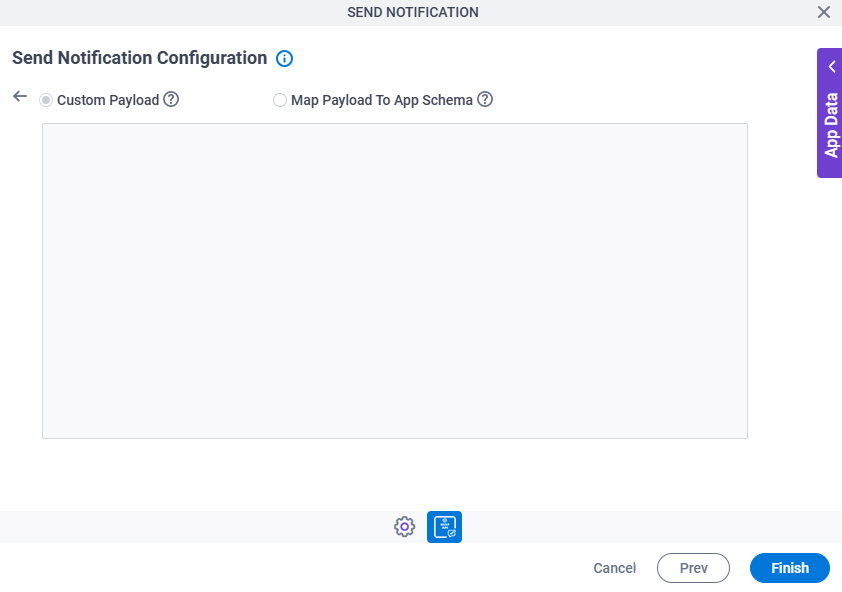
Send Notification Configuration > REST Service > Request Configuration screen
Full documentation coming soon.
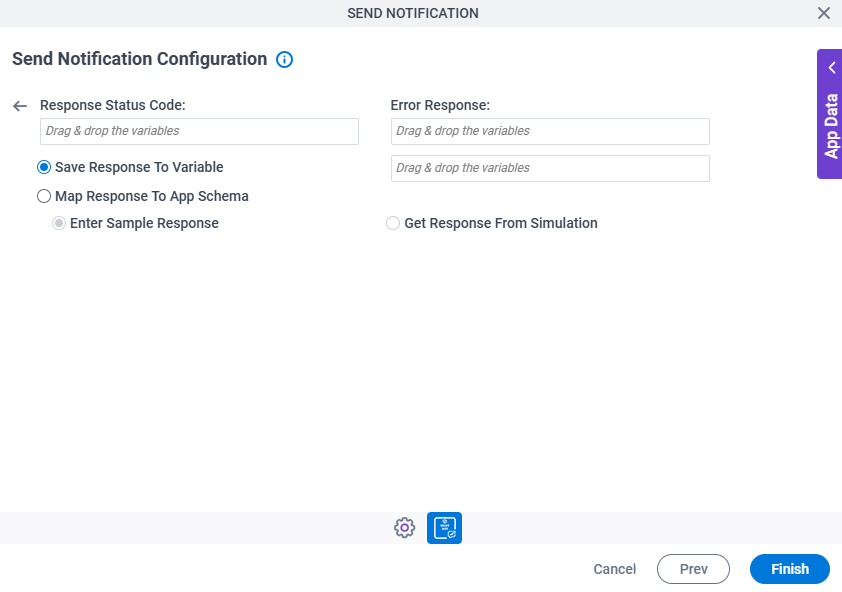
Send Notification Configuration > REST Service > Response Configuration screen
Full documentation coming soon.
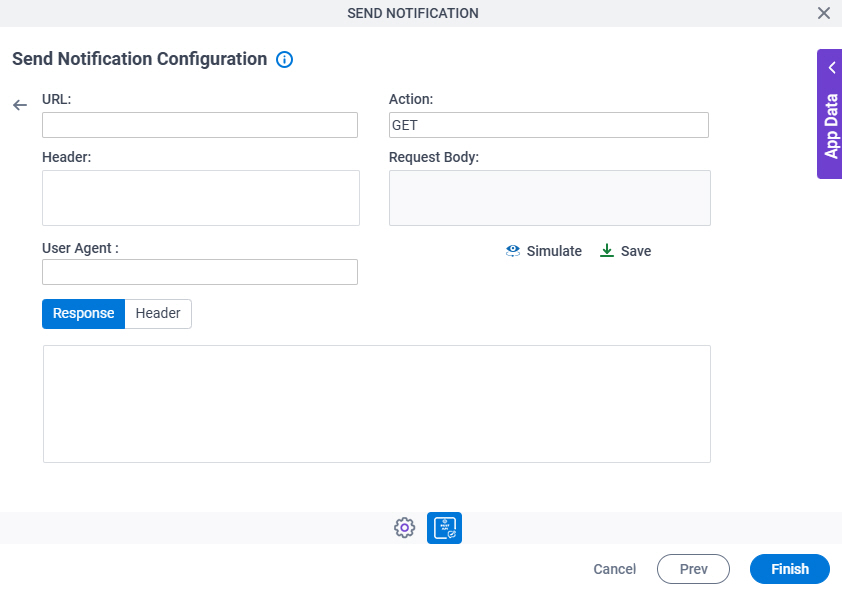
Send Notification Configuration > Simulate screen
Full documentation coming soon.
Send Notification Configuration > REST Service > Ad Hoc Mapping screen
Full documentation coming soon.
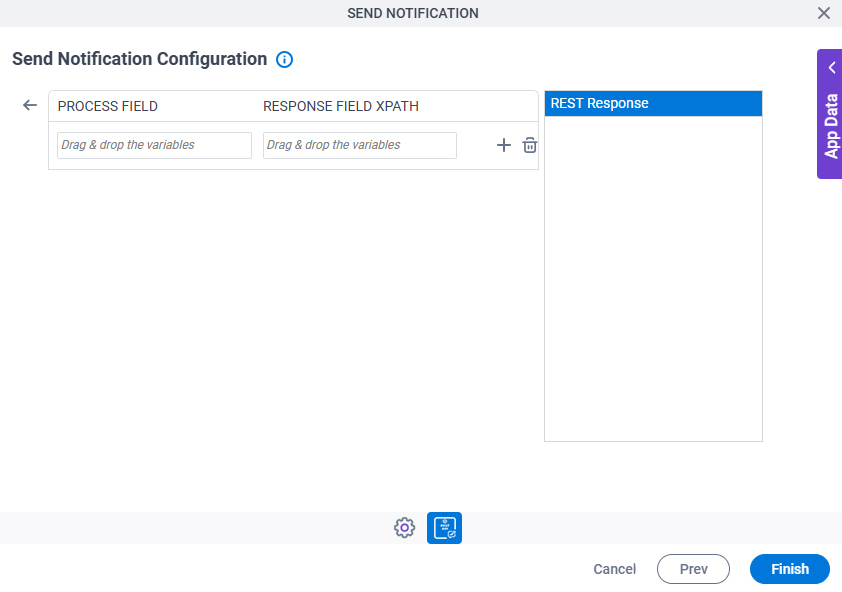
Send Notification Configuration > Triggering Event tab
Full documentation coming soon.
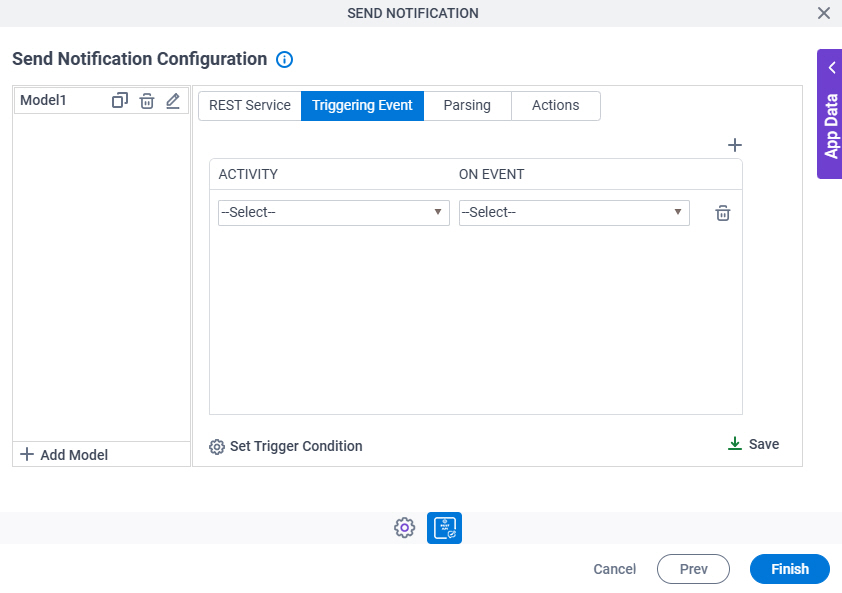
Send Notification Configuration > Triggering Event > Set Trigger Condition screen
Full documentation coming soon.
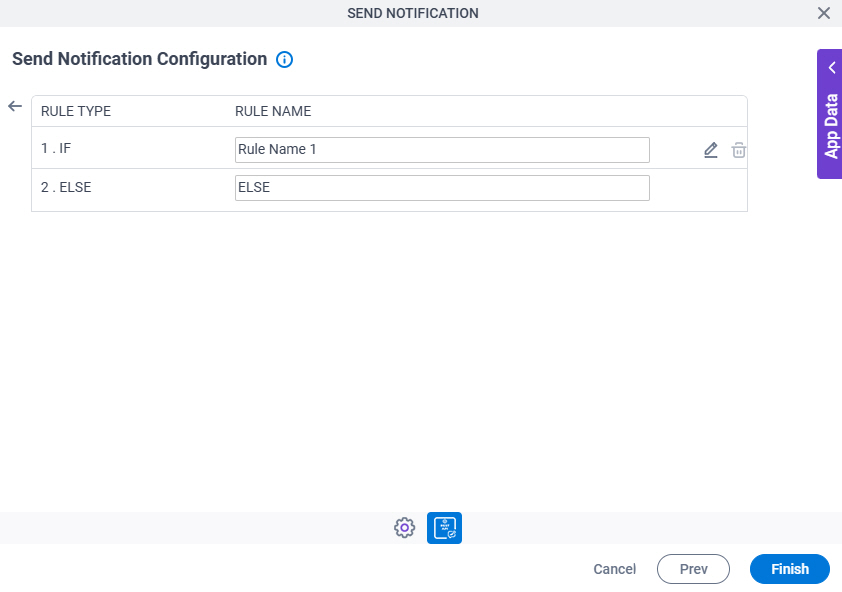
Send Notification Configuration > Triggering Event > Condition Builder screen
Full documentation coming soon.
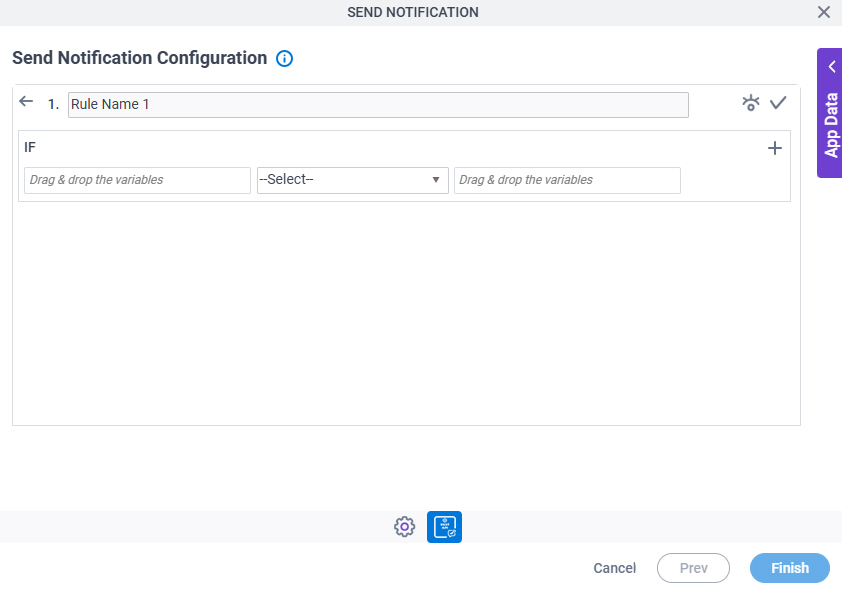
Send Notification Configuration > Parsing tab
Full documentation coming soon.
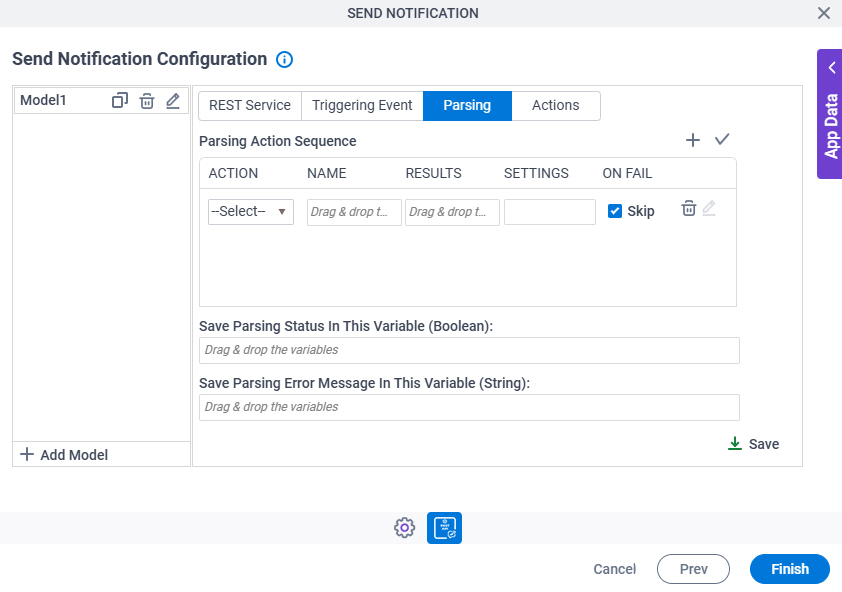
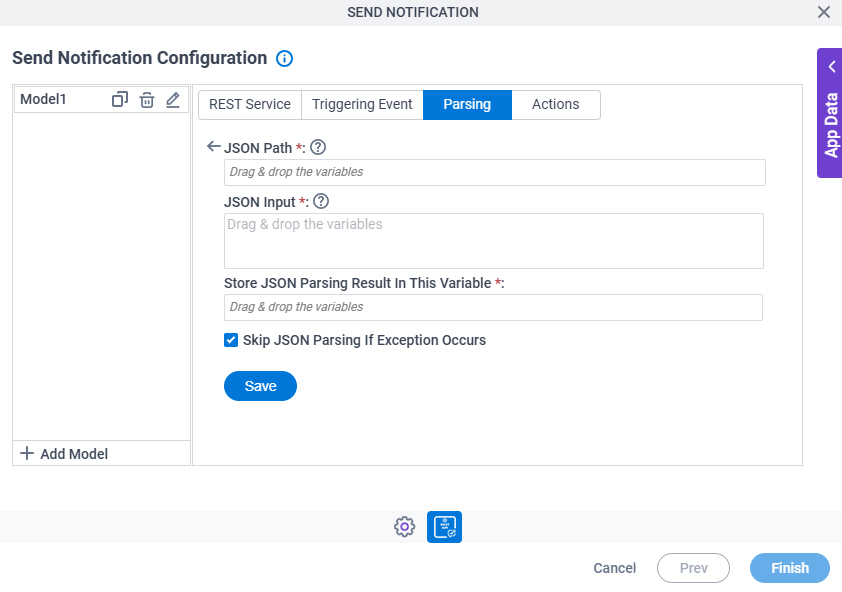
Send Notification Configuration > Parsing > JSON Parsing screen
Full documentation coming soon.
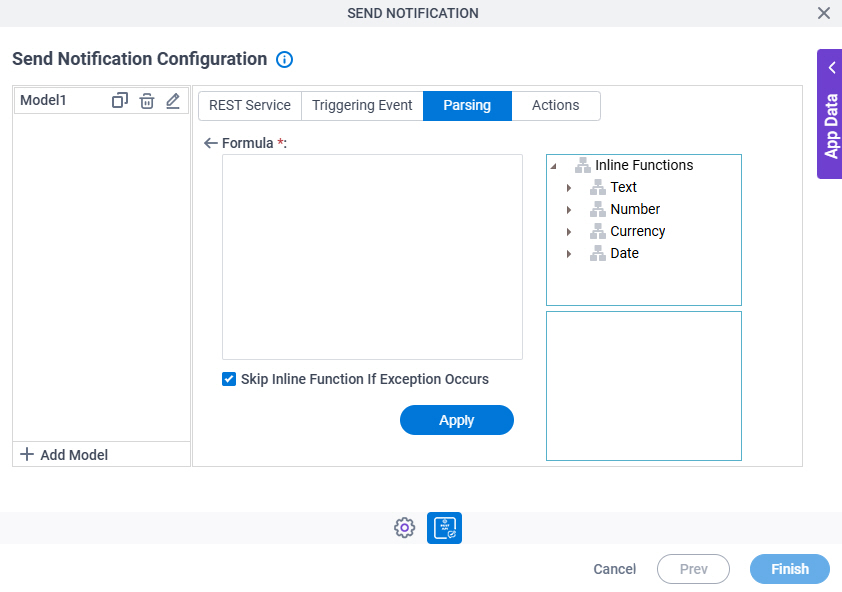
Send Notification Configuration > Parsing > Inline Functions screen
Full documentation coming soon.
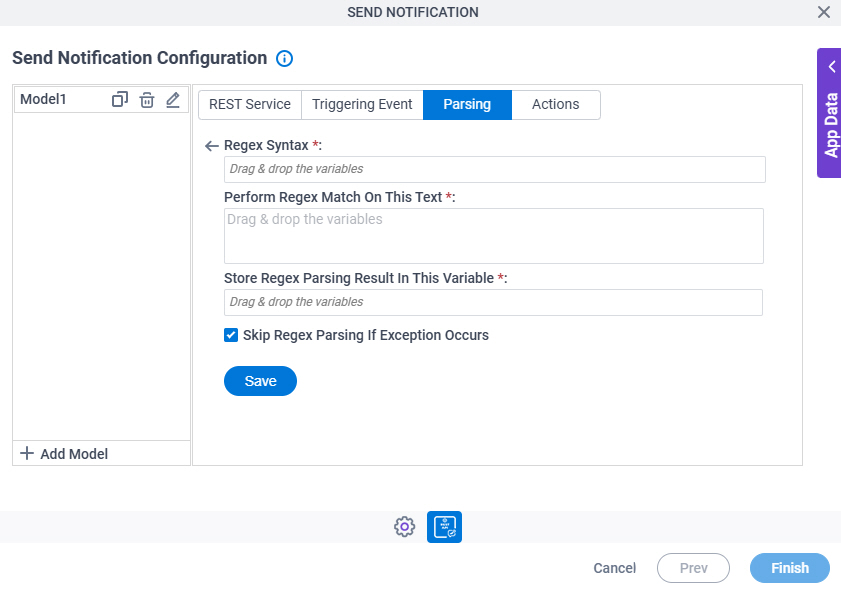
Send Notification Configuration > Parsing > Regex Parsing screen
Full documentation coming soon.
Send Notification Configuration > Actions tab
Full documentation coming soon.
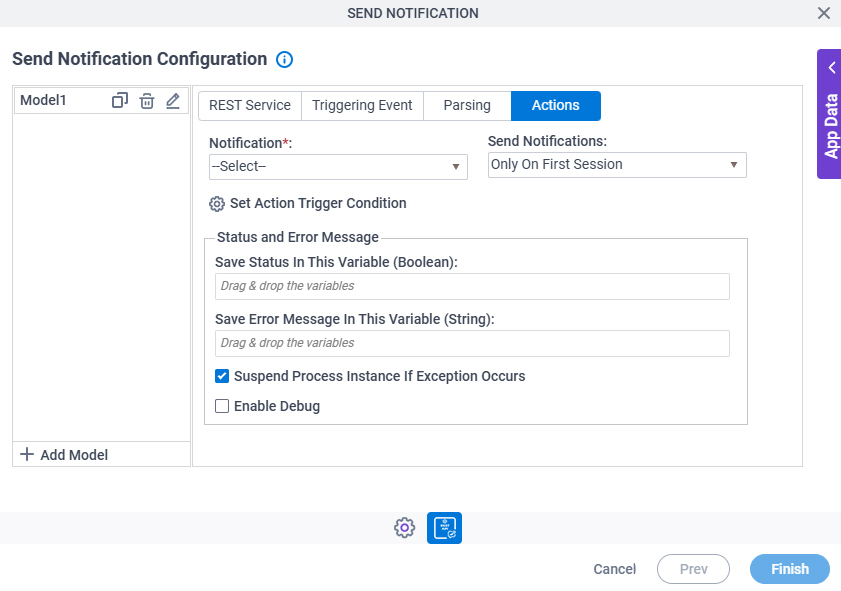
Send Notification Configuration > Actions > Set Action Trigger Condition screen
Full documentation coming soon.
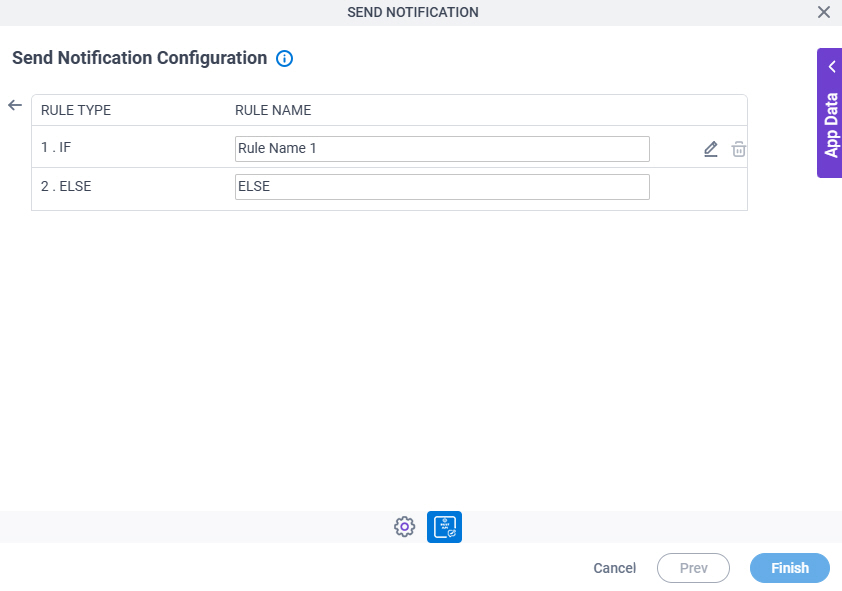
Send Notification Configuration > Actions > Condition Builder screen
Full documentation coming soon.