Chat Completion (NVIDIA NIM) Control Tower

Full documentation coming soon.


NVIDIA NIM Chat Completion

Background and Setup

Examples

Prerequisites

Good to Know

How to Start

  1. Open Process Builder.

    For information about how to open this screen, refer to Process Builder.
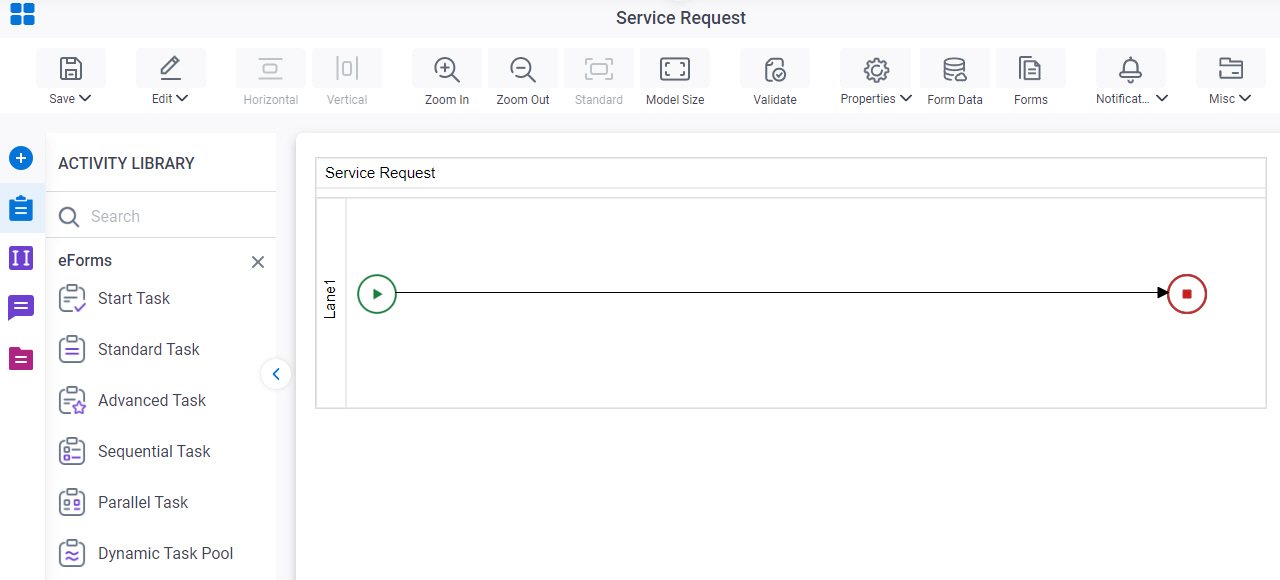

    Open Process Builder
  2. In Process Builder, in the Activity Library, open the NVIDIA NIM tab.
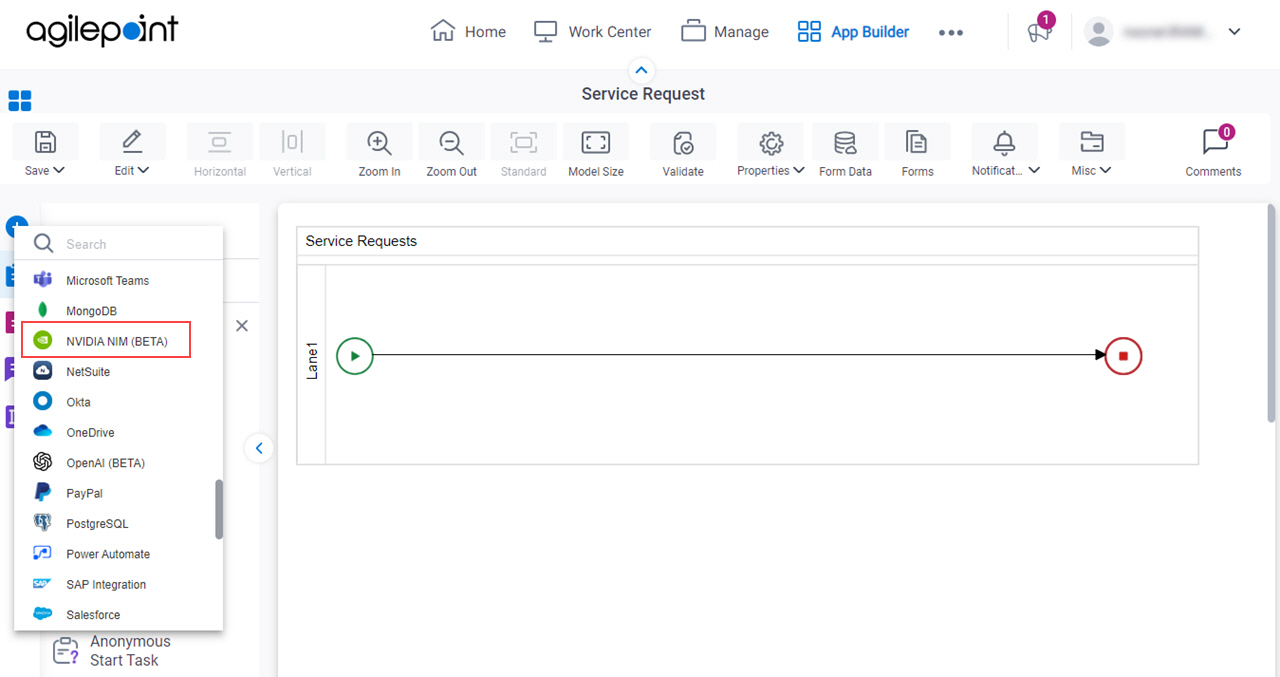
    Open NVIDIANIM tab
  3. On the NVIDIA NIM tab, click the Control Towers tab.
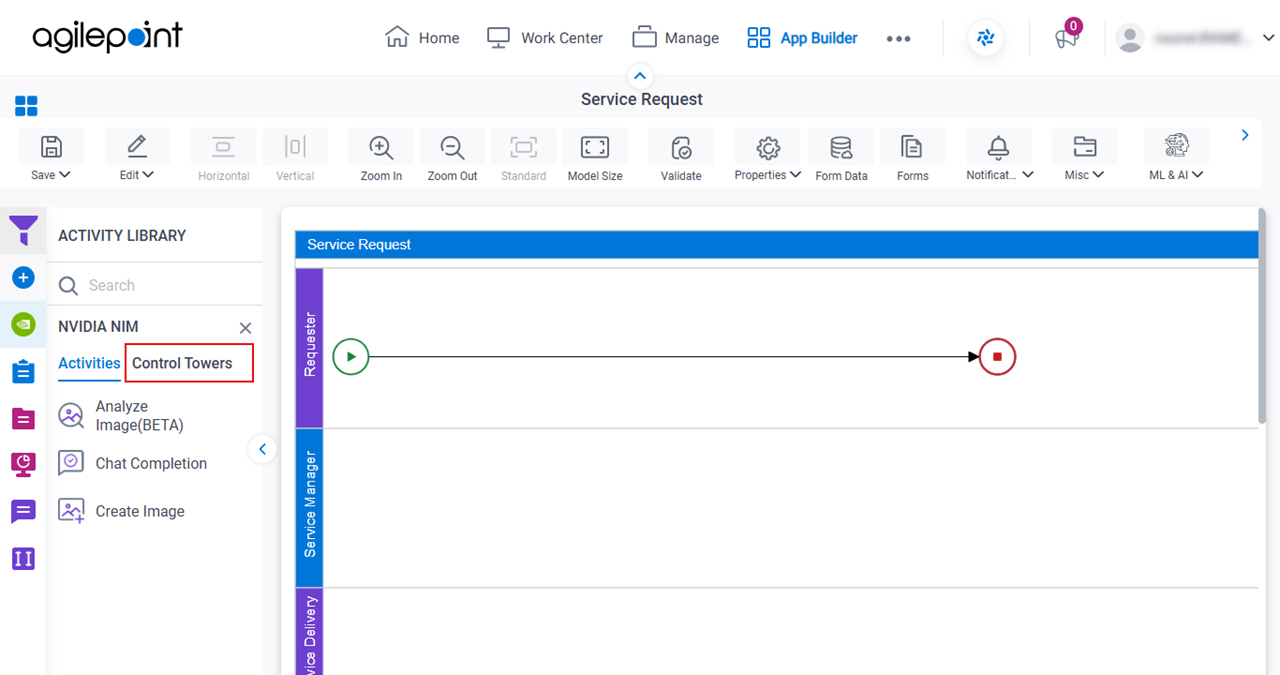
    Open NVIDIA NIM Control Towers tab
  4. On the NVIDIA NIM > Control Towers tab, drag the Chat Completion activity onto your process.
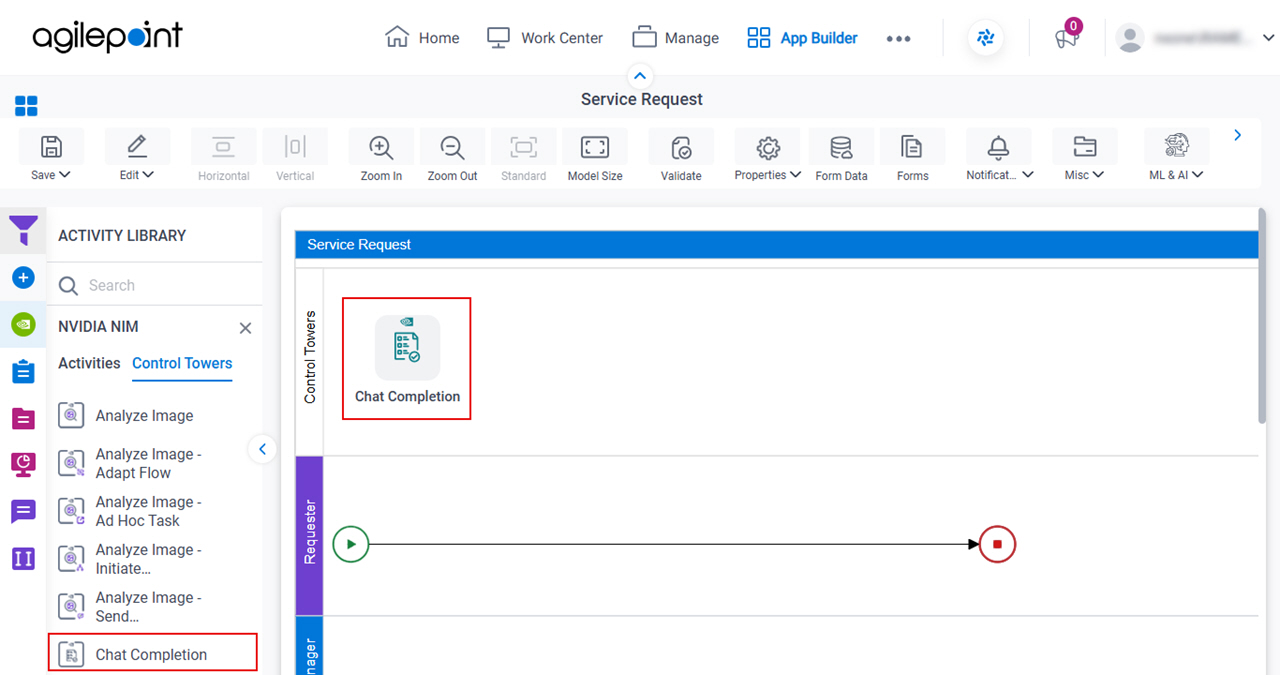
    Drag Chat Completion activity

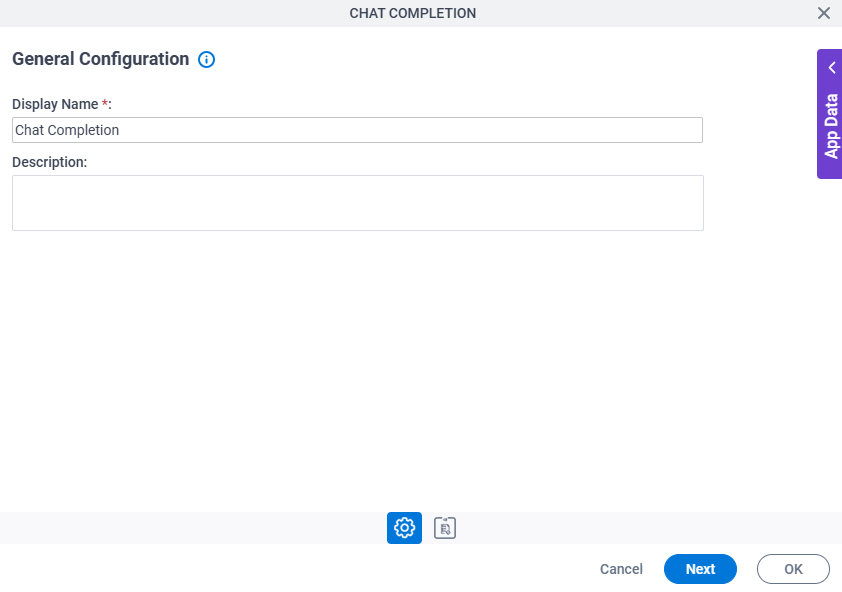
General Configuration

Full documentation coming soon.

Figure 1. General Configuration screen

General Configuration screen

Good to Know

  • Documentation for this screen is provided for completeness. The fields are mostly self-explanatory.

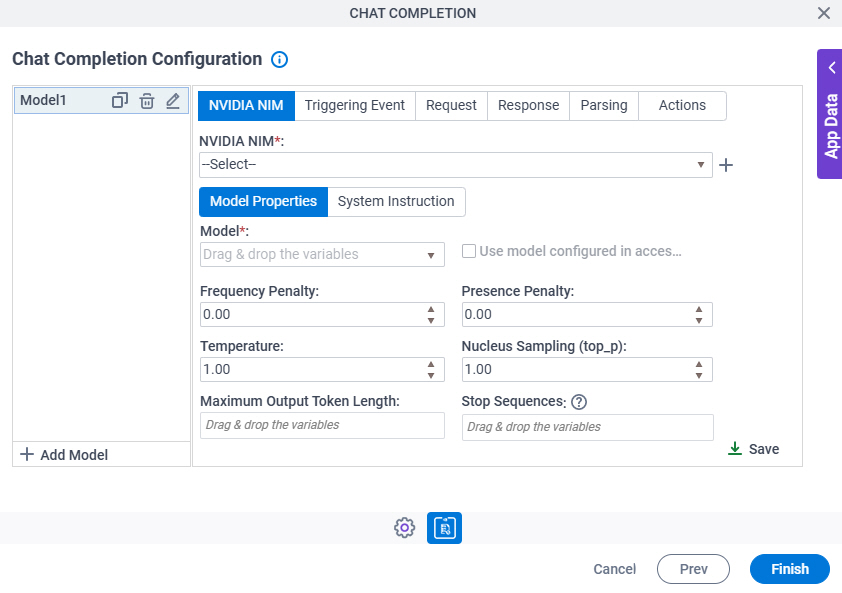
Chat Completion Configuration > NVIDIA NIM > Model Properties tab

Full documentation coming soon.

Figure 2. Chat Completion Configuration > NVIDIA NIM > Model Properties tab

Chat Completion Configuration NVIDIA NIM Model Properties tab

Fields

Field NameDefinition

NVIDIA NIM

Description:
Specifies the access token that connects to NVIDIA NIM.
Allowed Values:
A list of access tokens configured for your environment.
Default Value:
None

Create Add Token icon

Opens this Screen:
Access Token for NVIDIA NIM
Function of this Screen:
Configure an access token to connect to NVIDIA NIM.

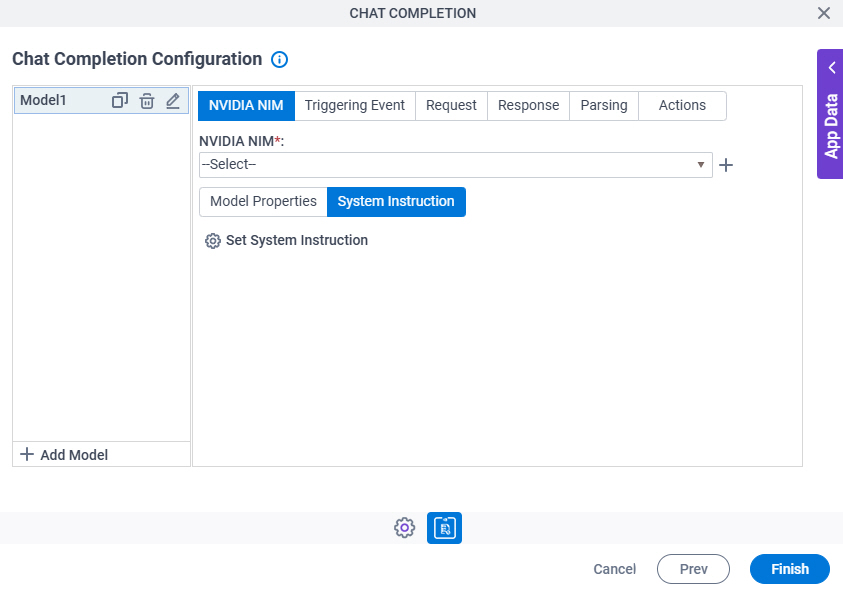
Chat Completion Configuration > NVIDIA NIM > System Instruction tab

Full documentation coming soon.

Figure 3. Chat Completion Configuration > NVIDIA NIM > System Instruction tab

Chat Completion Configuration NVIDIA NIM System Instruction tab

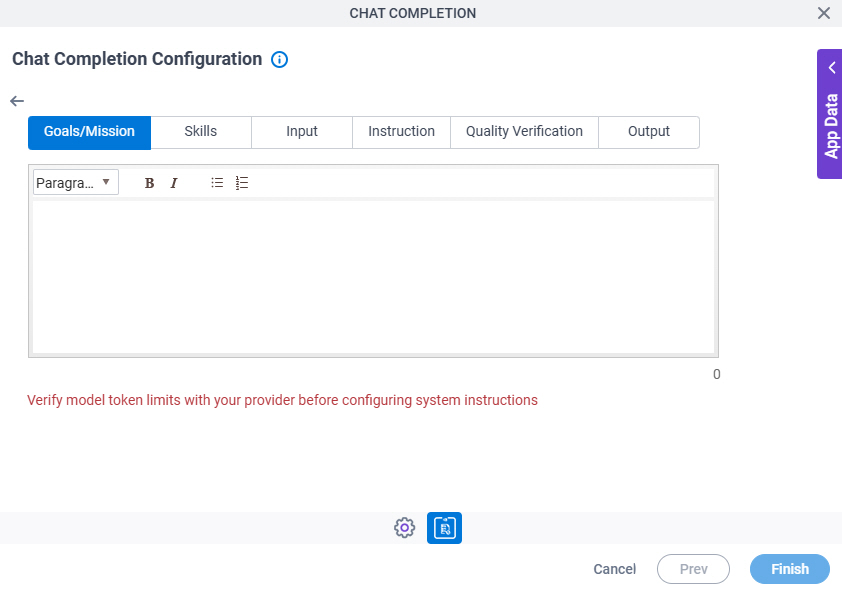
Chat Completion Configuration > NVIDIA NIM > System Instruction > Goals/Mission tab

Full documentation coming soon.

Figure 4. Chat Completion Configuration > NVIDIA NIM > System Instruction > Goals/Mission tab

Chat Completion Configuration NVIDIA NIM System Instruction Goals Mission tab

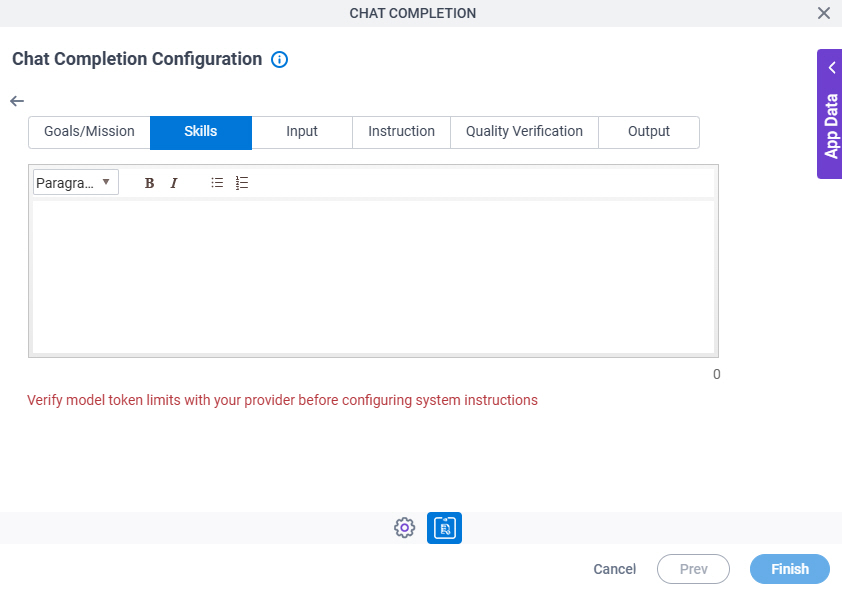
Chat Completion Configuration > NVIDIA NIM > System Instruction > Skills tab

Full documentation coming soon.

Figure 5. Chat Completion Configuration > NVIDIA NIM > System Instruction > Skills tab

Chat Completion Configuration NVIDIA NIM System Instruction Skills tab

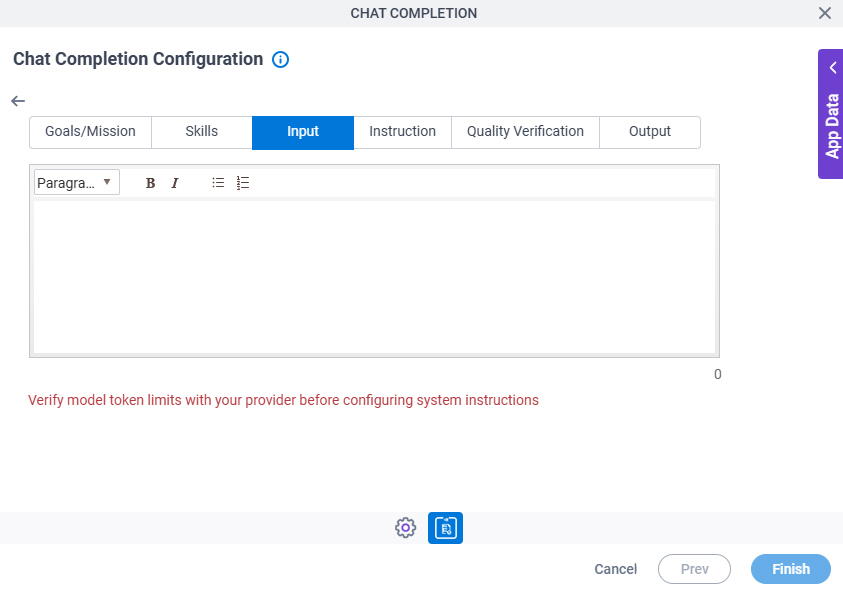
Chat Completion Configuration > NVIDIA NIM > System Instruction > Input tab

Full documentation coming soon.

Figure 6. Chat Completion Configuration > NVIDIA NIM > System Instruction > Input tab

Chat Completion Configuration NVIDIA NIM System Instruction Input tab

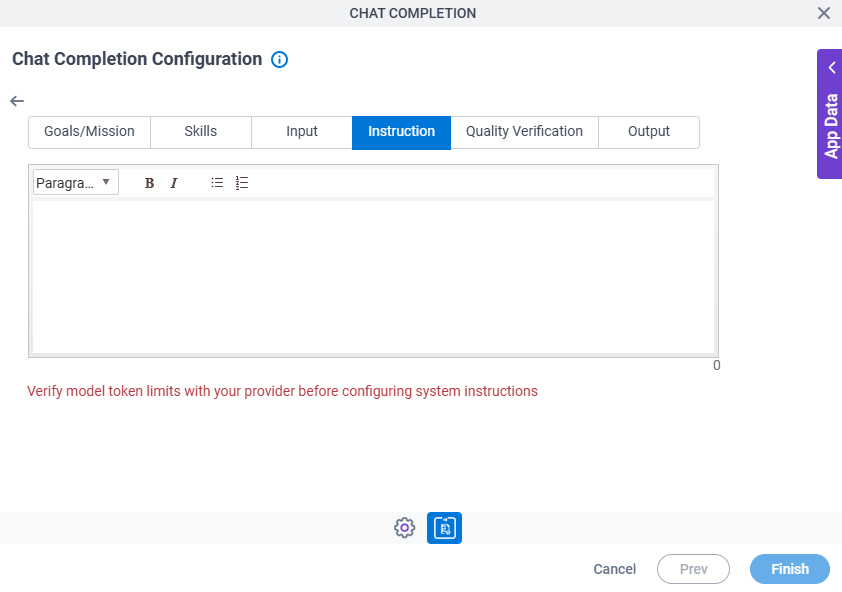
Chat Completion Configuration > NVIDIA NIM > System Instruction > Instruction tab

Full documentation coming soon.

Figure 7. Chat Completion Configuration > NVIDIA NIM > System Instruction > Instruction tab

Chat Completion Configuration NVIDIA NIM System Instruction Instruction tab

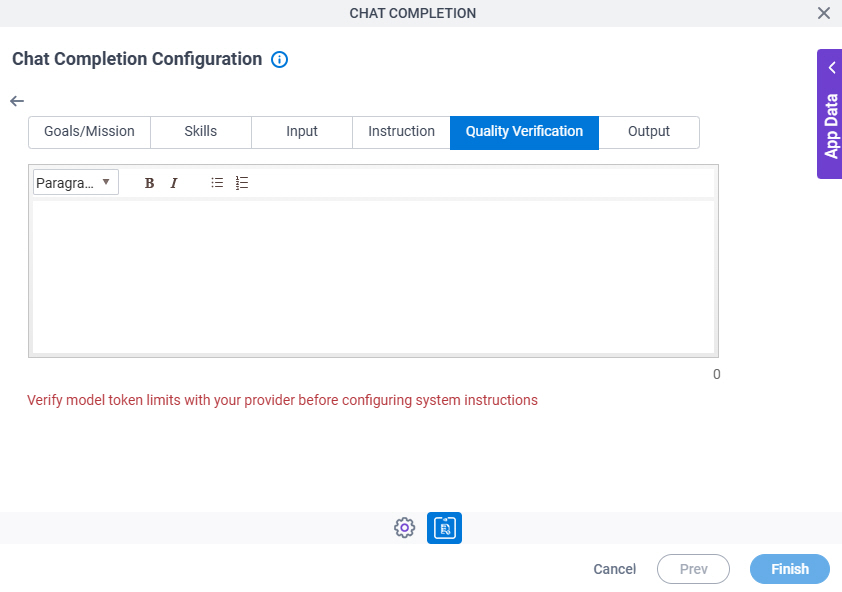
Chat Completion Configuration > NVIDIA NIM > System Instruction > Quality Verification tab

Full documentation coming soon.

Figure 8. Chat Completion Configuration > NVIDIA NIM > System Instruction > Quality Verification tab

Chat Completion Configuration NVIDIA NIM System Instruction Quality Verification tab

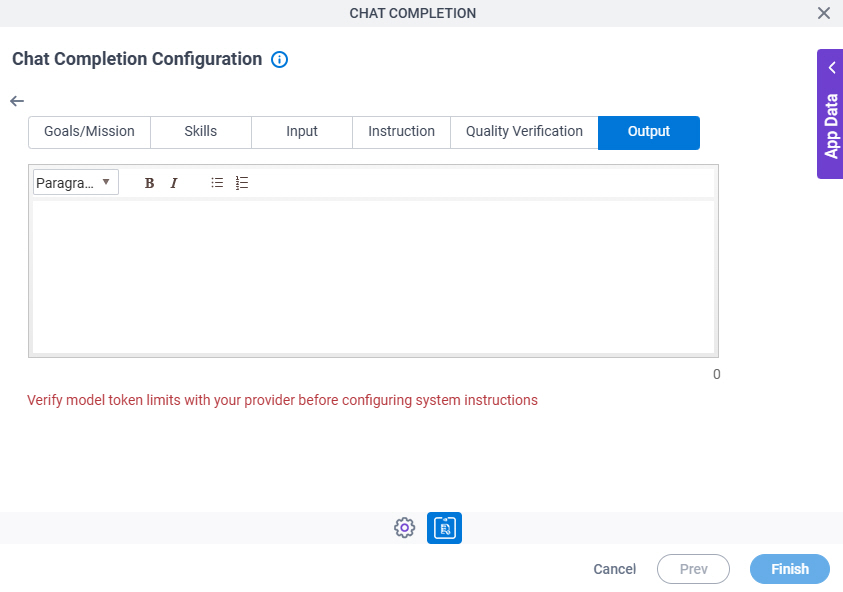
Chat Completion Configuration > NVIDIA NIM > System Instruction > Output tab

Full documentation coming soon.

Figure 9. Chat Completion Configuration > NVIDIA NIM > System Instruction > Output tab

Chat Completion Configuration NVIDIA NIM System Instruction Output tab

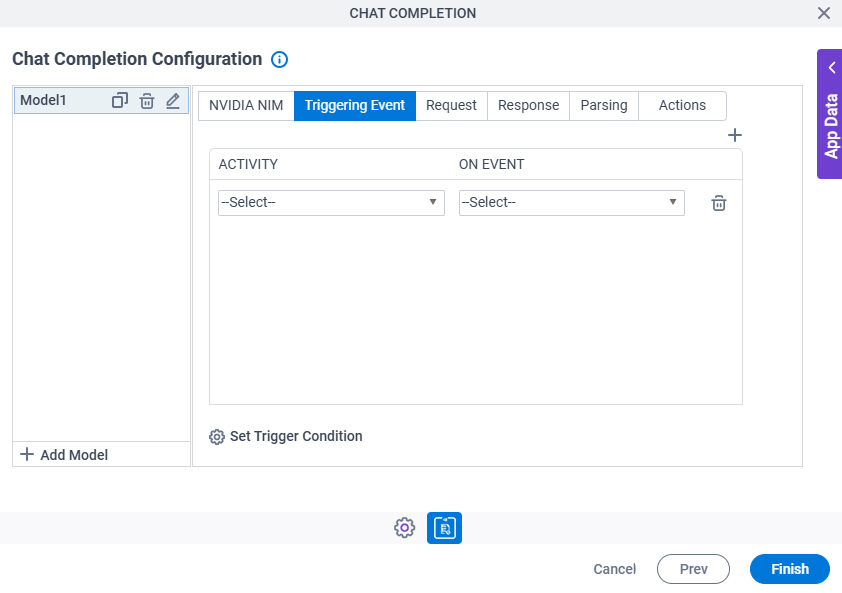
Chat Completion Configuration > Triggering Event tab

Full documentation coming soon.

Figure 10. Chat Completion Configuration > Triggering Event tab

Chat Completion Configuration Triggering Event tab

Fields

Field NameDefinition

Activity

Description:
Specifies an activity on which to run the NVIDIA NIM model.
Allowed Values:
An activity from the list.
Default Value:
None
Accepts Variables:
No
Example:
Refer to:

On Event

Description:
Specifies the status for an activity instance where the change occurs.
Allowed Values:
  • Assign Work Item - NVIDIA NIM runs when the specified task is ready to be Assigned to a participant.
  • Complete Work Item - NVIDIA NIM runs when a task is Completed.
  • Cancel Work Item - NVIDIA NIM runs when a task is Cancelled.
  • Enter Activity Instance - NVIDIA NIM runs when the activity instance starts.
  • Leave Activity Instance - NVIDIA NIM runs when the activity instance ends.
  • Reassign Work Item - NVIDIA NIM runs when a task is Reassigned.
  • Work Item Assigned - NVIDIA NIM runs after the specified task is Assigned to a participant.
  • Work Item Overdue - NVIDIA NIM runs when a task is Overdue.
Default Value:
None
Example:
Refer to:

Set Trigger Condition

Opens this Screen:
Chat Completion Configuration > Triggering Event tab > Set Trigger Condition
Function of this Screen:
Specifies the conditions that cause the Amazon SageMaker model to run.

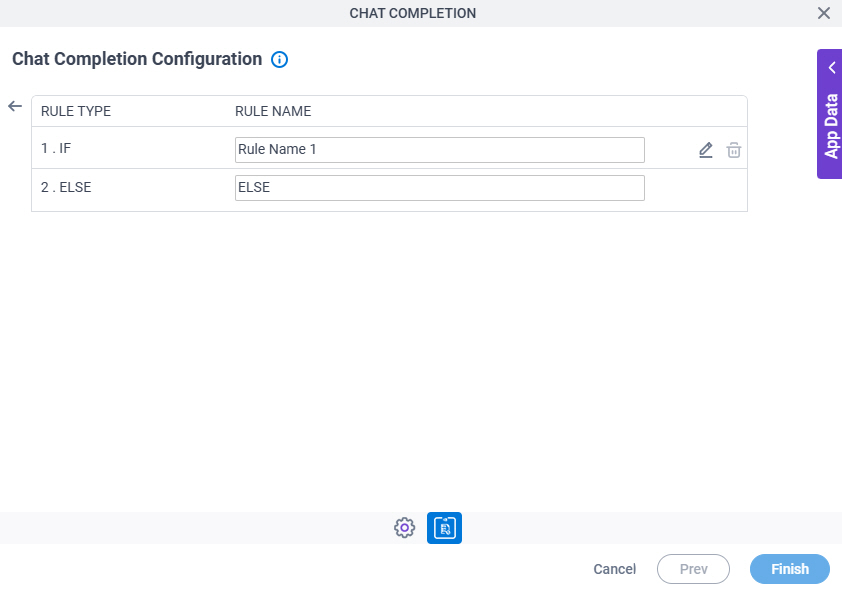
Chat Completion Configuration > Triggering Event tab > Set Trigger Condition

Full documentation coming soon.

Figure 11. Chat Completion Configuration > Triggering Event tab > Set Trigger Condition screen

Chat Completion Configuration Triggering Event tab Set Trigger Condition screen

Fields

Field NameDefinition

Rule Type

Description:
Specifies a rule to execute.
Allowed Values:
  • IF - Specifies a rule to execute if a specified condition is true.
  • ELSE IF - Specifies a rule to execute if the previous condition is false.

    To open this field, click Add New Rule Add New Rule icon.

  • ELSE - The rule executes if the all the specified conditions are false.
Default Value:
  1. IF
  2. ELSE

Condition

Description:
Specifies a name for a rule in your condition.
Allowed Values:
One line of text (a string).

Accepted:

  • Letters
  • Numbers
  • Spaces
Default Value:
Rule Name 1

Add New Rule Add New Rule icon

Function:
Lets you to add more than one rule.

Edit Edit icon

Opens this Screen:
Chat Completion Configuration > Triggering Event > Condition Builder screen
Function of this Screen:
Creates or changes logical rules. You can put one statement inside another statement to create complex logical expressions.
Delete Delete icon

Function:
Deletes the selected row.

Chat Completion Configuration > Triggering Event > Condition Builder screen

Full documentation coming soon.

Figure 12. Chat Completion Configuration > Triggering Event > Condition Builder screen

Chat Completion Configuration Triggering Event Condition Builder screen

Fields

Field NameDefinition

Condition Name

Description:
Shows the name for your rule.
Allowed Values:
Read only.
Default Value:
Rule Name 1

Preview Preview icon

Function:
Shows the preview of your rule.

Validate Validate icon

Function:
Makes sure the rule is correct.

Rule Variable

Description:
Specifies the value to analyze.
Allowed Values:
One line of text (a string).

Accepted:

  • Letters
  • Numbers
  • Spaces
Default Value:
None
Accepts Variables:
Yes
Example:
Refer to:

Operator

Description:
Lets you select the operators for a logical expression.
Allowed Values:
Data TypeExpression Operators

String

, ==, Starts with, Ends with, Contains, Does Not Contains, !=, Does Not Contain Data, Contains Data

Bool

==

Date Time

, ==, >, >= , <, <=, !=

Number

, ==, >, >=, <, <=, !=

Default Value:
None
Example:
Refer to:

Rule Value

Description:
The value for the data variable.
Allowed Values:
One line of text (a string).

Accepted:

  • Letters
  • Numbers
  • Spaces
Default Value:
None
Accepts Variables:
Yes
Example:
Refer to:

Add Row Add Row icon

Function:
Creates a condition row.

Select Nest Type

Function:
Specifies the use of logical AND and OR operators to nest conditions to use for predictions.

You must set the condition first, before you specify the nest type.

Allowed Values:
  • And - Specifies the logical AND operator.
  • Or - Specifies the logical OR operator.
Default Value:
AND

Indent Right Indent Right icon

Function:
Creates the statement that is a condition of a parent statement.

Delete Delete icon

Function:
Deletes the selected row.

Back Back icon

Function:
Saves the rule and goes back to the Create Condition screen.

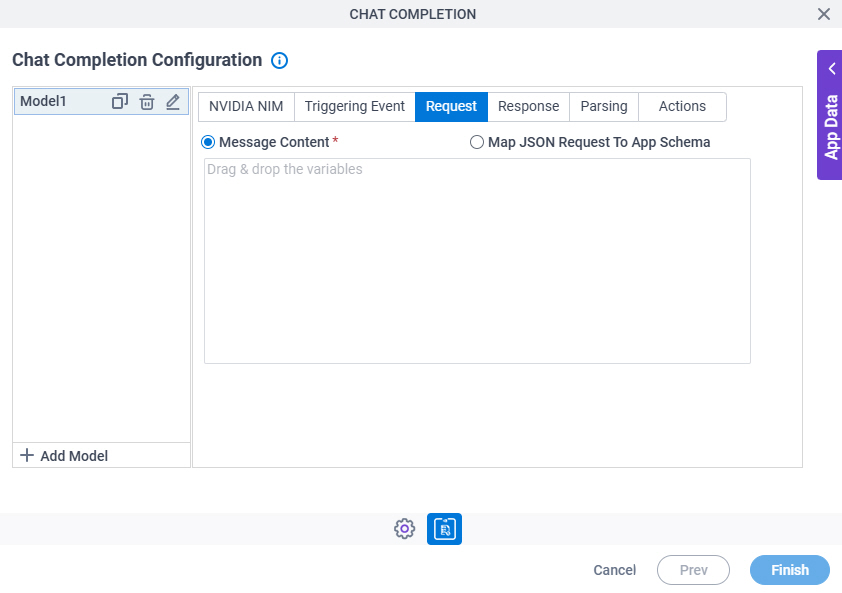
Chat Completion Configuration > Request tab

Full documentation coming soon.

Figure 13. Chat Completion Configuration > Request tab

Chat Completion Configuration Request tab

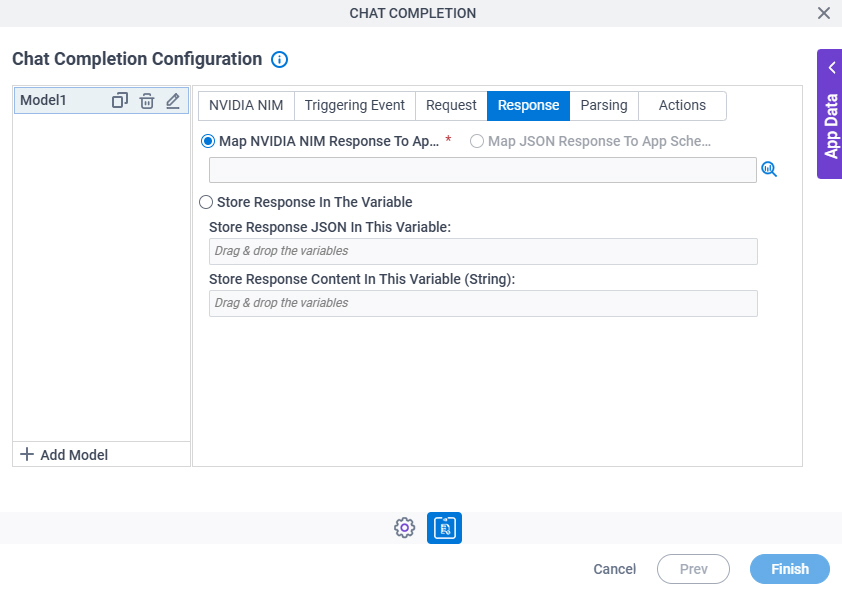
Chat Completion Configuration > Response tab

Full documentation coming soon.

Figure 14. Chat Completion Configuration > Response tab

Chat Completion Configuration Response tab

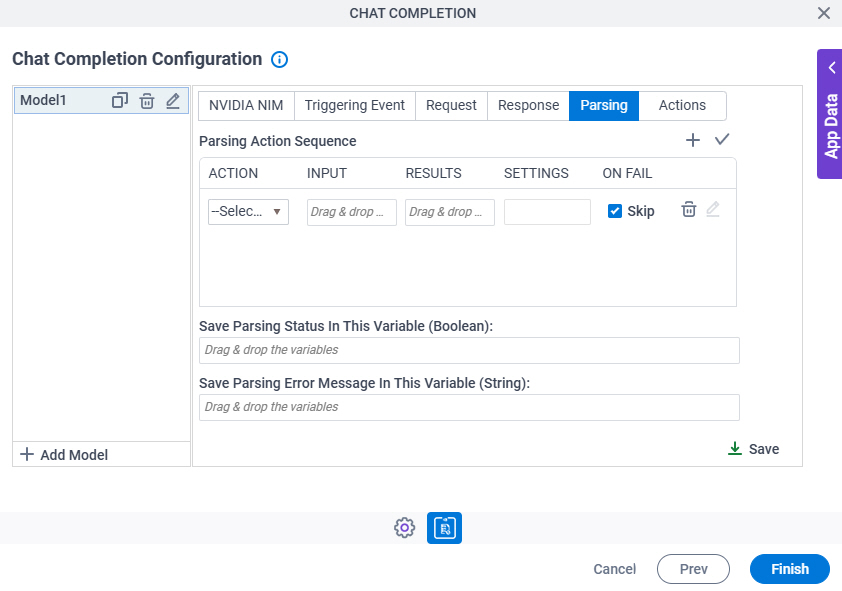
Chat Completion Configuration > Parsing tab

Full documentation coming soon.

Figure 15. Chat Completion Configuration > Parsing tab

Chat Completion Configuration Parsing tab

Fields

Field NameDefinition

Add Row Add Row icon

Function:
Adds a row to create a parsing action.

Action

Description:
Specifies the protocol to use for parsing the chat completion result from NVIDIA NIM.

The parsing actions execute in the order added in the field.

Allowed Values:
A protocol from the list.
Default Value:
None
Example:
Refer to:

Input

Description:
Specifies a variable that stores the result for chat completion from NVIDIA NIM.

You must specify the variable configured in the Store Response In This Variable field on the Response tab.

Allowed Values:
A variable.
Default Value:
None
Accepts Variables:
Yes
Example:
Refer to:
Limitations:

Some information about third-party integrations is outside the scope of the AgilePoint NX Product Documentation. It is the responsibility of the vendors who create and maintain these technologies to provide this information. This includes specific business use cases and examples; explanations for third-party concepts; details about the data models and input and output data formats for third-party technologies; and various types of IDs, URL patterns, connection string formats, or other technical information that is specific to the third-party technologies. For more information, refer to Where Can I Find Information and Examples for Third-Party Integrations?

Results

Description:
Specifies a variable to store the result of the parsing action.
Allowed Values:
A variable.

Format:

  • String

Accepted:

  • Letters
  • Numbers
  • Spaces
  • Special characters
Default Value:
None
Accepts Variables:
Yes
Example:
Refer to:
Limitations:

Some information about third-party integrations is outside the scope of the AgilePoint NX Product Documentation. It is the responsibility of the vendors who create and maintain these technologies to provide this information. This includes specific business use cases and examples; explanations for third-party concepts; details about the data models and input and output data formats for third-party technologies; and various types of IDs, URL patterns, connection string formats, or other technical information that is specific to the third-party technologies. For more information, refer to Where Can I Find Information and Examples for Third-Party Integrations?

Settings

Description:
Shows the settings configured for the parsing action.
Allowed Values:
Read only.
Example:
Refer to:

On Fail

Description:
Specifies whether to skip the parsing action when an error occurs.
Allowed Values:
  • Selected - Skips the parsing action when an error occurs and moves to the next action.
  • Deselected - Pauses the parsing action when an error occurs, and stores the error message in a variable if specified in the Save Parsing Error Message in this Variable field.
Default Value:
Selected
Example:
Refer to:
Limitations:

Some information about third-party integrations is outside the scope of the AgilePoint NX Product Documentation. It is the responsibility of the vendors who create and maintain these technologies to provide this information. This includes specific business use cases and examples; explanations for third-party concepts; details about the data models and input and output data formats for third-party technologies; and various types of IDs, URL patterns, connection string formats, or other technical information that is specific to the third-party technologies. For more information, refer to Where Can I Find Information and Examples for Third-Party Integrations?

Delete Delete icon

Function:
Deletes the selected row.

JSON Path

Description:
Specifies a JSON code snippet to use for parsing the image classification result.
To Open this Field:
  1. In the Action field, select JSON Path.
  2. Click Edit Edit icon.
Allowed Values:
A JSON code snippet.
Default Value:
None
Accepts Variables:
No
Limitations:

Some information about third-party integrations is outside the scope of the AgilePoint NX Product Documentation. It is the responsibility of the vendors who create and maintain these technologies to provide this information. This includes specific business use cases and examples; explanations for third-party concepts; details about the data models and input and output data formats for third-party technologies; and various types of IDs, URL patterns, connection string formats, or other technical information that is specific to the third-party technologies. For more information, refer to Where Can I Find Information and Examples for Third-Party Integrations?

Edit Edit icon (Inline Function)

Opens this Screen:
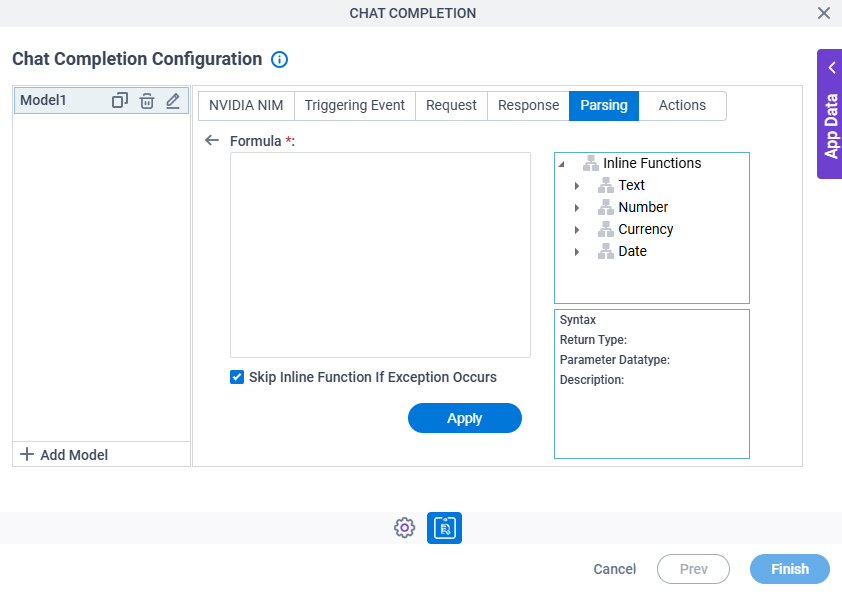
Chat Completion Configuration > Parsing > Inline Functions
To Open this Field:
  1. In the Action field, select Inline Function.
Function of this Screen:
Configures one or more inline functions for parsing the image classification result.

Edit Edit icon (Regex Parsing)

Opens this Screen:
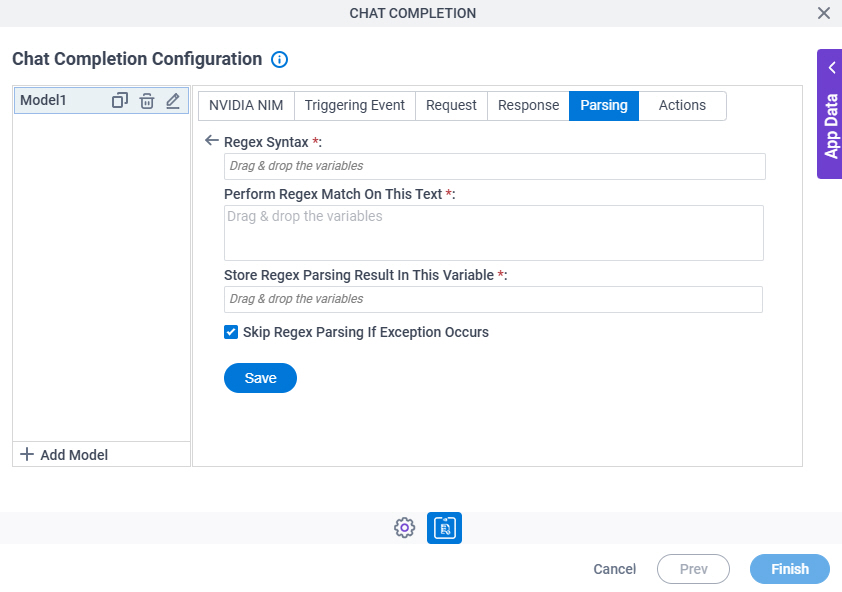
Chat Completion Configuration > Parsing > Regular Expression
To Open this Field:
  1. In the Action field, select Regex Parsing.
Function of this Screen:
Configures a regular expression for parsing the image classification result.

Save Parsing Status In This Variable (Boolean)

Description:
Specifies a variable to store the parsing status of an image classification as a Boolean value.

The value is true if the prediction has no errors.

Allowed Values:
A variable.

Format:

  • Boolean

Response Values

  • true
  • false
Default Value:
None
Accepts Variables:
Yes
Example:
Refer to:
Limitations:

Some information about third-party integrations is outside the scope of the AgilePoint NX Product Documentation. It is the responsibility of the vendors who create and maintain these technologies to provide this information. This includes specific business use cases and examples; explanations for third-party concepts; details about the data models and input and output data formats for third-party technologies; and various types of IDs, URL patterns, connection string formats, or other technical information that is specific to the third-party technologies. For more information, refer to Where Can I Find Information and Examples for Third-Party Integrations?

Save Parsing Error Message In This Variable (String)

Description:
Specifies a variable to store the error message of the parsing action.
Allowed Values:
A variable.

Format:

  • String

Accepted:

  • Letters
  • Numbers
  • Spaces
  • Special characters
Default Value:
None
Accepts Variables:
Yes
Example:
Refer to:
Limitations:

Some information about third-party integrations is outside the scope of the AgilePoint NX Product Documentation. It is the responsibility of the vendors who create and maintain these technologies to provide this information. This includes specific business use cases and examples; explanations for third-party concepts; details about the data models and input and output data formats for third-party technologies; and various types of IDs, URL patterns, connection string formats, or other technical information that is specific to the third-party technologies. For more information, refer to Where Can I Find Information and Examples for Third-Party Integrations?

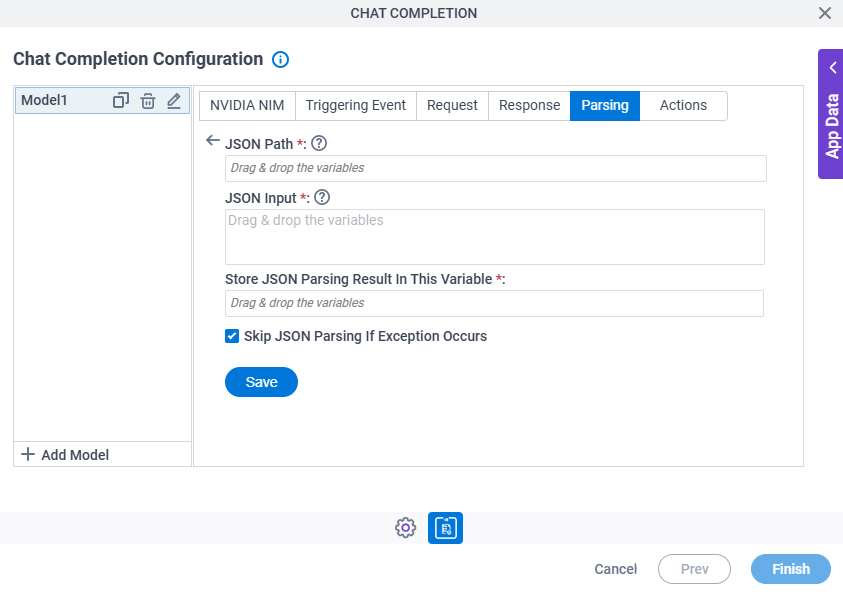
Chat Completion Configuration > Parsing > JSON Parsing screen

Full documentation coming soon.

Figure 16. Chat Completion Configuration > Parsing > JSON Parsing screen

Chat Completion Configuration Parsing JSON Parsing screen

Chat Completion Configuration > Parsing > Inline Function

Full documentation coming soon.

Figure 17. Chat Completion Configuration > Parsing > Inline Function screen

Chat Completion Configuration Parsing Inline Function screen

Fields

Field NameDefinition

Formula

Description:
Specifies the syntax of your formula.
Allowed Values:

An expression you build from the list of functions.

You can create a formula or expression using Text, Number, Currency, and Date functions from Inline Functions list, or process data variables.

To add more than one formula for your inline function, replace the text inside the parentheses ( ) of one function with a different function, in thise format:

@function1(@function2(variable1, variable2))

Default Value:
None
Example:
  • @Max(Number1, Number2) - Gives the higher of the numbers represented by the varialbes Number1 and Number2.
  • @UpperCase(SourceString) - Gives the text represented by the variable SourceString in capital letters.
  • @UpperCase(@Substring(SourceString, StartIndex, EndIndex)) - Gives the specified substring of the text represnted by the SourString variable in capital letters.

Also refer to:

Inline Functions

Description:
Specifies the Text, Number, Currency, and Date functions to use in the formula.
Allowed Values:
  • Concat - Joins two or more specified text values into one string.
  • Stringlen - Gives the number of characters in the specified text value.
  • Replace - Replaces all the occurrences of a specified text value in the instance with another specified text value.
  • Remove - Deletes all the characters in the instance that begin at a specified position and continue through the last position.
  • Reverse - Reverses the order of the elements in the instance.
  • UpperCase - Returns a copy of the specified text value in capital letters, using the casing rule of the specified culture.
  • LowerCase - Returns a copy of the specified text value in small letters, using the casing rule of the specified culture.
  • TitleCase - Returns the specified text value in title case, except for the words that are in all capital letters, which are considered to be acronyms.
  • PadRight - Returns a new text value that left-aligns the characters in an instance by padding them on the right with a specified Unicode character, for a specified total length.
  • PadLeft - Returns a new text value that right-aligns the characters in an instance by padding them on the left with a specified Unicode character, for a specified total length.
  • Substring - Gets a substring from an instance. The substring starts at a specified character position and has a specified length.
  • GUID - Returns a text value of the GUID instance in a specific format.
  • Insert - Returns a new text value in which a specified text is inserted at a specified index position in the instance.
  • Trim - Remove all leading and trailing white space characters from the specified text.
  • XmlEncode - Returns the specified text with escape characters by adding slashes (/) to use in XML attributes.
  • XmlDecode - Returns the specified text as literal XML code.
  • Compare - Returns true if both the specified text values are the same. This function is case sensitive.
  • CompareIgnoreCase - Returns true if both the specified text values are the same. This function is not case sensitive.
  • Absolute - Returns the absolute value of a number.
  • Max - Returns the larger number of the two specified numbers.
  • Min - Returns the smaller number of the two specified numbers.
  • Power - Returns the specified number increased to the specified power.
  • Round - Rounds the decimal value to the nearest integral value.
  • Subtraction - Returns the difference of the specified n numbers. This function subtracts all numbers from the first number.
  • Sum - Returns the sum of the specified n numbers.
  • Average - Returns the mean of the specified numbers.
  • Multiple - Returns the product of the specified n numbers.
  • Modulo - Returns the remainder of the two specified numbers.
  • Percentage - Returns the percentage of the two specified numbers. Number1 represents current value and Number2 represents total value.
  • ToDecimal - Returns a decimal number.
  • ToDouble - Returns a double-precision floating-point number.
  • ToFloat - Returns a single-precision floating-point number.
  • ToLong - Returns a number to an equivalent 64-bit signed integer.
  • Currency - Shows the currency values in the format that you specify. This function shows the currency values with no decimal numbers.
  • Currency - Shows the currency values in the format that you specify. This function shows the currency values with a specified number of decimal places.
  • DateDiffDays - Calculates the difference in days between the two dates.
  • DateDiffHours - Calculates the difference in hours between the two dates.
  • DateDiffMinutes - Calculates the difference in minutes between the two dates.
  • DateDiffSeconds - Calculates the difference in seconds between the two dates.
  • FormatDate - Shows the date-time value in the format that you specify.
  • AddYears - Returns a new date that is result of addition of the specified number of years to the specified date value.
  • AddMonths - Returns a new date that is result of addition of the specified number of months to the specified date value.
  • AddDays - Returns a new date that is result of addition of the specified number of days to the specified date value.
  • AddHours - Returns a new date that is result of addition of the specified number of hours to the specified date time value.
  • AddMinutes - Returns a new date that is result of addition of the specified number of minutes to the specified date time value.
  • AddSeconds - Returns a new date that is result of addition of the specified number of seconds to the specified date time value.
  • AddMilliSeconds - Returns a new date that is result of addition of the specified number of milliseconds to the specified date time value.
  • AddTicks - Returns a new date that is result of addition of the specified number of ticks to the specified date time value.
  • ParseDateTime - Converts the specified string representation of a date and time into its date and time value with the specified date format.
Default Value:
None
Example:
Refer to:
Limitations:

Some information about third-party integrations is outside the scope of the AgilePoint NX Product Documentation. It is the responsibility of the vendors who create and maintain these technologies to provide this information. This includes specific business use cases and examples; explanations for third-party concepts; details about the data models and input and output data formats for third-party technologies; and various types of IDs, URL patterns, connection string formats, or other technical information that is specific to the third-party technologies. For more information, refer to Where Can I Find Information and Examples for Third-Party Integrations?

Description

Function:
Specifies the details of the function.
Default Value:
Read only.

Apply

Function:
Uses the configured formulas in your inline function.
Example:
Refer to:

Chat Completion Configuration > Parsing > Regex Parsing

Full documentation coming soon.

Figure 18. Chat Completion Configuration > Parsing > Regex Parsing

Chat Completion Configuration Parsing Regex Parsing screen

Fields

Field NameDefinition

Regex Syntax

Description:
Specifies the format for your regular expression.
  • The Regular Expression activity uses .NET syntax for regular expressions.

    For more information, refer to Regular Expression Language - Quick Reference.

  • To change the regular expression, double-click Regex Syntex, and change your expression.
Allowed Values:
A valid regular expression..
Default Value:
None
Accepts Variables:
Yes
Example:
Refer to:
Limitations:

Some information about third-party integrations is outside the scope of the AgilePoint NX Product Documentation. It is the responsibility of the vendors who create and maintain these technologies to provide this information. This includes specific business use cases and examples; explanations for third-party concepts; details about the data models and input and output data formats for third-party technologies; and various types of IDs, URL patterns, connection string formats, or other technical information that is specific to the third-party technologies. For more information, refer to Where Can I Find Information and Examples for Third-Party Integrations?

Perform Regex Match on Below Text

Description:
Lets you specify the text to evaluate with the regular expression.
Allowed Values:
More than one line of text.

Format:

  • Plain text
  • A variable
  • A combination of text and variables
Default Value:
None
Accepts Variables:
Yes
Example:
Refer to:
Limitations:

Some information about third-party integrations is outside the scope of the AgilePoint NX Product Documentation. It is the responsibility of the vendors who create and maintain these technologies to provide this information. This includes specific business use cases and examples; explanations for third-party concepts; details about the data models and input and output data formats for third-party technologies; and various types of IDs, URL patterns, connection string formats, or other technical information that is specific to the third-party technologies. For more information, refer to Where Can I Find Information and Examples for Third-Party Integrations?

Match Result

Description:
Specifies the connection from the Match Result parameter to your process schema.
Allowed Values:
Click the Schema Mapping Schema Mapping icon button to open the Schema Mapper screen.

Use this screen to connect the result of the match to the data model for your process.

The data type for the schema node must match the data type for the match result. For example, if the match can have more than one result, the mapped schema node must be repeating.

Default Value:
None
Example:
Refer to:
Limitations:

Some information about third-party integrations is outside the scope of the AgilePoint NX Product Documentation. It is the responsibility of the vendors who create and maintain these technologies to provide this information. This includes specific business use cases and examples; explanations for third-party concepts; details about the data models and input and output data formats for third-party technologies; and various types of IDs, URL patterns, connection string formats, or other technical information that is specific to the third-party technologies. For more information, refer to Where Can I Find Information and Examples for Third-Party Integrations?

Chat Completion Configuration > Actions tab

Full documentation coming soon.

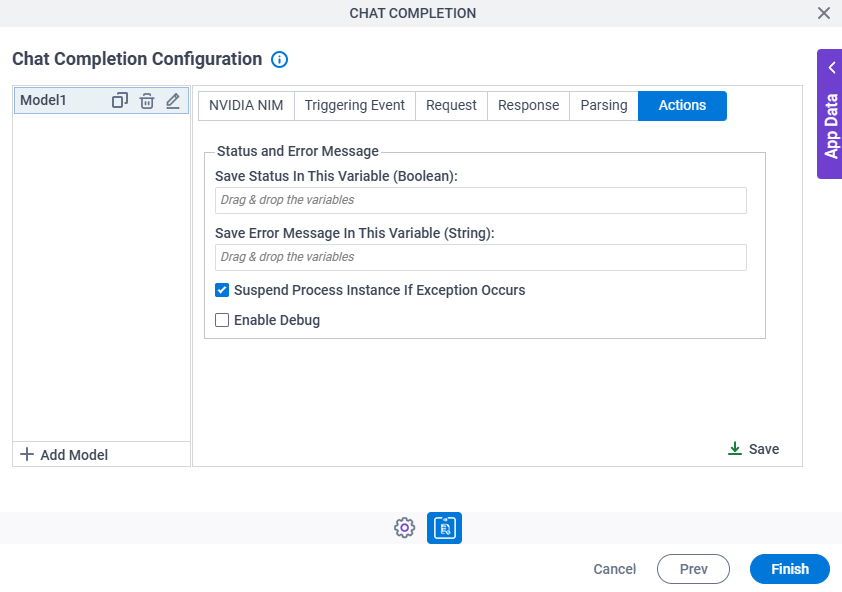
Figure 19. Chat Completion Configuration > Actions tab

Chat Completion Configuration Actions tab

Fields

Field NameDefinition

Save Status In This Variable (Boolean)

Description:
Specifies a variable to store the status of an image classification as a Boolean value.

The value is true if the prediction has no errors.

Allowed Values:
A variable.

Format:

  • Boolean

Response Values

  • true
  • false
Default Value:
None
Accepts Variables:
Yes
Example:
Refer to:
Limitations:

Some information about third-party integrations is outside the scope of the AgilePoint NX Product Documentation. It is the responsibility of the vendors who create and maintain these technologies to provide this information. This includes specific business use cases and examples; explanations for third-party concepts; details about the data models and input and output data formats for third-party technologies; and various types of IDs, URL patterns, connection string formats, or other technical information that is specific to the third-party technologies. For more information, refer to Where Can I Find Information and Examples for Third-Party Integrations?

Save Error Message In This Variable (String)

Description:
Specifies a variable to store the error message for image classification.
Allowed Values:
A variable.

Format:

  • String

Accepted:

  • Letters
  • Numbers
  • Spaces
  • Special characters
Default Value:
None
Accepts Variables:
Yes
Example:
Refer to:
Limitations:

Some information about third-party integrations is outside the scope of the AgilePoint NX Product Documentation. It is the responsibility of the vendors who create and maintain these technologies to provide this information. This includes specific business use cases and examples; explanations for third-party concepts; details about the data models and input and output data formats for third-party technologies; and various types of IDs, URL patterns, connection string formats, or other technical information that is specific to the third-party technologies. For more information, refer to Where Can I Find Information and Examples for Third-Party Integrations?

Suspend Process Instance If Exception Occurs

Description:
Specifies whether to move the process forward when an error occurs in the AgilePoint NX app.
Allowed Values:
  • Selected - Pauses the process when an error occurs, and shows an error in the log.
  • Deselected - Shows an error in the log when an error occurs, but does not pause the process.
Default Value:
Selected
Example:
Refer to:

Enable Debug

Description:
Specifies whether to store the debugging information for the AI Control Tower activity in the debug log folder on the AgilePoint Server machine.
Allowed Values:
Default Value:
Selected
Example:
Refer to: