


(Example) Configure Process Data Variables for a Next Loop Activity
To configure the process data variables for the Next Loop activity, do the procedure in this topic.
Good to Know
- The variables created in this example are required to complete the loop.
- For a list of limitations for AgilePoint NX example documentation, refer to Examples.
How to Start
Procedure
- On the configuration screen of any activity, click the Process Data tab.
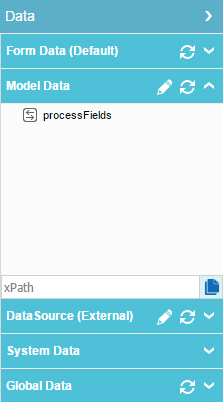
- On the Data screen, on the Model Data tab, click Edit
 .
. 
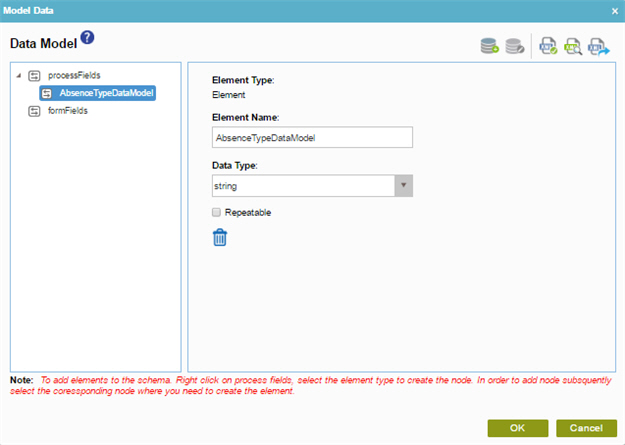
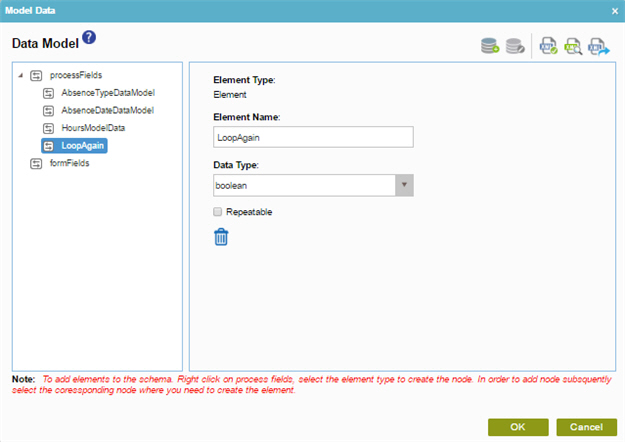
- On the Data Model screen, right-click Process Fields.
- Select Element.
- In the Element Name field, enter
AbsenceTypeDataModel.
- Right-click Process Fields.
- Select Element.
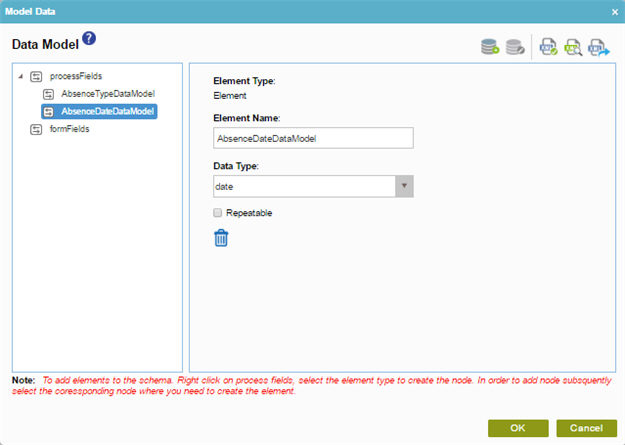
- In the Element Name field, enter AbsenceDateDataModel.
- In the Data Type field, select
Date.
- Right-click Process Fields.
- Select Element.
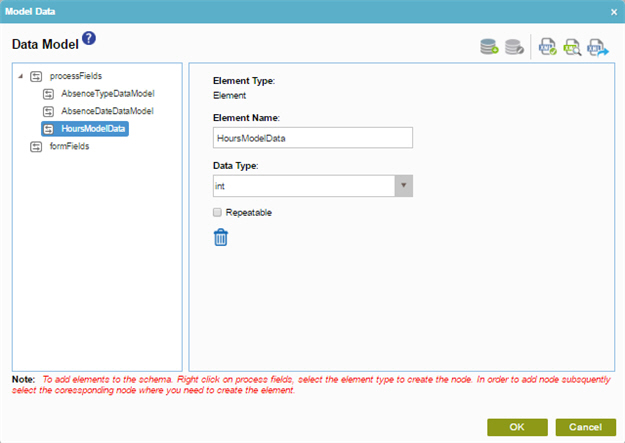
- In the Element Name field, enter HoursDataModel.
- In the Data Type field, select
Int.
- Right-click Process Fields.
- Select Element.
- In the Element Name field, enter LoopAgain.
- In the Data Type field, select
Boolean.
- To make sure the schema element is complete and operates correctly, click Validate App Schema
 .
. - Click OK.