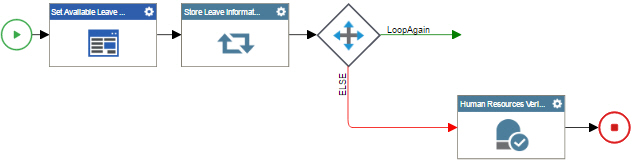


(Example) Configure a Condition Activity to Check the Leave Information
To configure a conditional expression to check the leave information, do the procedure in this topic.
Good to Know
- For a list of limitations for AgilePoint NX example documentation, refer to Examples.
- Make sure you configure the direction of the incoming and outgoing arrow through Condition Builder screen correctly.
How to Start
Procedure
- On the Common tab,
drag the Condition
 activity onto your process.
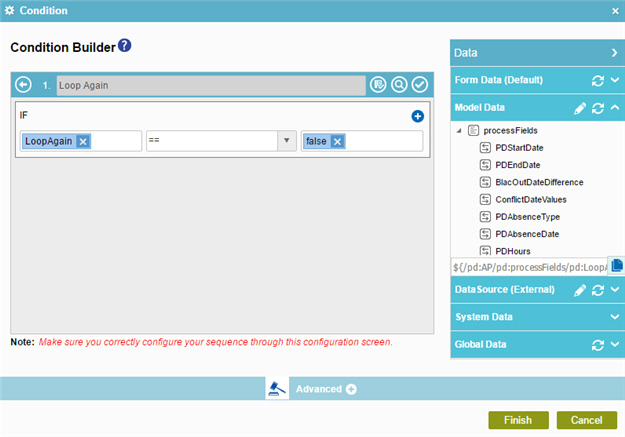
- In the IF field, enter Loop Again.
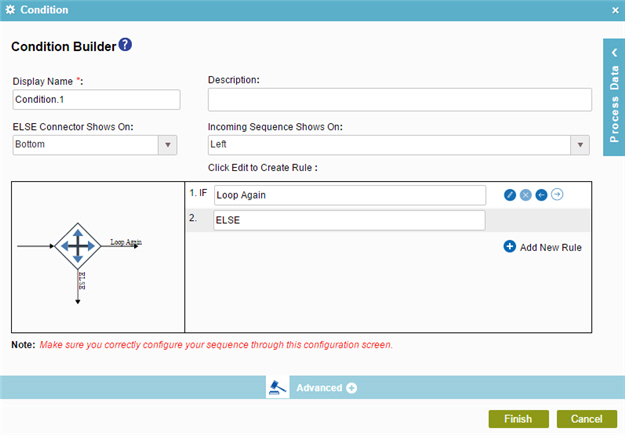
- Click Edit
 .
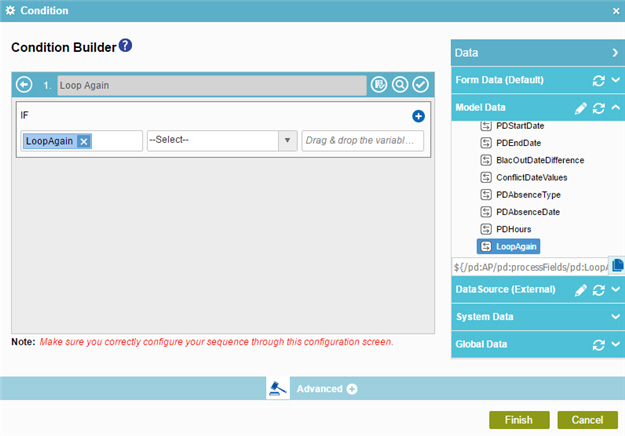
. - In the Rule Variable field, drag the LoopAgain
process data variable from the Process Data > Model Data screen.
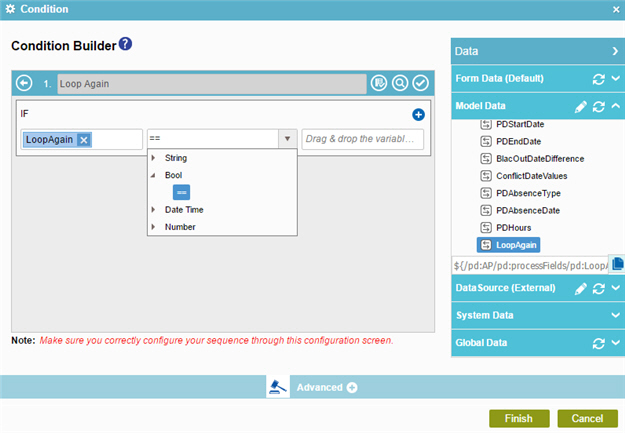
- In the Operator field, select the expression == from the Bool
data type.
- In the Rule Value field, enter false
- Click Validate
 to make sure
the rule is correct.
to make sure
the rule is correct. - Click Back
 to save your rule and go back to the previous screen.
 - Click Finish.
- The Process Builder shows the Condition activity for the example human resources leave verification subprocess.