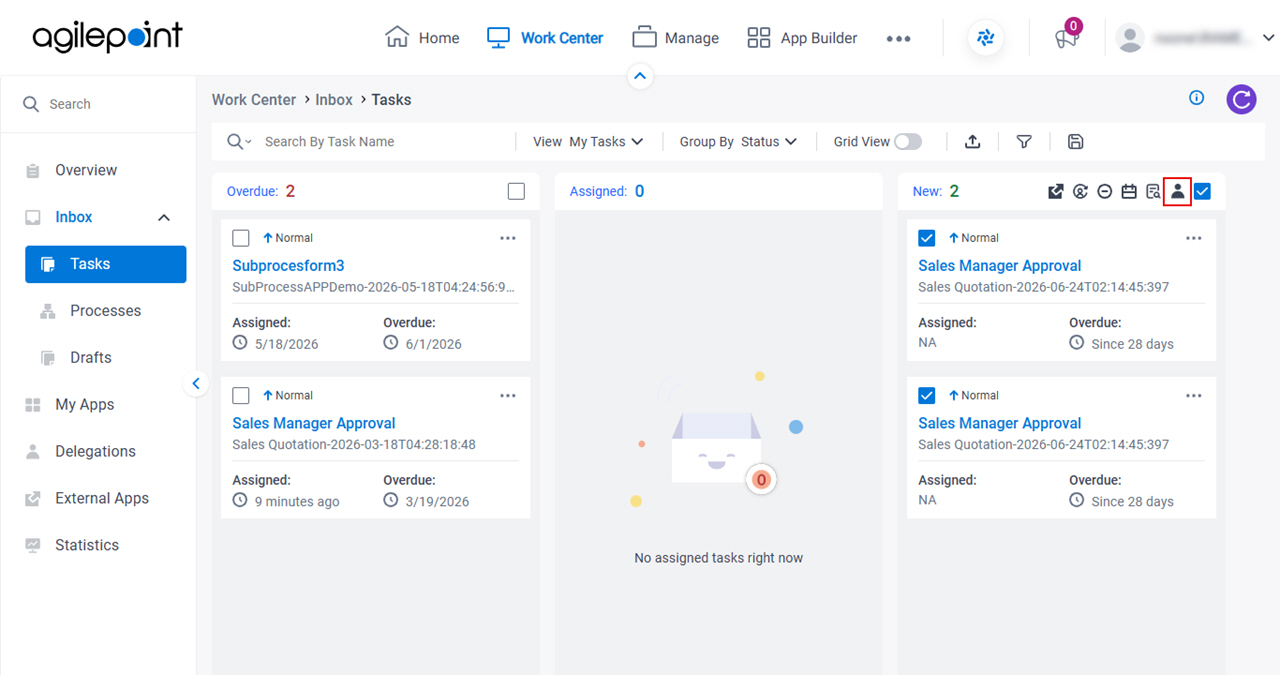


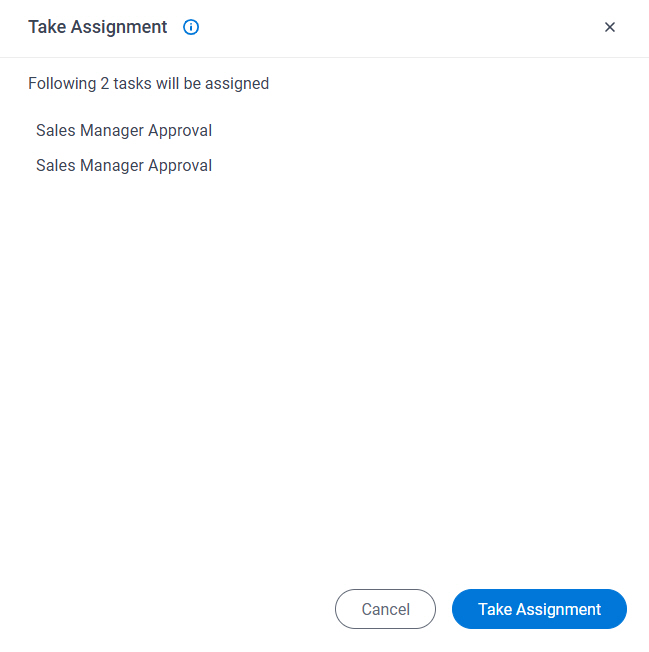
Bulk Take Assignment screen
Full documentation coming soon.
Prerequisites
- The task is assigned to a pool of users.
- AgilePoint NX OnDemand (public cloud), AgilePoint NX Private Cloud, or AgilePoint NX OnPremises v10.0 or higher.
Good to Know
- Documentation for this screen is provided for completeness. The fields are mostly self-explanatory.
How to Start
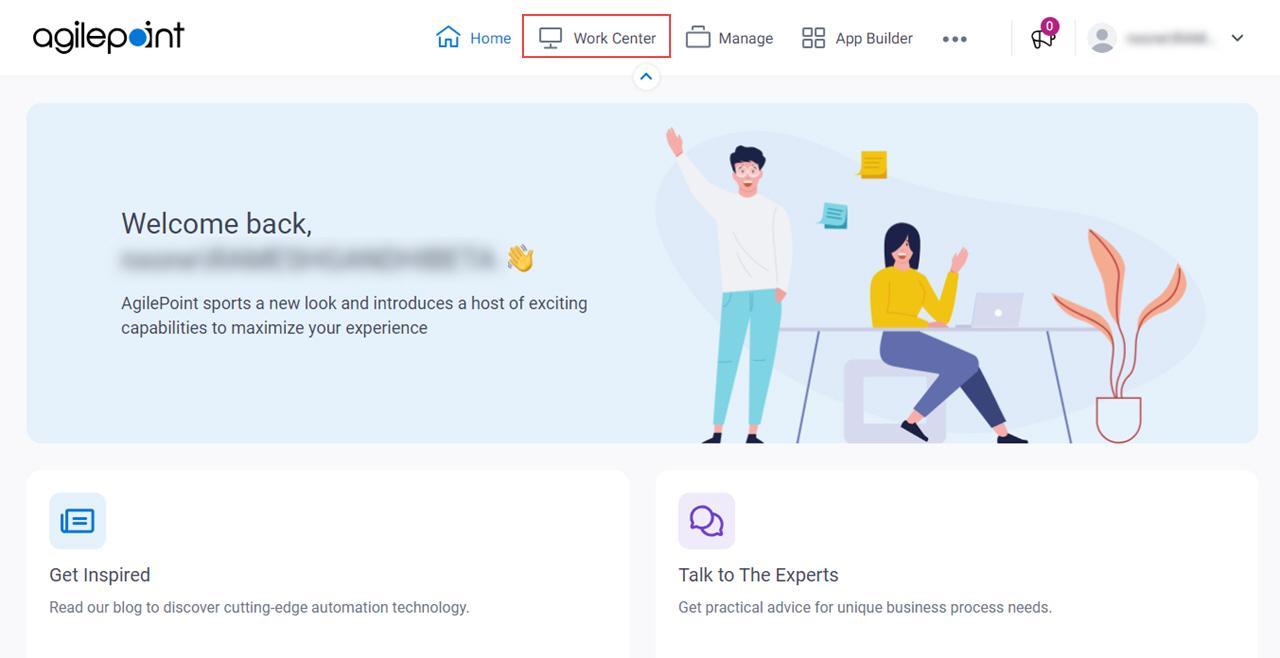
- Click Work Center.
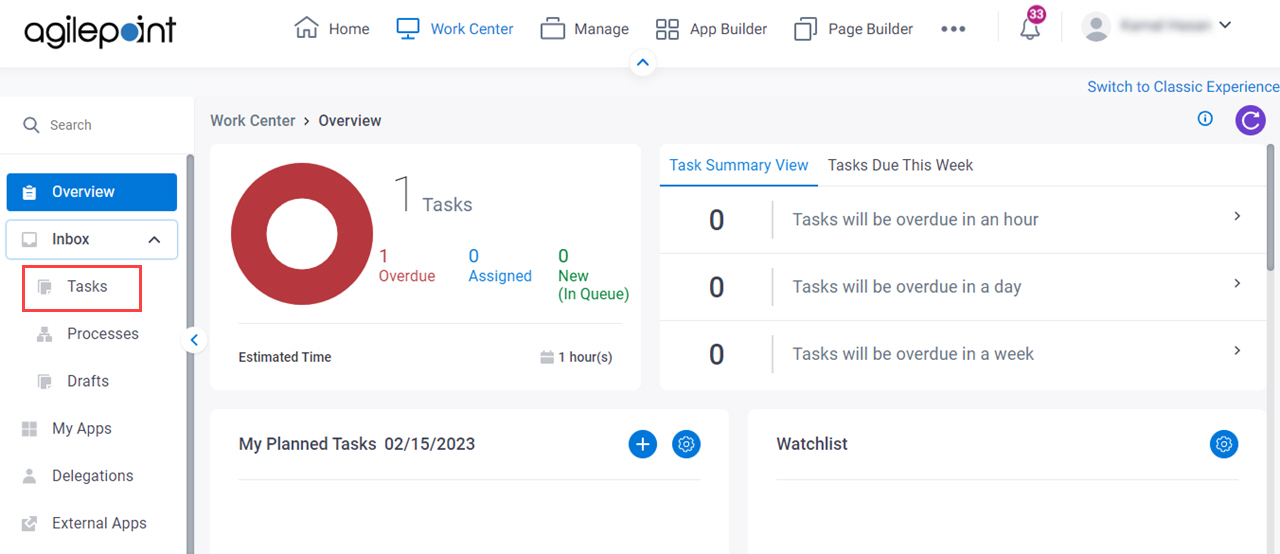
- In the left pane, click Inbox > Tasks.
- On the task list, select more than one task.
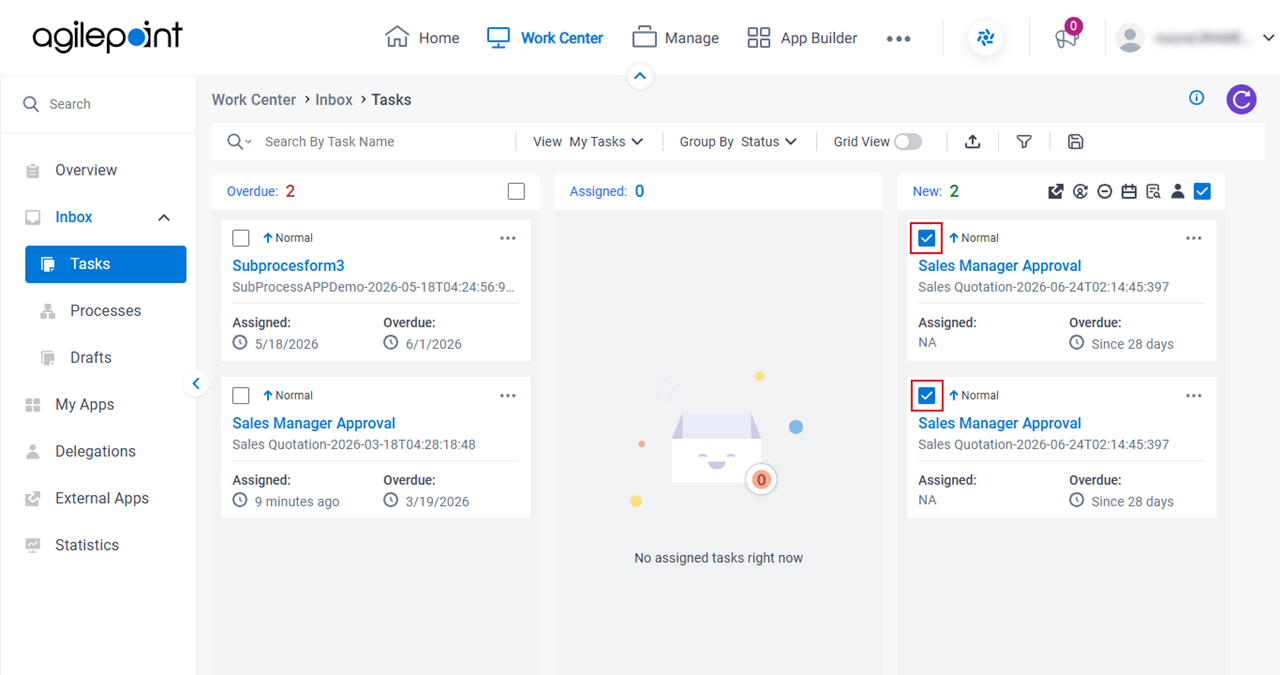
- Click Take Assignment
 .
.