


Create a Microsoft PowerPoint File
To create a Microsoft PowerPoint file, do the procedure in this topic.
Prerequisites
- Create a PowerPoint Template with Process Data Variables.
- An access token for your
source and target
data source to store
the PowerPoint template file and the output Microsoft PowerPoint file.
For more information, refer to Access Tokens..
- AgilePoint NX OnDemand (public cloud), or AgilePoint NX Private Cloud or AgilePoint NX OnPremises v7.0 or higher.
Good to Know
- In most text fields, you can use process data variables as an alternative to literal data values.
For more information, refer to Data screen.
- You can configure whether this activity waits for other activities before it runs.
For more information, refer to How Do I Configure an Activity to Wait for Other Incoming Activities?
How to Start
- Open Process Builder.
For information about how to open this screen, refer to Process Builder.
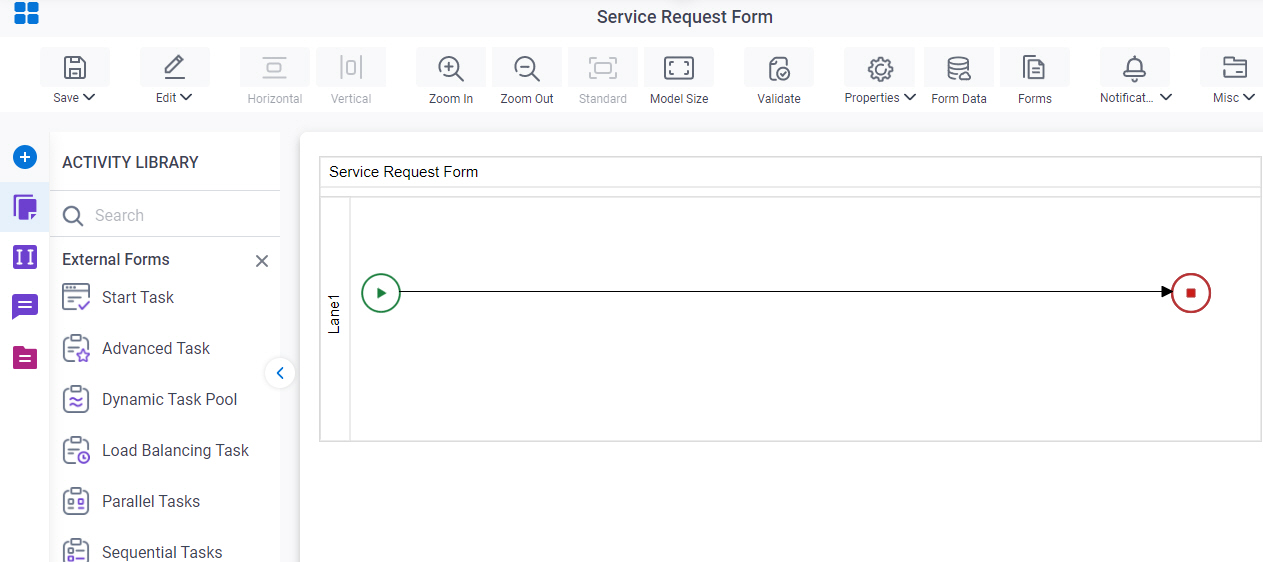
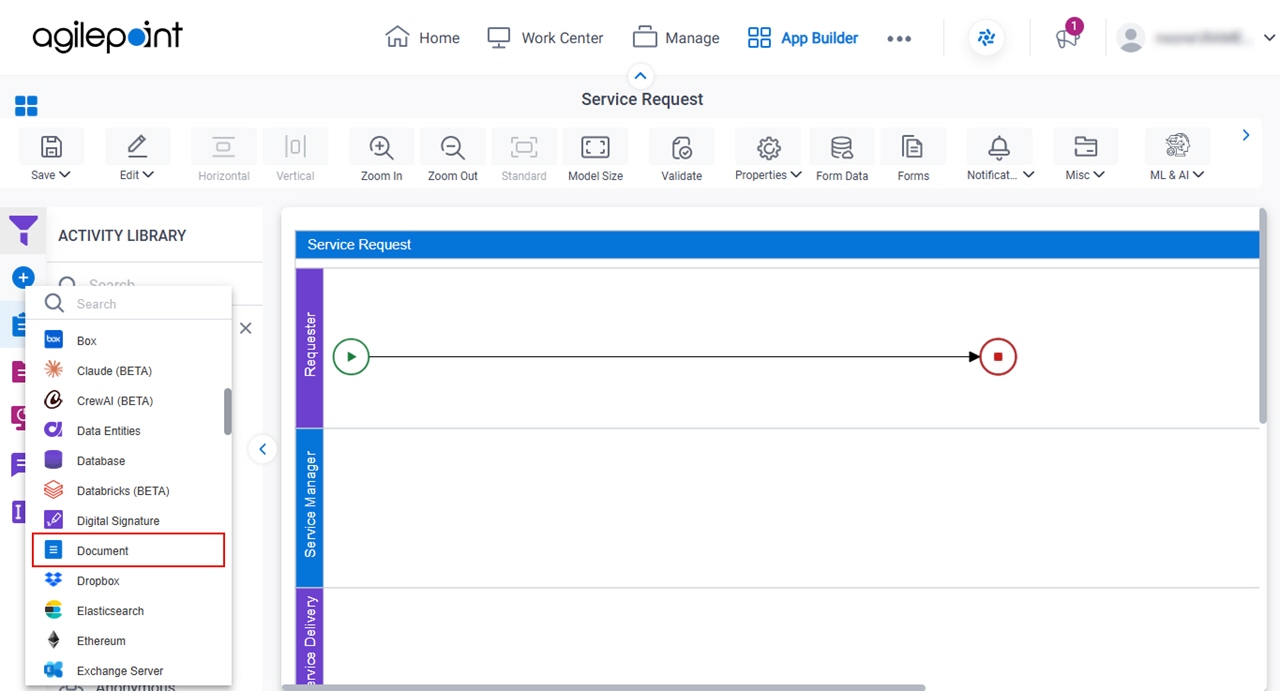
- In Process Builder, in the Activity Library,
open the Document tab.
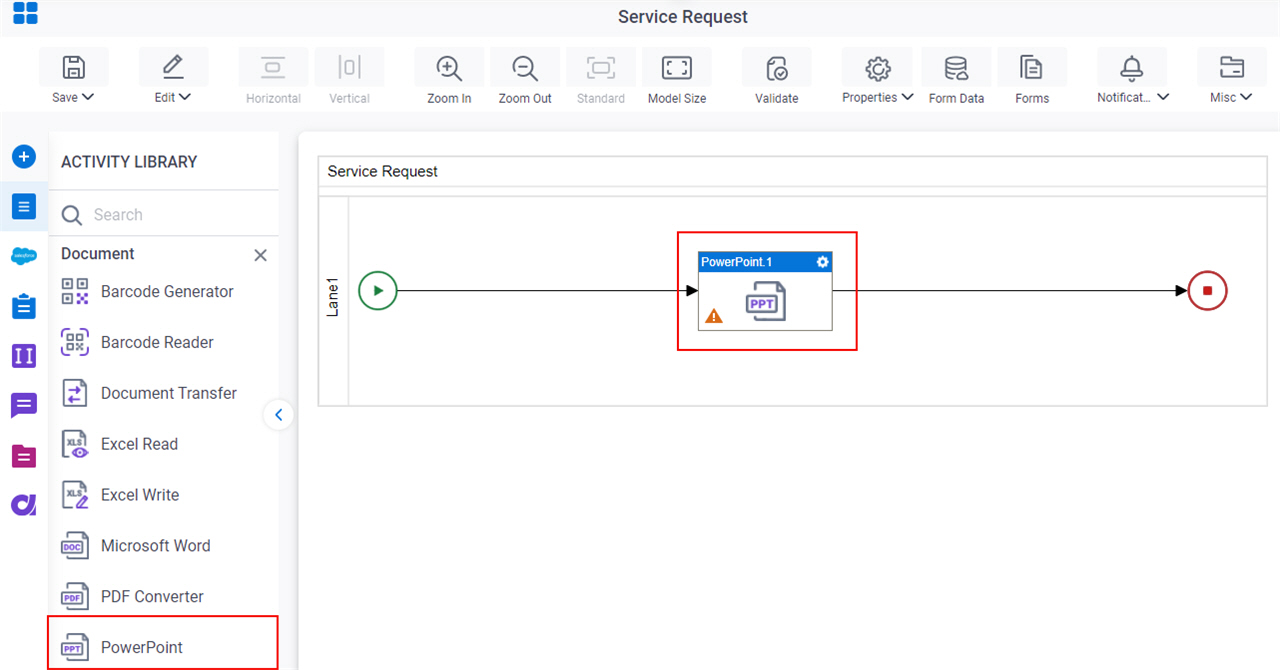
- On the Document
tab,
drag the PowerPoint
activity onto your process.
Procedure
- Complete the fields on the General Configuration screen.
- Click Source Configuration
 .
. - On the Source Repository screen, select the source location of your PowerPoint template file.
- Click Target Configuration
 .
. - On the Target Repository screen, select the target location for your output Microsoft PowerPoint file.
- Click PowerPoint Configuration
 .
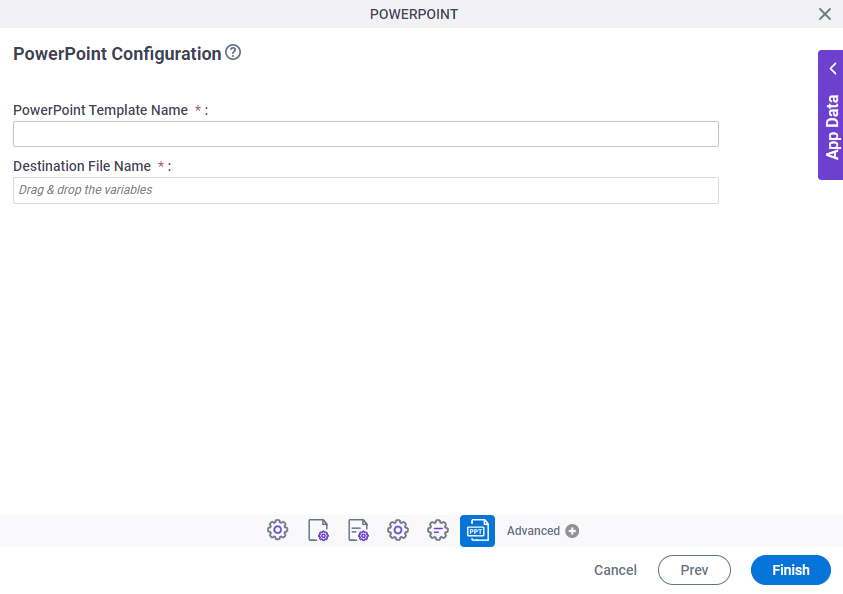
. - On the PPT Generator Configuration screen, in the PPT Template Name field, shows the name of the PowerPoint template file that is selected in the source repository.
- In the Destination File Name field, enter the file name of the output file.
You can use App Data screen to specify a process data variable.
- (Optional) Click Advanced
 >
Email Notifications
>
Email Notifications  .
.
For more information, refer to Email Notifications screen (Process Activities).