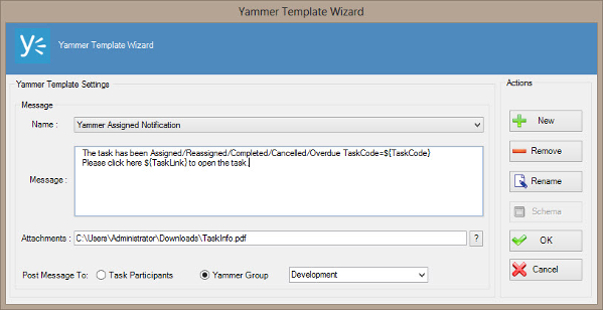
Specifies the content of a message template for a message sent using Yammer template.
How to Start
- In AgilePoint Envision, open a process template.
- Drag any AgileWork, and drop it on the Process Model.
- To view the full list of properties, in the Design Tasks pane, click Show Properties.
- In one of the following fields, click Add Yammer Template.
The exact fields that display vary, depending upon the AgileShape you
are using:
- Reminder Message
- Task Assigned Message
- Task Cancelled Message
- Task Completed Message
- Task Reassigned Message
- On the Yammer Template Wizard, do one of the following:
- To modify an existing message template, in the
Name list, select the name of the template you want to modify.
- To create a new message template:
- Click New.
- On the New Name window, enter the name you want to identify your message
template.
- Click OK.
Fields
| Field Name |
Definition |
Name
|
- Definition:
- Specifies the message template you want to modify.
- Allowed Values:
- A single line of text.
- Default Value:
- A message template, if one exists.
|
Message
|
- Definition:
- Specifies the content of the message.
- Allowed Values:
- Multiple lines of text in text-only format.
- Default Value:
- None
- Custom Attributes:
- Yes
|
Attachments
|
- Definition:
- Specifies the file you want to include in your message.
- Allowed Values:
- The full path and file name
for the attachment you want to include.
- This field supports a single attachment with maximum size of 5 MB.
- The absolute path to the file must be on the AgilePoint Server or SharePoint Server.
- Default Value:
- None
- Custom Attributes:
- Yes
- Example:
-
- C:\My Documents\sample1.doc
- ${HomeDirectory}\sample2.doc
|
Post Message To
|
- Definition:
- Specifies to whom you want to send the message.
- Allowed Values:
-
- Task Participants - Sends
the message to the Yammer accounts of the participants
for the AgileWork.
- Yammer Group - Sends the message
to a specified Yammer group.
- Default Value:
- Task Participants
- Custom Attributes:
- No
|
New
|
- Action:
- Opens the New Name window, where you can enter
the name of the message template.
- Allowed Values:
- Free text in text format.
- Default Value:
- None
- Custom Attributes:
- No
|
Remove
|
- Action:
- Deletes the message template from the Name list.
|
Rename
|
- Action:
- Opens the New Name window, where you can change the name of the message template.
- Allowed Values:
- A single line of text.
- Default Value:
- None
- Custom Attributes:
- No
|
Schema
|
- Opens the Following Window:
- Select XPath from Attributes Window
- Purpose of this Window:
- Enables you to select a schema node from the XML schema for
your process.
To activate the Schema button, select the row you want.
|