Participants and WorkToPerforms Window

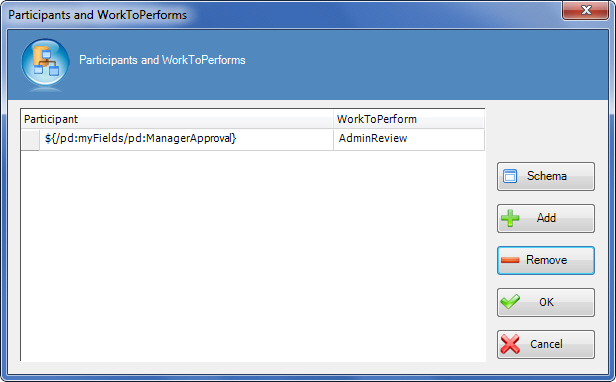
Assigns participants and Work to Perform values for a list of parallel tasks.


How to Start

  1. In AgilePoint Envision, open a process template.
  2. Navigate to the Premier Extension stencil.
  3. On the Premier Extension stencil, drag the Dynamic Parallel Approval AgileShape, and drop it on the process template.
  4. To view the full list of properties, in the Design Tasks pane, click Show Properties.
  5. On the WorkToPerforms field, click the Ellipses button.

Fields

Field Name Definition

Add

Action:
Adds a row for Participant and WorkToPerform where you can specify parallel tasks, and assign participants to complete them.

Participant

Definition:
Specifies the user to whom the task is assigned.
Allowed Values:
  • A text string that can contain spaces.
  • A list of predetermined custom attributes.

You can specify only one user name in the Participant field. You cannot specify multiple participants such as group of users, or a user role for the task at a time. However, you can add multiple instances of a Work to Perform, each with a different Participant assigned.

Default Value:
None
Custom Attributes:
Yes

Work To Perform

Definition:
Specifies the name of the task that shows in a participant's Task List.

In most cases, for processes that use ASP.NET forms, this value also determines the file names for the .aspx form pages.

For the Web Form AgileShape, this property does not set the file names for the web form. Instead, use the Web Form URL Window.

Allowed Values:
A text string that represents the name of the task.
Default Value:
None
Custom Attributes:
No

Remove

Action:
Deletes the selected row.

Common Configuration Tasks
