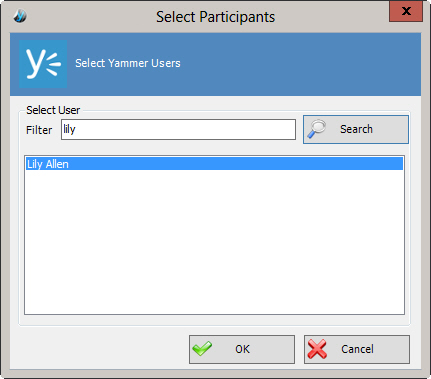
Select Participants Window
Specifies a Yammer user.
How to Start
- In AgilePoint Envision, open a process template.
- Navigate to the Yammer stencil.
- >On the Yammer stencil, drag one of the following AgileShapes,
and drop it on the process template:
- Post Message
- Post Attachment
- On the Yammer stencil, drag the Post Message AgileShape, and drop it on the process template.
- To view the full list of properties, in the Design Tasks pane, click Show Properties.
- On the Message field, click the Ellipses button.
- In one of the following windows, click Select User.
The specific windows that display vary, depending upon the AgileShape
you are using:
- Post Message
- Post File Attachment
