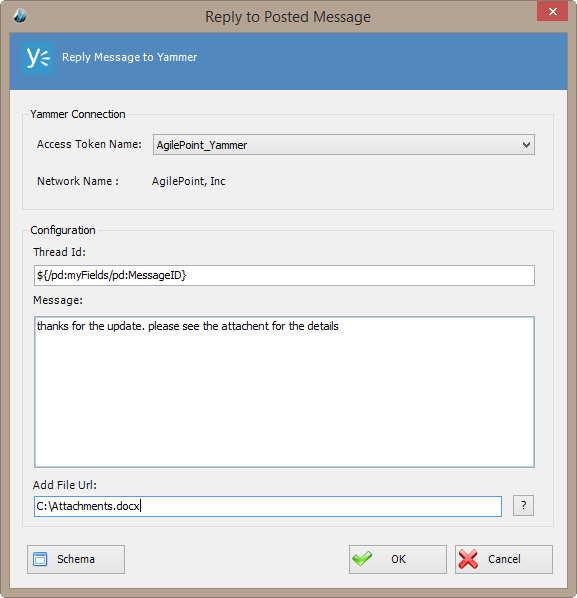
Post a reply to a specified message thread in Yammer.
How to Start
- In AgilePoint Envision, open a process template.
- Navigate to the Yammer stencil.
- On the Yammer stencil, drag the
Reply Message AgileShape, and drop it on the process template.
- To view the full list of properties, in the Design Tasks pane, click Show Properties.
- On the Message field, click the Ellipses button.
Fields
| Field Name |
Definition |
Access Token Name
|
- Definition:
- Specifies the unique
name for your connection to the enterprise social application.
- Allowed Values:
- An alphanumeric string with no spaces.
- Default Value:
- None
- Custom Attributes:
- No
|
Thread Id
|
- Definition:
- Specifies the ID of the Yammer message thread to
which you want to post a reply message.
- Allowed Values:
- A custom attribute.
- Default Value:
- None
- Custom Attributes:
- Yes
- Example:
- ${/pd:myFields/pd:ThreadID}
|
Message
|
- Definition:
- Specifies the content of the message.
- Allowed Values:
- Multiple lines of text in text-only format.
- Default Value:
- None
- Custom Attributes:
- Yes
|
Add File Url
|
- Definition:
- Specifies the absolute path of the attachment file.
- Allowed Values:
- An absolute path and file name on the
AgilePoint Server or SharePoint Server.
Multiple
attachments are not supported.
- Default Value:
- None
- Custom Attributes:
- Yes
- Example:
-
- c:\My Documents\sample1.doc
- ${HomeDirectory}\sample2.doc
- http://demo3:8000/DocumentLib1/sample3.doc
|
Schema
|
- Opens the Following Window:
- Select XPath from Attributes Window
- Purpose of this Window:
- Enables you to select a schema node from the XML schema for
your process.
|