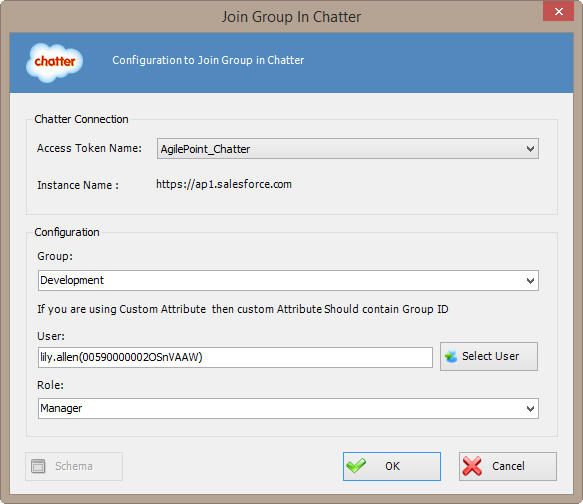
Specifies the users you want to add to a group in your Chatter
network.
How to Start
- In AgilePoint Envision, open a process template.
- Navigate to the Chatter stencil.
- On the Chatter stencil, drag the
Join Chatter Group AgileShape, and drop it on the process template.
- To view the full list of properties, in the Design Tasks pane, click Show Properties.
- On the Configure field, click the Ellipses button.
Fields
| Field Name |
Definition |
Access Token Name
|
- Definition:
- Specifies the unique
name for your connection to the enterprise social application.
- Allowed Values:
- An alphanumeric string with no spaces.
- Default Value:
- None
- Custom Attributes:
- No
|
Group
|
- Definition:
- Specifies the name of your group.
- Allowed Values:
- A group name.
- Default Value:
- None
- Custom Attributes:
- Yes
|
User
|
- Definition:
- Specifies the user name from the
Select Users Window.
- Allowed Values:
-
- A Chatter user ID. Click the Select User button to select.
- An AgilePoint user name.
- A custom attribute that represents a Chatter user ID or
AgilePoint user name.
- Default Value:
- None
- Custom Attributes:
- Yes
- Example:
-
- MyChatterId
- demo3\lallen
- ${/pd:myFields/pd:UserID}
|
Select User
|
- Opens the Following Window:
- Select Users Window
- Purpose of this Window:
- Specifies a Chatter user.
|
Role
|
- Definition:
- Specifies the role of the user.
- Allowed Values:
- A valid role.
- Default Value:
- None
- Custom Attributes:
- Yes
|
Schema
|
- Opens the Following Window:
- Select XPath from Attributes Window
- Purpose of this Window:
- Enables you to select a schema node from the XML schema for
your process.
|