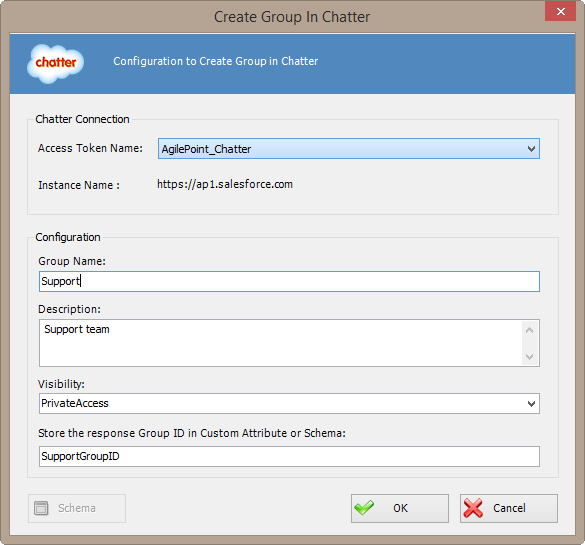
Specifies the group you want to create in your Chatter
network.
How to Start
- In AgilePoint Envision, open a process template.
- Navigate to the Chatter stencil.
- On the Chatter stencil, drag the
Create Chatter Group AgileShape, and drop it on the process template.
- To view the full list of properties, in the Design Tasks pane, click Show Properties.
- On the Configure field, click the Ellipses button.
Fields
| Field Name |
Definition |
Access Token Name
|
- Definition:
- Specifies the unique
name for your connection to the enterprise social application.
- Allowed Values:
- An alphanumeric string with no spaces.
- Default Value:
- None
- Custom Attributes:
- No
|
Group Name
|
- Definition:
- Specifies the name of your Chatter group.
- Allowed Values:
- A single line of text.
- Default Value:
- None
- Custom Attributes:
- Yes
|
Description
|
- Definition:
- A free text description of the group.
|
Visibility
|
- Definition:
- Specifies whether anyone or only members of the group can see and add posts,
comments, and files.
- Allowed Values:
- PublicAccess - Anyone can see and add posts, comments, and files.
- PrivateAccess - Only group members can see and add posts, comments, and files.
- Default Value:
- None
- Custom Attributes:
- No
|
Store the response Group ID in Custom Attribute or Schema
|
- Definition:
- Specifies the name of the
custom attribute that is used to store the response Group ID.
The Group ID is an identifier used to track
a Chatter conversation thread.
- Allowed Values:
- A custom attribute.
- Default Value:
- None
- Custom Attributes:
- Yes
- Example:
- /pd:myFields/pd:GroupID
|
Schema
|
- Opens the Following Window:
- Select XPath from Attributes Window
- Purpose of this Window:
- Enables you to select a schema node from the XML schema for
your process.
|