Comment to Chatter Feed Window

Sets up a comment in a Chatter feed.
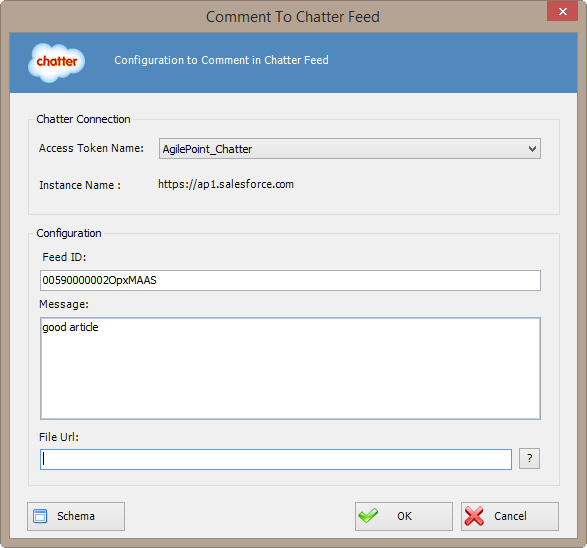


How to Start

  1. In AgilePoint Envision, open a process template.
  2. Navigate to the Chatter stencil.
  3. On the Chatter stencil, drag the Comment Chatter Feed AgileShape, and drop it on the process template.
  4. To view the full list of properties, in the Design Tasks pane, click Show Properties.
  5. On the Configure field, click the Ellipses button.

Fields

Field Name Definition

Access Token Name

Definition:
Specifies the unique name for your connection to the enterprise social application.
Allowed Values:
An alphanumeric string with no spaces.
Default Value:
None
Custom Attributes:
No

Feed ID

Definition:
Specifies the ID of the Chatter message thread to which you want to post your comment.
Allowed Values:
A custom attribute.
Default Value:
None
Custom Attributes:
Yes
Example:
${/pd:myFields/pd:FeedID}

Message

Definition:
Specifies the content of the message.
Allowed Values:
Multiple lines of text in text-only format.
Default Value:
None
Custom Attributes:
Yes

File Url

Definition:
Specifies the absolute path of the attachment file.
Allowed Values:
An absolute path and file name on the AgilePoint Server or SharePoint Server.

Multiple attachments are not supported.

Default Value:
None
Custom Attributes:
Yes
Example:
  • c:\My Documents\sample1.doc
  • ${HomeDirectory}\sample2.doc
  • http://demo3:8000/DocumentLib1/sample3.doc

Schema

Opens the Following Window:
Select XPath from Attributes Window
Purpose of this Window:
Enables you to select a schema node from the XML schema for your process.
